Go-live and Health
The must-pass checks before go-live, pressing We're live, the Health view that keeps watching afterwards, the 30 and 90 day reviews and What's new to set up after an update.
Going live is a decision, not a date on a calendar. The setup helper only lets you press We're live when the things that would hurt on day one are proven: administrators protected, mail arriving, a restore that worked, agents reporting. After that, the same checks keep running and the helper becomes Health: calm findings about what broke, what was changed and what was left half done.
The go-live gate
The Go live card on the hub lists the must-pass checks and how many pass, for example "10 of 16 must-pass checks pass."
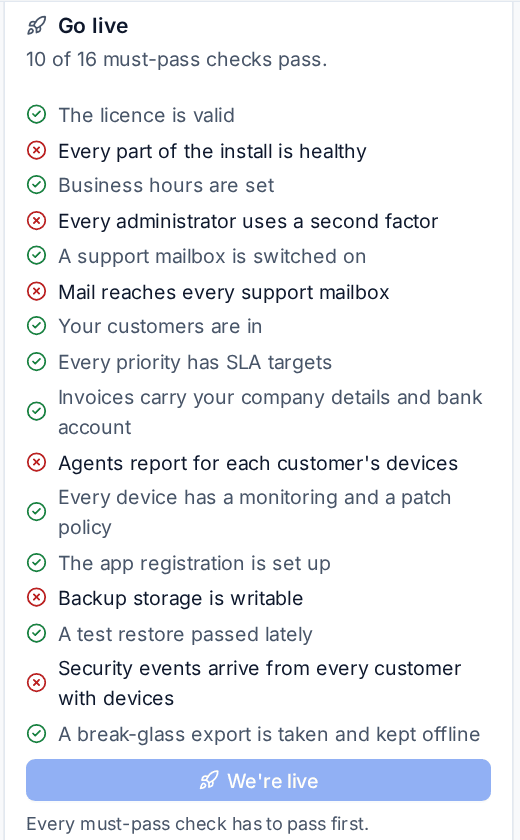
The must-pass checks come from the sections in your plan. They include:
- The licence is valid, and every part of the install is healthy.
- Business hours are set.
- Every administrator uses a second factor.
- A support mailbox is switched on, and mail reaches every support mailbox.
- Your customers are in, and every priority has SLA targets.
- Invoices carry your company details and bank account.
- Agents report for each customer's devices, and every device has a monitoring and a patch policy.
- The Microsoft 365 app registration is set up.
- Backup storage is writable, and a test restore passed lately.
- Security events arrive from every customer with devices.
- A break-glass export is taken and kept offline.
Only the checks for sections you use appear. Each failing check links to its section, where Verify explains it and offers a fix.
Going live
When every must-pass check passes, the We're live button is enabled for people who manage setup.
- Press We're live.
- Tenvara runs the must-pass checks once more. A warning does not pass the gate: every one has to pass.
- It records who pressed it, when, the version, the readiness score and the gate as it stood, in the audit log.
The rail item then reads Health instead of Set up, and two reviews are booked: one at 30 days and one at 90 days.
Note: Checks that send something, such as a test email or a test page, are not run again at go-live: they keep their last result, so going live never sends anything by surprise.
If you went live too soon, open Health and press Not live after all, with a reason. The rail shows Set up again.
Health
Open Health from the rail. It shows how many things there are to look at, in four groups:
| Group | What it lists |
|---|---|
| Broken | Checks that passed before and fail now: a token expired, storage went away, nobody is on call. Each says when it started failing and when it last passed, with its fix |
| Changed since setup | Settings the helper applied that someone changed afterwards, with who and when |
| Half set up | Sections started and left for 14 days, integrations that need attention, active customers with no contract or no backup, and changes waiting for someone |
| Unused | Modules switched on and not used for 30 days, and features that would help given your discovery answers, such as "You sell backup but 9 customers have none" |

For each change since setup, press Keep if the new value is still fine (it is not shown again unless it changes again), or Revert to put the helper's value back.
A check that has never passed is not "broken": it is something not set up yet, which the readiness score already shows. Only checks that worked and stopped working count as broken, and those notify the people who manage setup and whoever the section is given to. Choose how in Settings > Notifications. See Notifications.
Checks run hourly or nightly, as each needs. To change how long a section can sit before it is half set up, or how long a module can go unused, or to switch the scheduled checks off, go to Settings > Diagnostics and find Setup checks and health.
The 30 and 90 day reviews
On the review day, the people who manage setup are reminded. Under Reviews on Health, open the review for a short report:
- readiness at go-live and now;
- check and Health counts;
- what would help most, the top five actions;
- sections finished since go-live;
- whether discovery was run again since (with Run discovery again if what you sell or use has changed);
- time spent.
Add your notes and press Finish the review. The report is kept as it stood.
What's new to set up
After an update, What's new to set up on the hub shows:
- Updated: sections you finished that have new steps or checks, with what changed. The section stays done; opening it marks the change as seen.
- New: sections that arrived after you went live and have not been started.
- Deprecated setting: settings the helper applied that have been replaced, with what replaces them.
Nothing you already answered is asked again.
Was this page helpful?
Thanks for the feedback.