Notifications
The catalogue of every notification, defaults by role, each person's channels and mutes, desktop and push notifications, the notifications page, digests, ticket routing, and why salespeople never get support work.
Every notification in Tenvara comes from one catalogue and goes through the same rules: who gets it by default comes from their role, each person can change their own, and anyone named on a record always hears about it. This guide is for administrators setting it up and for anyone tuning their own. For quiet hours and how to reach you on Teams, Slack or text, see Your profile, security and notifications.
Settings > Notifications has five tabs: Yours, Following, Defaults by role, Ticket routing and Digests.
The catalogue
Notifications are grouped into areas: Tickets, Approvals, Projects, Scheduling and time, Sales, Invoices and purchasing, Alerts and security, On-call, Chat, Microsoft 365, Backup, Feedback, Reports, Knowledge base, People, Automation and integrations, Setup and Everything else. Each notification has a line saying when it is sent, for example Customer replied on an unassigned ticket: "The customer writes on a ticket in your queues that nobody has taken."
Each can reach you on these channels: Inbox, Email, Desktop, Push, Teams, Slack, Text, Call (on-call pages only) and Digest.
Defaults by role
Defaults by role sets what each role gets until a person changes their own. Choose a role to see its kinds of work, and tick the channels for each notification.
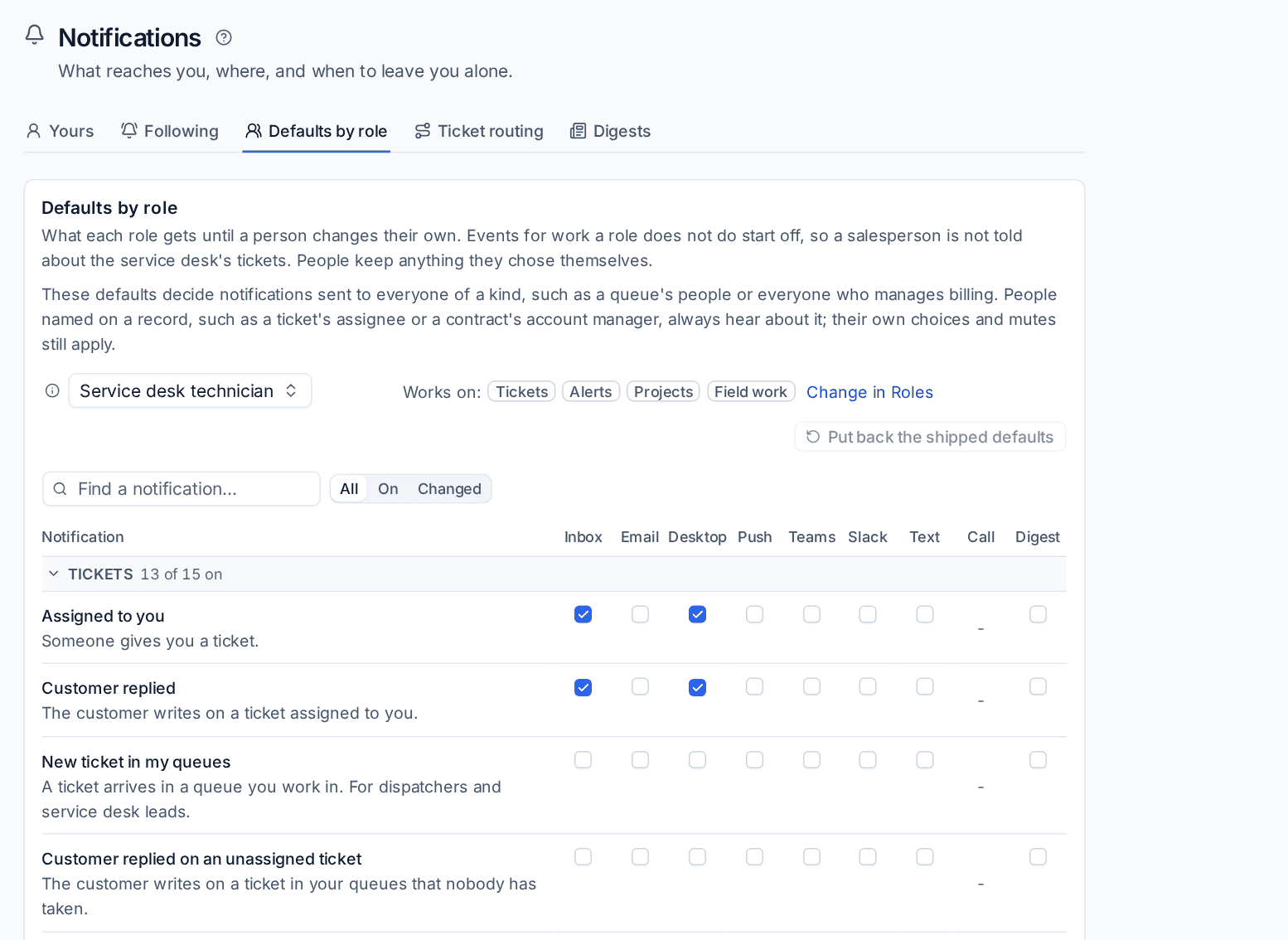
- A role's defaults come from the work it does (see Work and seat in Roles and permissions). Notifications for work a role does not do start off, so a salesperson is not told about the service desk's tickets.
- Notifications only ever sent to the person concerned, such as a task given to you, your restore finishing or a mention, are on for everyone.
- Change in Roles opens the role's work. Put back the shipped defaults undoes your changes for that role.
- People keep anything they chose themselves.
Named people always hear
Role defaults decide notifications sent to everyone of a kind, such as a queue's people or everyone who manages billing. People named on a record (a ticket's assignee, a contract's account manager, a quote's owner, an approver, someone mentioned or following) always hear about it, whatever their role. Their own choices and mutes still apply.
Note: Salespeople, project managers and finance users are not offered for support tickets, are not Support chat operators and get no ticket notifications unless they are named on the ticket. Give one of them a ticket and they hear about that ticket.
Your own notifications
Yours lists every notification with the channels it reaches you on. You start with your role's defaults; anything you change is yours, and Back to your role's default appears beside it. Untick every channel to turn one off. Use Changed to see only what you have changed. Some have options, such as New ticket in my queues with Only tickets nobody is assigned to.
On-call pages always get through, whatever your quiet hours and mutes.
Desktop and push notifications
- Desktop notifications pop up on your screen while Tenvara is open in a background tab, for whatever you set to Desktop. Click one to open what it is about. Your browser asks for permission when you turn it on here; if the card says Blocked, allow notifications in the site settings and reload.
- Push notifications arrive on this computer or phone even when the app is closed, for whatever you set to Push. On an iPhone, add the app to the home screen first.
The browser tab also shows the unread count in its title, and a ticket open in a background tab says New reply when the customer writes.
Mute a record
To stop hearing about one noisy ticket, project or customer, choose Mute notifications from its menu (or from a notification). Nothing about it reaches you, apart from on-call pages, until you unmute it from the same menu. Your mutes are listed under Muted at the bottom of Yours.
Following
Following lists the records you follow and why: you follow it, it was given to you, you created it or you were mentioned. Followed records tell you of replies, notes and changes. Choose what you follow automatically in Settings > Profile under Follow automatically. See Lists, views and records.
Your digest
A digest email sums up what needs you at a time you choose: your open tickets by SLA due, tickets waiting on you, overdue tasks, approvals, today's bookings, on-call, mentions, overnight critical alerts, articles to review, and anything you set to Digest above. It is not sent when there is nothing in it.
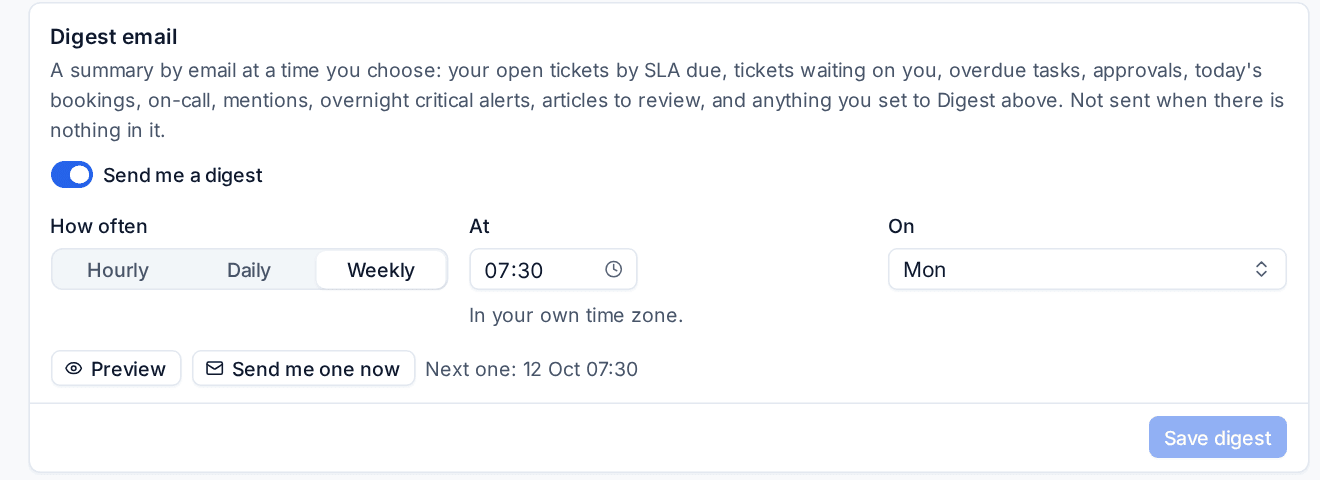
- On Yours, scroll to Digest email and turn on Send me a digest.
- Choose How often: Hourly, Daily or Weekly, the time At (in your own time zone) and, for weekly, the day On.
- Press Preview to see it, or Send me one now.
- Press Save digest.
The notifications page
The bell in the top bar shows your latest notifications; Notifications (from the bell) shows all of them, not just the newest.
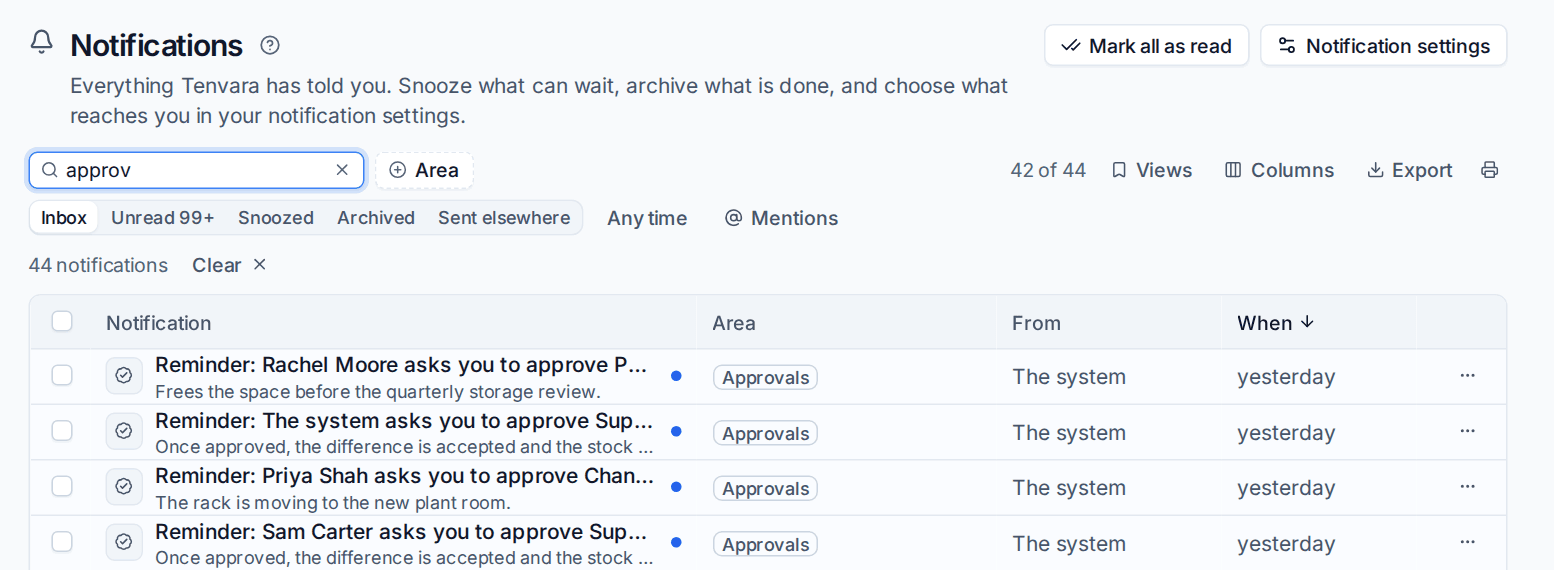
- Switch between Inbox, Unread, Snoozed, Archived and Sent elsewhere (sent only to other channels), and filter by Area, date or Mentions.
- Mark notifications read or unread, archive what is done, or snooze one until later: it comes back as unread when its time comes.
- Tick several for bulk actions, or use Mark all as read.
- Stop notifying me about this on a notification turns that notification off in your settings.
Ticket routing
Ticket routing sends ticket events to more people than the assignee: everyone in the ticket's queue, the customer's account manager, or a shared inbox under Also email. Set it for All queues, then change it for one queue where it should differ. For example, send SLA warnings and breaches to the service desk leads' shared mailbox.
A ticket notification email can be answered from your phone: the reply is added to the ticket as an internal note.
Alert digests
The Digests tab is for scheduled alert summaries rather than your personal digest: a summary emailed on the days and at the time you choose with open alerts by customer, the last day of alerts, email security and backup, to staff and any address. Press New digest to add one. See Alerts into tickets and notifications.
Was this page helpful?
Thanks for the feedback.