Customer portal overview
What your customers' contacts see when they sign in to the portal: Home, How can we help, Needs you, the side menu, search, the phone layout and who sees what.
The customer portal is where your customers' contacts get help from you, follow their tickets, approve things, pay invoices and see how their IT is looking. This section is written for you and your team: what contacts see, how much each person sees, and how to set the portal up so it fits each customer.
The portal lives at your instance's address with /portal on the end, for example https://support.yourmsp.co.uk/portal, or on a customer's own domain. It wears your name and colours, or a customer's own look, and never says Tenvara in a white-labelled portal.
Home
Contacts land on Home, built around the jobs they come to do rather than a list of tickets.
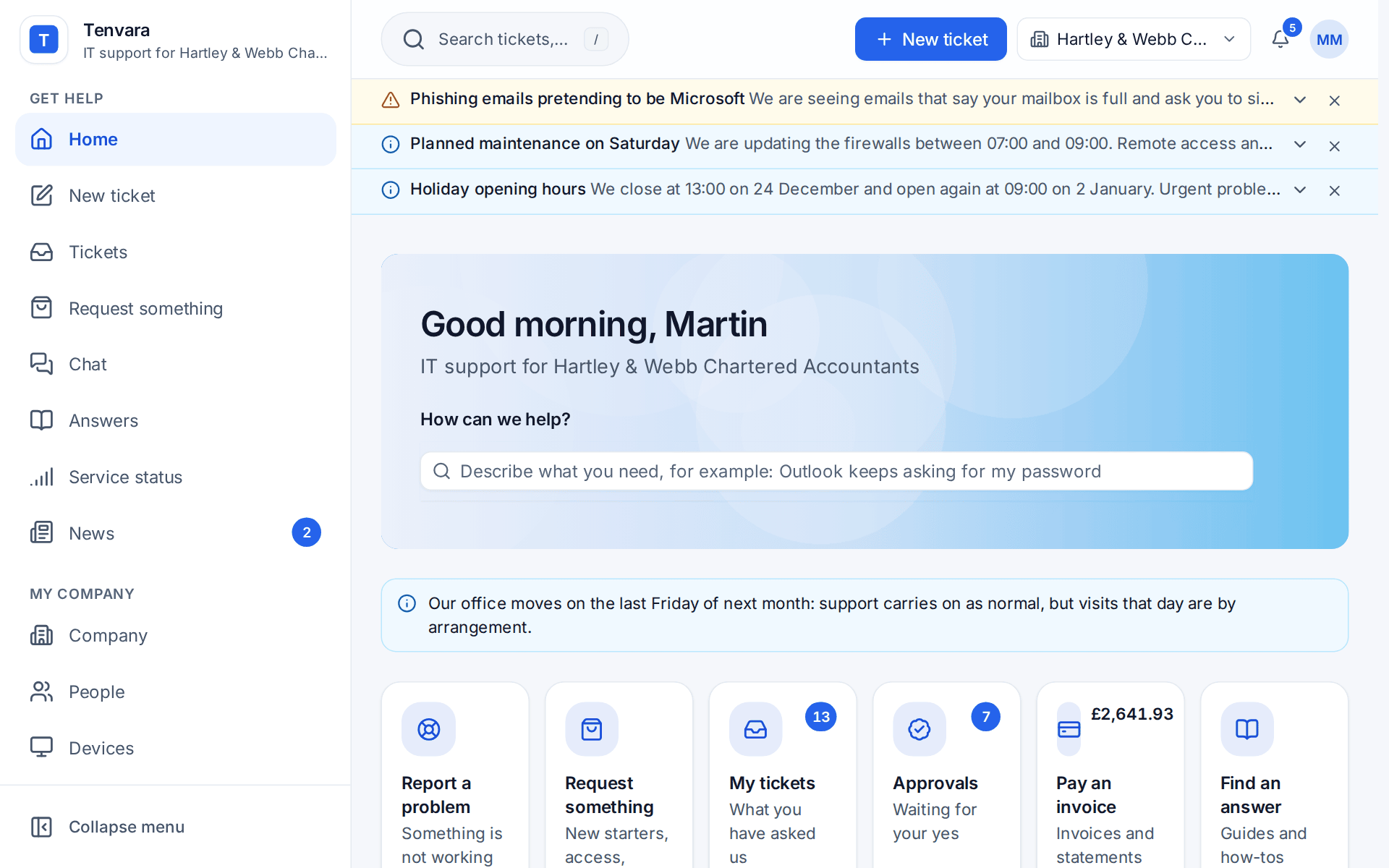
From top to bottom, Home shows:
- A greeting with the person's name and your strap line, on your cover picture or colour (see Portal appearance).
- How can we help?: one box that answers as they type (more below).
- Job tiles: Report a problem, Request something, My tickets, Approvals with a count, Pay an invoice with the amount due, and Find an answer. You can add Chat with us, My devices, Company, News and Service status. A tile only shows to someone who can use it, so Pay an invoice is for billing contacts and Approvals for approvers.
- Needs you: everything waiting on this person in one list. Tickets waiting for their reply, approvals, planned changes to approve, quotes to accept, project milestones to sign off, overdue invoices, security training due and an open survey. When the list is empty it says "Nothing needs you" with what to do next.
- Your open tickets: their five most recent.
- Role blocks: an account summary with Pay for people who see billing, a company snapshot for managers, and the devices they use.
- Service status: "All services running", or the current incidents and planned maintenance from your status page, with a link to it.
- News: your latest announcements, unread ones marked.
Service notices, such as holiday hours or a phishing warning, show under the header. Once a contact has read one, it folds to a single line so it does not push the page down.
On a contact's first sign-in, a short welcome explains how to get help, where their tickets are and how to add the portal to their phone. They can open it again from their account menu.
How can we help?
The box on Home searches as the person types. For "outlook password" it shows a Quick answer taken from your best matching help article with a link to read it all, more Help articles, the service catalogue items it sounds like under Request something, and their own open tickets about the same thing. Pressing Enter raises a ticket with what they typed already filled in.
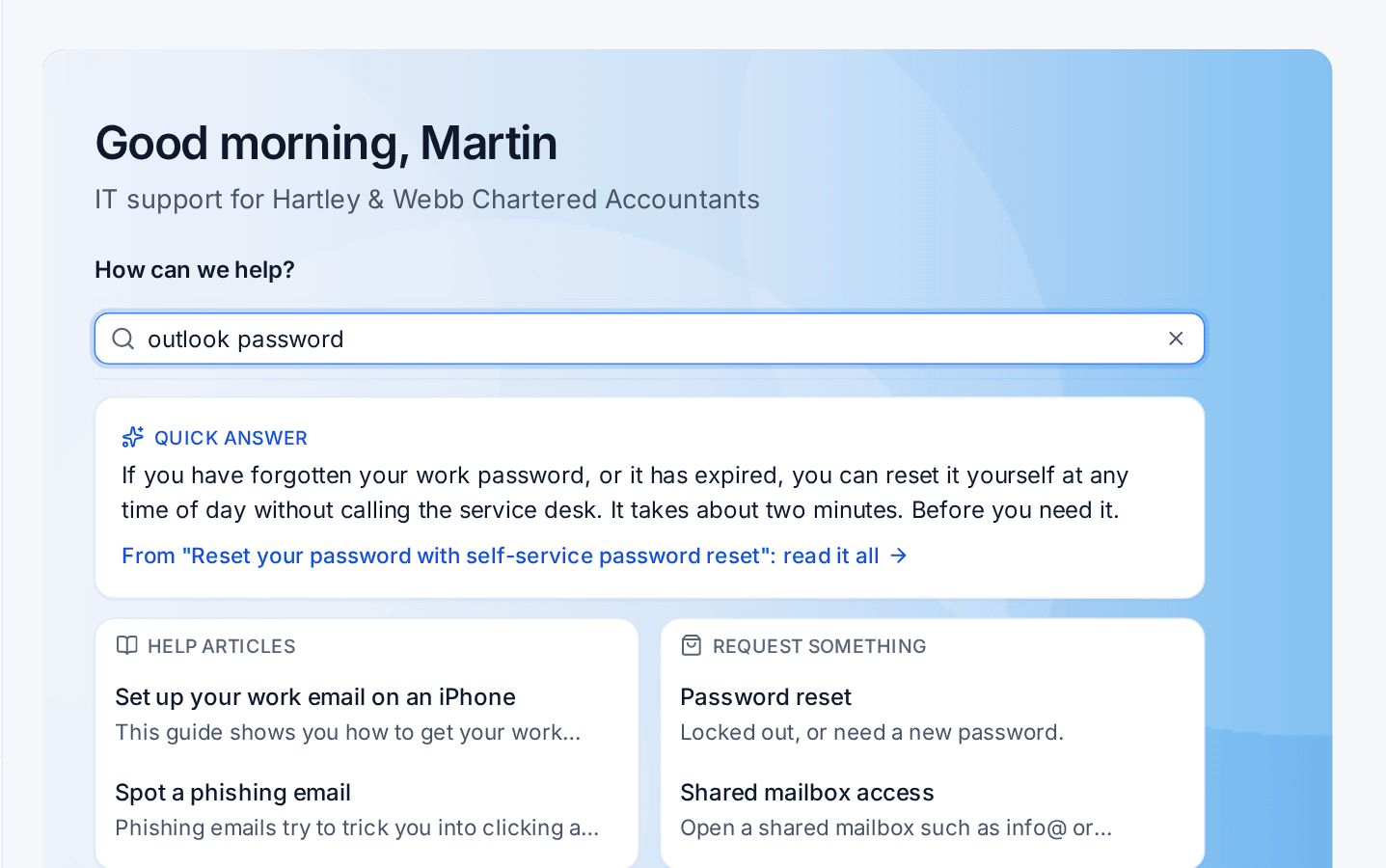
Articles opened from the box, and "Yes, this solved it" on an article, are counted in Reports > Help deflection, so you can see how many tickets the portal saved you.
The side menu
Every section the person can use is in a side menu, in four groups:
| Group | Sections |
|---|---|
| Get help | Home, New ticket, Tickets, Request something, Chat, Answers, Service status, News |
| My company | Company, People, Devices, Licences, Security, Documents, Services, Projects, Visits, What we did, Changes, Reports, Reviews, Compliance, Backups |
| Money | Billing, Quotes |
| Me | Approvals, Training, Connect to my PC, Passwords, Printing, Notifications, Profile |
Counts sit beside the items: replies waiting, approvals, overdue invoices, unread news and training due. Collapse menu (or [) folds the menu to icons. Your own links, such as "Book a call", can be added to a group or to a Links group at the end.
Search everything
Pressing / or Cmd+K anywhere in the portal opens one search over what the person may see: tickets, requests, catalogue items, help articles, devices, invoices, quotes, news and documents, plus "Go to" for sections. Each result follows the same rules as its page, so nobody finds something they could not open.
On a phone
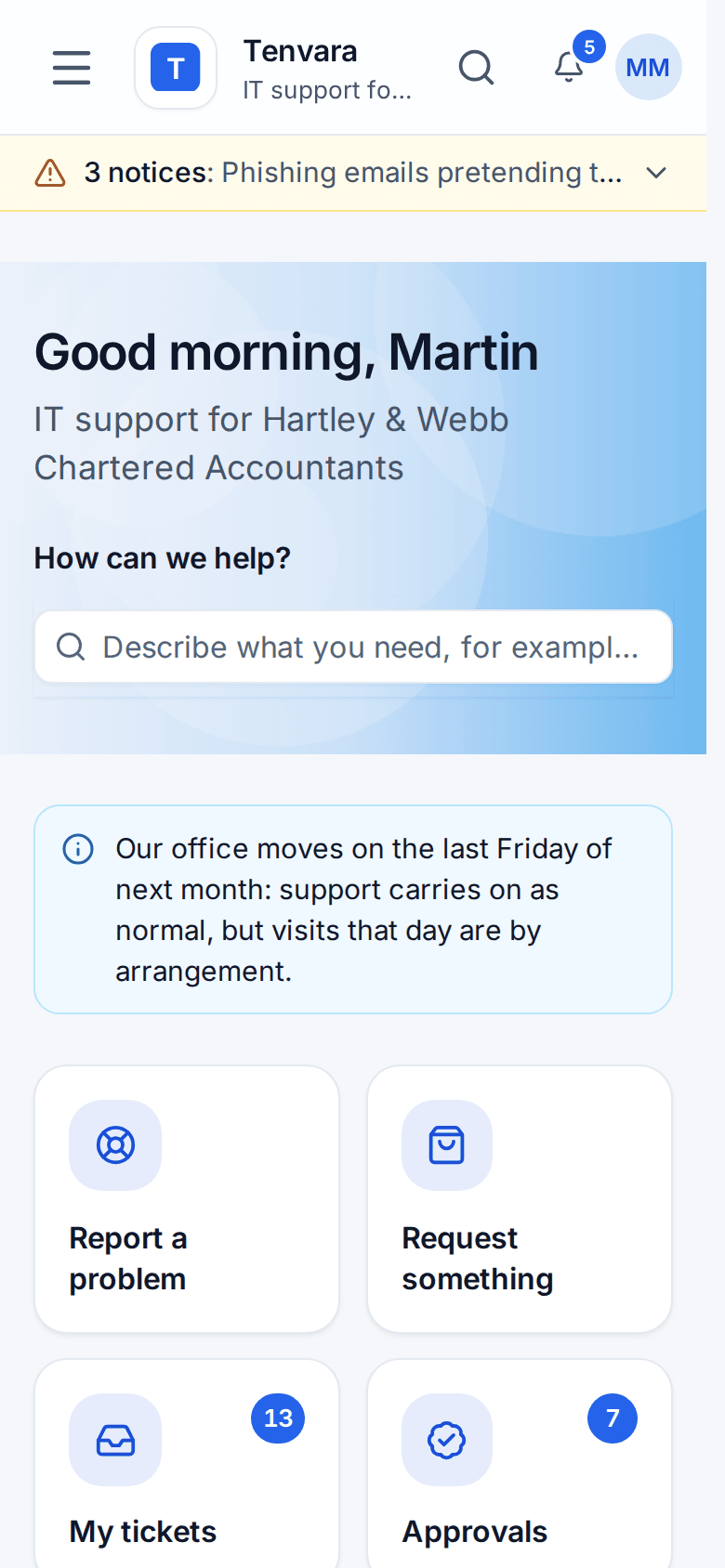
On a phone the side menu becomes a drawer, and a bottom bar keeps Home, Tickets, New, Approvals and Menu within reach, with counts. The portal can be added to the home screen and send push notifications (see Sign-in, profiles and notifications).
Who sees what
What a contact sees comes from their portal permissions and contact roles, never from guesswork:
- Everyone with portal access sees Get help and Me: their own tickets, requests, help articles, the devices they use, their approvals and their profile.
- Managers (contacts who see every ticket for their company) also get My company: the company dashboard, devices, people and documents.
- Billing contacts get Money: invoices, payments, spend and support hours.
- Co-managed IT contacts with Technical detail and alerts also see technical device facts and the company's open alerts.
The server only sends the sections a person can open, so the menu never shows something they would be refused. If someone does follow a link to a page that is not for them, the page says why and names up to three colleagues who can help, such as "Ask Martin Marsh".
See Portal permissions and people for setting this per contact, and See the portal as a contact to check exactly what one person sees.
In this section
Was this page helpful?
Thanks for the feedback.