Portal appearance
Change how the portal looks for every customer or one customer, with a live preview: name, logos, colours, style, Home, the side menu, footer, sign-in page and emails.
Settings > Customer portal > Appearance is where you decide how the portal looks and feels, with the real portal beside it as you work. Everything a customer sees of the portal's look is on this one page.
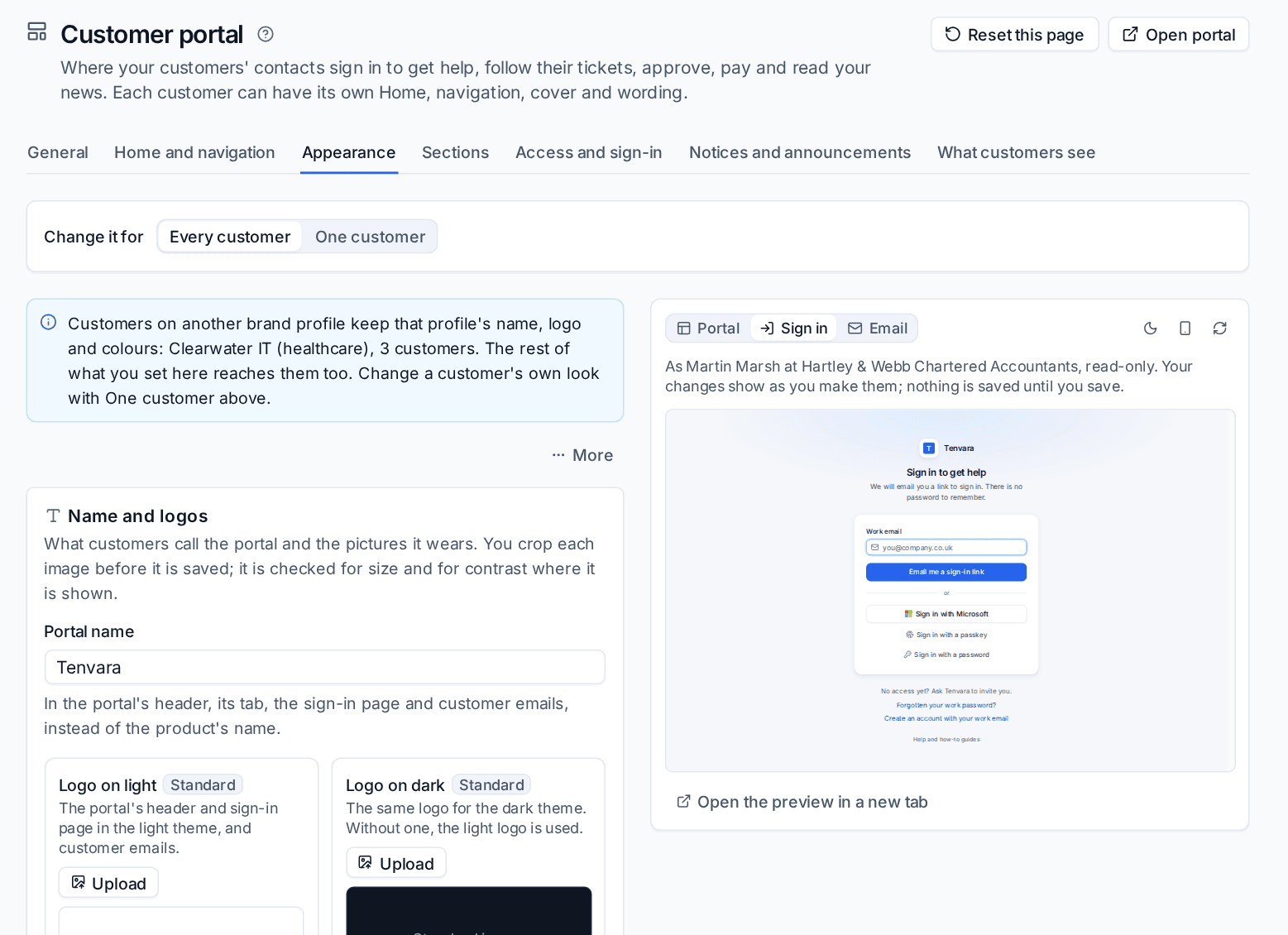
Every customer or one customer
Change it for picks Every customer or One customer. Start with every customer: that is your own look. Then give a customer its own name, logo, colours or Home where it helps, for example a customer whose staff call the portal "IT Help".
For one customer each option says whether it is their own or follows every customer's, with Use every customer's to go back. More resets the whole look: for every customer back to the standard look, for one customer back to every customer's.
Customers on another brand profile (see Brand profiles) keep that profile's name, logo and colours unless you give them their own here. The page names those profiles and how many customers each has. Layout options (font, corners, density, menu, Home, footer) reach everyone.
The options
Name and logos
- Portal name: in the portal's header, its browser tab, the sign-in page and customer emails, in place of the product's name.
- Logo on light and Logo on dark: without a dark logo, the light one is used.
- Icon: a square symbol for the browser tab, the phone's home screen and small places in the portal.
Each image goes through a crop step and is checked for size and contrast. Images are saved as soon as you upload them.
Colours
The Brand colour is on buttons, links and the selected menu item; the Accent colour on Home's greeting, tile icons and highlights. Leave either empty to use your brand profile's. Adjust colours that fail the WCAG AA contrast checks (on, recommended) shows what it changed in each theme. Green, amber and red keep their meaning.
Style
- Font: Inter, the device's own, Manrope, Plus Jakarta Sans, DM Sans, Figtree or Source Serif 4.
- Corners: Rounded or Square.
- Density: Comfortable (larger text and touch targets) or Compact.
- Side menu: Plain, Tinted or Brand colour.
Home
- Greeting and Behind the greeting: a Cover picture (PNG, JPEG or WebP, at least 1000 by 250 pixels, up to 4 MB), A colour or Nothing.
- Text under the greeting (empty uses the welcome text) and a Strap line under the portal's name, for example "IT support for Northgate".
- Tiles on Home: tick the tiles Home offers and drag them into order, with your own names. A tile shows only to contacts who can use it.
Menu
The sections in the side menu, in order within their groups, which ones show and your names for them. A name left empty uses the portal's own words in each reader's language. A section only ever shows to contacts whose role can open it.
Your links in the menu adds links of your own, such as "Book a call" or your status page, to a group or to a Links group at the end. They open in a new tab.
Footer and sign-in page
- Footer text and Footer links: a line and links at the foot of every page, for example your opening hours, terms and privacy notice.
- Sign-in text and Sign-in picture: what people see before they sign in. Once they have typed their address, the page shows their own company's picture and text where it has them.
Emails
Emails to customers (ticket replies, invitations, quotes, invoices and the rest) wear the same look: the portal's name, logo and brand colour. Signatures, footers and the name emails come from stay on Settings > Branding. PDFs keep the brand profile's look.
The live preview
The preview on the right (below, on a narrow screen) is the real portal, read only, as a contact of the chosen customer. Switch between Portal, Sign in and Email (a portal invitation as the customer gets it), light or dark, and computer or phone. Open the preview in a new tab opens Home with your changes.
Everything except images is a draft until you press Save. The preview shows the draft as you type.
Never "Tenvara" in a white-labelled portal
Once you set a portal name, it stands in for the product's name everywhere in the portal and in customer emails: the header, tab, sign-in page, app name and wording. Nothing in a white-labelled portal says Tenvara.
Every save, reset and image change is in the audit log.
Related: What your customers see, Custom domains.
Was this page helpful?
Thanks for the feedback.