Restoring from anywhere and sharing
Start a restore from a ticket, a device, a Microsoft 365 user, a customer or Cmd+K, restore to another site, device or a new mailbox, and share a restore with a contact through a link and an emailed code.
Most restores start with a ticket: "I deleted the quotes folder", "can I have last Tuesday's spreadsheet". You do not have to go to the Backup area and find the customer first. Start the restore from whatever you are looking at, and Tenvara opens the right backup with the right person or device already chosen.
Where you can start a restore
| Where | What to press | What opens |
|---|---|---|
| A ticket | More > Restore for this ticket | A sheet with the ticket's contact's mailbox and OneDrive and their devices first, then the rest of the customer |
| A device | Restore in its Backup section, or a recovery point's row | The browser on the device (a recovery point opens at that backup) |
| A Microsoft 365 user | Restore on the user panel, the contact's Microsoft 365 card or the tenant's users list | The browser on that person |
| A customer | Restore on the customer's Backup tab or the Backup card on its overview | The lists of that customer's users, devices and sites |
| Anywhere | Cmd+K, then "Restore files for ...", "Restore mail for ..." or "Restore from ..." | The browser on it |
Only people who may restore are offered any of these: the Manage permission on Backup plus the restore action in their role, for the customers they work with. See Roles and permissions.
From a ticket
- Open the ticket and choose More > Restore for this ticket.
- The sheet lists the contact first, marked The ticket's contact, then their other mailboxes and the devices on the ticket or that they use, then everyone and everything else at the customer. The Users, Devices and Sites and teams tabs and Find by name, address or part narrow it.
- Pick one. The browser opens on it, and the restore is tied to the ticket.
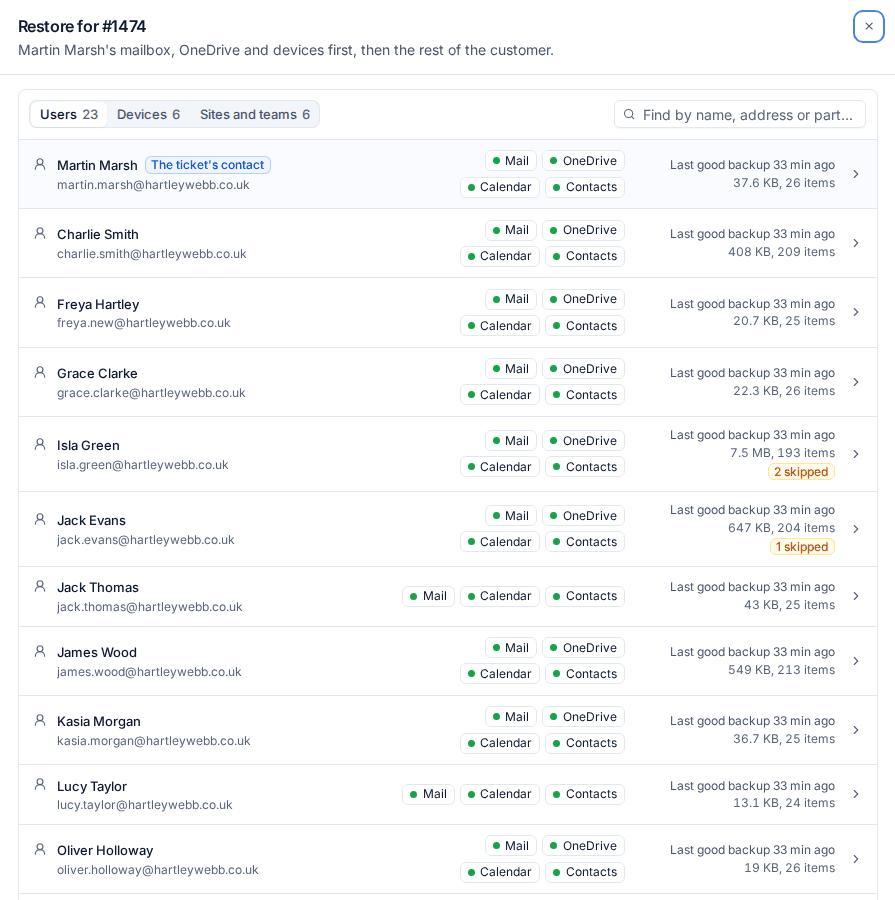
The ticket records that you opened the backups to restore for it, and when the restore finishes its summary (what came back and where) is added to the ticket in the reader's language. The customer's activity has it too.
The lists of everything backed up
Backup > Restore > Browse by user or device lists every Microsoft 365 user, shared mailbox, site, group and team and every device that has a backup, for one customer or all of them. Each row shows its real state, not just "backed up": the last good backup, size and number of items, its parts (Mail, OneDrive, Calendar, Contacts for a user; volumes, folders and virtual machines for a device), any errors and skipped items. Pick one to browse it.
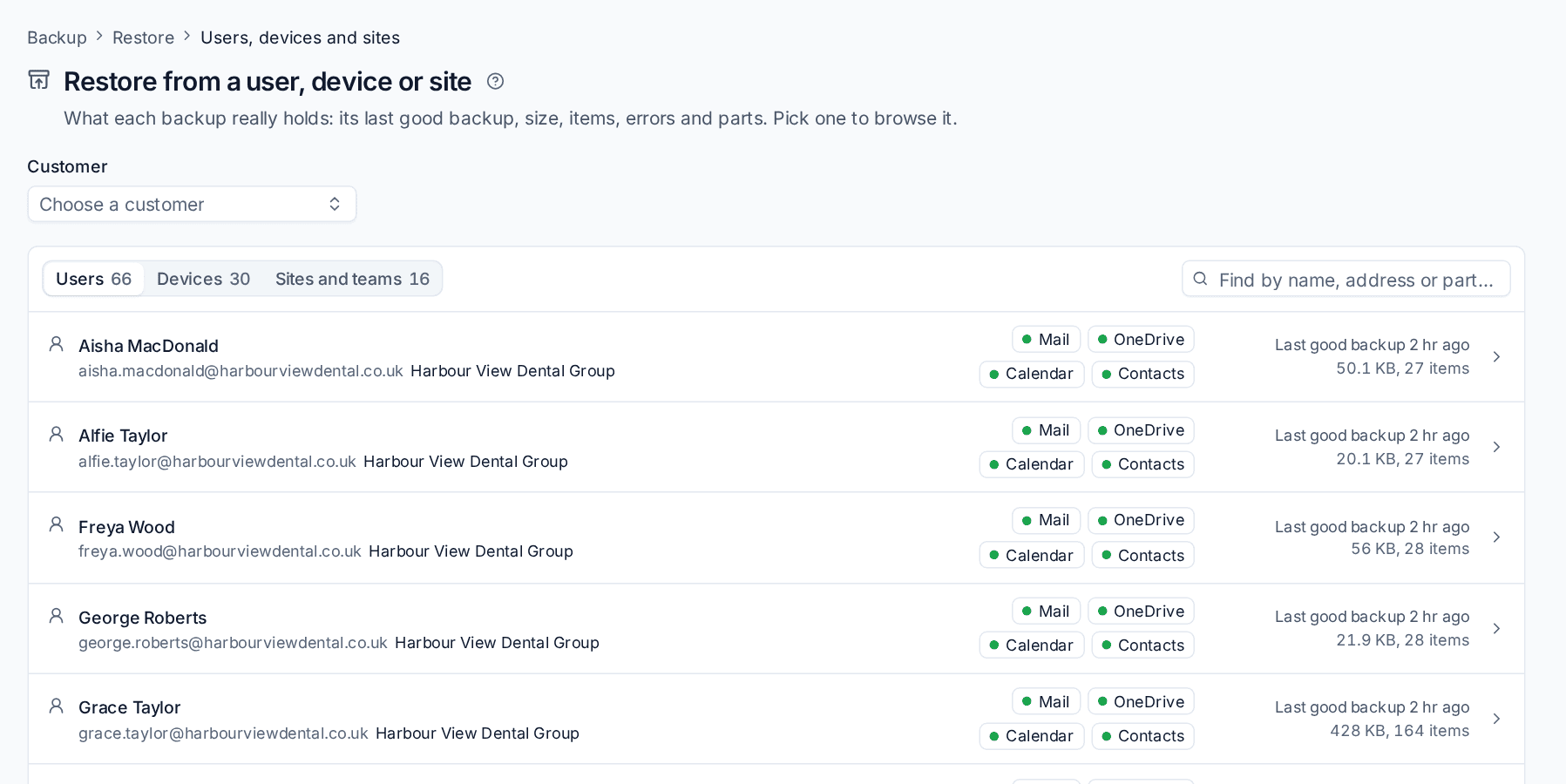
When a customer has only one device, Restore on Backup's devices opens it straight away.
Restoring somewhere else
In the restore sheet, choose Somewhere else and then where:
- Another user: a mailbox or OneDrive of another person in the same tenant, into a "Restored" folder. Useful for giving a manager a leaver's mail without touching the original.
- Another site: a OneDrive's or site's files into another SharePoint or Teams site of the same tenant. Choose the library and the folder, or leave the folder empty for a new "Restored" folder.
- A new shared mailbox: a leaver's mail, calendar or contacts into a shared mailbox Tenvara makes for the purpose. Give its name and address (on one of the tenant's own domains). The mailbox is made through Microsoft 365 management, so it appears on the tenant's changes with its undo, and the restore goes into a "Restored" folder in it once Exchange has it ready. The tenant must be connected for Microsoft 365 management.
- Another device: files from one device's backup onto another protected device of the same customer, into a folder you name. Useful when a laptop dies and the person has a new one.
- A folder I name: a folder on the same device, mailbox or site.
Files onto a different device
Restoring onto another device never gives the second device access to the first one's backup. Tenvara reads the files from the backup itself and streams only the files you chose, once, to the other device's helper. The target device holds nothing of the source's backup afterwards, and the restore shows on both devices' activity. Whole disk images are not streamed: restore them to a folder on their own device, or download them.
Downloads and share links
Download in the restore sheet prepares a file (a zip of files; a PST, EML or zip of mail; .ics for a calendar; .vcf for contacts) and gives you a link that works for 7 days, or the time set in Settings > Backup > Restores. A device's download is always a zip, even of one file.
Share with a contact sends the same kind of download to one of the customer's contacts, who does not need a portal account:
- In the restore sheet, choose Share with a contact.
- Under Contact, choose who gets it. Only the customer's contacts with an email address are listed.
- Press Prepare and share.
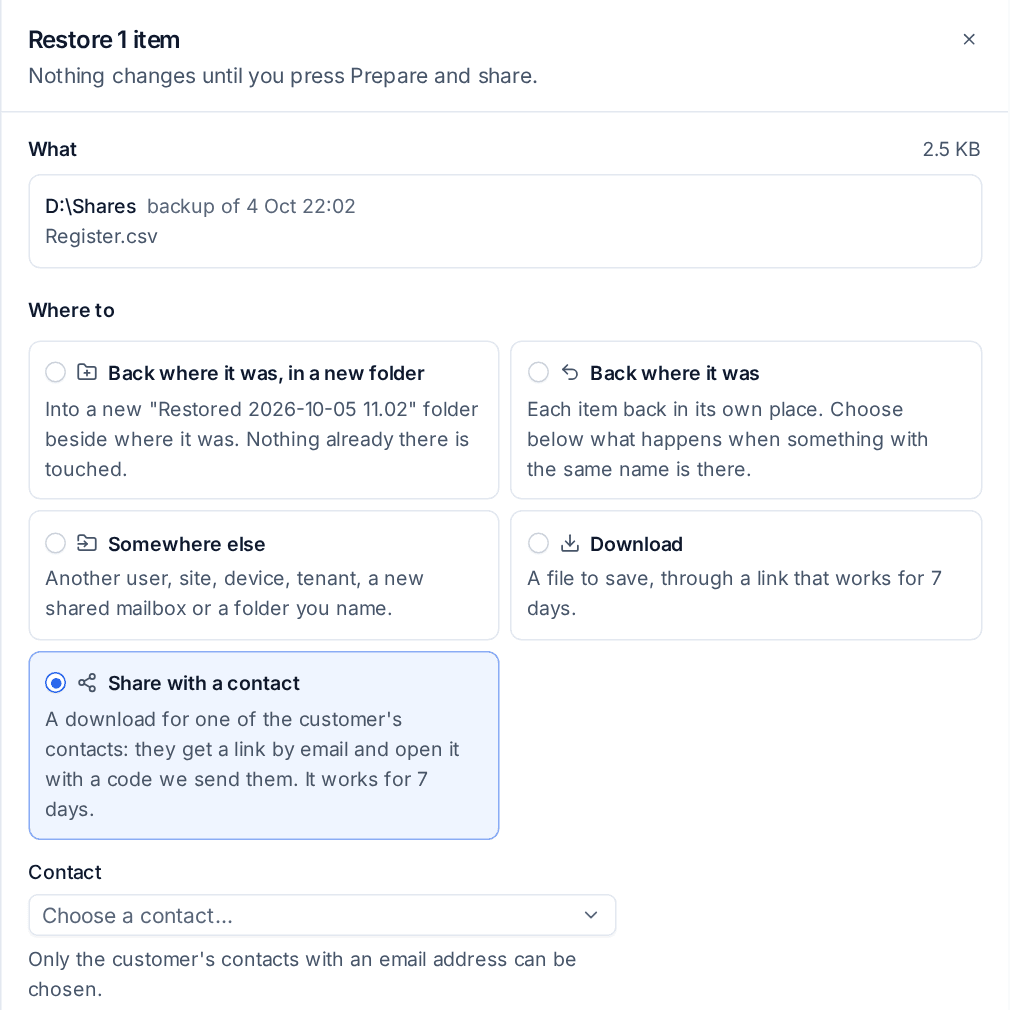
Once the file is ready, the contact gets an email with a link. Opening it asks for a six digit code, which is emailed to them; a code lasts 15 minutes and allows five tries. Every open, code and download is recorded, and downloads show on the customer's activity. A link stops working at its expiry date, or sooner if you press Withdraw beside it on the restore's page.
Restore approval
If your approval rules cover the restore (for example downloads, restores to somewhere else, or restores by people who are not administrators), the sheet says This restore waits for approval and asks Why. The request goes to the other administrators in Approvals with who asked, what, where and why. Once approved it runs, after the malware scan where that applies. Turned down, withdrawn or left for 72 hours, it is cancelled with the reason. With no other administrator to approve, it runs at once and the activity says so.
Set the rules in Settings > Backup > Restores, and per customer on the customer's Backup tab under Restore approval.
Removed devices
A device deleted from Tenvara keeps its backups. They are listed under Removed devices on the customer's Backup tab and in Settings > Backup > Status, where Browse opens them so you can download files and folders. See Protecting devices.
Related
Was this page helpful?
Thanks for the feedback.