Presentations
Turn a customer's figures into a slide deck, from a business review or monthly service review to a security, backup assurance, hardware refresh or project close deck, choose who it is written for, edit the slides and speaker notes, and approve it before it leaves the team.
A presentation is a slide deck made from one customer's figures, for the meeting where you walk them through what you found and what you recommend. Tenvara lays the slides out, writes the text from the figures and gives every slide speaker notes. You edit it, someone approves it, and then you present it, download it or publish it to the customer's portal.
These are the decks, where you make each one, and what it covers:
| Deck | Made from | What it covers |
|---|---|---|
| AI readiness assessment | A customer's AI readiness page | The score, where data is exposed, the risks worth explaining and what to put right first |
| Business review | A business review | How their IT did over the period, what you recommend and the roadmap |
| Onboarding findings | An onboarding or takeover findings report, or the customer's Onboarding tab | What you found when you took the customer on, and the decisions it needs |
| Monthly service review | A monthly customer report's page (exactly that month), or last month from Reports > Presentations | Tickets, response and resolution, patching, backup and security for the month |
| Microsoft 365 security review | A connected tenant's page in Cloud | MFA, sign-in risk, Secure Score, posture findings and licences across the customer's tenants over the last 30 days |
| Security posture | The customer's security scorecard, for last month or last quarter | Detections and incidents and how they ended, vulnerabilities, patching, awareness training and the risk score's trend |
| Backup and recovery assurance | The customer's Backup tab, or Backup > Test restores with a customer chosen, for last month or last quarter | What is protected and what is not, test restores and boot checks, where backups are kept (immutable, a second copy) and how fast you could recover. Made for renewals and insurers |
| Cyber Essentials and compliance readiness | The customer's Cyber Essentials page or tab, once readiness is scored | Where they stand control by control, the certificate and its renewal, and a plan to certification |
| Pre-sales assessment (MSP edition) | Make a pre-sales assessment in a customer's More menu, or a lead once it has its customer | What you can see of a prospect from the outside (domains, email security, leaked addresses, a Microsoft 365 snapshot and the first scan), worst risk first, in your own words from Settings > Presentations |
| Connectivity and copper switch-off | The customer's Connectivity tab | Their lines and phone services, what is still on copper, what stops working at the switch-off and when |
| Project close | Completing a project (it offers Make the close report), or the project's Close report card on its Activity tab | What was set out and delivered, the plan against what happened, the acceptance sign-off and what comes next |
| Hardware refresh | The customer's Lifecycle tab, beside the forecast | Devices to replace now and over the coming months, why, and what it would cost |
Every deck can also be made from Reports > Presentations or the customer's Presentations tab, and each comes as a PDF and an editable PowerPoint file. A deck only offers itself when its module is on and you may see what it is made from; a part with nothing to say is left out of the deck.
Presentations follow the Reports module. The Presentations permission at view lets someone read decks and present approved ones; manage lets them make, edit, withdraw and delete. Making a deck also needs access to what it is made from.
Making a presentation
Press Make a presentation on any of the pages in the table above, or on the customer's Presentations tab (under Commercial on the customer's page), where you also choose the kind of deck. A deck that covers a period asks which one (for example last month or last quarter).
- Under Choose a deck, pick the kind (where the page does not already decide it).
- Choose the Audience (below), or leave it As set to use the default.
- Press Make it. The deck opens in the editor for review.
Figures are frozen
The figures are taken once, when the deck is made, and kept with it. A deck made on Monday still says on Friday what it said on Monday, whatever has changed since. To show newer figures, make a new presentation.
Who it is written for
Every deck is pitched at one audience, and the same figures read differently for each:
- Board: short, about money and risk, with no technical detail.
- IT contact: the detail, with settings, checks and counts.
- Everyone: plain words with a little detail.
You can change the audience in the editor with the Audience switch. The slides are rewritten for the new audience from the same frozen figures, and text you wrote yourself stays. On an approved deck Tenvara asks first, because the deck goes back to draft.
What the customer never sees
Some facts are for your team only: your margin, file names, people's names and your internal notes. Slides built from them are marked Staff only in the editor, and they are taken out of everything that leaves the team: present mode, the PDF, the PowerPoint file, the email and the portal.
The presentations list
Reports > Presentations lists every deck you may see, with its kind, customer, audience, status, when it was presented and published, and when it was made and by whom. The Views picker has Waiting for review and Ready to present. A customer's Presentations tab shows the same list for that customer.
| Status | Meaning |
|---|---|
| Draft | Being worked on, or waiting for approval |
| Approved | May be presented, downloaded, published and emailed |
| Published | In the customer's portal. It can no longer be changed |
| Withdrawn | Taken back. It can no longer be presented, published or sent |
Editing the slides
Open a deck to edit it. The editor is for a computer; on a phone you can read the deck and its notes.
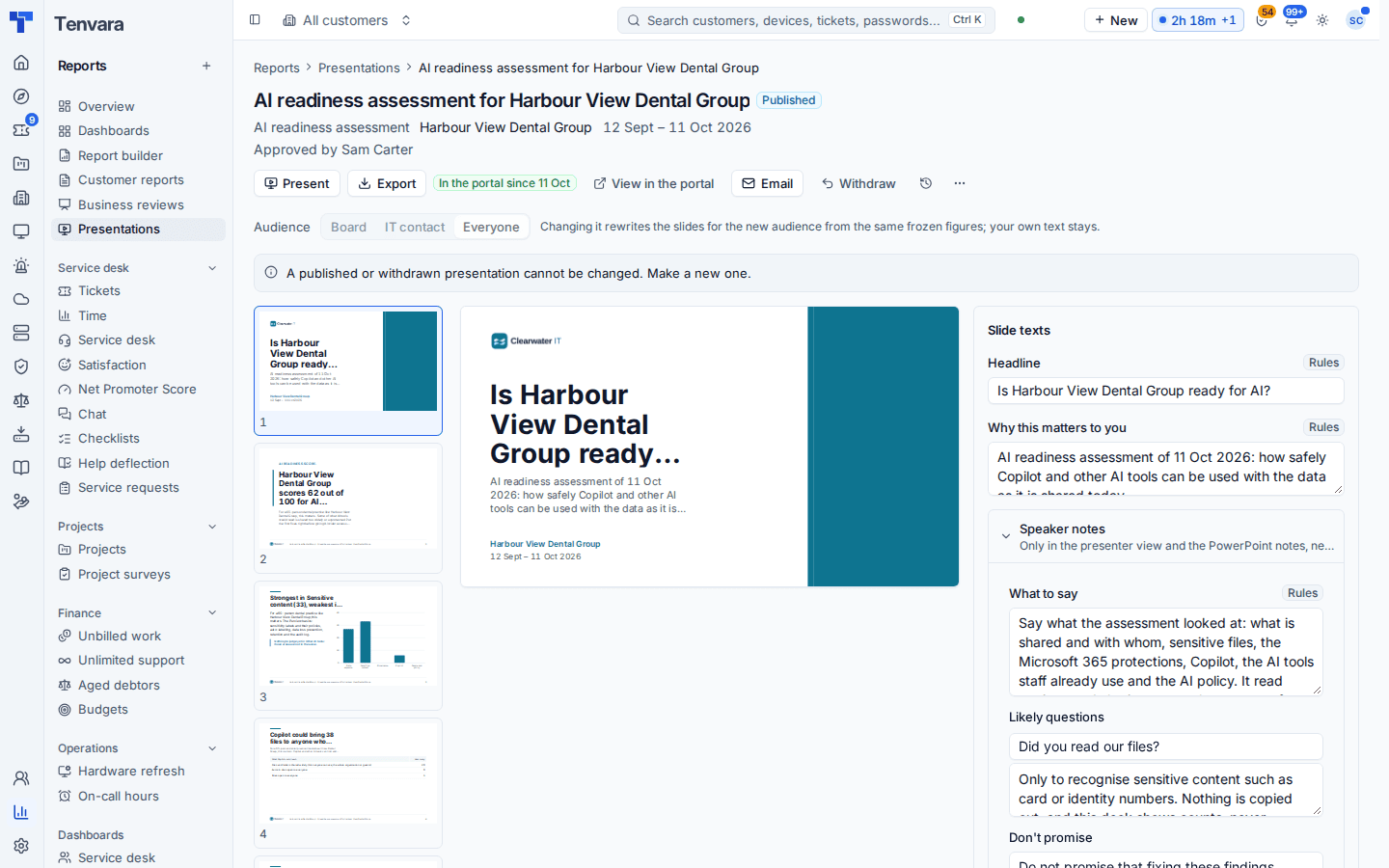
- Slides, on the left: every slide in order. Drag a slide by its handle to move it, or use the arrow keys on the handle. The eye hides a slide from the audience or shows it again; hidden slides are faded.
- The slide itself, in the middle, as the audience will see it. If a text is too long for its place, the editor says Shortened to fit: edit the text.
- Slide texts, on the right: the Headline, Why this matters to you, each point and the So what. Each says where it came from: Rules (written by Tenvara from the figures), AI or Edited (by a person).
- Speaker notes: What to say, Likely questions with their answers (press Add a question for more) and Don't promise. Notes show only in the presenter view and the PowerPoint notes, never on a slide.
Press Save slide to keep your changes, or Undo changes to drop them. Changing an approved deck makes it a draft again, and a published or withdrawn deck cannot be changed: make a new one.
Approval
A presentation is a draft until someone allowed to approve presentations presses Approve deck. Until then it cannot be published or sent, and a draft shows a Draft mark on every slide when it is rehearsed or downloaded. The request goes to the customer's account manager when they may approve presentations, otherwise to your administrators.
Administrators set the rules in Settings > Presentations:
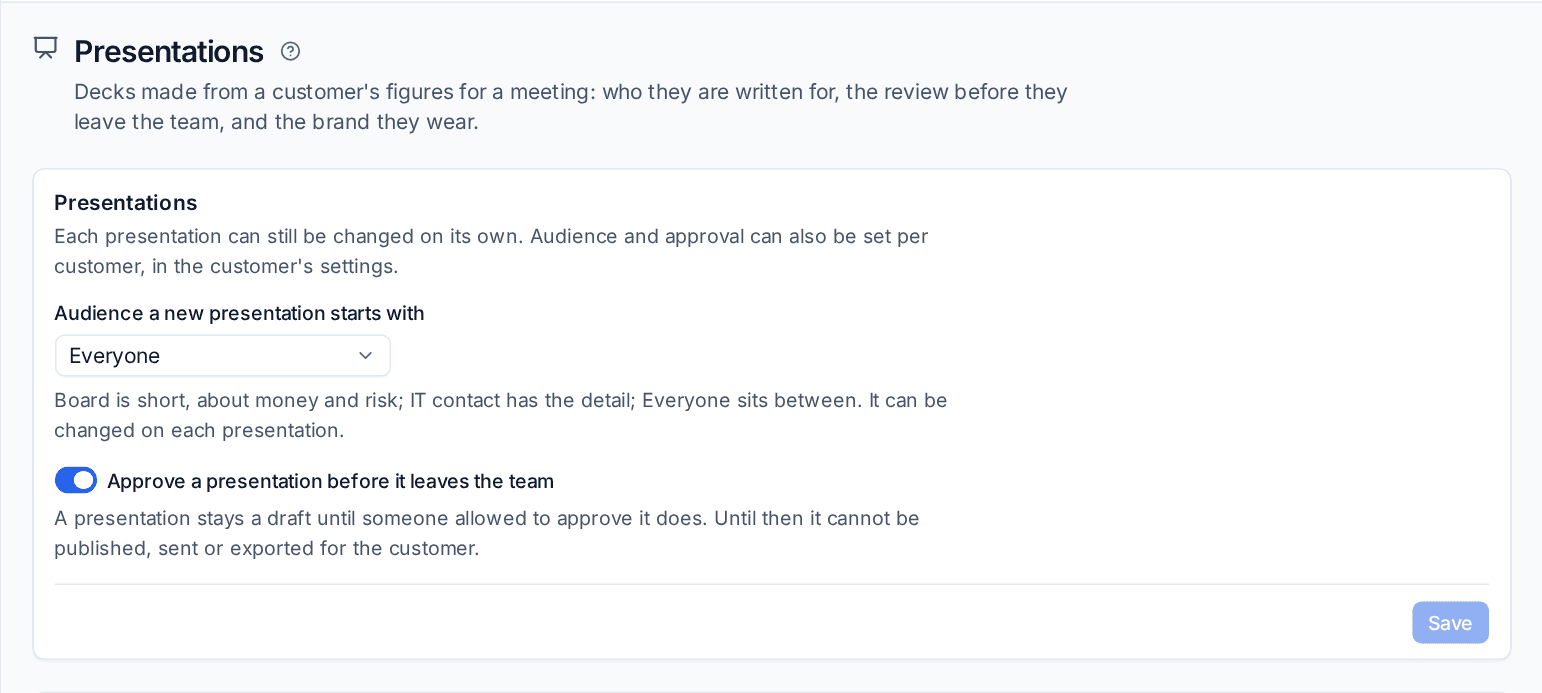
- Audience a new presentation starts with: Board, IT contact or Everyone.
- Approve a presentation before it leaves the team: on by default. With it off, a draft may be presented and downloaded without approval. Publishing and emailing always need an approved deck.
- Brand profiles: the logo, colours and font the slides wear, for each kind of deck. Left on The customer's brand profile, each customer's own brand profile is used. Brand profiles are set up in Settings > Branding.
The audience and approval can also be set for one customer, in that customer's settings.
Text written by AI (optional)
Every deck is complete without AI: the headline, why it matters and the speaker notes on each slide are written by Tenvara's own rules from the frozen figures.
If you have set up AI with your own Anthropic API key, the Presentations feature in Settings > AI can write those lines instead, in the customer's terms, using the Industry and People fields on the customer. It is optional, has its own switch and its own cost caps, and follows a customer's AI opt-out.
- A line written by AI says AI-written, not approved yet in the editor until a person presses Approve on it, edits it, or presses Approve all on this slide. The deck cannot be approved while any AI line is waiting.
- The AI works only from the frozen figures and may not use a number that is not in them. A line that does is thrown away and the rules text stays.
- With the feature off, no key, the customer opted out or a cap reached, the rules text stays in every place and the deck says why.
- Explain again, in the ... menu of a draft, asks the AI to write the lines again.
See Setting up AI and Privacy and customer controls for what is sent.
Next: Presenting, publishing and the ask. Related: Business reviews, AI readiness.
Was this page helpful?
Thanks for the feedback.