Settings > Mobile app
Connect the Tenvara app to your server with a QR code, see and sign out the phones on your account, choose what the app may do, and, as an administrator, set the switches for everyone.
Settings > Mobile app is the web side of the Tenvara app. Everyone has it, in the Your account group of Settings: it connects the app to your server, lists the phones signed in to your account and holds your own choices for the app. Administrators also see the switches for everyone on the install. It works the same in the MSP and Company editions.
Get the Tenvara app
The first card connects a phone to your server, so nobody has to type an address on a small keyboard.
- Install the app on the phone. See Getting the app and signing in.
- Open it and tap Scan the code.
- Point the camera at the code on this page, then sign in as you do on the web.
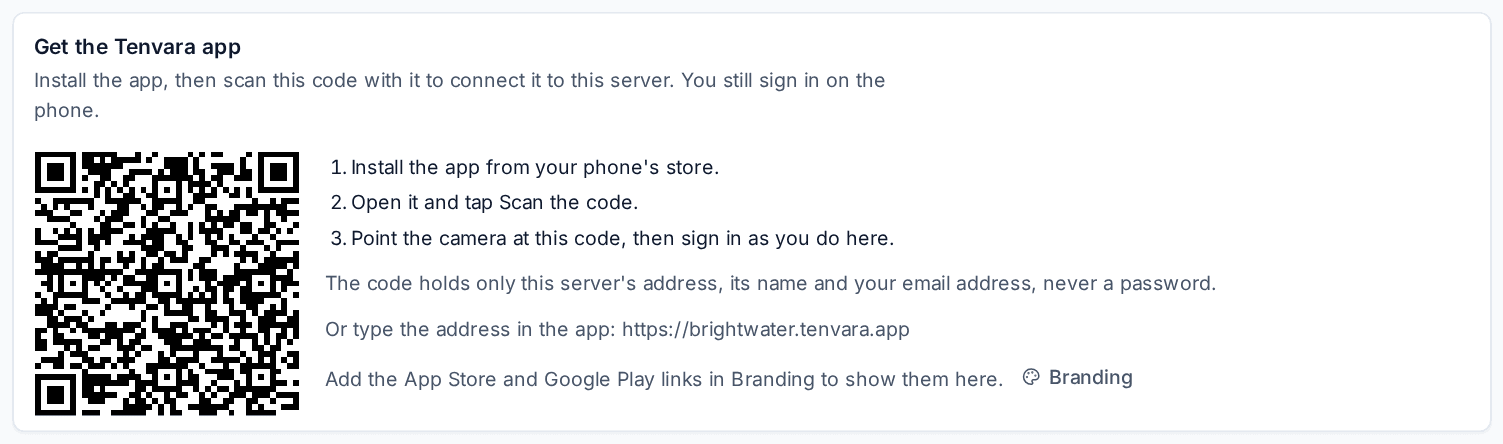
The code holds only your server's address, its name and your email address, never a password. The person still signs in on the phone, with two-factor where it is required. Under the code, Or type the address in the app shows the address to type instead.
Your phones
Your phones lists the phones signed in to your account, from the app and from a phone's browser: the app and the phone's system, how it signed in, its address, when it was last seen and when the sign-in ends.

- Sign out ends that phone's session on the server, so the app there has to sign in again. Use it for a phone you no longer use, or one that is lost.
- This wasn't me is for a sign-in you do not recognise. It ends that sign-in at once, records it and takes you to change your password, as on your other sessions. See Sessions, IP allowlists and API tokens.
When no phone is signed in, the card says No phone is signed in yet.
Your choices
Your choices follow you to every phone you sign in on.
- Let my phone follow my desktop: the app shows the ticket, alert or device you have open in the web app. It is the same choice as Phone following in your account menu. You see it when your role includes Phone follows the desktop. See Follow your desktop on your phone.
A choice that an administrator has switched off for everyone shows as off and locked, with "Switched off for everyone by an administrator".
For everyone on this install (administrators)
Administrators set what the app may do for anyone who uses it. Each switch has its own line of help on the page; press Save to keep your changes.
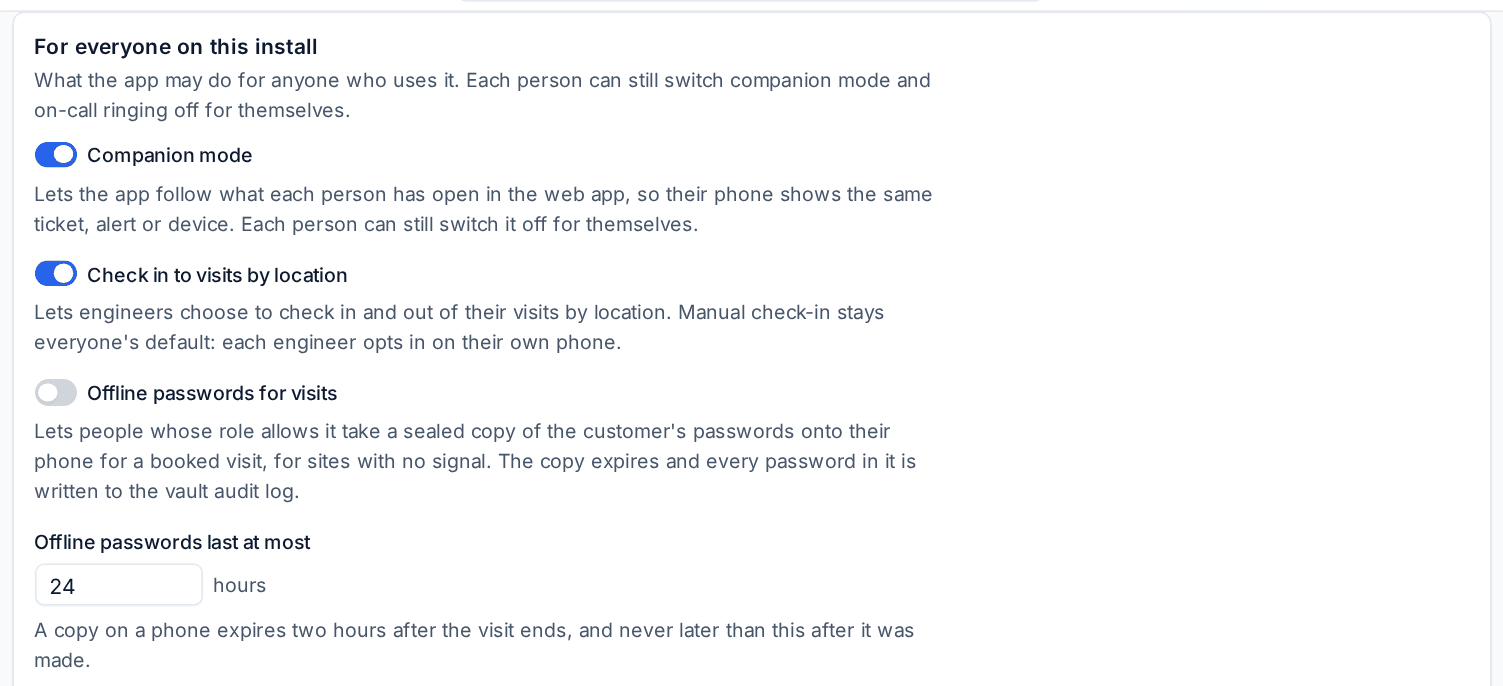
| Setting | What it does | To start with |
|---|---|---|
| Companion mode | Lets the app follow what each person has open in the web app. Each person can still switch it off for themselves. | On |
| Check in to visits by location | Lets engineers choose to check in and out of their visits by location. Checking in by hand stays everyone's default: each engineer opts in on their own phone. | On |
| Offline passwords for visits | Lets people whose role allows it take a sealed copy of the customer's passwords onto their phone for a booked visit, for sites with no signal. | Off |
| Offline passwords last at most | The longest a copy may live, in hours (1 to 24). A copy expires two hours after the visit ends, and never later than this after it was made. | 24 hours |
Offline passwords for visits
This one is off on every new install and for every role, because it puts secrets on a phone. To use it:
- Switch on Offline passwords for visits here and press Save.
- In Settings > Roles and permissions, give the roles that need it the Offline passwords for visits permission. It is off on every role template.
The copy holds only passwords the person could already reveal for the customer of their own visit that day. Two-factor keys and recovery keys are never included, and a password that needs an approved check-out goes in only while they hold one. Every copy taken, and every password used from it, is in the vault audit log, marked as offline with the time it happened. See Schedule and visits.
Tip: Tag any other recovery keys you keep in the vault recovery key, so they are never copied to a phone.
Related guides
Was this page helpful?
Thanks for the feedback.