The windows and notifications people see on their computers
The consent, restart, update, administrator rights and message windows and the notifications the agent shows people at their computers, the options that shape them for everyone, a customer, a site or a device group, the live preview, and sending a test to a device.
The people at your customers' computers meet Tenvara through a handful of windows and notifications: the prompt when a technician asks to remote in, the restart reminder after updates, an app update notice, a request for administrator rights, a message from your team. They all share one design, in your brand, and one set of options decides what they show.
What people see
| Window | When it shows |
|---|---|
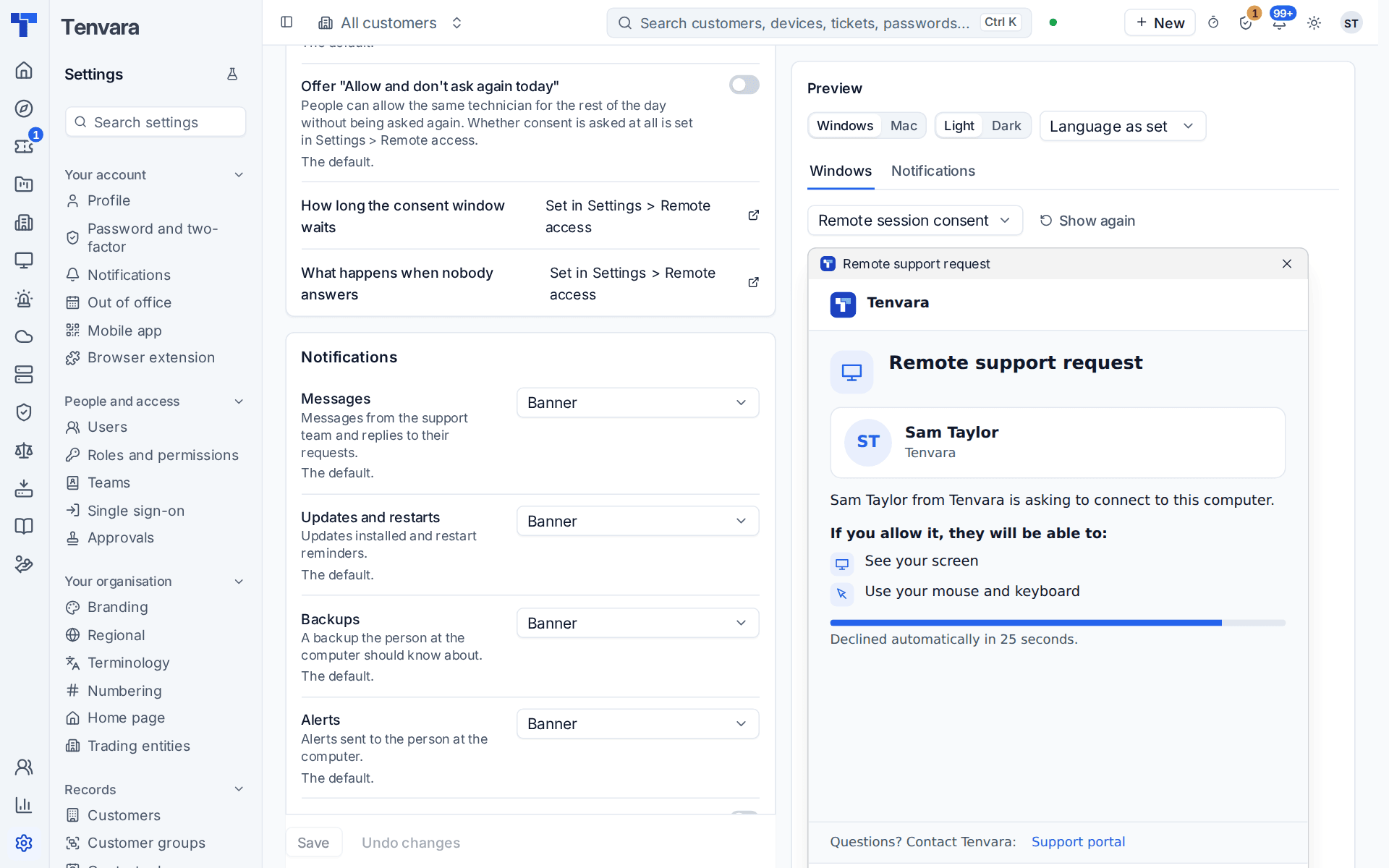
| Remote session consent | A technician asks to connect and the session policy asks the person first. It says who is asking, with their photo or initials, what they will be able to do (see the screen, use the mouse and keyboard, send and receive files) and a visible countdown with what happens when nobody answers. Decline comes first and is the default, so Enter never lets anyone in. |
| Restart | Updates need a restart. It lists what is waiting, the deadline in the person's own time and the snooze choices that still fit before it, with Restart now. |
| App update | An app the person has open needs updating. It names the versions and why, and warns of a restart. |
| Administrator rights | A program asks to run as administrator, or the person asks for rights from the tray, with the reason and Run a program. See Admin elevation on request. |
| Desktop viewer update | On a technician's computer, a newer desktop viewer is ready, with what changes and the download size. |
| Message and Warning | A message from your team, with I've read this when you ask for an acknowledgement, or a warning with its detail folded away. |
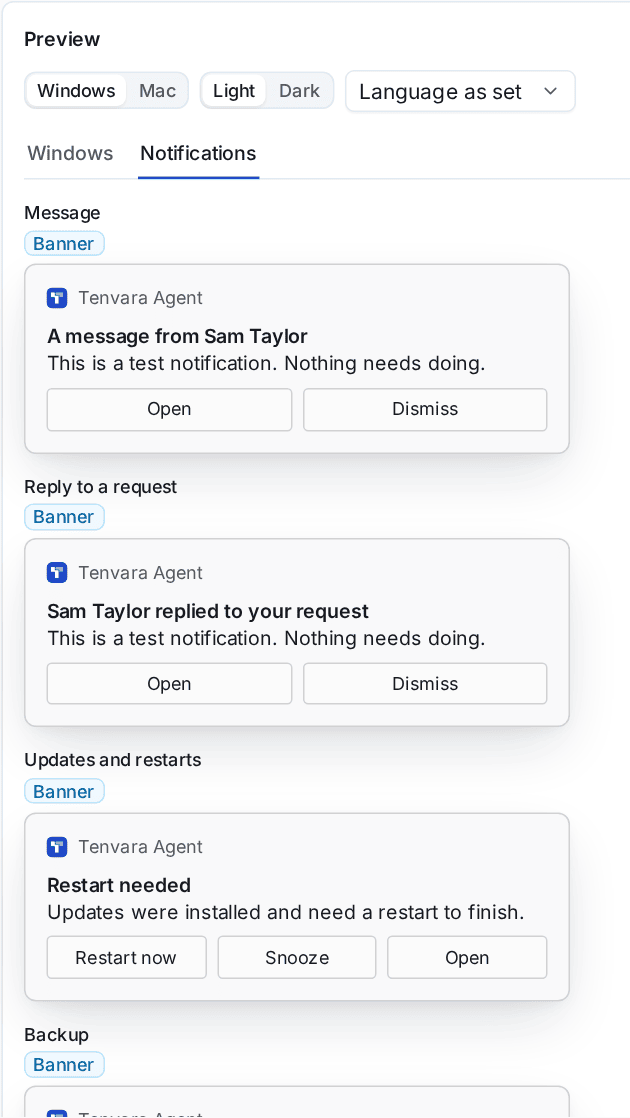
On Windows, notifications carry your brand's name and mark, with Open and Dismiss. A restart reminder has Restart now, Snooze and Open, and an app update Update now and Later. Answering in the notification answers the window too. Windows follow the computer's light or dark appearance, open on the screen the person is working on and never take the keyboard, except consent and the person's own forms.
Setting the options
Go to Settings > Tray menu and choose the End-user experience tab.
| Group | Options |
|---|---|
| What windows show | Show the technician's name, Show the technician's photo, Show your logo, Show the customer's own logo, Show the support phone number, Show the support email address and Show the support portal link. The logos and contact details come from Settings > Branding and the customer portal's appearance. |
| Remote session consent | Consent wording: Default wording or Your own wording, which can name the technician and your company. Offer "Allow and don't ask again today" lets people allow the same technician for the rest of the day. |
| Notifications | For Messages, Updates and restarts, Backups and Alerts: Banner, Silent (notification centre only) or Off (not shown; the computer logs it). |
| Quiet hours | Between these times on the computer's own clock, banners go quietly to the notification centre. Windows that need an answer still show. |
| Language | Window language: Follow the computer (the signed-in person's language), or English (UK or US), French, German, Spanish or Dutch. |
Some options live where they always have, and the page links to them rather than copying them: whether consent is asked at all, how long the consent window waits and what happens when nobody answers are in Settings > Remote access; the restart snooze choices and the longest a restart can be put off are in the patching policies.
Click Save, or Undo changes to go back. Changes reach the computers they apply to straight away.
For a customer, a site or a device group
The options are set for everyone on the End-user experience tab, and any of them can differ further down. The most specific level that sets an option wins:
device group > site > customer > everyone
- A customer: on the customer's Settings tab.
- A site: on the site's Policies tab.
- A device group: on the group's Policies tab. Where several groups set the same option, the newest group wins.
At each level a card says what that level sets itself; the editor and the preview open in a side panel, and each option shows what it inherits and from where. In the Company edition there is no customer level: the options are your organisation's own, with offices (sites) and device groups below.
See Policies and where settings come from.
The live preview
Beside the options, Preview draws every window and notification as people see them, with the options on screen (saved or not), your branding and the chosen language.
- Choose Windows or Mac, Light or Dark, and the language.
- Choose Windows or Notifications, then the window or notification kind.
- Try the buttons: the preview says what the answer would be, and nothing else happens. Show again restarts a countdown.
Notifications are drawn the way the system shows them, in their style (Banner, Silent or Off) and with the quiet hours.
Send a test to a device
Send a test to a device, under the preview, shows the window you are previewing (or a notification) on a real computer, with the saved options.
- Choose a device.
- Click Send a test.
Tenvara reports what happened: the window was shown and what the person chose, or why it was not shown (nobody signed in, the computer offline, an agent too old for the window). Use it on your own computer before you change wording for a whole customer.
Related
Was this page helpful?
Thanks for the feedback.