Screens, playlists and pairing
Set up office and customer playlists with quiet hours, pair a browser screen with a code or a display link, and manage every screen from the Screens list, with density, locked settings, offline alerts and history.
This guide covers the day to day of running screens: playlists, pairing, and the Screens list. Building dashboards is in TV dashboards.
Everything here is in Settings > TV dashboards (also the TV dashboards tab of Reports > Dashboards), and needs an administrator.
Playlists
A screen always shows one playlist. Open the Playlists tab. Each playlist shows its kind or customer, how many screens it has and its dashboards in order with their seconds on screen, for example Service desk (45 s) → Operations (30 s) → Team (30 s).
Click New playlist, or Change playlist on an existing one.
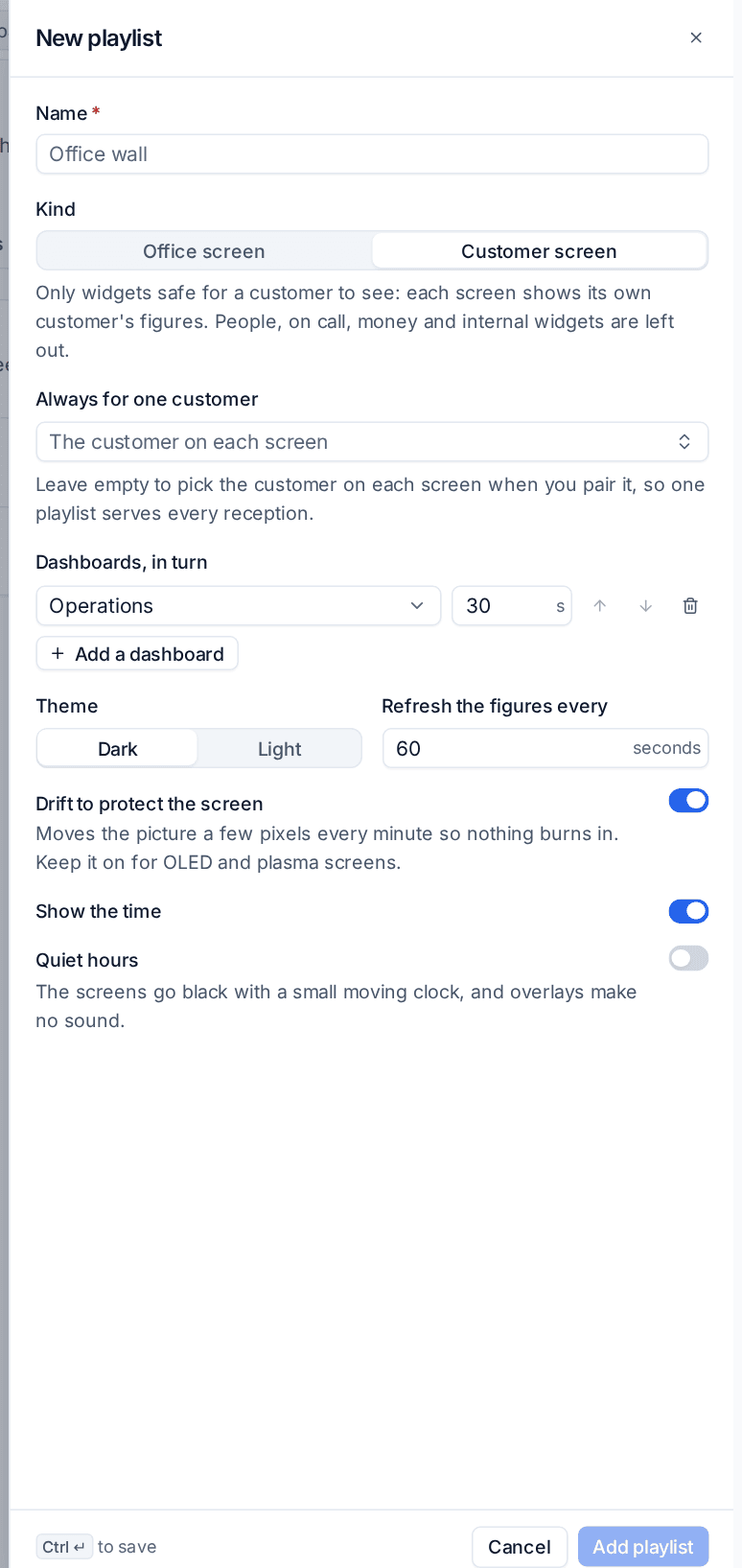
- Enter a Name.
- Choose the Kind:
- Office screen: your own office, with every widget and every customer.
- Customer screen: only widgets safe for a customer to see. Each screen shows its own customer's figures; people, on call, money and internal widgets are left out.
- For a customer screen, Always for one customer fixes the playlist to that customer. Leave it on The customer on each screen to pick the customer when you pair each screen, so one playlist serves every reception.
- Under Dashboards, in turn, choose each dashboard and its seconds on screen.
- Set the Theme, Refresh the figures every, Drift to protect the screen and Show the time as described in TV dashboards.
- Turn on Quiet hours and set from and until, in your own time zone. In quiet hours the screens go black with a small moving clock, and overlays make no sound.
- Click Add playlist.
Preview shows what the playlist's screens show now. Display link makes a private address for the playlist (see below).
Deleting a playlist that is in use
Delete playlist on a playlist with screens lists them and asks what to do: move them to another playlist, switch them off, or keep them paired with nothing to show. Customer screens cannot be moved onto an office playlist, because that would put your own figures in a customer's reception.
Pairing a screen with a code
- On the screen, open your Tenvara address followed by
/tvin its browser. It shows a code and a QR code. - In Settings > TV dashboards, click Pair a TV. Scanning the QR code with your phone opens the same dialog with the code filled in.
- Enter the Code on the TV. Once the code is recognised, the dialog shows the device, the address it asked from (marked as your network when it matches your own) and how long the code has left.
- Under Show, choose the playlist. For a customer-screen playlist with no customer of its own, choose one under For customer.
- Fill in Name this screen, for example "Service desk wall".
- Decide on Lock the TV's settings. Locked, nobody at the screen can unpair it or point it somewhere else; it is on by default for customer screens.
- Leave Replaces on A new screen, or choose an existing screen this one takes over (see below).
- Choose the Density: Comfortable (up to about 50 inches, or read from across a room), Compact or Dense.
- Click Pair.
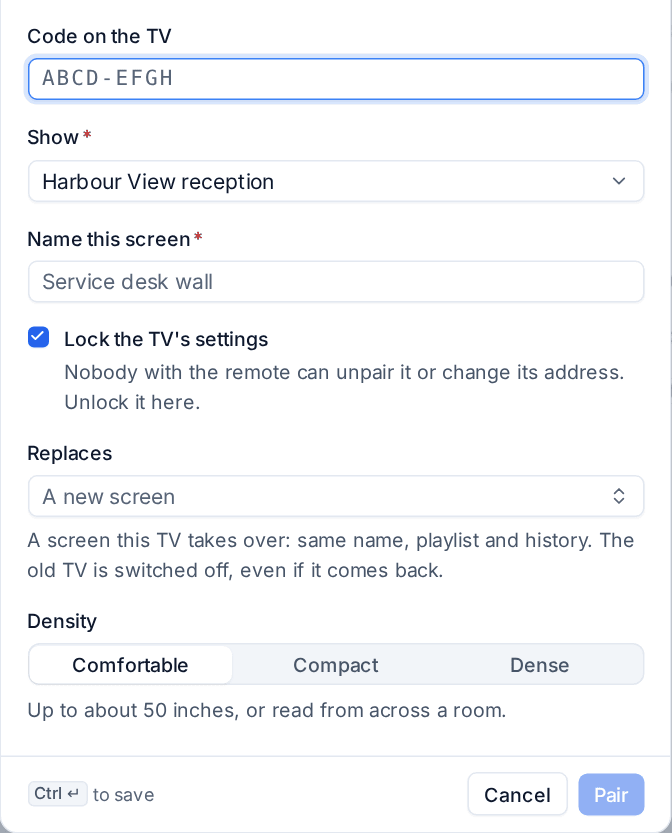
The screen starts showing its playlist within a few seconds. A code lasts 15 minutes; one that has run out cannot be approved, and the screen shows a new one by itself.
Using a display link instead
A display link opens one playlist directly, with no code to approve. Click Display link on the playlist, or Make a display link on the Screens tab, set Stops working on (empty for never) and open the link in the screen's browser. It is shown once, so copy it then. Anyone with the link sees that playlist and nothing else: treat it like a password and give links you hand out an end date.
The Screens list
The Screens tab lists every paired screen and display link, with counts of those online, offline and switched off. It opens on Open and last 14 days: every screen in use, and those switched off in the last two weeks. Switched off and All show the rest.

| Column | What it tells you |
|---|---|
| Screen | Its name, whether it is a paired screen or a display link, who paired it and when, and whether its settings are locked |
| Shows | The playlist, the customer for a customer screen, and what is on it now: a dashboard, paused or quiet hours |
| Status | Online, Offline with how long, Not seen yet, Switched off or Expired |
| Device | The device and system, or the browser |
| Last seen | When and from which address, with new network for a week after a screen first appears from a network it has not used before |
What you can do to a screen
Open a screen's ... menu:
- Show its name on the TV puts the screen's name on it for ten seconds, so you can tell which is which on a wall of screens.
- Reload makes it fetch everything again.
- Move to another playlist, with the customer when the new playlist needs one.
- Replace with a new TV opens the pairing dialog for this screen: the new screen takes its name, playlist, customer, lock, density and history, and the old one is switched off, even if it comes back.
- Rename and Density.
- Lock its settings or unlock them.
- Alert when it goes offline (see below).
- History: when it was paired, moved, replaced, switched off or unlocked, and each new network, newest first.
- Clear its overlays and Groups, site and alarms: see Overlays and Send to screens.
- Switch off stops the screen at once. A switched-off screen can then be removed from the list. For a display link, the menu also changes when it expires.
Options and offline alerts
The Options tab has two settings:
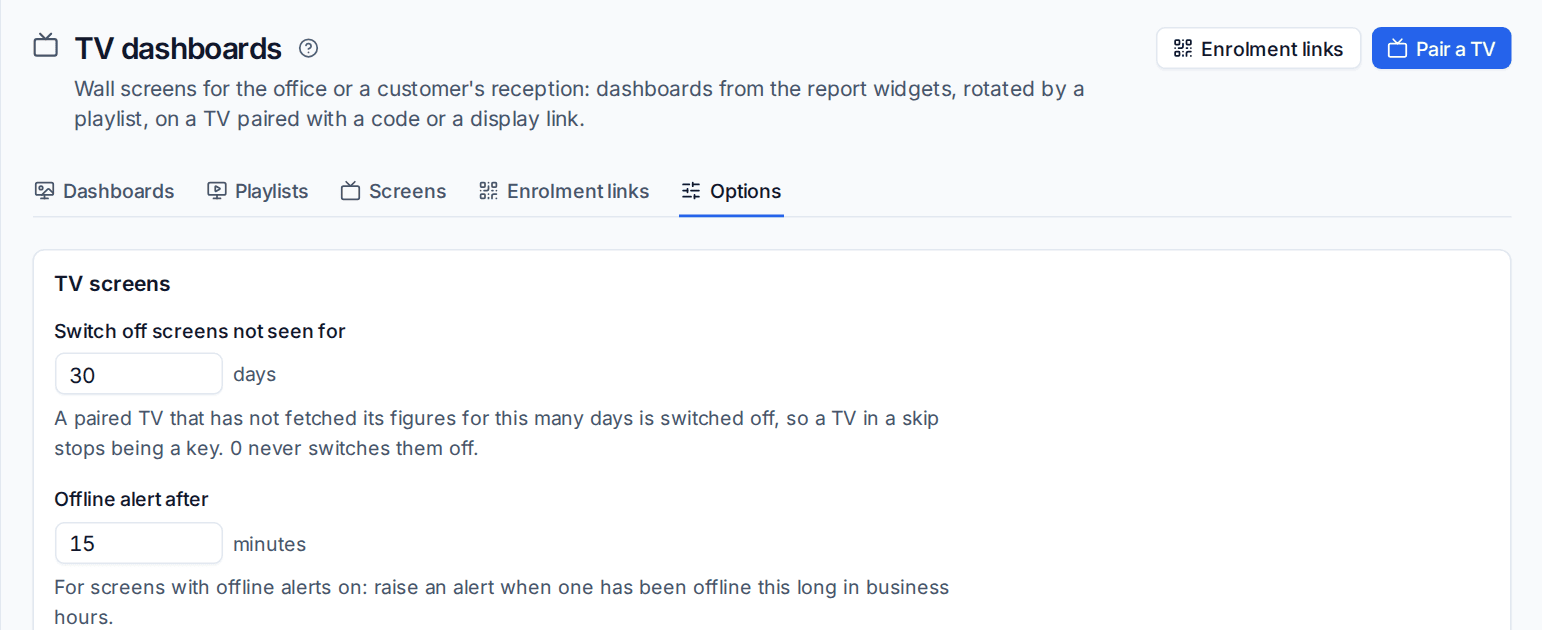
- Switch off screens not seen for: a paired screen that has not fetched its figures for this many days (30 by default) is switched off, so a screen that was thrown away stops being a way in. 0 never switches them off.
- Offline alert after: how many minutes a screen may be offline before its alert is raised.
Offline alerts are off for every screen until you turn on Alert when it goes offline in its menu. The alert is raised in business hours only, belongs to the screen's customer, and goes through your alert rules like any other, so it can open a ticket. It clears when the screen is back, switched off or has its alerts turned off. See Alerts.
Enrolment links, the remaining tab, lets a fleet of managed screens pair themselves without a code. Browser screens do not need it: pair them with a code or a display link.
Related
Was this page helpful?
Thanks for the feedback.