Marketing: consent, lists and attribution
Keep a consent record for every contact and lead, a suppression list nobody is ever marketed to, marketing lists that leave out people without consent, and campaigns with attribution from source to won monthly recurring revenue.
Marketing in Tenvara is built around one rule: only people who may be sent marketing get it. Every contact and lead has a consent record, every address that must never be marketed to sits on a suppression list, and marketing lists show everyone they match but email only those allowed. Campaigns then follow each lead from where it came from to the monthly recurring revenue it was won for.
Open Sales and billing > Marketing. Its tabs are Marketing (the campaigns), Lists, Newsletters, Attribution and Suppression list.
Note: Marketing is part of the CRM, in the MSP edition. This guide explains what Tenvara records; deciding which lawful basis applies to your marketing is yours.
Consent
Each contact and lead keeps a history of consent: who gave or withdrew it, for which address, the lawful basis, where it came from (the enquiry form, a chat, a booking page, an import, staff, the portal, the email preferences page, an unsubscribe link or a newsletter), the words the person saw, and when. Nothing in it is ever edited; the latest record is the person's state.
The Marketing card on a lead's or contact's page shows whether they can be emailed and, if not, why: no consent, consent withdrawn, the address suppressed, marketing emails switched off in their preferences, or a personal address on legitimate interest. Record consent adds a record with its basis, the words agreed and a note; Withdraw records an objection.
Set it up
Open Settings > Sales and find Marketing consent (administrators).
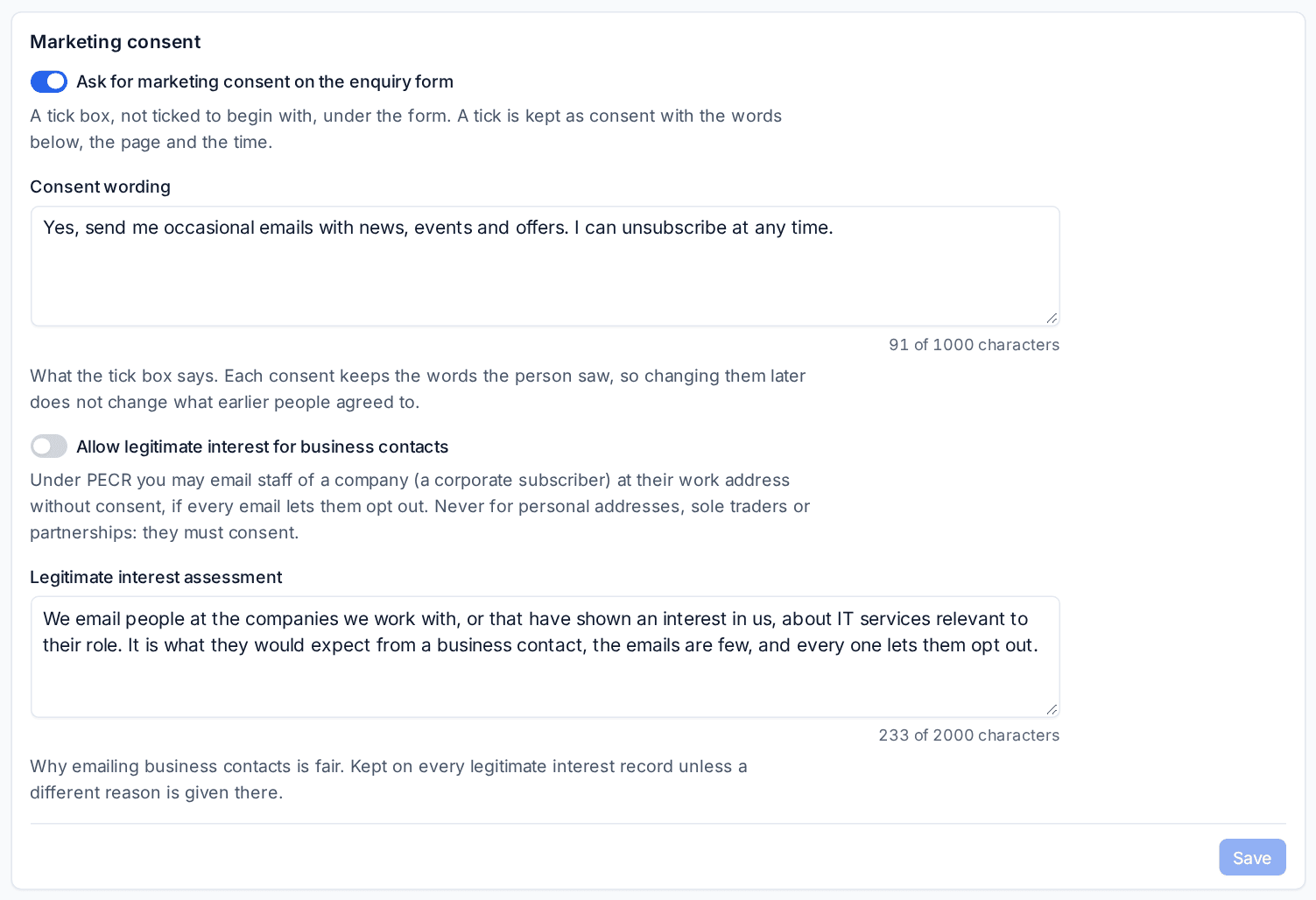
- Ask for marketing consent on the enquiry form adds a tick box, not ticked to begin with, under your website enquiry form. A tick is kept as consent with the Consent wording, the page and the time. Changing the wording later never changes what earlier people agreed to.
- Allow legitimate interest for business contacts lets you email staff of a company at their work address without consent, as long as every email lets them opt out. It is never used for personal addresses, sole traders or partnerships: they must consent. The Legitimate interest assessment is kept on each record that relies on it. Switching this off stops sending on that basis.
Unsubscribing and the portal
Every marketing email carries a one-click unsubscribe and a link to a page where the person can stop marketing emails without signing in. Marketing emails is also a topic in the portal's profile and on the email preferences page. Turning it on there is the person's own opt-in; turning it off withdraws consent. Staff cannot turn it on for them.
Withdrawing consent, whichever way, applies to everyone with that address and puts it on the suppression list. An import or a colleague saying "they agreed" never lifts a suppression: only the person opting in again themselves does.
The suppression list
The Suppression list tab holds addresses that never get marketing, whatever their consent says: unsubscribes, objections and bounces land there by themselves, and Add addresses adds them in bulk (withdrawing anyone's consent for them). Each shows why, from where and who added it. Take one off only with the person's say-so; their consent stays withdrawn until they opt in again.
Marketing lists
The Lists tab holds the people to send newsletters and sequences to.
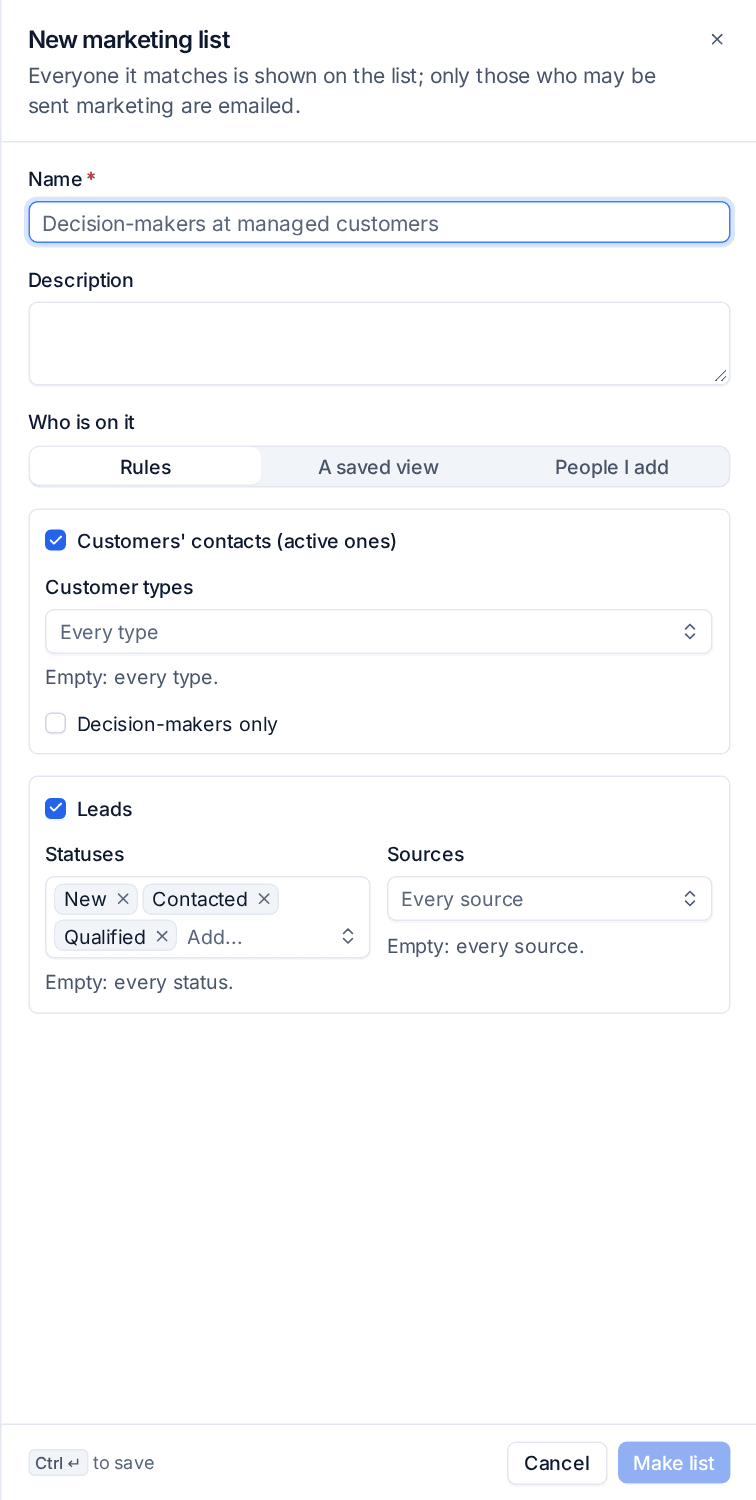
- Press New list and give it a Name and Description.
- Under Who is on it, choose:
- Rules: customers' active contacts (by customer type, decision-makers only if you like) and leads (by status and source);
- A saved view of your Contacts or Leads list, so the list follows the view's filters;
- People I add, one by one.
- Press Make list.
A list built from rules or a view stays live as people change. Its page shows everyone it matches with a Marketing column (Can be emailed, or why not) and counts of how many can be emailed and how many are left out. A filter the list cannot apply is named on the list, never silently dropped.
Campaigns
The Marketing tab lists your campaigns with their leads, deals won and monthly recurring revenue won.
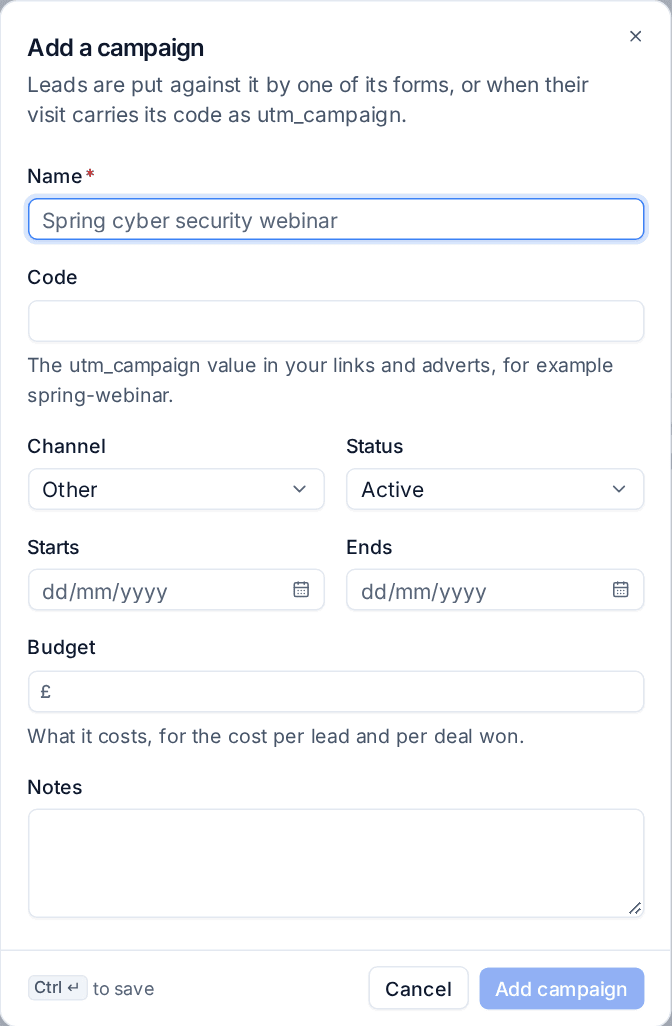
- Press New campaign.
- Enter the Name, and a Code: the
utm_campaignvalue in your links and adverts, such asspring-webinar. - Choose the Channel (email, paid search, paid social, social media, event, webinar, content, referral, partner, print or other) and the Status (Planned, Active or Finished).
- Set when it Starts and Ends, and the Budget, for the cost per lead and per deal won.
- Press Add campaign.
A campaign can have several enquiry forms, each with its own link and website snippet, so each landing page counts separately.
Where each lead came from
Every lead records how it came in (a form, a chat, a booking, by hand or an import), its campaign (by its form, else by the utm_campaign it arrived with), the UTM fields, the landing page and the referrer. The enquiry form and the website chat both carry them across. A lead added by hand gets its campaign from Set campaign on its Marketing card. This is first touch: later visits do not move it.
Attribution
The Attribution tab shows which marketing pays. For a period (the last 12 months to begin with), group the leads made by Campaign, UTM source, UTM medium, Lead source or How they came in, and see the customers they became, deals won and lost, the monthly recurring revenue and one-off value won, what is still open and, for campaigns, the cost per lead and per deal won. Money is in your base currency at today's rates.
Won revenue follows the deals made for the lead, not every later deal of the customer it became, so an upsell two years on is not counted to an old webinar.
Related: Newsletters, Sequences, Lead scoring, assignment and the board.
Was this page helpful?
Thanks for the feedback.