Tenvara TV overview and the browser screen
What Tenvara TV is, how a wall screen runs in a web browser, what it shows, and how the parts (dashboards, playlists, screens, overlays, cameras and rules) fit together.
Tenvara TV puts Tenvara on the wall. A screen in the office shows the service desk queue and SLA timers, the operations room sees devices, backups and alerts, and a customer's reception shows that customer's own figures. When something happens, a rule or a person can put a message, an alarm, a caller card or a camera over the dashboard for as long as it matters.
A screen is a web browser showing your Tenvara address followed by /tv. Any TV, monitor or small computer with a browser will do, and nobody is signed in at the screen.
The parts
| Part | What it is | Where |
|---|---|---|
| Dashboards | A grid of widgets built from the same figures as Home and Reports | TV dashboards |
| Playlists | The dashboards a screen shows in turn, as an office screen or a customer screen, with quiet hours | Screens, playlists and pairing |
| Screens | Every screen showing a playlist, with its status, what it shows now and where it was last seen | Screens, playlists and pairing |
| Overlays | A message, alarm, caller card, camera, dashboard or picture shown over the playlist for a while | Overlays and Send to screens |
| Cameras | Cameras at a site, relayed to a screen by a device with the agent only while they are being shown | Cameras |
| Rules | The automation action Show on TV screens, which puts an overlay up when its trigger fires | TV screens, doorbells and phone calls |
Everything is managed from Settings > TV dashboards, which is also the TV dashboards tab of Reports > Dashboards. The page is for administrators and has the tabs Dashboards, Playlists, Screens, Enrolment links and Options.
Putting a screen on the wall
- Build at least one dashboard and put it in a playlist. See TV dashboards.
- On the screen, open your Tenvara address followed by
/tvin its browser, for examplehttps://support.example.com/tv. The screen says Pair this screen and shows a code and a QR code. - On your own computer, go to Settings > TV dashboards and click Pair a TV, or scan the QR code with your phone, which opens the same dialog with the code filled in.
- Enter the code, choose the playlist, name the screen and click Pair.
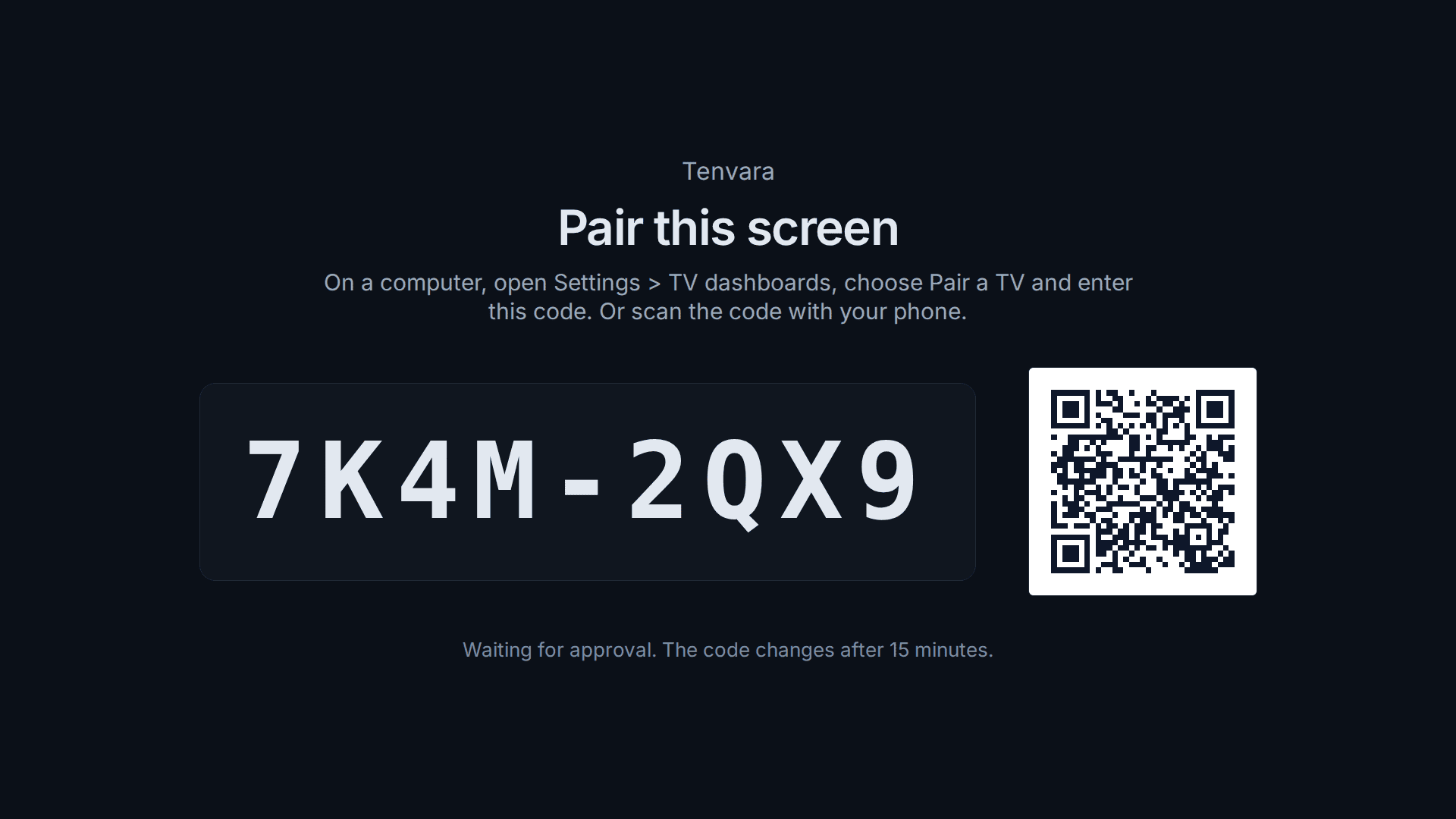
The screen starts playing within a few seconds. The code lasts 15 minutes and then changes by itself, so a screen left on the pairing page is never stuck with a dead code. Pairing is covered step by step in Screens, playlists and pairing.
The other way is a display link: a private address that opens one playlist directly, with no code. Make one with Display link on a playlist or Make a display link on the Screens tab, and open it in the screen's browser.
Tip: Set the screen's browser to open the
/tvaddress or the display link when it starts, in full screen or kiosk mode, so the screen comes back by itself after a power cut. Press F on a keyboard for full screen.
What the screen shows
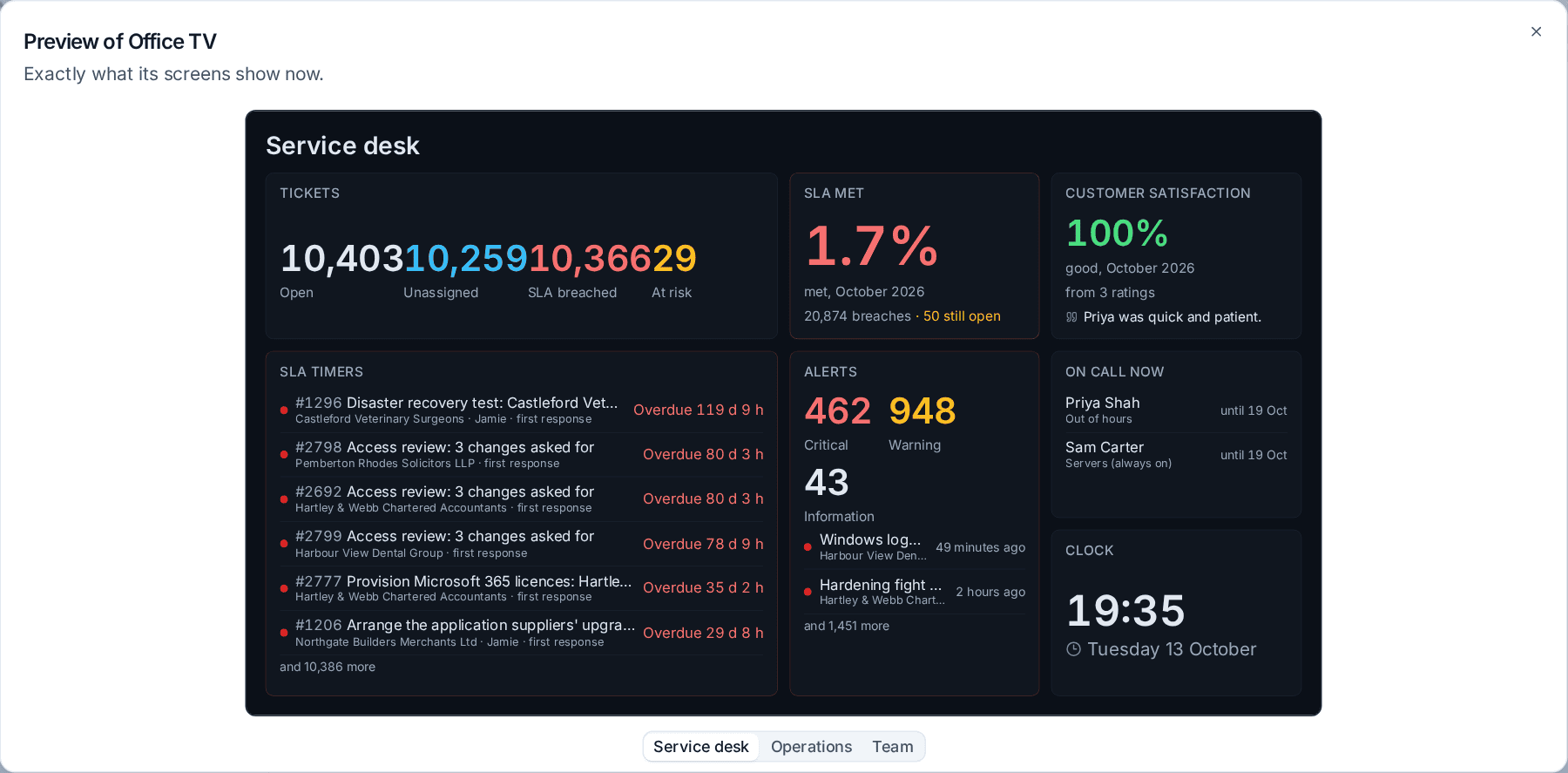
The screen draws on a 1920 by 1080 layout scaled to fit the display, with your logo, the screen's customer where it has one, and the time in your own 12 or 24 hour format. It rotates through the playlist's dashboards with a fade, hides the pointer and keeps the display awake. Nothing on it needs a mouse.
- Live updates: a screen is told at once when its playlist, a dashboard on it or its own settings change, when it is moved to another playlist and when it is switched off. Figures refresh as often as the playlist says, at least every 30 seconds.
- Density: each screen is Comfortable, Compact or Dense, so a small screen read from across the room and a large one read up close both look right.
- Quiet hours: in a playlist's quiet hours the screen goes black with a small moving clock, and overlays make no sound.
- If the connection drops: the screen keeps its last figures, says "Reconnecting" with the time of those figures, and carries on when the server is back.
Preview on a playlist shows exactly what its screens show now, without walking to the wall.
Office screens and customer screens
A playlist is one of two kinds, and the kind decides what can ever reach its screens:
- Office screen: your own office, with every widget and every customer's figures.
- Customer screen: only widgets that are safe for a customer to see. Each screen shows its own customer's figures, and people, on call, money and internal widgets are left out. One customer-screen playlist can serve every customer's reception, because the customer is chosen on each screen.
The same line holds for overlays and cameras: a customer's screen only ever shows that customer's own content, and your office screens can show anything.
Keeping screens safe
A wall screen is a way into your figures, so Tenvara treats each one as a key:
- A screen's key changes by itself every week, and a display link shows one playlist and nothing else.
- A screen that has not been seen for 30 days is switched off (the number of days is on the Options tab).
- A screen seen from a network it has not used before is marked new network on the Screens tab for a week.
- Switch off stops a screen at once, and every pairing, move, replacement and switch-off is in the screen's History and the audit log.
Screens that react
An overlay takes a screen over for a while and then hands it back:
- From a rule, with the action Show on TV screens: an alarm on the operations screens while a server is offline, a banner when an SLA is breached, the front door camera when the doorbell rings, a caller card when the phone rings.
- By hand, with Send to screens on the Screens tab.
See Overlays and Send to screens for what each kind looks like and how priority, sound and dismissing work.
Related
Was this page helpful?
Thanks for the feedback.