Getting started for IT teams
The short way in for an internal IT team on the Company edition: your organisation, departments and employees, the first hour, the employee portal, purchasing and spend, and what this edition leaves out.
Tenvara's Company edition runs an internal IT team from one place: the service desk, your organisation's computers and servers, Microsoft 365, backup, security, purchasing and projects, with one sign-in for the IT team and a self-service portal for everyone else. It is the same product an MSP uses, shaped for one organisation. This page is the short way in. Each section of the setup helper has its own guide, and the Company edition section goes deeper.
What the Company edition is
Your licence sets the edition, and Settings > Licence shows which one you have. On the Company edition:
- There is one organisation: yours. There are no customer lists, customer pickers or customer scope in the top bar.
- The words follow suit. Where other guides in this knowledge base say "customer" and "contact", your screens say "organisation" and "employee". Settings > Terminology can still choose other words.
- Sales and billing are not there, and purchasing takes their place. See What is not in this edition.
Most guides in this knowledge base are written for both editions. When one talks about "your customers", read it as your organisation and its departments.
Your organisation
Everything belongs to the one organisation. Organisation in the rail opens its page, with the same tabs an MSP sees on a customer: Overview, Service, People and sites, Devices, Alerts, Cloud, Infrastructure, Security, Compliance, Backup, Docs, Activity and Settings. The sidebar has Sites, Employees, Departments and Sign-offs.
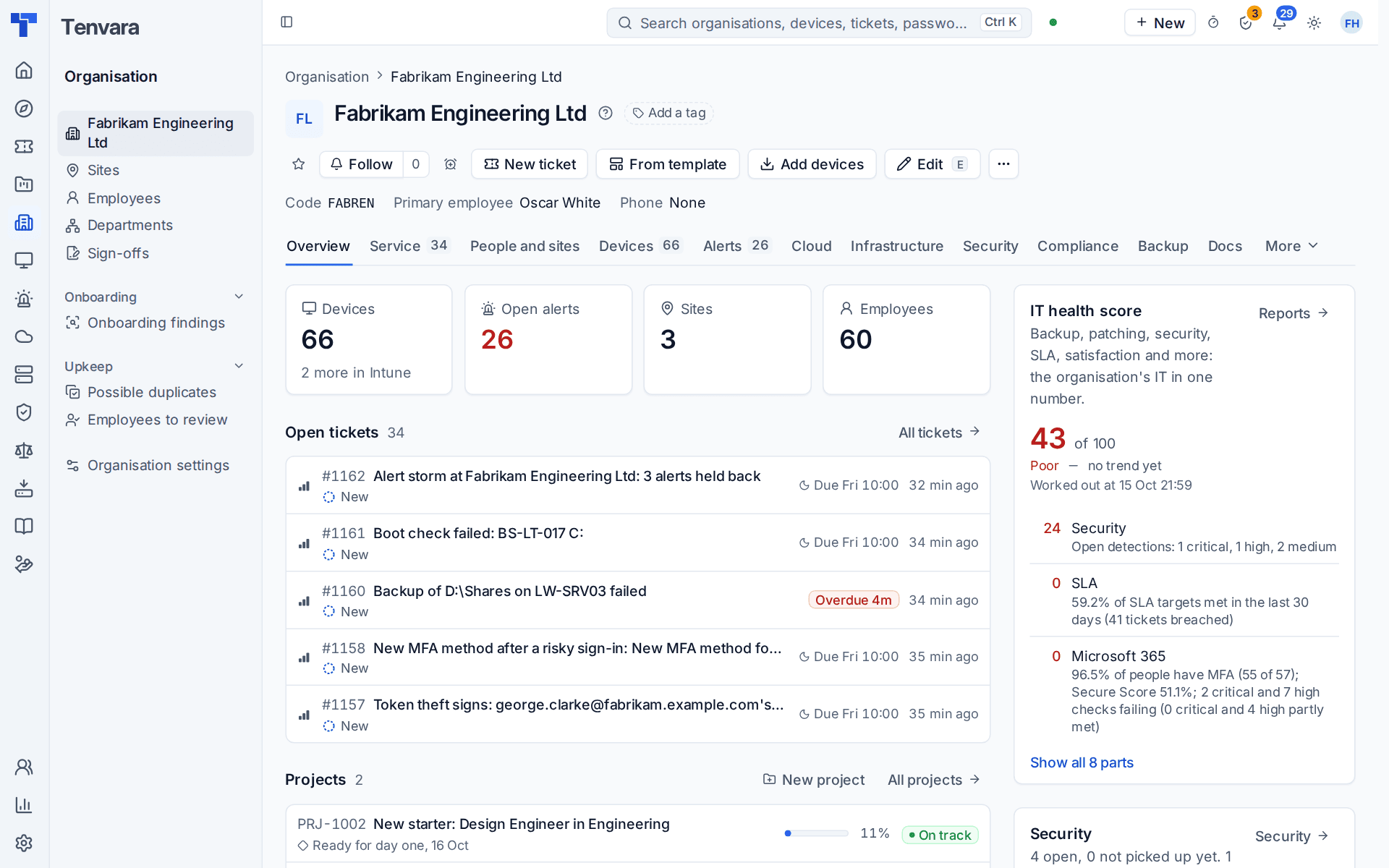
- Departments are records with an optional cost centre code, a manager and a parent department. They drive approvals, SLAs and spend reporting.
- Employees come from Microsoft 365, a CSV file or by hand, and each one's department is picked from the list.
- Devices belong to their user's department unless you give a device its own.
See The organisation, departments and employees.
The first hour
A new Company edition install starts with the service desk and Devices switched on, because your own computers are usually the first job. Everything else your licence includes, such as remote access, patching, backup and Microsoft 365, is switched on one module at a time in Settings > Modules. See Switching modules on.
- Open Set up in the rail and answer the discovery questions. It does not ask who you are, because your licence already says. The plan lists the sections that matter to an IT team, in order, with who should own each one. See The setup helper.
- Switch on Microsoft 365 in Settings > Modules and connect your tenant. You give admin consent for your own Microsoft tenant and there is nothing to map, so employees, licences and security settings arrive by themselves. See Connecting a tenant.
- Install the agent on a few computers from Devices > Enrolment, the Installers tab, then roll it out with your usual tool. See Installing the agent.
- Set your ticket priorities and service levels. SLA policies can go by priority, by department or for VIPs. Then switch on the email address employees already write to. See SLA policies and escalations.
- Invite the IT team in Settings > Users and give each person a role. See Users.
Getting started mode
Until you press We're live in the setup helper, your organisation is in Getting started. Everything Tenvara finds while you enrol your estate goes into one findings report in place of a flood of alerts and tickets, and patching, software changes and scripts are held so nothing changes machines by itself. Read the findings, fix what matters, then go live. See Go-live and Health.
Employees and the portal
Employees use the employee portal at your install's address with /portal on the end. They sign in with their work email address.
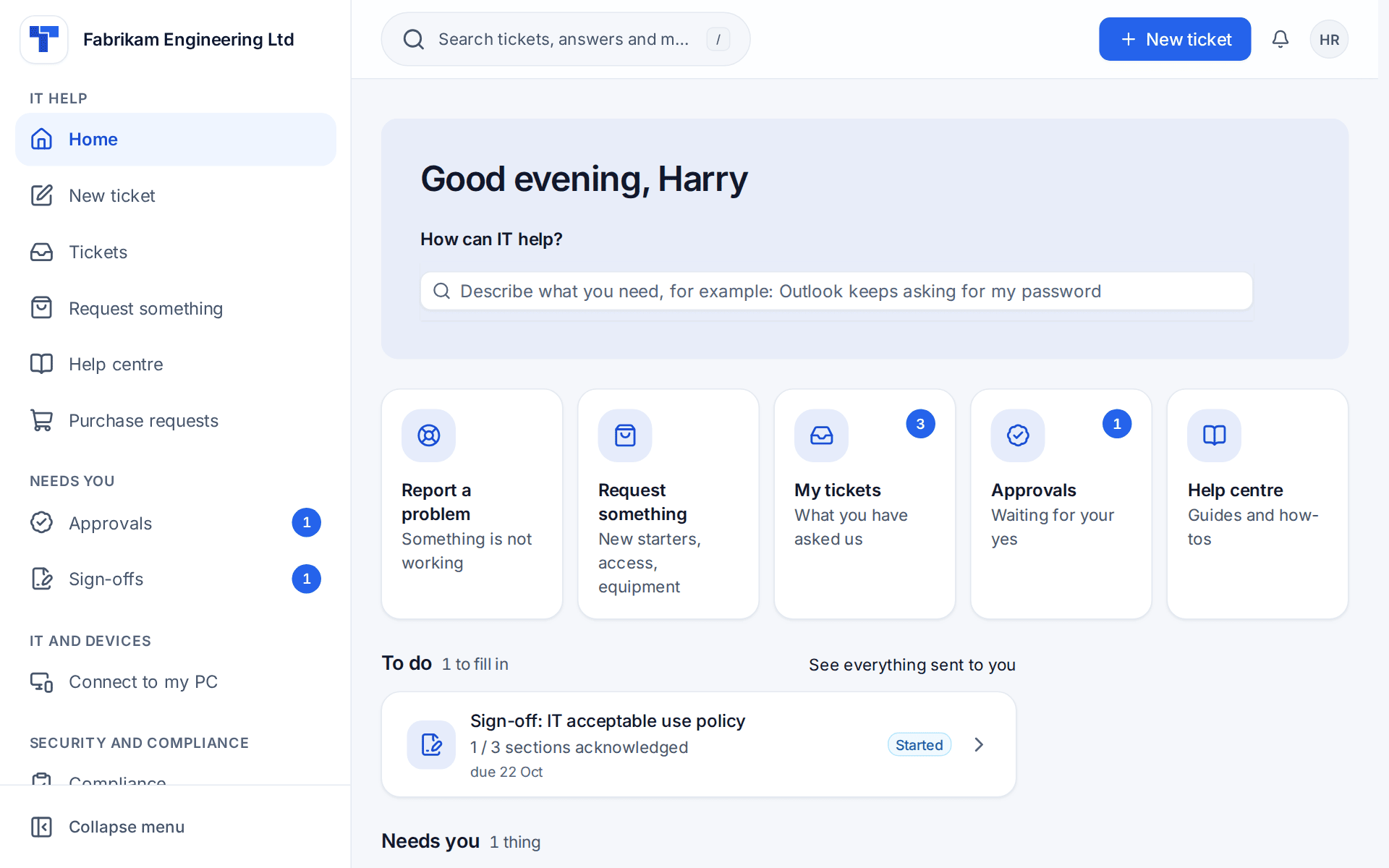
In it they raise and follow tickets, read help articles in the Help centre, see their own devices, ask for equipment, software and access under Request something, raise Purchase requests, and read and acknowledge the policies and sign-offs you send them. The group an MSP's customers see as "Get help" reads IT help, and there is no Money group.
A request goes to the department's manager first and then to IT, as Settings > Approvals says. A department with no manager goes straight to IT, and a manager who is away is stood in for by their delegate. See The employee portal and manager approvals.
Purchasing and spend
The Purchasing area in the rail takes the place of Sales and billing.
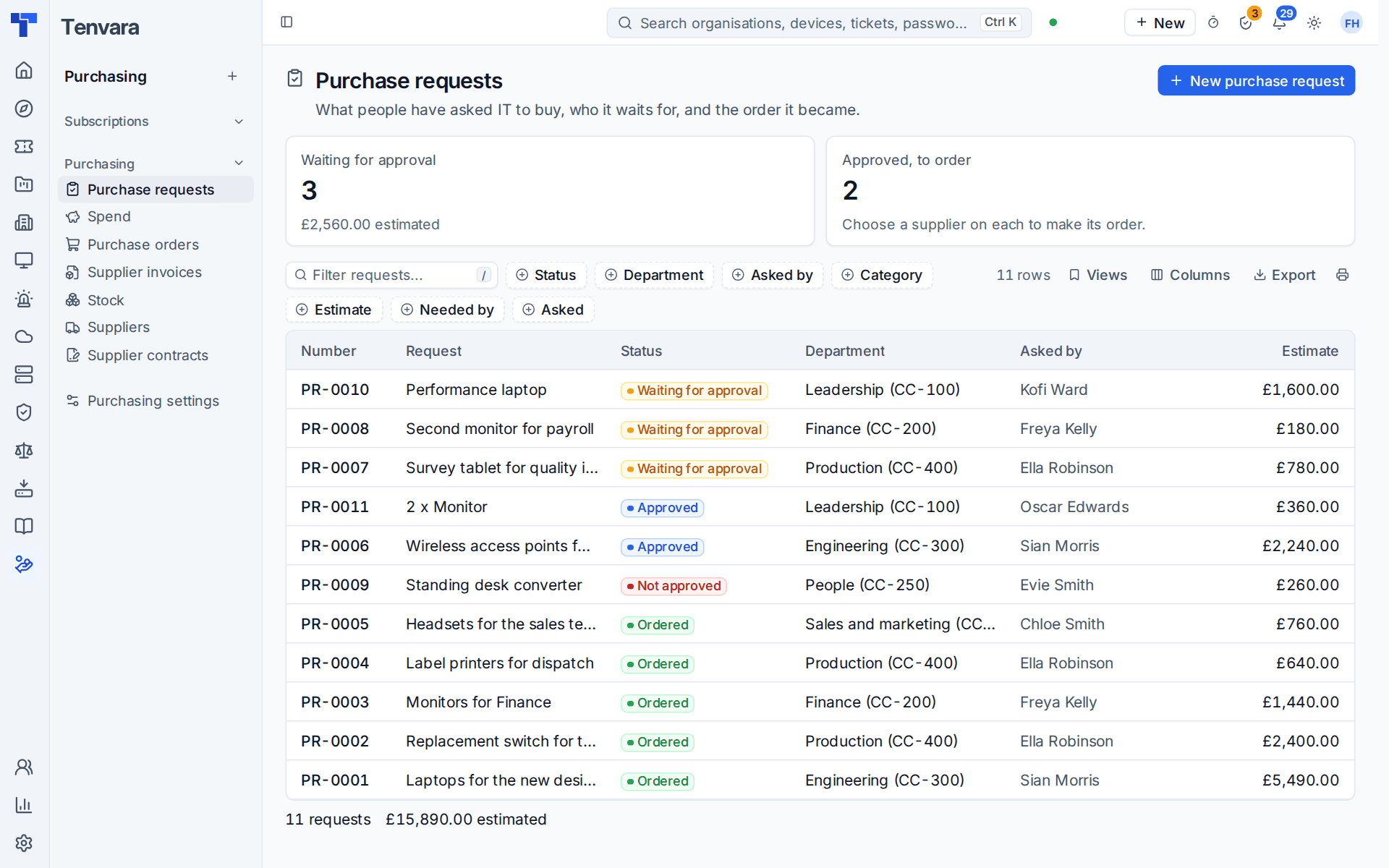
- A purchase request is approved by the department's manager and then by purchasing, and becomes a purchase order to its supplier. The approval steps are in Settings > Procurement.
- Purchasing > Spend shows IT spend by department and cost centre, month, supplier and category, against the IT spend lines of your budget in Reports > Budgets.
- The IT spend by department report has every order line and subscription month.
- Each device carries its purchase cost and depreciation, and its cost centre comes from its department.
What is not in this edition
The Company edition has no invoicing, payments or accounting sync, no quotes, proposals or sales pipeline, no customer contracts, no call billing, no takeover mode, no licence resale and no co-managed IT sign-ins. They are left out of the screens, settings, reports, emails and PDFs, so there is nothing to switch off.
A few things read differently:
- Time is logged as internal effort, with nothing to bill.
- The business review becomes an IT leadership update.
- Sign-offs are internal acknowledgements, for example a director accepting a risk.
- Cloud > Apps across tenants is Cloud > Enterprise apps, for your own tenant.
- The CRM pages of Sales and billing (My sales day, My mailbox, Account management, Marketing and Sequences) belong to the MSP edition.
- Governance and compliance is your organisation's own programme.
What is different from the MSP edition has the full list.
Getting help
The ? beside a page's title opens the guide for that page. In the setup helper, the box at the foot of each section answers questions about that step from its guide and from your own knowledge base. Finding your way around covers the rail, the sidebars and search, which work the same in both editions.
Was this page helpful?
Thanks for the feedback.