Virtual desktops: finding and adopting deployments
How the agent finds Remote Desktop Services deployments, how to adopt or ignore one, what an RDS deployment's page shows, and which actions wait for an approval.
Infrastructure > Virtual desktops looks after your customers' Remote Desktop Services (RDS) deployments the way Hypervisors looks after Proxmox clusters: the agent finds them, they wait under Found until someone adopts them, and an adopted deployment gets health, alerts and actions. The page sits in the Servers and storage group, beside Hypervisors, Docker hosts and NAS and storage, and has the tabs Deployments, Images and Sessions.
Virtual desktops are part of the Infrastructure module. If you do not see the page, switch the module on in Settings > Modules.
How deployments are found
Every agent on Windows carries a Virtual desktops role. It is on by default and stays idle on a server without any Remote Desktop roles. On a server that has them, it looks once a minute and reports when something changes (and at least every 15 minutes):
| Role on the server | What the agent sends |
|---|---|
| Connection broker | The deployment itself, named after the broker |
| Session host | Joins its broker's deployment, with its sessions and its "allow new connections" state |
| RD Web Access, RD Gateway, RD Licensing | Join the deployment that uses them |
| FSLogix on a session host | Each signed-in person's profile container, its size and free space, and the last day's errors |
To get started, install the agent on the connection broker and the session hosts (and, ideally, the licence server and the gateway). See Installing the agent. Within a few minutes the deployment appears in the list as Found, with a line such as "Found: an RDS deployment at Brightwater Estate Agents (broker BEA-RDCB01, 3 session hosts)".
Note: A found deployment shows what it sees but raises no alerts and takes no actions. Nothing is managed until it is adopted.
Adopting a deployment
- Open Infrastructure > Virtual desktops. Found deployments are listed first, each with Adopt.
- Click Adopt on the row, or open the deployment and click Adopt in its header.
- Check the Customer. It is the customer whose servers reported it; change it only if the deployment belongs to someone else.
- Confirm. Tenvara sends the RDS scripts to every server of the deployment and reads the broker as soon as they arrive.
Until the first read comes back the badge says Getting the scripts to the servers or Not read yet, never Healthy.
Ignoring and releasing
Not every deployment the agent finds is yours to manage. Ignore (with an optional reason) takes a found deployment out of the list, the counts and the Found view, and later reports do not bring it back. Show ignored in the list header lists them with who ignored each and why; Un-ignore puts one back under Found, ready to adopt.
On an adopted deployment, More > Release puts it back under Found: its alerts clear, any action waiting for an approval is cancelled, and its history is kept. Tick Ignore it as well in the Release dialog to release and ignore it in one step. More > Rename gives it a name of your own.
The deployment list
Each row shows the deployment's Health, Adoption (Found or Adopted), Customer, Broker or controller, Hosts available ("2 of 3"), Sessions, open Alerts and Last report, with Found and Needs attention views.
An RDS deployment's page
The page has a row of sections. The ones you use most:
- RDS deployment: the connection broker and how it is read (with the RemoteDesktop module, or over WMI), its services, high availability, licensing, the RD Gateway and RD Web Access, and the Session collections with their type, who they are for, idle and disconnected limits, what happens when a connection drops and load balancing. Read now asks the broker again.
- Session hosts: each host with whether it allows new sessions (or Drained outside here when someone drained it in Server Manager or PowerShell), its sessions, CPU, memory, median logon time, its licensing or grace period, and a restart in progress.
- Machines, Sessions, Licences (CAL key packs issued and available, hosts on a grace period, the licence servers and whether they are activated), Gateway (certificates, current connections and the CAP and RAP policies), Profiles (FSLogix containers), Published apps, Printing, Golden images, Usage, Costs and Activity.
Hosts without the agent
Every server the broker lists is shown, agent or not. A session host without the agent says No agent beside its name with Install agent, which opens the usual enrolment dialog for that customer and site. The section reads "1 of 2 reporting" until it is installed. A host without the agent is a finding, not an outage: the deployment shows Needs attention with "Not monitored", and no alert is raised.
Servers the broker cannot reach
The broker checks every server it keeps. A server that stops answering on ports 135 and 5985 shows Not reachable since a time, the deployment turns Degraded, and one alert names the servers ("BEA-RDSH02 not reachable from BEA-RDCB01"). Everything else is still read, so one silent server never stops the reads. A server taken out of the deployment in RDS leaves the page on the next good read.
Actions and approvals
Actions on sessions and hosts are on each row's menu. Each one is a signed command to the server's agent, recorded on the deployment's Activity and in the audit log:
| Action | Waits for an approval |
|---|---|
| Message to a session, a host, a collection or the whole deployment | Only if Settings asks |
| Shadow (view or control a session) | Never |
| Log off and Disconnect | Only if Settings asks |
| Drain and allowing new sessions again | Only if Settings asks |
| Restart after draining | Always |
| Resetting an FSLogix profile | Always |
Restart after draining stops new sessions going to the host at once, warns the people still on it every few minutes until they have logged off or the wait is over, restarts it, and allows new sessions again once it is back (untick Allow new sessions again once it is back to keep it drained). The host's row shows each step, for example "Waiting for people to log off: 2 still on it, 1 warning sent, restarts by 10:00".
Shadow checks what the host's remote control policy allows, then gives you the mstsc /shadow command to run from an elevated command prompt.
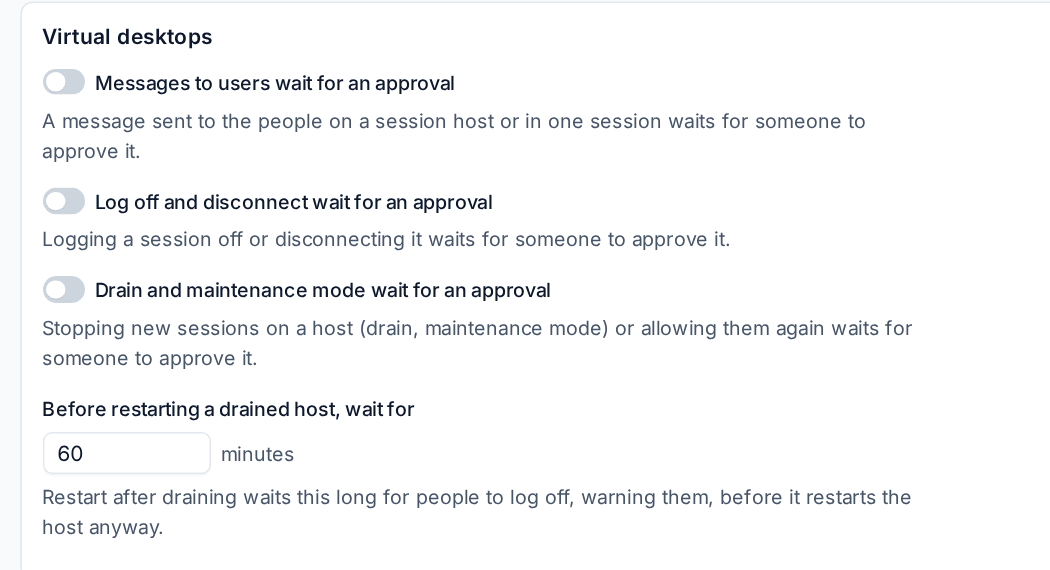
The approval rules are in Settings > Infrastructure, the Virtual desktops section: Messages to users wait for an approval, Log off and disconnect wait for an approval and Drain and maintenance mode wait for an approval (all off by default), how long a restart waits for people to log off (60 minutes), how long an action waits for the agent, and when an adopted deployment counts as silent. Who approves is set in Approvals.
Alerts
Adopted deployments raise alerts with the source Infrastructure, each saying what happened and what to do: the broker or gateway down, a host not taking new connections, nobody able to start a new session in a collection, CALs running out, a licensing grace period ending, a certificate expiring, an FSLogix profile nearly full or failing to attach, too many disconnected sessions, slow logons, a deployment not reporting and an action that failed. The thresholds are in the same Virtual desktops section of Settings. See Alert types.
Related
Was this page helpful?
Thanks for the feedback.