The keyboard in a remote session
Which keys go to the device in a remote session, how to reach the viewer's toolbar from the keyboard with Ctrl+Alt+Home, typing text in the device's own keyboard layout, Physical keys and Typed characters, and what to check when keys do not arrive.
In a remote session your keyboard belongs to the device. Tab moves between fields on the device, F5 refreshes the device's browser and Esc closes the device's dialog, in the browser viewer and the desktop viewer alike. When you need the viewer's own buttons, one key combination takes you there.
Every key goes to the device
While the remote screen has the focus (click it, or it takes the focus when the session starts), every key you press goes to the device:
- Tab and Shift+Tab move between fields on the device, so you can fill in a form or indent in an editor. They never move to the viewer's buttons.
- Alt, the F keys (F1 to F12), Backspace and Esc go to the device too. Your browser does not go back a page, reload or open its menu.
- Tenvara's own shortcuts (the command menu,
/for search) wait until you leave the screen.
In the browser viewer a ring around the screen shows that it has the keyboard. Keys the computer you are sitting at keeps for itself, such as Ctrl+Alt+Del and Windows+L, are on the toolbar instead: the Keys menu has Send Ctrl+Alt+Del and the device's system shortcuts (on Windows the Windows key, Win+R, Win+E, Win+D, Win+L, Alt+Tab, Alt+F4, Ctrl+Shift+Esc and Print Screen). In the desktop viewer, Send system keys to the device under Keys also sends the Windows key and Alt+Tab as you press them. See The desktop viewer.
Reach the toolbar from the keyboard

Press Ctrl+Alt+Home (on a Mac, Ctrl+Option+Home, which is Ctrl+Option+Fn+Left on a laptop keyboard). The focus moves to the first button of the viewer's toolbar, and the device lets go of Ctrl and Alt, so nothing stays pressed there. In full screen the toolbar comes down while it has the focus.
On the toolbar:
- Tab and Shift+Tab move between its buttons.
- Enter or Space opens one.
- Esc goes back to the remote screen. When a menu is open, the first Esc closes the menu.
Clicking the screen also gives the keyboard back to the device. In the desktop viewer the toolbar says so while it has the keyboard.
This is the same combination Microsoft's Remote Desktop uses for its connection bar. The viewer's Keys menu and Tenvara's keyboard shortcuts (press ? outside the session) show it too.
Physical keys or Typed characters
Under Keys, choose how your typing reaches the device. The choice is remembered for each device and kept on the session's record.
| Choice | What is sent | Best for |
|---|---|---|
| Physical keys | The key you pressed, so the device's own keyboard layout decides the character. | Devices set to the same layout as your keyboard, games and anything that reads raw keys. |
| Typed characters | The character your keyboard shows, so a UK keyboard types " and @ correctly on a server set to a US layout. Shortcuts, arrows and the F keys still go as keys. |
Typing on a device whose layout differs from yours. |
Type text and Type my clipboard
Passwords and long strings are where layouts bite. Type text under Keys types what you enter into the device, and Type my clipboard types what you copied:
- On a Windows device the text is typed in the device's own keyboard layout: the one the device reports for the window in front, else the one you pick, remembered per device. Each character goes with its Shift or AltGr, so
@,£and accented letters arrive as you meant them. - Long text goes in batches, with progress and Cancel. If the device stops answering, typing stops rather than carrying on blind.
- On other devices the characters are typed as they are.
To sign in with a password from the vault without seeing or typing it, use the viewer's credential option instead: the agent types the password itself and it never reaches your computer. See Remote control.
Single keys outside the session
Outside a session, Tenvara's single-key shortcuts that act on a device ask first. R on a device page or a device list row asks Connect to ...? with who is at the device, C asks before running every check and B before backing up. Enter goes ahead and Esc cancels. Keys that only move, open or filter stay instant.
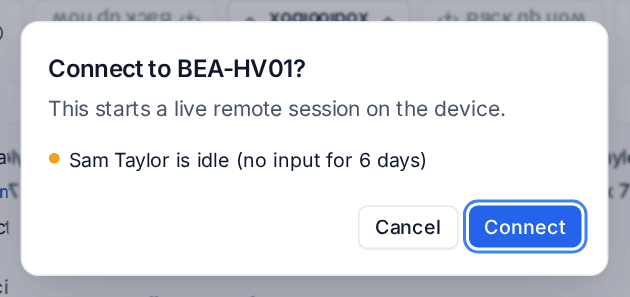 See Who is signed in and whether they are there.
When keys do not arrive
- In the browser viewer, look for the ring around the screen. Without it the screen does not have the keyboard: click it. In the desktop viewer, click the picture.
- A view-only session sends no keys at all, and neither does a session switched to View. Switch to Control to type.
- With Typed characters chosen, letters and symbols are typed as your own keyboard shows them, while Tab, the F keys and shortcuts are still sent as keys. If a shortcut misbehaves on a device with another layout, try Physical keys.
- Ctrl+Alt+Del is sent from Keys, never from your keyboard. When a Windows policy blocks it, the button says so. See Ctrl+Alt+Del in a remote session.
Related
Was this page helpful?
Thanks for the feedback.