Who is signed in and whether they are there
See who is signed in to each computer and whether they are active, idle, locked or on a disconnected Remote Desktop session, every session on a server, the Last user and Session columns, and what you see before a remote session starts.
Before you restart a server or take over a screen, you want to know whether someone is working on it. The agent reports every session on the computer and how present each person is, and Tenvara says it the same way everywhere: on the device page, in the device list and before a remote session starts.
The states
| State | What it means | In the device list |
|---|---|---|
| Active | Someone is signed in and using the computer now. | Active |
| Idle | Signed in, with no keyboard or mouse input for a while, counted from their last input. | Idle 12 min |
| Locked | Signed in with the screen locked, counted from when it locked. | Locked 2 hr |
| Disconnected | A Remote Desktop session that is still signed in but has no one connected to it. | Disconnected |
| Nobody signed in | No one is signed in, with who signed out last and when. | Nobody signed in |
A device that is offline shows what it last reported, as last reported 3 hr ago, and the list greys the cell. The times count up on screen each minute, and a lock, sign-in or sign-out shows without reloading the page.
On the device page
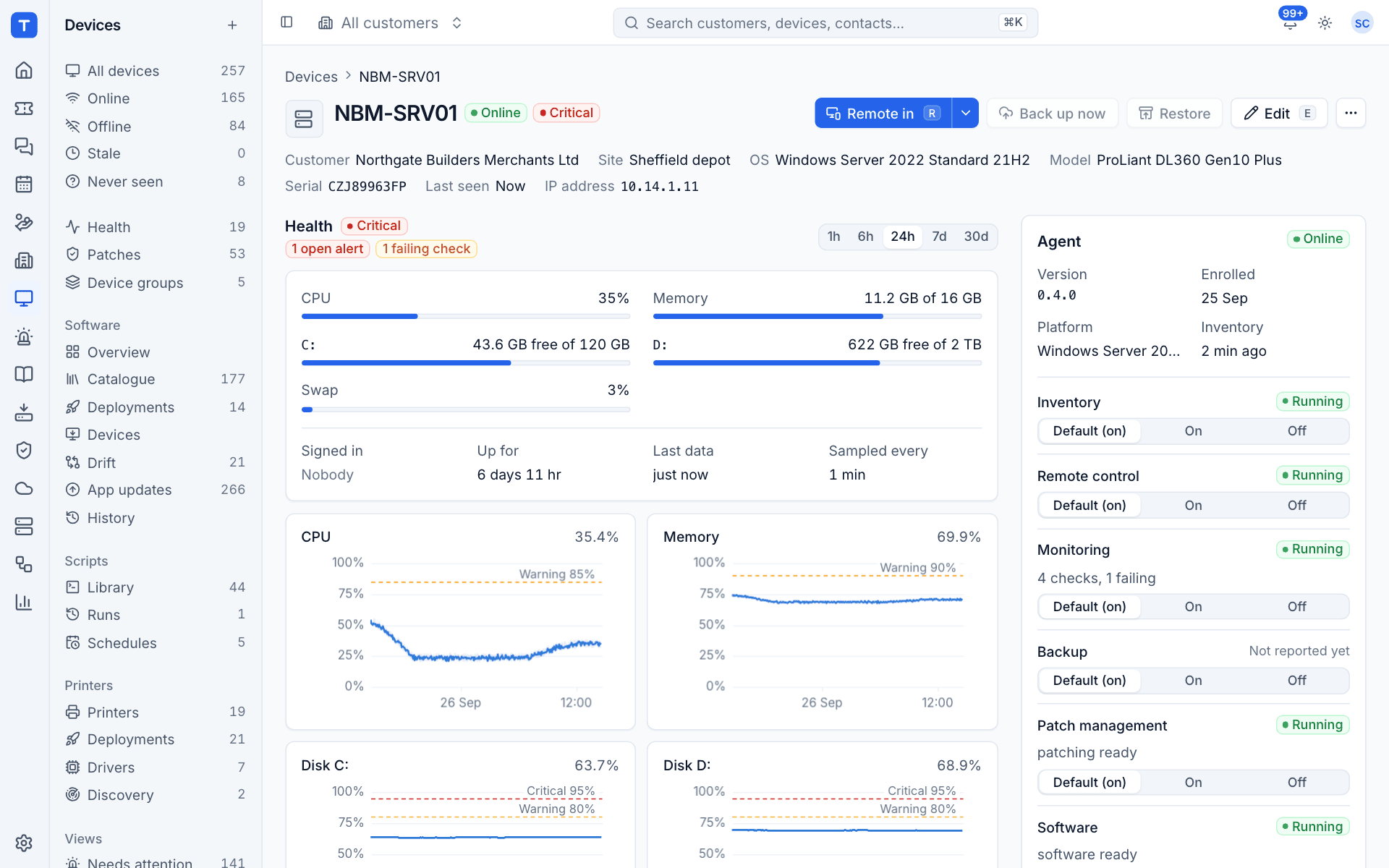
- The header says Signed in with the person, linked to their contact, and how present they are, for example Signed in Sam Taylor, Idle for 6 days. With more than one session it says how many. While the device is offline or nobody is signed in, it says Last user with when instead.
- The Signed in card beside the Agent card lists every session: the person, whether it is the console or a Remote Desktop session (with the computer they connected from), its state and since when, and when they signed in. On a server or a Remote Desktop session host that is every user's session. With one session, the card says where and since when under the person, for example Console, signed in 1 hr ago.
- The Health section says Signed in while the person is there, and Last signed in with when once they have gone.
In the device list
The Last user and Session columns sit beside Status and show by default (Columns hides them). Last user shows the person by their name, however Windows wrote the account; the account itself is on hover. Session says how present they are, and sorts by presence, then by how long they have been idle.
Find devices by their people:
- Last user and the search box find a device by its user's name in any form: Kate Tomblin, KateTomblin, kate and BRIGHTWATER\KateTomblin all find the same device.
- Session filters to Active, Idle, Locked, Disconnected, Nobody signed in or Not reported.
- Idle for more than (minutes) finds devices where someone is signed in but has not touched the keyboard or mouse for that long.
- The built-in views Nobody signed in and Idle for more than 30 min are in the Views picker, handy before a restart or a patch install out of hours.
A person's devices
A contact's page shows Their devices near the top: the devices they use, then the devices they sign in to, then the ones Intune names them the primary user of, each with Remote in. The same list is in the Devices section of their Microsoft 365 user panel. A device matched from a sign-in can be confirmed as theirs with one click, which sets Used by. See The tray app.
Before a remote session starts
The same line about who is there shows before any session starts: in the browser viewer's connecting card, in the desktop viewer's Opening the desktop viewer dialog and in the Ask each time choice. Pressing R on a device page or a device list row asks first, with that line, so a stray key never puts you on someone's screen:
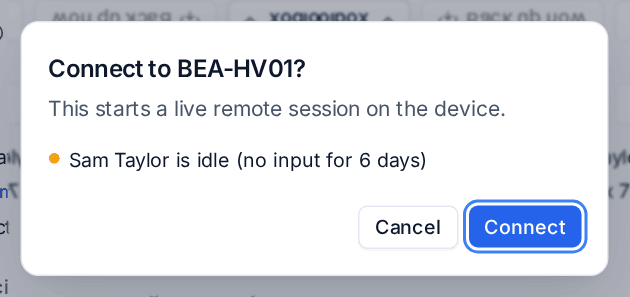
Connect has the focus, so Enter connects the way you prefer and Esc cancels. Clicking Remote in still goes straight in, because a click is meant. Other single keys that act on a device ask the same way: C runs every check, B backs up now. See Remote control.
When the person is on Remote Desktop rather than at the console, the session opens on their Remote Desktop session. See Switching sessions and Remote Desktop users.
Both editions
In the Company edition the person is an employee rather than a customer's contact; everything else is the same.
Related
Was this page helpful?
Thanks for the feedback.