Driver sources and the device for printer work
Where Tenvara looks for a Windows printer driver and in what order, what your server needs to reach, how to switch a source off, what a printer reports about itself, and how to choose the one device at each site that does the printer work.
Two things decide whether a printer just works when you add it: whether Tenvara can find its driver, and which computer at the site talks to it. This guide covers both. For the driver list, uploads and the model mapping, see Drivers and model mapping.
Where a driver is looked for
When a printer needs a Windows driver and nothing covers its model yet (no driver chosen on the printer, no mapping line and no package listing the model), Tenvara looks for one, trying each source in this order:
| Order | Source | What it is |
|---|---|---|
| 1 | Microsoft Update Catalog | Searched by the printer's hardware ID, then by its model. The newest signed driver is downloaded once and reused |
| 2 | Vendor universal drivers | Signed universal drivers from HP, Brother, Canon, Kyocera, Ricoh, Xerox, Konica Minolta, Lexmark and Epson, matched by maker and model family and by the languages the printer says it takes |
| 3 | The site's driver store | The Windows driver store of the device for printer work at the printer's site |
| 4 | Microsoft IPP Class Driver | Used when the printer answers IPP |
| 5 | Upload | Nothing was found, so the printer asks for the manufacturer's package |
The first two are fetched by your Tenvara server, not by a computer at the site. A driver from them is used only when its signature is valid; if it is not, that step fails with the reason and the lookup moves on. Each package is kept in Devices > Printers, on the Drivers tab, so a driver fetched once serves every printer of that model at every customer. Devices then get it from your server, so a computer with no route to the internet can still install it.
Seeing where a driver came from
On the printer's page, the Windows driver card shows the driver's state, its name, where it came from, whether it is Signed and which device looked it up.
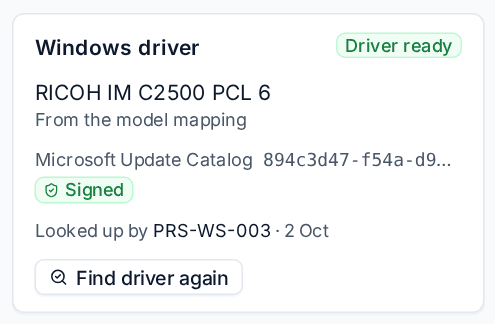
While a lookup runs, and when nothing was found, the card lists each source tried with its outcome and the reason in words, for example that IPP is switched off on the printer, that port 631 is blocked from the device that checked, or that no driver for the model is in the site's driver store. Then it offers Upload the driver package.
Find driver again, on the card and in the printer's ... menu, runs the whole lookup again at once. A lookup that found nothing is also tried again by itself after six hours.
On the Drivers tab, the Source and Signature columns (both are filters too) show the same for every driver.
What your server needs to reach
The first two sources need outbound access from your Tenvara server on port 443:
- Microsoft Update Catalog:
www.catalog.update.microsoft.comand Microsoft's download hosts, such ascatalog.s.download.windowsupdate.com. - Vendor universal drivers: each vendor's own download site.
If your server cannot reach them, those steps fail with the reason and the lookup carries on with the next source.
Switching a source off
Administrators can switch the server's sources off in Settings > Device management, with the other printer settings:
- Under Microsoft Update Catalog: Look for printer drivers on the Microsoft Update Catalog, Requests to the catalog at most (a limit per minute for all lookups together) and Largest driver download.
- Under Vendor universal drivers: one switch per vendor, such as Use HP universal drivers. A switched-off vendor's printers go on to the next source, and the lookup says the vendor's drivers are switched off.
What a printer reports about itself
The device that checks a printer also asks it, over IPP and SNMP, what it is and what it can do. The printer's page shows this under What it can do.
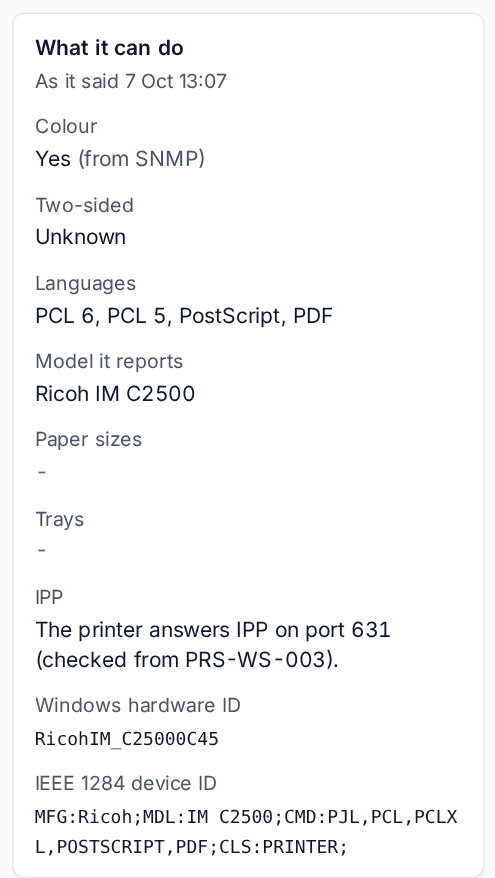
- Colour says where the answer came from, such as Yes (from SNMP). When nobody knows, it says Unknown with the reason rather than guessing mono.
- Windows hardware ID is the ID Windows itself would give the printer, worked out from the 1284 device ID. It is what the Microsoft Update Catalog is searched by.
- IPP warns when IPP cannot be used, naming the device that checked.
A failed IPP check is tried again after an hour, so switching IPP on at the printer shows within the hour.
The device for printer work
One device at each site does all the printer work there: status checks, driver lookups, scheduled discovery, Secure print releases started from Tenvara, test pages and, unless you choose otherwise, scans. It is the site's Device for printer work.
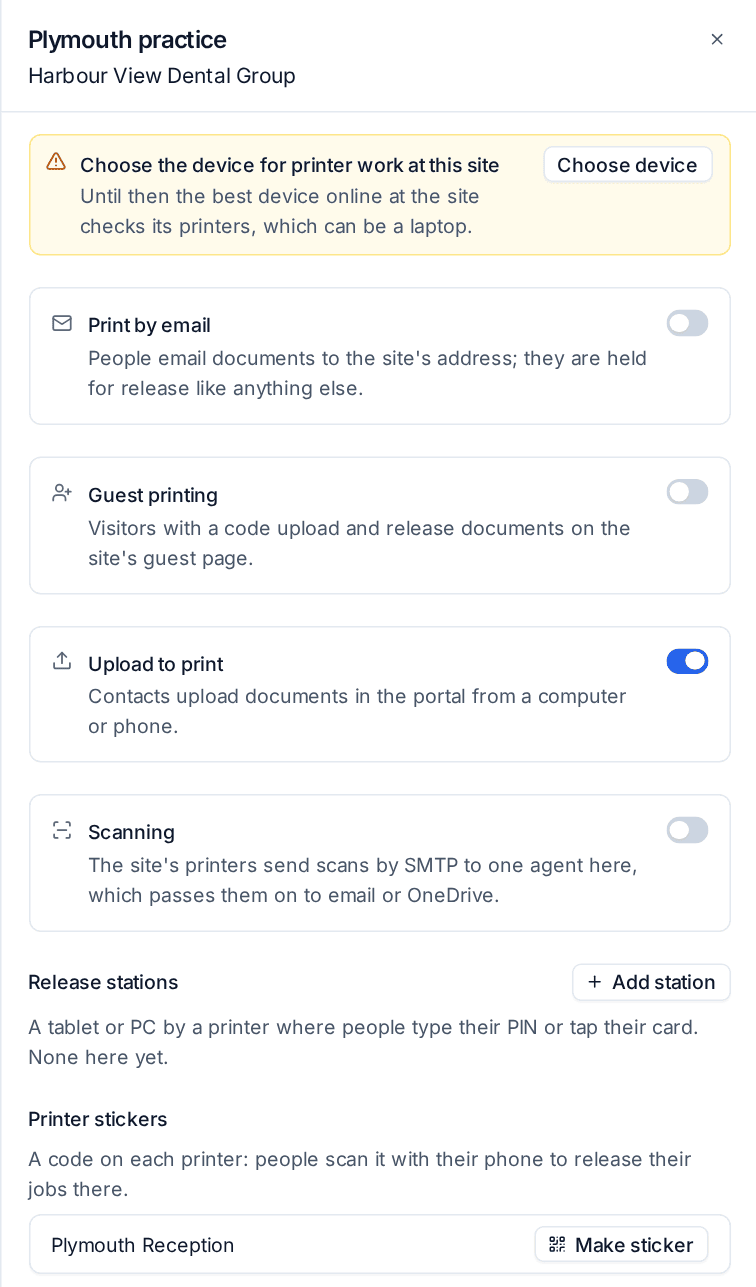
Until you choose one, the best device online at the site does the work, which can be a laptop that goes home at night.
Choose the device
- Open a printer at the site and click Choose device in the banner. The same choice is on the site's row in Devices > Secure print, on the Sites tab, and in the Printers section of the site's own page.
- Under Device for printer work, pick a server or a PC at the site that stays on.
- Click Save.
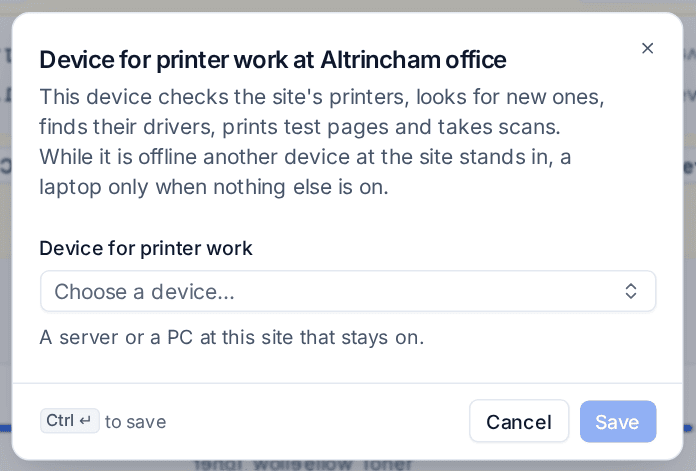
The site's printers move to the device at once.
When the device is offline
- Another device online at the same site stands in: servers and virtual machines first, then desktops, with laptops last. A device at another site is never used.
- The printer's page names the device under Checked by, with the reason while another one is standing in.
- When the chosen device is back, the printers return to it within five minutes.
A different device for one printer
A printer on a network the site's device cannot reach can be checked from another device instead. Edit the printer and set Check from. That device does the printer's work whenever it is online, and the site's device stands in when it is not.
Note: Scanning has its own Scan agent, because printers send scans to its address and it must not move by itself. It starts as the device for printer work when you switch scanning on. See Scanning.
Related
Was this page helpful?
Thanks for the feedback.