Tickets, priorities and SLAs
The Tickets, priorities and SLAs section of the setup helper: copy your old PSA's priorities and SLAs, create queues, set SLA targets, closing and chasing, satisfaction ratings, and the checks that prove a new ticket is routed.
Tickets, priorities and SLAs opens the Service desk phase and is the biggest section, at about two hours. It covers ticket types, priorities and the SLA targets on them, queues and who works them, closing and chasing, and satisfaction ratings.
Open Set up (Health once you have gone live) and choose Tickets, priorities and SLAs. It runs through the same six beats as every section: see Working through a section.
Note: Finish Company, brand and regional and Staff, roles, teams and sign-in first, because SLA clocks need business hours and queues need teams. The section works best after Email in and out and Customers and import. Finishing it unblocks Service catalogue and approvals, Alerts, automation and on-call and Contracts, billing and accounting.
What it reads from your data
What we found counts your priorities and how many have no SLA targets, your ticket types, your queues and the queues nobody works, and your canned responses. When you imported an export from another PSA, it also lists what that export holds: the old priorities, SLAs, ticket types and business days, and which export they come from.
What it asks
| Question | Choices and notes |
|---|---|
| What should we copy in from your old PSA? | Priorities and their targets, Other SLAs, Ticket types, Business hours. Only what the export holds is offered. Priorities and types with the same name are updated, not doubled. Optional |
| Which queues do you want? | Service desk, Alerts, Projects, Starters and leavers. A queue is a pile of work a team picks from. Start small: you can split one later |
| After how many quiet days does a resolved ticket close? | 1 to 60, with 3, 5, 7 and 14 offered. The default is 3 |
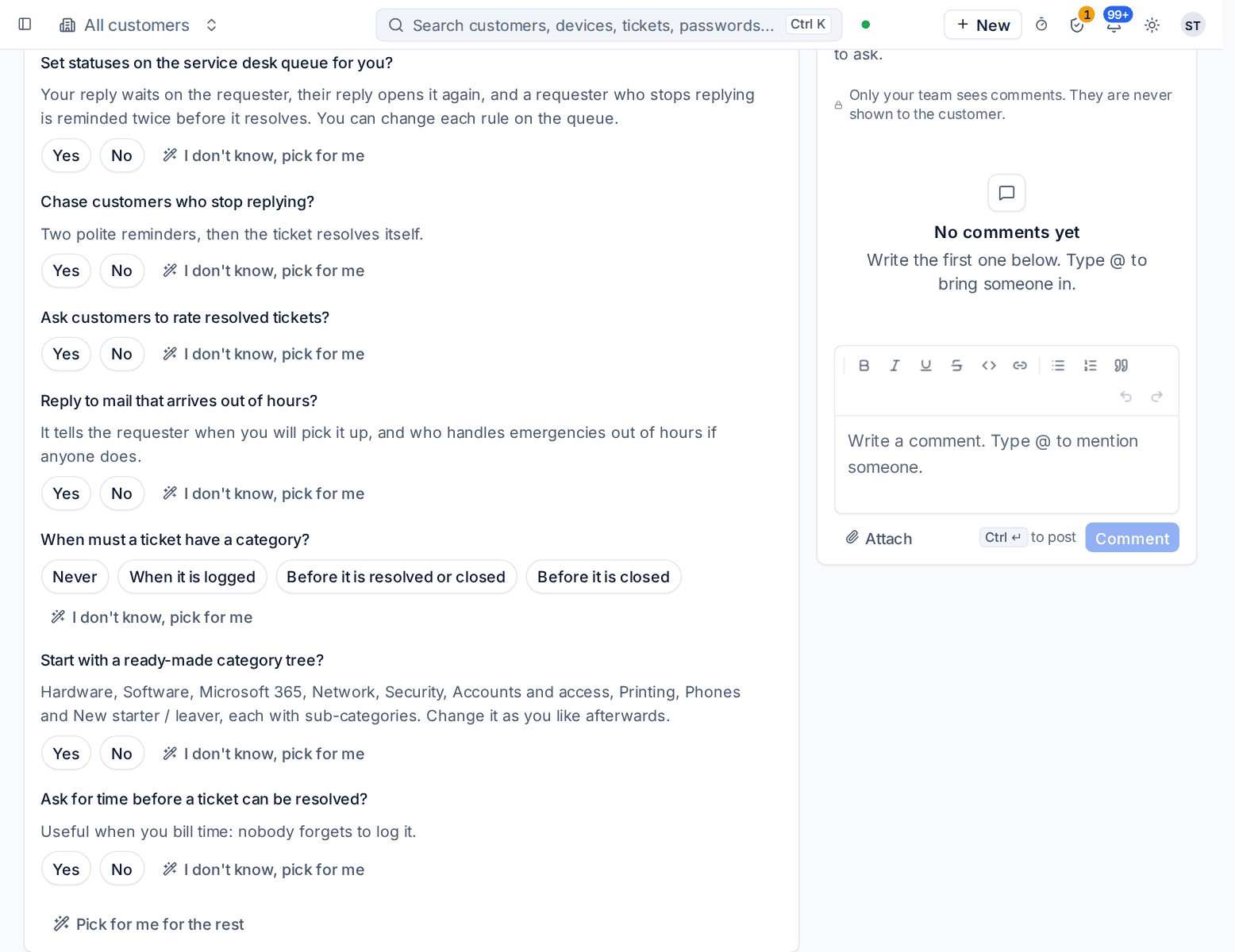
| Set statuses on the service desk queue for you? | Your reply waits on the requester, their reply opens it again, and a requester who stops replying is reminded twice before it resolves. You can change each rule on the queue. A new install's Service desk queue already works this way, so the question matters for a queue that has no status rules yet |
| Chase customers who stop replying? | Two polite reminders, then the ticket resolves itself |
| Ask customers to rate resolved tickets? | Yes or no |
| Reply to mail that arrives out of hours? | The reply tells the requester when you will pick it up, and who handles emergencies out of hours if anyone does |
| When must a ticket have a category? | Never, When it is logged, Before it is resolved or closed or Before it is closed |
| Start with a ready-made category tree? | Hardware, Software, Microsoft 365, Network, Security, Accounts and access, Printing, Phones and New starter / leaver, each with sub-categories. Change it as you like afterwards |
| Ask for time before a ticket can be resolved? | Useful when you bill time: nobody forgets to log it |
What it recommends
- Your old PSA's SLAs, priorities and types are copied in, so the desk starts the way your team already works. Why this? explains it: re-creating SLAs by hand is where most moves from another PSA lose time, and customers notice when targets change.
- Every priority gets SLA targets. A priority without targets never breaches, so nobody is warned about slow tickets.
- The queues you chose are created, so work lands in the queue of the team that does it.
- Replies move tickets on by themselves: waiting for an answer after yours, open again after theirs. Offered when the service desk queue has no status rules yet.
- Tickets are sorted the same way from day one, when you asked for the ready-made categories, so reports and SLAs by category work at once.
- Tickets close, chase and ask for feedback the way you chose.
- A ticket cannot be resolved until its time is logged, when you said you bill time.
What changes shows every line with its value Now and what it Will be. Use Change something to leave a line out, then press Apply. You can undo an apply for 7 days.
Tip: Different about your business? Describe it in the box at the foot of the section. With AI set up with your own Anthropic key, that becomes answers you review in the preview. Nothing is applied until you press Apply.
How it is verified
| Check | What it looks at | Where to fix it |
|---|---|---|
| Every priority has SLA targets | No priority is left without targets. Needed to go live | Give priorities targets, a one-press fix, or Settings > Ticket setup, the SLAs tab |
| A new ticket gets a queue and an SLA | A ticket logged now would be routed and timed. Runs when you press the play button on it | Create a service desk queue, a one-press fix when there is no queue, or Settings > Ticket setup |
| Every queue has people working it | Queues nobody works | Settings > Ticket setup, the Queues tab |
| There is a status for every stage of a ticket | No stage of a ticket's life is left without a status | Settings > Ticket setup, the Statuses tab |
Day to day
- A new ticket gets its type, queue and priority from the rules here, and its SLA clock from the priority and the customer's contract. Each queue's status rules decide what a reply, a note or an assignment does to the ticket's status; see What a queue does to a ticket's status.
- Who must prove who they are before a password or MFA reset is set on the Identity checks tab of Settings > Ticket setup. See Verifying who a caller is.
- Resolved tickets close by themselves after the quiet days you chose. Customers who stop replying are chased if you said so.
- The pages behind this section are Settings > Ticket setup (queues, statuses, priorities, SLAs, types, categories, business hours, automatic closing and more, each on its own tab), Settings > Canned responses and Settings > Feedback.
Related guides
Was this page helpful?
Thanks for the feedback.