Network, assets and lifecycle
The setup section for the network and your assets: a network probe at each site, replacement ages and warranty warnings, alerts for new devices, and checks on domains, the Apple push certificate and web server sites.
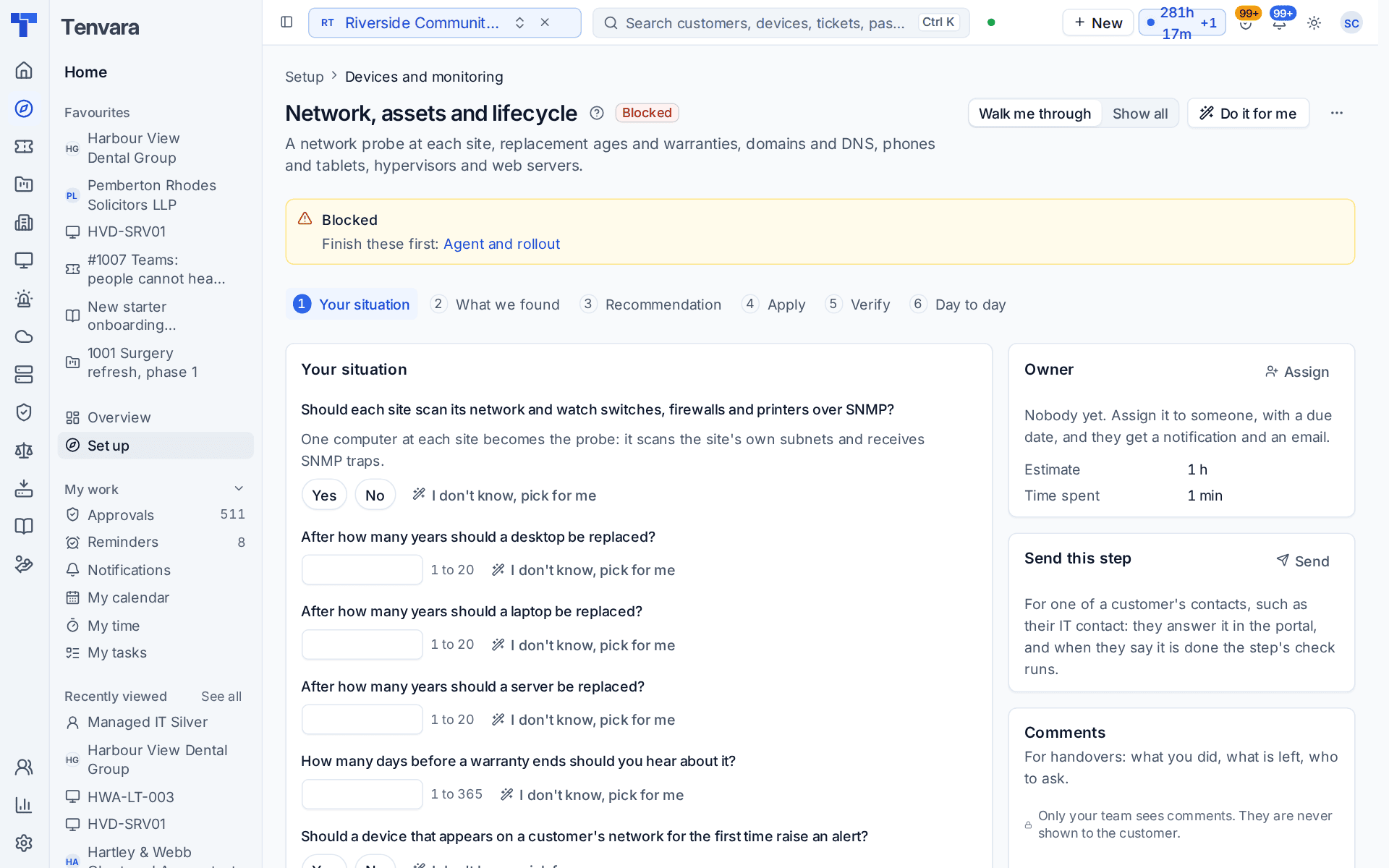
This section of the setup helper covers the kit that is not a computer with an agent, and how long everything should last: a network probe at each site, replacement ages and warranties, domains and DNS, phones and tablets, hypervisors and web servers. It sits in the Devices and monitoring phase and takes about an hour.
Open it from Home > Set up, then Network, assets and lifecycle. It runs through the same six beats as every section: see Working through a section.
Before you start
The section belongs to the Monitoring module, so it joins your plan once Monitoring is on in Settings > Modules. Finish Agent and rollout first. Until then the section shows Blocked, because a site's probe is one of its own computers with the agent on it.
What it reads from your data
What we found shows:
- sites with computers, and sites that already have a network probe;
- switches, firewalls, routers and access points on record;
- which warranty lookups are switched on;
- domains watched and DNS provider accounts connected;
- phones and tablets managed;
- hypervisor connections.
The questions it asks
| Question | Choices | Pick for me |
|---|---|---|
| Should each site scan its network and watch switches, firewalls and printers over SNMP? | Yes or no | Yes |
| After how many years should a desktop be replaced? | 1 to 20, with 4, 5 and 6 offered | 5 |
| After how many years should a laptop be replaced? | 1 to 20 | 4 |
| After how many years should a server be replaced? | 1 to 20 | 6 |
| How many days before a warranty ends should you hear about it? | 1 to 365 | 60 |
| Should a device that appears on a customer's network for the first time raise an alert? | Yes or no | Yes |
With probes on, one computer at each site becomes the probe. It scans the site's own subnets and receives SNMP traps.
What it recommends and why
- Each site gets a probe on one of its computers, so new devices and network kit show up without anyone walking the office. The preview says how many sites have a probe now and how many will have one.
- Devices are flagged for replacement at the ages you chose, and you hear about warranties ending in good time. The ages become the expected life of workstations, laptops and servers, the warranty warning is set, and warranty end dates are looked up each night.
- New devices on a customer's network are reported as you chose.
Press Apply when the preview is right. An apply can be undone for 7 days.
Checking it worked
Verify runs these live checks:
- A probe is online at each site. A site with computers and no probe gets a one-press fix that makes one. An offline probe links to Infrastructure > Network.
- Warranty lookups are returning. The fix opens Settings > Assets, where lookups are switched on.
- No domain is about to lapse. It warns about domains that end within 30 days and do not renew themselves, with a link to Infrastructure > Domains.
- The Apple push certificate is current. It matters only when you manage iPhones and iPads through Tenvara. The fix opens Settings > Mobile devices.
- Web server sites are chosen and answering. It matters only when you host websites on web servers managed from Infrastructure > Web servers.
Day to day
- New devices found on a customer's network appear on the site's network page. Network kit is polled and raises an alert when it goes down.
- Devices due for replacement or with a warranty ending show on the customer's lifecycle list, ready for a quote. Reports > Hardware refresh has them across every customer.
- The settings behind this section are in Settings > Network, Settings > Assets, Settings > Domains and DNS and Settings > Mobile devices.
Related guides
Was this page helpful?
Thanks for the feedback.