My mailbox and sales email
Connect your own Microsoft 365 mailbox so emails and meetings with contacts and leads land on their timelines, send sales email from your own mailbox with templates, tracking and a booking link, and keep it all out of the service desk.
Sales conversations happen in each salesperson's own mailbox. Connect it once and the emails you exchange with your contacts, leads and deal contacts are logged on their timelines by themselves, private to you unless you share them. Emails you send from a lead, contact or deal go from that same mailbox, never through the support desk.
Note: My mailbox and sales email are part of the CRM, in the MSP edition. Each salesperson connects their own Microsoft 365 mailbox, through your install's Microsoft 365 app registration.
Set it up (administrators)
Open Settings > Sales and find Mailbox sync.
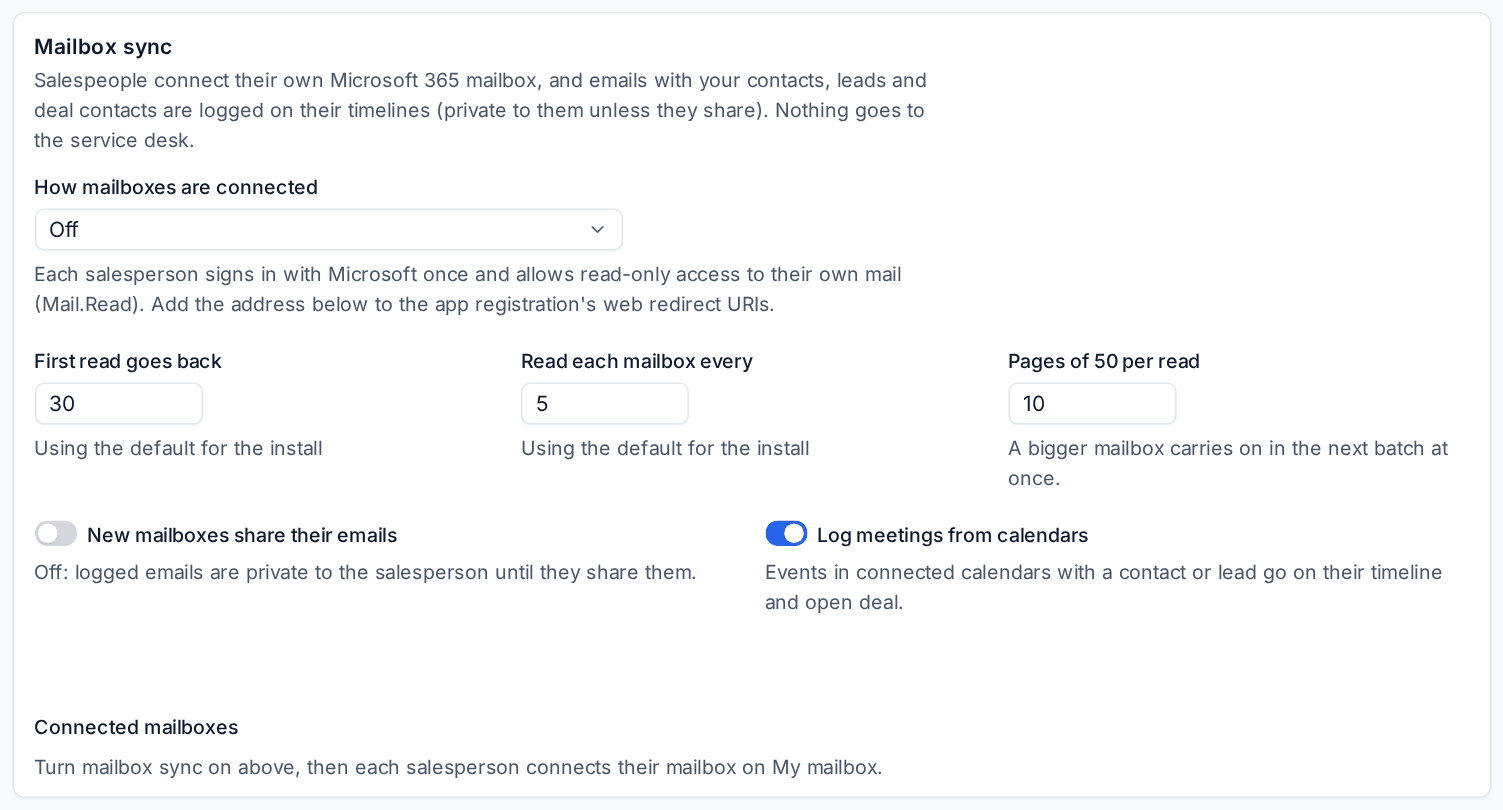
- Under How mailboxes are connected, choose how:
- Delegated (the one to choose): each salesperson signs in with Microsoft once and allows read-only access to their own mail and the right to send as themselves. Nothing else in the tenant changes, and each person can only ever connect their own mailbox. Add the redirect address the card shows to your app registration's web redirect URIs (see Connecting a Microsoft 365 tenant).
- App: the install's app reads the salespeople's mailboxes in your own tenant with its application permission, with no consent per person. Limit the app to the sales mailboxes with an Exchange application access policy on a mail-enabled group of the salespeople. Such a policy limits the app's mail access everywhere in that tenant, so choose delegated unless the app is used for nothing else there.
- Set how far back the First read goes (30 days to begin with) and how often to Read each mailbox every (5 minutes).
- Decide whether New mailboxes share their emails with the team. Off, each logged email is private to its salesperson until they share it.
- Log meetings from calendars puts calendar events with a contact or lead on their timeline and open deal. It works with Microsoft 365 and Google calendars connected through calendar sync, with or without a mailbox connected.
- Save.
Connected mailboxes at the foot lists whose mailbox is connected and when it was last read.
Connect your mailbox
- Open Sales and billing > My mailbox.
- Press Connect your mailbox and sign in with Microsoft as yourself.
- Accept the permissions.
Tenvara reads your Sent Items and Inbox from the start date onwards, a batch at a time, then every few minutes. Read now reads a batch straight away.
What is logged, and where
For each email, Tenvara looks at who is on it:
- A reply in a conversation already logged goes on the same record.
- Otherwise, a contact's address puts it on their open deal (the one most recently worked), else on the contact; a lead's address puts it on the lead's open deal, else on the lead.
- Mail with nobody known on it is ignored and never kept. Your own colleagues' addresses never match, and drafts are skipped.
The email's own words are kept, without the quoted history below a reply. The same email seen in two colleagues' mailboxes is logged once. Nothing ever becomes a ticket or touches the support mailbox, and a logged email counts as activity, so a deal with recent emails is not going cold.
Private unless you share
A logged email is private to you. On My mailbox, Share one with the team (and Make private again), or turn on Share new emails with the team for everything logged from then on. You can also change one from the timeline.
Disconnecting
Disconnect on My mailbox stops all reading. Emails already logged stay on their records. With delegated access, the consent itself stays with Microsoft until you remove the app at myapps.microsoft.com.
Send sales email
On a lead, a contact (and a customer's Contacts tab) and a deal, Send email opens the sales email. From is your own connected mailbox, To is the record's address (for a deal, its contact's, else its lead's), with Cc, a subject and the editor.
The email goes from your mailbox and is saved in your Sent Items. It is logged on the record, shared with the team, and on every timeline it rolls up to. The reply comes back to the same record through your mailbox. Without a connected mailbox, Tenvara asks you to connect it first.
To write to a contact through the service desk instead, use Email as a support ticket... in the contact's More menu: that one is a ticket, for service conversations.
Templates and snippets
Three templates come built in: Sales email: introduction, Sales email: after a meeting and Sales email: chasing a proposal. Change their wording per brand and language in Settings > Support email, the Email templates tab.
Add your own templates (a subject and a body) and snippets (a paragraph to drop in at the cursor) from the email dialog, or under Sales email in Settings > Sales with New template and New snippet. Administrators and sales managers can share them with the team.
Merge fields go in braces: {first_name}, {last_name}, {name}, {their_company}, {company} (yours), {my_name}, {my_first_name}, {my_email}, {my_phone}, {deal_title}, {deal_reference}, {quote_reference}, {quote_title}, {quote_sent}, {last_meeting} and {booking_link}. A blank line starts a paragraph.
Opens and clicks
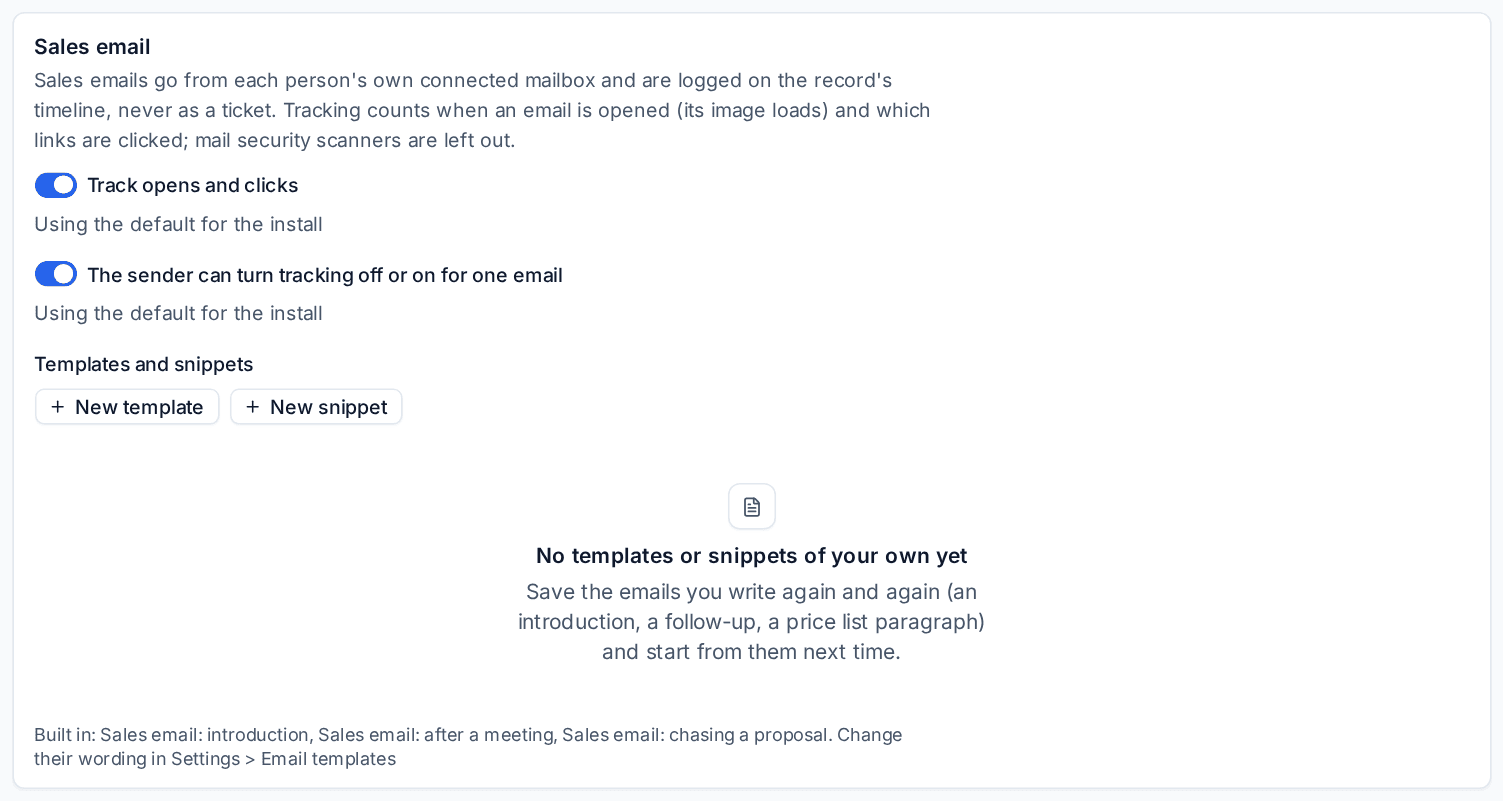
With Track opens and clicks on, Tenvara notes when the email is opened and which links are clicked. The first open and the first click on each link are lines on the timeline, and the email shows counts such as "opened 3 times, 1 click". Mail security scanners and link previews are left out. The sender can turn tracking off or on for one email decides whether each person may change it per email.
Tip: Treat opens as a sign, not proof. Some mail apps block images and others load every image, so clicks are the better signal.
A booking link for sales meetings
A booking page in Settings > Scheduling can be used for Sales meetings rather than visits. Someone who books from its link becomes a lead (or is matched to their open lead), gets an open deal, and the meeting goes on the deal for the salesperson booked, never as a ticket. Put {booking_link} in your templates, for example as a "Book a 30 minute chat" button. See Booking pages and calendar sync.
Calling
Call on a contact, lead or deal opens your phone app or a Teams call to the number, as Calls in Settings > Sales says, and logs the call on the deal (or the record) for you to add the outcome.
Related: My sales day and activities, Sequences, The Outlook add-in.
Was this page helpful?
Thanks for the feedback.