To do, sign-offs and presentations in the portal
What a contact sees when you ask them for something: the To do list on Home, answering an information request, signing or declining a sign-off, checking a signed document, signing off a desktop image, the Presentations page and Updates to approve.
Some work waits on the customer: questions only they can answer, a decision a director has to sign, updates they want to approve first. The portal gathers it for the contact. This guide walks through each of those pages as the contact sees it.
The To do list on Home
To do sits on the portal's Home, under the tiles and above Needs you. It lists everything the contact has been sent to fill in or sign:
- Information we need: an information request you sent them.
- Form to complete: a service request form waiting for their answers.
- Setup step: a step of your set-up that you sent to them to answer.
- Sign-off: a decision to read and sign.
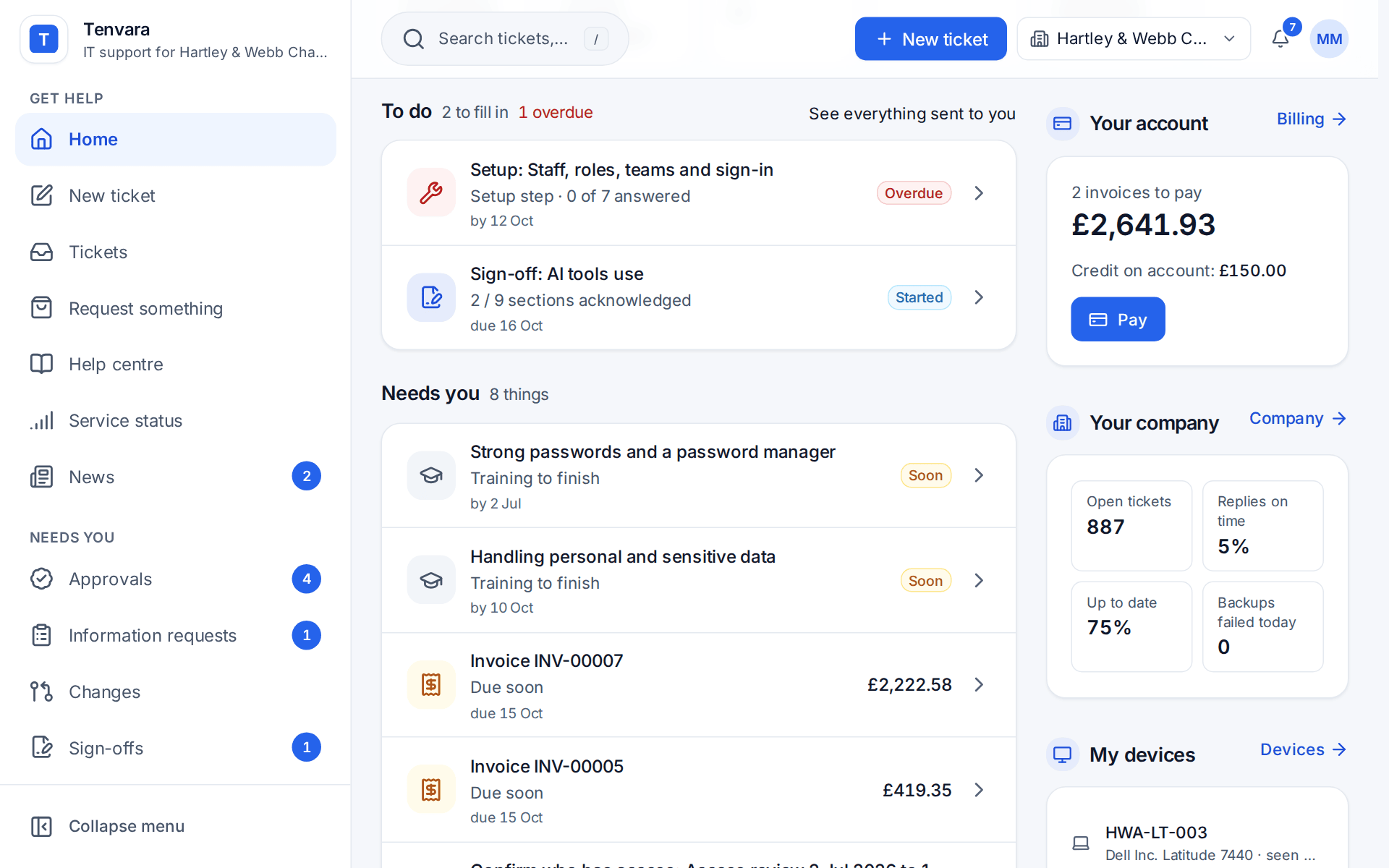
The list keeps everything still waiting, however old, as well as what finished lately. Each row shows how far they have got ("0 of 7 answered", or "2 / 9 sections acknowledged" for a sign-off), the date it is due and where it stands: Not started, Started, Changes needed or Overdue. See everything sent to you opens the Information requests page.
The same items are in the Needs you group of the side menu, with counts: Approvals, Information requests, Changes and Sign-offs.
Note: A contact without portal access is given it by the request: their email carries an invitation that signs them straight in. For a customer whose contacts must sign in with Microsoft, they use their Microsoft account instead (see Sign-in, profiles and notifications).
Answering an information request
Opening a request shows its name, when it is due, your note to the contact and a progress bar.
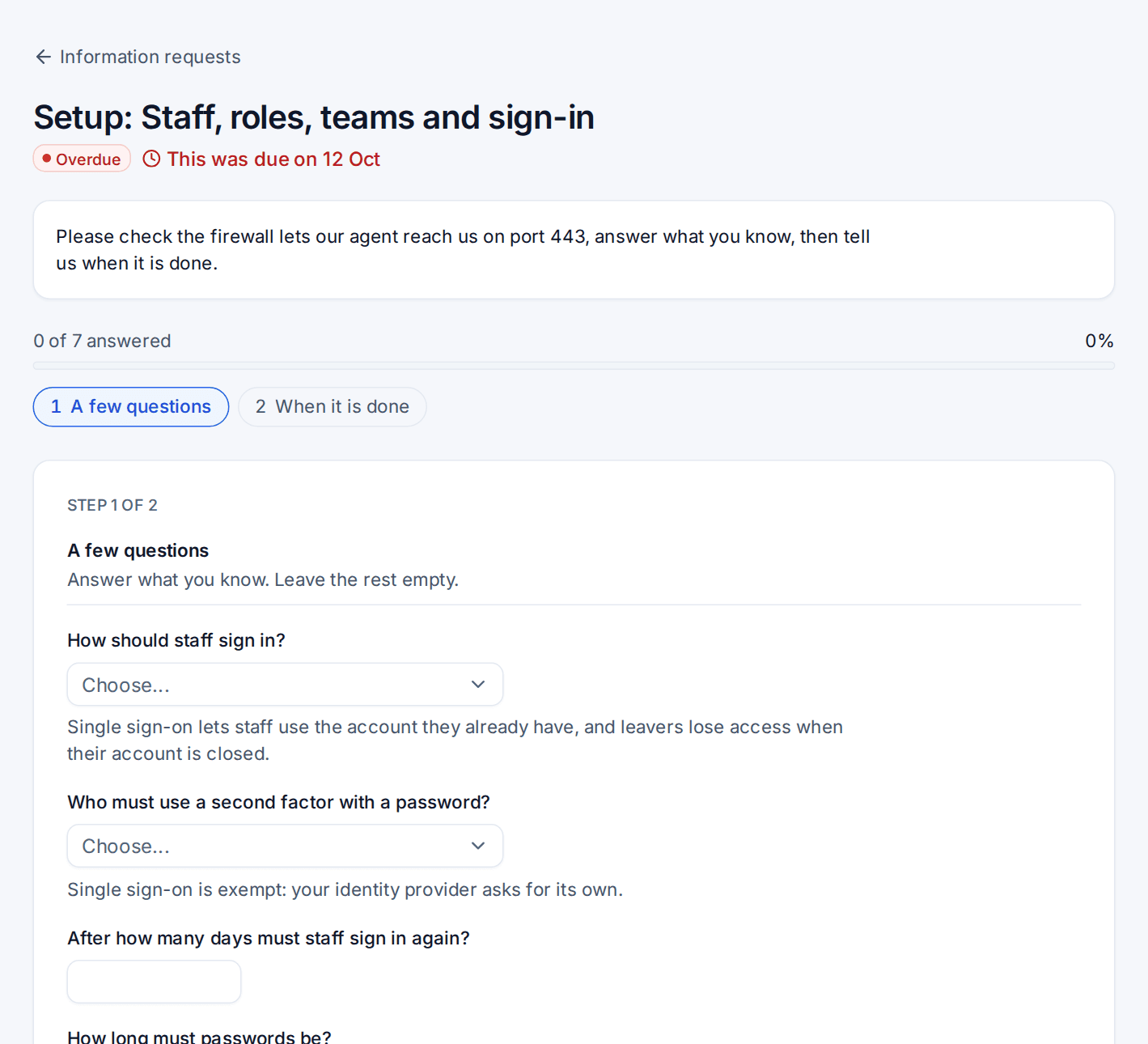
- The questions come one section per page. The steps across the top show where they are, for example "Step 1 of 2".
- They answer what they know. Answers are saved as drafts as they go, and the page says All changes saved.
- Finish later takes them back to their list. The request stays in To do with what they have answered so far.
- Next and Back move between the pages. On the last page, Submit checks the required questions and sends the answers to you.
Passwords, PINs and porting codes typed into a request go straight into your vault, not into the request's ordinary answers.
When you send a request back with questions to change, it returns to To do as Changes needed. The contact sees which answers need changing, changes them and presses Send the changes. Everything else is kept as it was.
See Information requests for sending, chasing and reviewing them.
Signing or declining a sign-off
Sign-offs lists the decisions a contact has been asked to sign under Waiting for you, with the ones already signed below. Only the people named as signers see a sign-off.
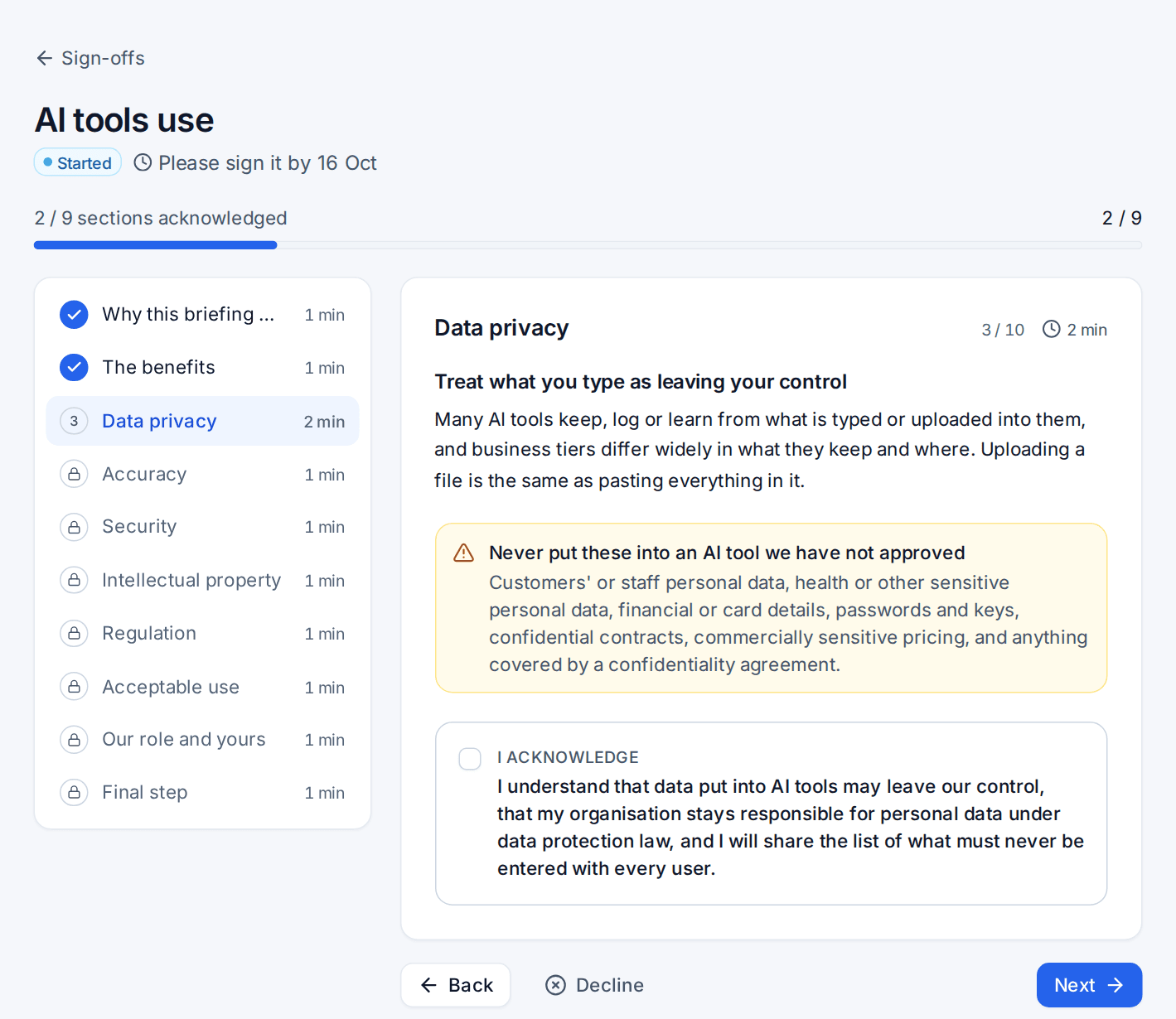
- The signer reads one section at a time. The list on the left shows each section with its reading time, and a section opens once the ones before it are acknowledged.
- Under each section they tick I acknowledge, then press Next. They can stop and come back.
- On the Final step they check their details (Full name, Job title, Organisation and Work email), choose Your authority to sign and answer any questions you added.
- They type their name as their signature, and can tick Also draw my signature to draw it as well.
- They tick I agree and press Sign.
To refuse, the signer presses Decline on any page and gives a Reason. Nobody else is asked to sign after that, and your team is told so you can talk it through or send a new copy.
Where several people sign, each signs in turn. Someone further down the order can read the sign-off straight away and is emailed when it is their turn. Once everyone has signed, the signer can download the certificate from the sign-off, and the PDF is saved to the customer's documents.
See Customer sign-offs for templates, sending, renewal and what a signed sign-off unlocks.
Is it legally binding?
Signing pages link to Is it legally binding?, a page in the portal that answers the question signers ask most. It explains what the law says (in the UK and the EU), the three levels of electronic signature, how a signature made in the portal reaches the advanced level, and how to check a signed document. In the Company edition it speaks of sign-offs only. See Is it legally binding?.
Checking a signed document
Anyone holding a signed proposal can check it at your portal's address with /verify on the end, without signing in. Check a signed proposal asks for the signed PDF or its audit certificate under Signed PDF or certificate, works out its fingerprint and says either This is the signed proposal, unchanged (or This is the audit certificate, unchanged) with who signed and when, or No match when the file is not one that was made when a proposal was signed, or has changed since. Check the signatures in this file also checks the digital signatures inside the PDF and names their level, such as an advanced electronic signature with a trusted timestamp. The file is not kept.
Presentations
When you publish an approved deck to the portal, it appears on the customer's Presentations page, in the My company group after Reports. The page is in the menu once there is a presentation the contact may see, and the portal's Reports section must be on.
Each presentation is listed with who it is for (For the board, For IT or For everyone), the newest marked Latest. Opening one shows a read-only slide viewer: one slide at a time, Previous and Next (or the arrow keys), and a strip of all the slides on a wider screen. Download PDF gives them the same deck as a PDF.
If you withdraw a deck it leaves the portal at once. See Presenting, publishing and the ask.
Signing off a desktop image
For a customer on virtual desktops (Remote Desktop Services), a new version of a desktop image can wait for the customer's sign-off before it reaches their desktops. The customer's approver gets the request under Approvals in the portal, or opens it from the email. Under the request they read what changed against the version the desktops run now (updates added and apps changed), how its tests went, and the screenshots the tests took, then approve or turn it down. See Golden images.
Updates to approve
For a customer whose patch policy says the customer approves updates, the request lands on Updates to approve in the Needs you group, and the contact is emailed. The page lists each request with the proposed window. Opening one shows the updates by class, and the contact can:
- Approve all: the updates install in the next maintenance window.
- Approve for a later date: choose a day under Install them from, and they install in the first maintenance window after it.
- Decline some or all of them, with a reason that goes to your team.
When nothing is waiting, the page says "No updates to approve". See Patching for the policy behind it.
Reminders
Contacts and signers are reminded by email until they finish. Set how often, and the time of day in their own time zone, under Information requests and Sign-offs on the What customers see tab of Settings > Customer portal.
Related: Customer portal overview, Approvals.
Was this page helpful?
Thanks for the feedback.