Lead scoring, assignment and the board
Score every lead on how well it fits and how engaged it is, share new leads and enquiries out by rules, and move leads through your statuses on the leads board.
When leads come in faster than you can call them, two questions matter: which ones are worth a call today, and whose are they? Lead scoring answers the first with a number out of 100 and the reasons behind it. Assignment rules answer the second, so a website enquiry reaches the right person the moment it arrives. The leads board then shows them moving through your statuses.
Note: Leads are part of the CRM, in the MSP edition. Lead scoring and assignment are set up in Settings > Sales by administrators and anyone with the Manage sales settings action.
How a lead is scored
Each lead has three numbers, each out of 100:
- Fit: how much it looks like the customers you want, from the points its size, industry and area are worth.
- Engagement: what it has done lately: enquiry forms sent, visits to its proposals, emails from them and meetings held with them, each worth points each time, up to a most, over the last so many days.
- Score: the two together, with fit counting for the share you choose (half, to begin with).
The lead list has a Score column to sort by, with Fit and Engagement to add from Columns. The lead's page has a Score card that says why, for example "Why 72: fit 80 counts for 50%, engagement 64 for 50%", with each factor and event and its points.
A lead is scored again the moment its size, industry or address changes, when it sends an enquiry form, opens a proposal, emails or has a meeting, whenever the settings change, and each night, so old engagement fades.
Set up lead scoring
Open Settings > Sales and find Lead scoring.
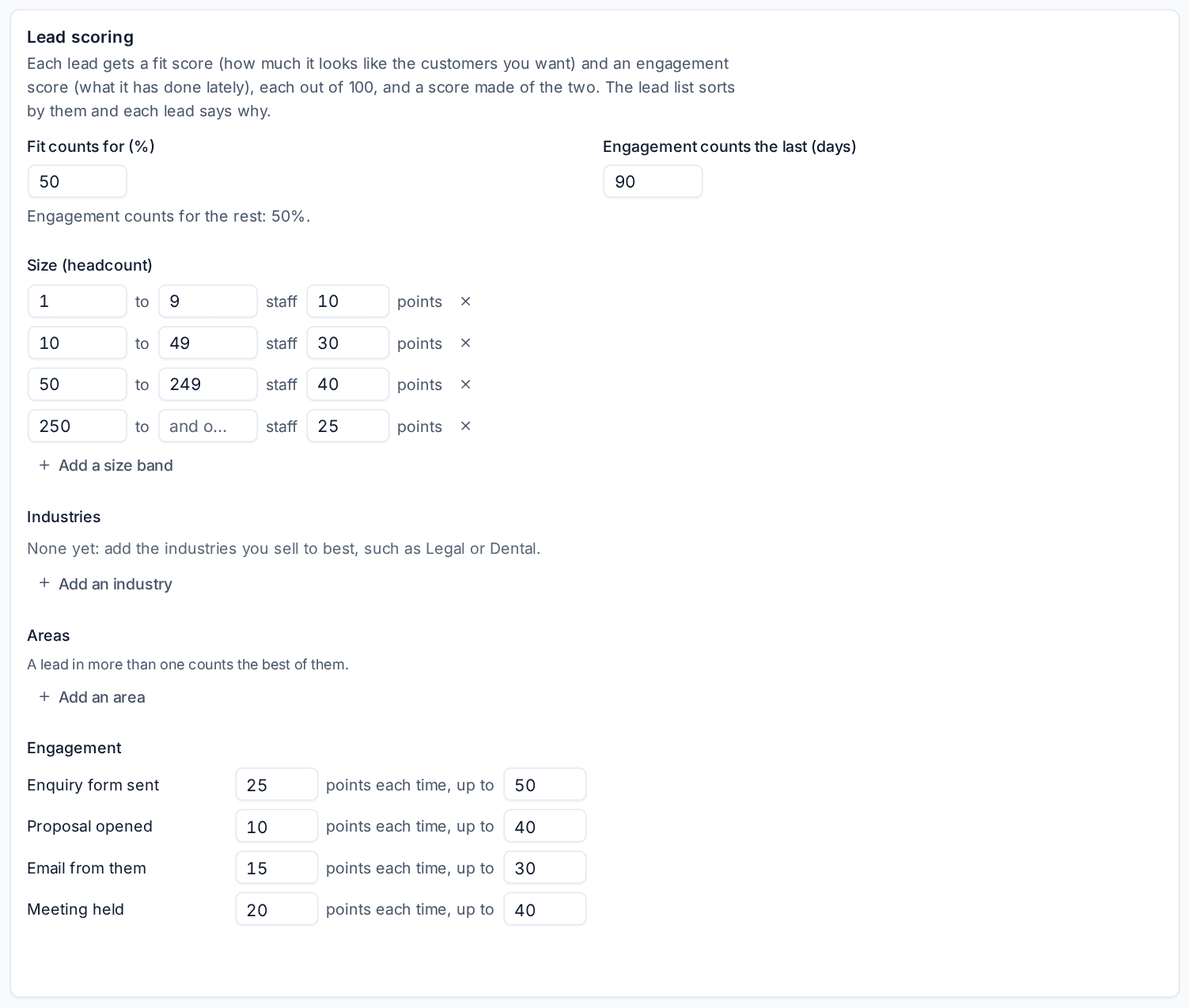
- Set Fit counts for (%). Engagement counts for the rest.
- Set how far back Engagement counts the last (days) (90 to begin with).
- Under Size (headcount), give each band of staff its points, and Add a size band for more.
- Under Industries, Add an industry for each you sell to best, such as Legal or Dental, with its points.
- Under Areas, Add an area: a country, region, town or the start of a postcode, with its points. A lead in more than one counts the best.
- Under Engagement, set the points for Enquiry form sent, Proposal opened, Email from them and Meeting held, and the most each can add.
- Save. Every open lead is scored again.
Fit points add up and are capped at 100, so you never have to make weights total anything.
Tip: Give your best-fit size band and industries most of the fit points, and keep engagement points modest. A perfect fit that has gone quiet should still sit above a poor fit that clicked one email.
Share leads out by rules
New leads and enquiries that nobody chose an owner for go by your Lead assignment rules, in order. The first rule that matches gives the lead to its person, or to its people in turn.
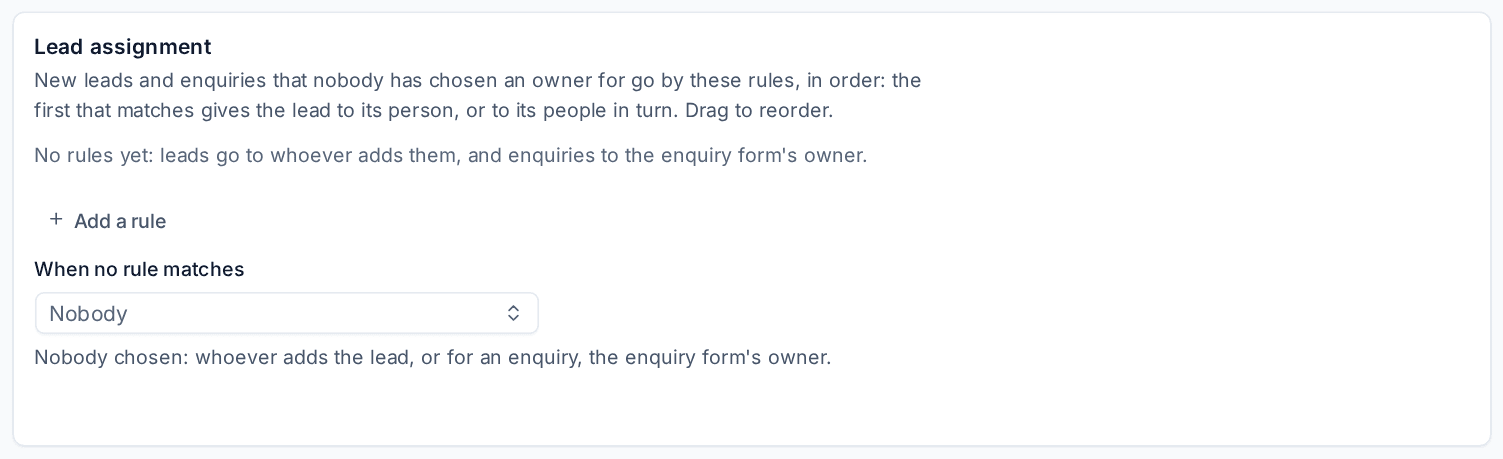
- In Settings > Sales, under Lead assignment, press Add a rule.
- Choose what it matches:
- Round robin: every lead;
- By source: leads from one of the sources you pick;
- By area: leads in a country, region, town or postcode start (enquiries have no address, so they go by source or round robin).
- Choose who gets the leads: one person, or several in turn. Someone no longer active is passed over.
- Drag the rules into order, and switch one off when you need to.
- Under When no rule matches, choose the fallback person.
- Save.
The rules apply to every lead made without an owner: the website enquiry form, chat requests, imports with no owner column, and the New lead form left on By the assignment rules, else you. With no rules and no fallback, a lead goes to whoever adds it, and an enquiry to the enquiry form's owner.
The lead's history says who it went to and by which rule, such as "Assigned to Ana by the rule Berkshire", and the person is told in the bell.
The leads board
On Sales and billing > Leads, press Board. There is a column per lead status, in the order set under Statuses in Settings > Sales, then won and lost.
- Drag a card to another column to change its status, or select it and use Space, the arrow keys and Space again.
- Dropping a lead on lost asks why; dropping it on won converts it to a customer.
- Choose how far back closed leads show, such as Closed in the last 30 days.
A status taken off the list in Settings keeps a locked column on the board while leads still have it.
Statuses and sources
Statuses and sources are one list each in Settings > Sales, shared by leads and opportunities. Each status means open, won or lost, has a colour, and is for leads, opportunities or both; one open lead status is where new leads start. Rename any of them freely: records keep their status when its name changes, and a status or source taken off the list stays on the records that have it.
Related: Leads, Marketing: consent, lists and attribution.
Was this page helpful?
Thanks for the feedback.