Projects and scheduling
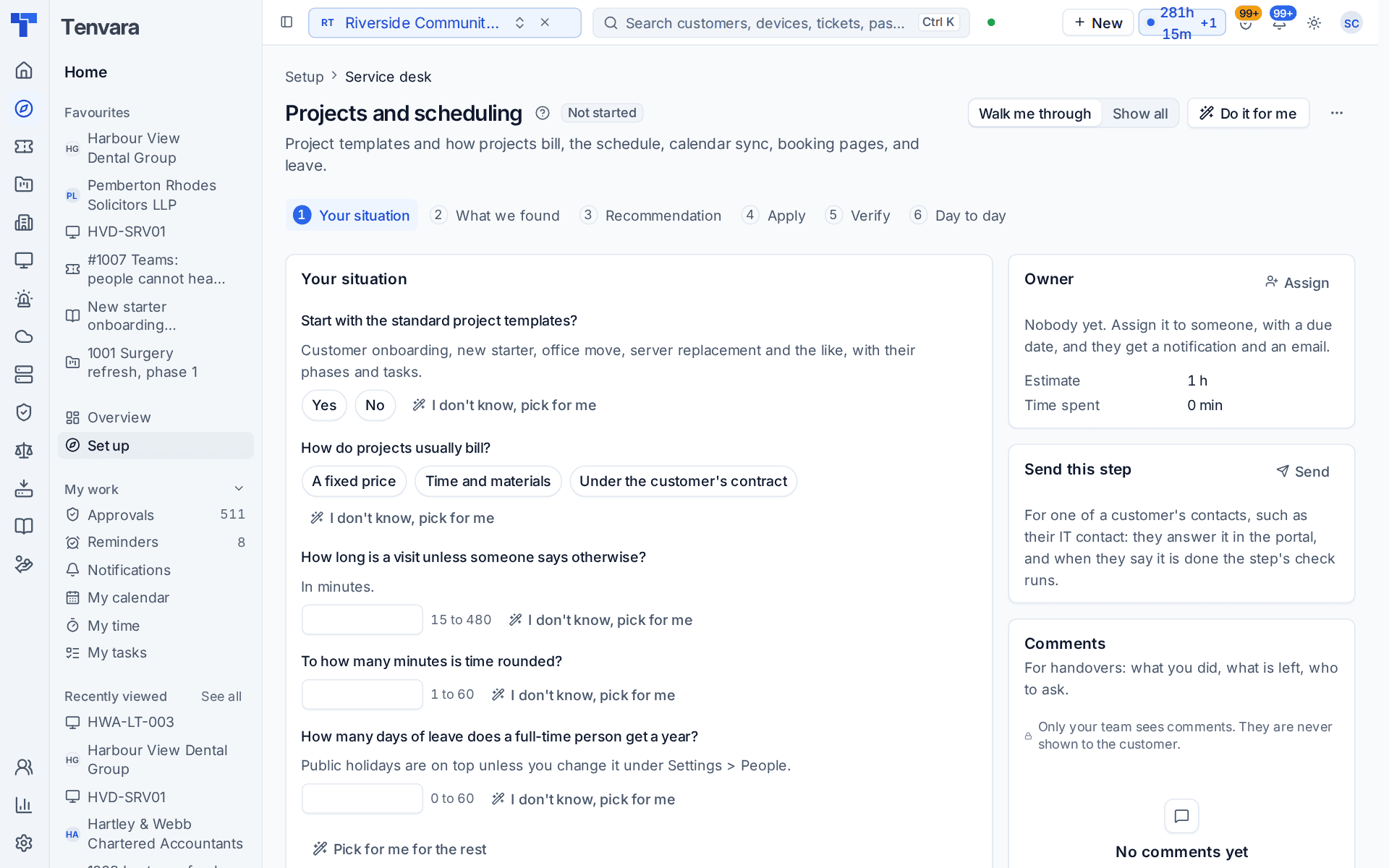
The Projects and scheduling section of the setup helper: the standard project templates, how projects bill, visit length and time rounding, leave allowance, calendar sync and booking pages.
Projects and scheduling is in the Service desk phase and takes about an hour. It covers project templates and how projects bill, the schedule, calendar sync, booking pages and leave.
Open Set up (Health once you have gone live) and choose Projects and scheduling. It runs through the same six beats as every section: see Working through a section.
Note: The section is in your plan once the Projects module is on in Settings > Modules; it covers scheduling too. Finish Staff, roles, teams and sign-in first. The section works best after Contracts, billing and accounting, so the way projects bill has rates and contracts behind it.
What it reads from your data
What we found counts your project templates, the projects under way, your booking pages, the staff calendars connected and any calendar connections in error.
What it asks
| Question | Choices and notes |
|---|---|
| Which calendars do your staff use? | Microsoft 365, Google, Both or Neither. Visits and leave appear in their calendar, and their own appointments block the schedule. Usually answered in discovery |
| Start with the standard project templates? | Customer onboarding, new starter, office move, server replacement and the like, with their phases and tasks |
| How do projects usually bill? | A fixed price, Time and materials or Under the customer's contract |
| How long is a visit unless someone says otherwise? | 15 minutes to 8 hours. The default is 60 minutes |
| To how many minutes is time rounded? | 1 to 60. The default is 15 |
| How many days of leave does a full-time person get a year? | 0 to 60. The default is 25. Public holidays are on top unless you change it in Settings > People |
What it recommends
- Common projects start with their phases and tasks already planned. The standard project templates are added when you said yes.
- The schedule, calendars, time and leave work the way you described. The default way projects bill, the standard visit length, time rounding and the leave allowance are set from your answers.
Check What changes, then press Apply. You can undo an apply for 7 days.
Calendar sync needs your own account
The section checks calendar sync; the connection is made in Settings > Scheduling, on the Calendar sync tab:
- Microsoft 365 uses an app registration in your own Microsoft 365 tenant, then a mailbox connected for each technician.
- Google uses your own Google Cloud project, and each person connects their own calendar from Team > My calendar.
The steps are in Booking pages and calendar sync.
How it is verified
| Check | What it looks at | Where to fix it |
|---|---|---|
| Projects have a template to start from | At least one project template exists | Add the standard templates, a one-press fix |
| Calendar sync works for staff | No connected calendar is in error. Checked every hour | Open Settings > Scheduling, the Calendar sync tab |
| Booking pages have someone to book | Every booking page offers at least one person | Open Settings > Scheduling, the Booking pages tab |
Tip: When one technician's calendar connection fails, send them just that step with Send this step and A colleague, with Calendar sync works for staff as the check. They reconnect, say it is done, and the check runs.
Day to day
- Projects start from a template. Their tasks appear on the schedule beside visits, and time logged on them bills as you chose.
- With calendar sync on, a booked visit appears in the technician's own calendar, and their own appointments block the schedule.
- The pages behind this section are Settings > Projects, Settings > Scheduling and Settings > People. The work itself is in Projects and in Team, under My calendar, Dispatch and Leave.
Related guides
Was this page helpful?
Thanks for the feedback.