Importing the OpenIntuneBaseline
Bring the community OpenIntuneBaseline into your Intune templates, choose the release and the policies you want, and see policy by policy what a newer release changes before you update.
The OpenIntuneBaseline is a community baseline of Intune policies: compliance, endpoint security, settings catalog and update policies that many IT teams start from. Tenvara can fetch it for you, turn every policy into one of your own Intune templates, and tell you when a newer release is out and exactly what it changes.
Nothing in this guide touches a customer's tenant. Importing and updating only change your template library. A tenant changes when you deploy a template or apply a bundle, which is covered in Intune template bundles and updates.
What it is, and whose it is
The OpenIntuneBaseline is by SkipToTheEndpoint and its contributors, and is shared under the GNU General Public License v3.0. Tenvara does not ship it. Your install fetches it from the project's GitHub repository when you ask, and keeps it in your own library. The import page and every template made from it carry that credit, with links to the project and the licence.
Choosing a release
- Go to Cloud > Intune, open the Templates tab and press Import the OpenIntuneBaseline. (In the command menu it is Intune: import the OpenIntuneBaseline. There is also a link on Settings > Microsoft 365, the Intune and devices tab.)
- Under Which baseline, choose the Platform: Windows, macOS or personal devices (BYOD).
- Choose the Release. The latest is chosen for you, and the line beside it says whether anything from that release is in your library yet.
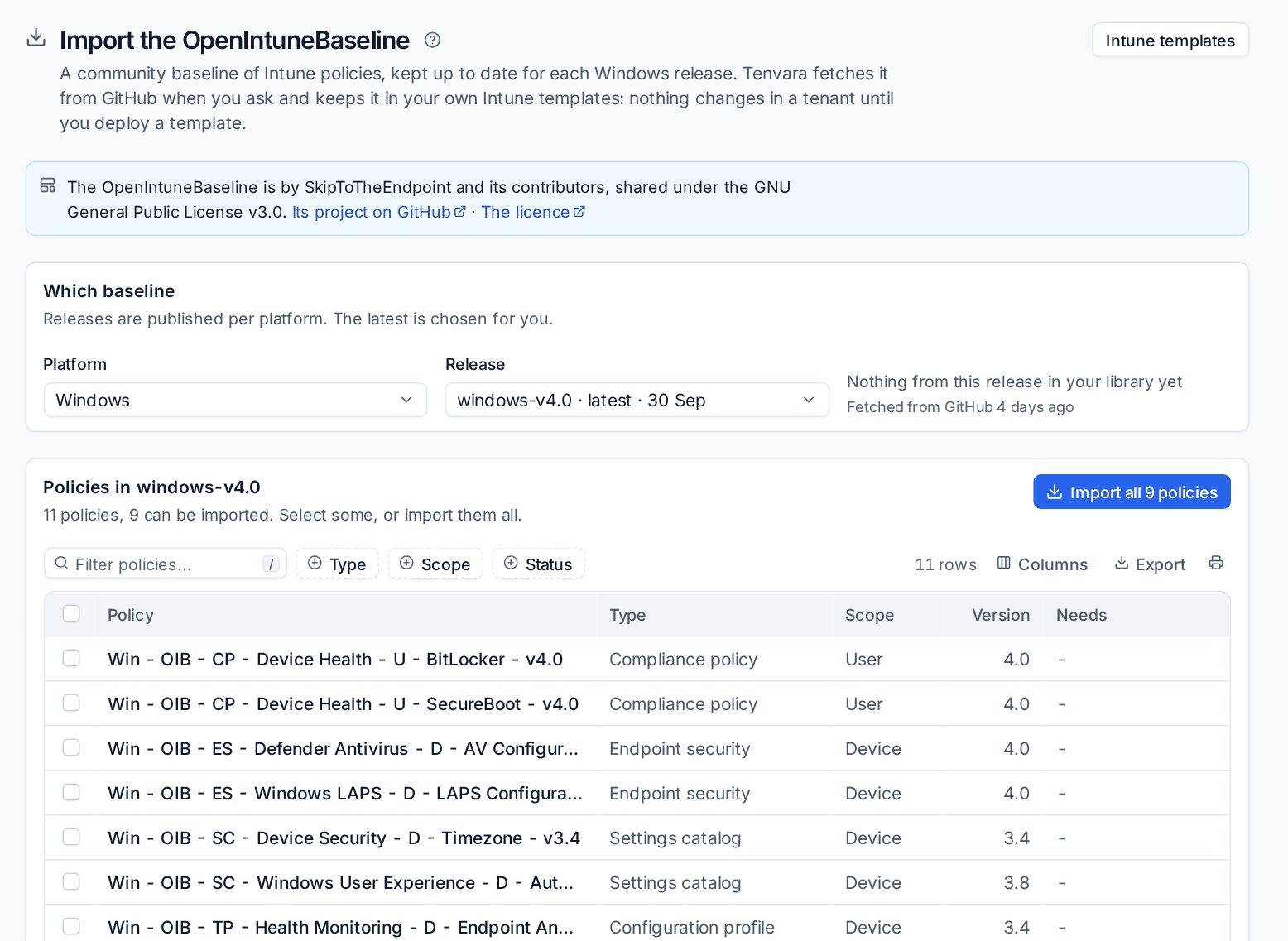
Choosing a release fetches it from GitHub. Fetching and importing need the Microsoft 365 Manage permission; anyone with View can read a fetched release.
Note: GitHub limits how many requests it answers in an hour. If the limit is reached, the page says so and carries on by itself when GitHub allows it.
Choosing the policies
The Policies card lists every policy in the release, with how many can be imported. For each one you see:
| Column | What it tells you |
|---|---|
| Policy | The policy's name in the baseline, with the baseline's own description where it has one |
| Type | Compliance policy, endpoint security, settings catalog, configuration profile, driver update profile and so on |
| Scope | Whether it is meant for devices or for users |
| Version | The policy's own version, which can be older than the release it ships in |
| Needs | Anything it depends on, such as Defender for Endpoint or an Enterprise edition of Windows |
Each row also says whether the policy is current or retired (and what replaced it), any note the release gives on where it deviates from the CIS benchmark, and which of your templates it already is. Filter by Type, Scope and Status.
Then either:
- press Import all N policies, or
- tick the ones you want and import those.
Retired policies are only imported when you ask for them. The page follows the import and lists it under Recent imports with how many templates were new, updated or already up to date.
What import does, and does not, change
- Each policy becomes one template on the Templates tab, with the source OpenIntuneBaseline, marked with the release it came from. The name starts with your own prefix (set under Changes Tenvara makes in Settings > Microsoft 365), followed by the baseline's name.
- Tenant specifics are left out. Ids, dates and scope tags from the baseline's export are dropped, so the template fits any tenant.
- Nobody is assigned. The baseline ships without assignments, so an imported template shows Not assigned until you choose who gets it, on the template or in a bundle.
- Importing twice changes nothing. A policy that is already a template with the same settings is left alone. If the settings differ, the template gets a new version and the old one is kept.
- No tenant is touched. Deploying is a separate step, with its own preview and approval.
When a newer release comes out
Once a day Tenvara checks the project's releases against the release your templates came from. When there is a newer one:
- the Templates tab shows a notice, for example "OpenIntuneBaseline Windows 4.0 is out (you have 3.8)", with how many policies were added, changed, superseded and removed,
- everyone who can manage Microsoft 365 is told once, in the app and by email (the New OpenIntuneBaseline releases notification).

The notice stays until your templates are updated. The daily check can be switched off with Check for new OpenIntuneBaseline releases every day in Settings > Microsoft 365, the Intune and devices tab.
See what changed
Press See what changed on the notice. The OpenIntuneBaseline updates page compares two releases of a platform, from the one your templates came from to the latest. You can pick any two fetched releases under Compare.
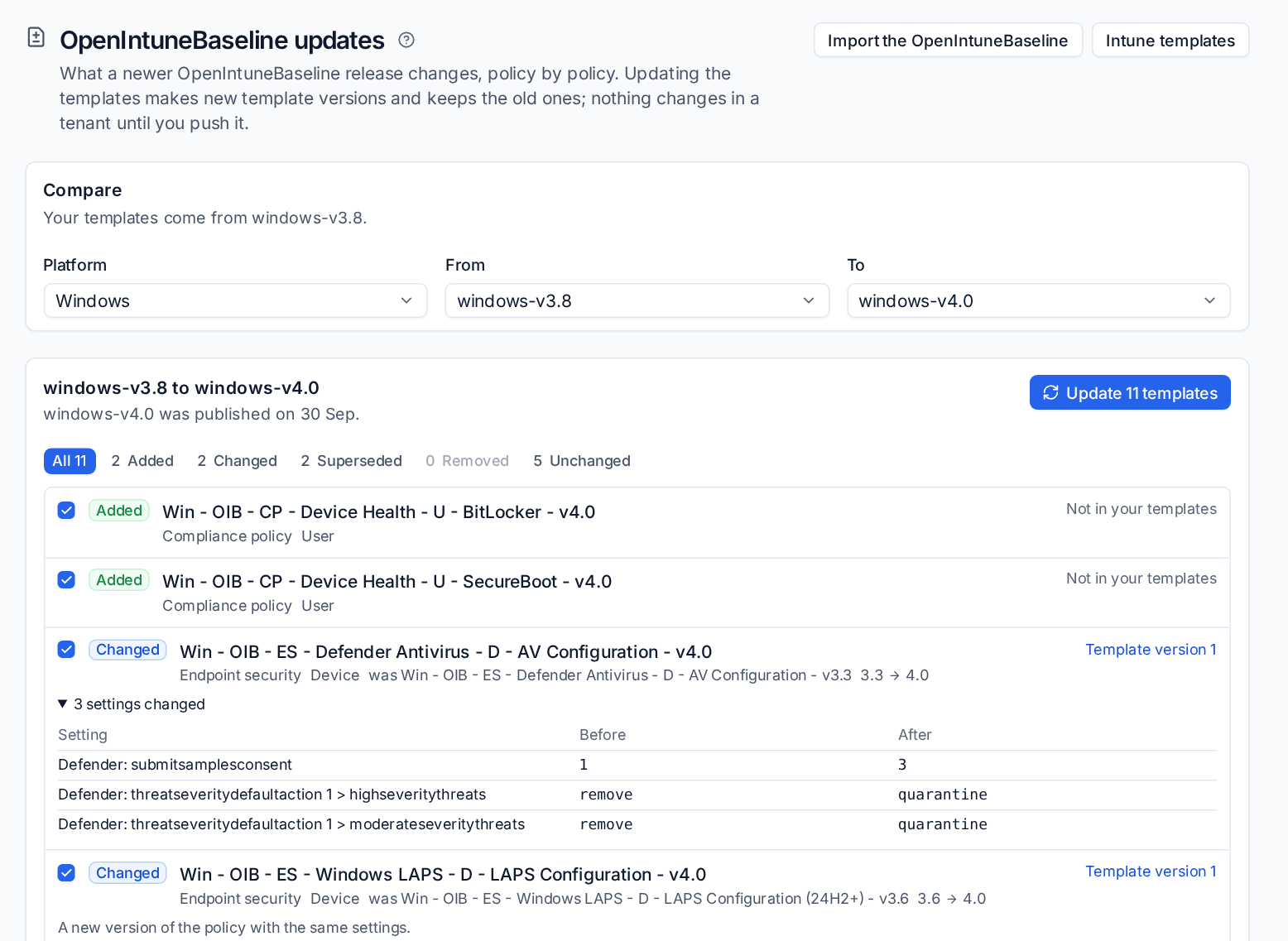
Every policy falls into one of five groups, counted across the top:
| Group | Meaning |
|---|---|
| Added | A policy in the new release that is no version of one in the old. Shown as Not in your templates |
| Changed | The same policy with different settings, kind or name. Each setting is listed with Before and After; a policy that only moved to a new version says so |
| Superseded | A policy the new release retires in favour of others, which are named |
| Removed | A policy the new release no longer has, with nothing in its place |
| Unchanged | The same policy with the same settings |
Each row names your template and its version. If you changed a template yourself since it was imported, the page warns that an update would replace your change (your version stays in the template's history).
Updating your templates
- On the OpenIntuneBaseline updates page, leave everything ticked, or untick the policies you do not want yet.
- Press Update N templates.
What happens to each:
- Added: a new template.
- Changed: a new version of the same template. The old version is kept.
- Unchanged: the template notes the new release and nothing else changes, so an edit you made is kept.
- Superseded and Removed: the template is kept and marked, so the old policy can be retired from a tenant when you push the update.
Updating your templates still changes no tenant. Each tenant keeps the version it has and shows Update available on the Template updates tab until you push it. See Intune template bundles and updates.
Related: Intune and Autopilot, Baselines and drift.
Was this page helpful?
Thanks for the feedback.