Sessions, who is on what and connection quality
See who is on which virtual desktop now, act on a session from the Sessions tab, a customer or a ticket, read a session's connection quality and let people fix their own session from the portal.
When someone rings to say "my desktop is frozen", the first question is which server they are on. Tenvara answers it for every adopted Remote Desktop Services (RDS) deployment: who is logged on, to which session host, since when, and how good their connection is. The same view is on the Sessions tab, on the customer's page and on the ticket the person raised.
The Sessions tab
Open Infrastructure > Virtual desktops and the Sessions tab. It lists every current session in your adopted deployments, active ones first:
| Column | What it shows |
|---|---|
| User | The person's contact when Tenvara matched them, otherwise the user name as Windows gives it, with Not matched to a contact |
| Customer, Platform, Deployment, Host | Where the session runs |
| State | Active, Idle (no input for 15 minutes) or Disconnected, with how long |
| Logged on, Client, Logon took | When they signed in, from which device, and how long the logon took |
| Connection | The connection quality badge (below) |
| Printers | How many printers mapped or failed, see Published apps, printing and reports |
A line above the table sums it up, for example "14 sessions: 10 active, 1 idle, 3 disconnected. 12 people, 2 not matched to a contact." Use the Disconnected and Idle views, filter by person, user name or host, and pick a customer in the customer switcher to see that customer only. Found deployments are left out until they are adopted.
How people are matched to contacts
Tenvara matches each user to exactly one contact of the customer: by sign-in name against the contact's email and linked Microsoft 365 account, then by DOMAIN\name against their on-premises account, then by the part before the @ at one of the customer's own domains. Two contacts that fit equally match neither.
Sessions on a customer and on a ticket
- The customer's page: the Infrastructure tab shows Virtual desktop sessions for that customer while anyone is on.
- A ticket: the right-hand column shows where the requester is, for example "Bob is on BEA-RDSH02, disconnected 2 h", with the deployment, host and client and the session actions as buttons. An action taken there carries "From ticket T-1001" as its note, which the approval and the deployment's activity show. Nothing is shown when the requester is on no virtual desktop, or to someone without Infrastructure access.
Acting on a session
Each session's menu offers Message, Disconnect, Log off and Shadow. They work exactly as on the deployment's page, through the same approvals (Settings > Infrastructure, the Virtual desktops section), and are recorded on the deployment's Activity. See Virtual desktops: finding and adopting deployments.
Tip: A disconnected session that will not reconnect is usually fixed by Log off. Send a Message first if the person may have unsaved work.
Connection quality
Every RDS session carries its connection quality, read by the agent on the session host from the session's own Remote Desktop counters every minute and sent every five minutes. The badge on the session (for example "Poor: User's network") opens the readings:
- Round trip, Packet loss and Packets sent again
- Bandwidth available, Frame rate and Dropped frames
- Transport (UDP or TCP) and Client version
- Host CPU
- Round trip over the last day and Dropped frames over the last day
The level is Good, Fair or Poor, judged first on packet loss, packets sent again and dropped frames, then on the round trip and bandwidth against your thresholds. Frame rate is shown but not judged: it follows what is on the screen.
Whose problem is it
For a fair or poor session Tenvara says where the trouble is:
| Verdict | When |
|---|---|
| User's network | The round trip, the bandwidth or lost packets are the problem and the host is healthy |
| Host | The host is strained: its CPU at or over the limit, frames dropped because the server was busy, or several sessions on it struggling at once from different places |
| Host and network | The host is strained and this connection is slow as well |
| Cause unknown | Nothing points one way |
How the round trip is measured
Tenvara never uses the fixed 400 ms placeholder Windows reports for some sessions. It takes the UDP round trip when the session runs over UDP; when Windows gives no usable reading, the host pings the client's address (only private and VPN addresses), and the reading says "measured by ping". When there is no reading at all it says Round trip not measured and the round trip is left out of the level.
Thresholds and the pool alert
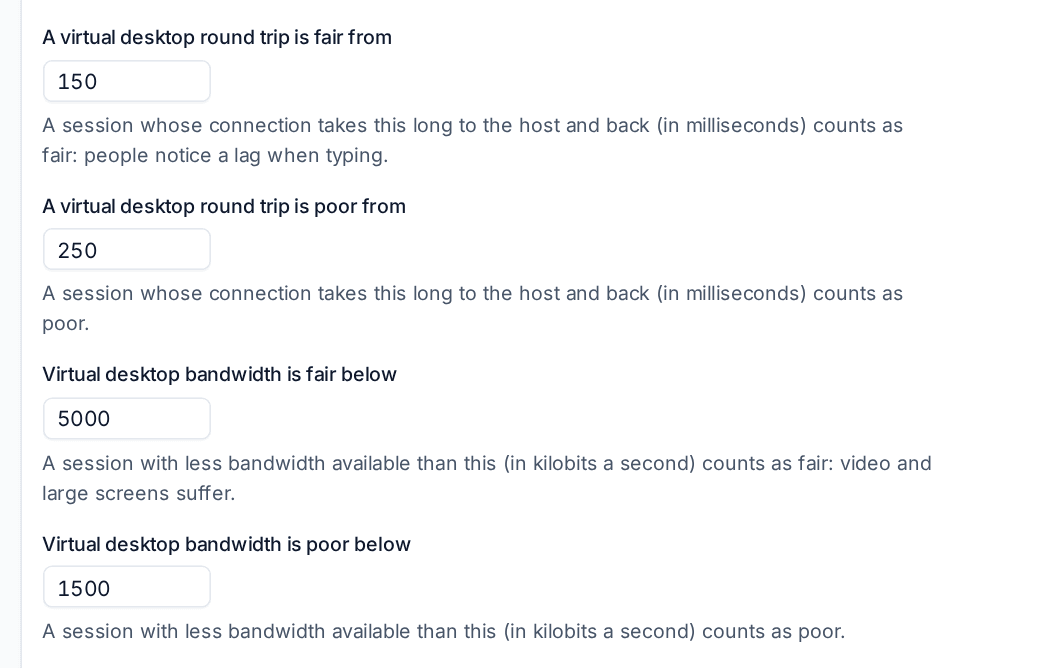
The thresholds are in Settings > Infrastructure, the Virtual desktops section, and can differ per customer:
| Setting | Default |
|---|---|
| A virtual desktop round trip is fair from / is poor from | 150 / 250 ms |
| Virtual desktop bandwidth is fair below / is poor below | 5,000 / 1,500 kbps |
| Dropped frames are fair from / are poor from | 5% / 15% |
| A session host is strained from a CPU of | 90% |
| Alert on poor connection quality when this share of a pool is poor | 30% |
| Poor sessions a pool needs before it alerts | 2 |
| Poor connection quality must last | 15 minutes |
| Clear the connection quality alert after it has been good for | 10 minutes |
One person on a bad hotel connection never raises an alert. A collection raises "Poor virtual desktop connection quality" only when enough of its connected sessions are poor for long enough, critical at twice the share. The alert says how many sessions, for how long and what most of them point to (the users' networks: home Wi-Fi, VPN or blocked UDP; or the hosts: load, drain or add a host), and names the host when every poor session is on one. The deployment's page shows Connection quality per pool with the poor connections and causes.
People fixing their own session
Your customers' staff can sort out the commonest problems themselves from the customer portal, under My virtual desktop:
- Which desktop am I on: each of their sessions with its host, state and client.
- Log off my stuck session.
- Restart my desktop, only on a desktop nobody else is on. On a shared session host the portal suggests logging off instead.
- Reset my profile: sets their FSLogix profile container aside so the next sign-in starts a fresh one. The old container stays on the share. It cannot run while they are signed in.
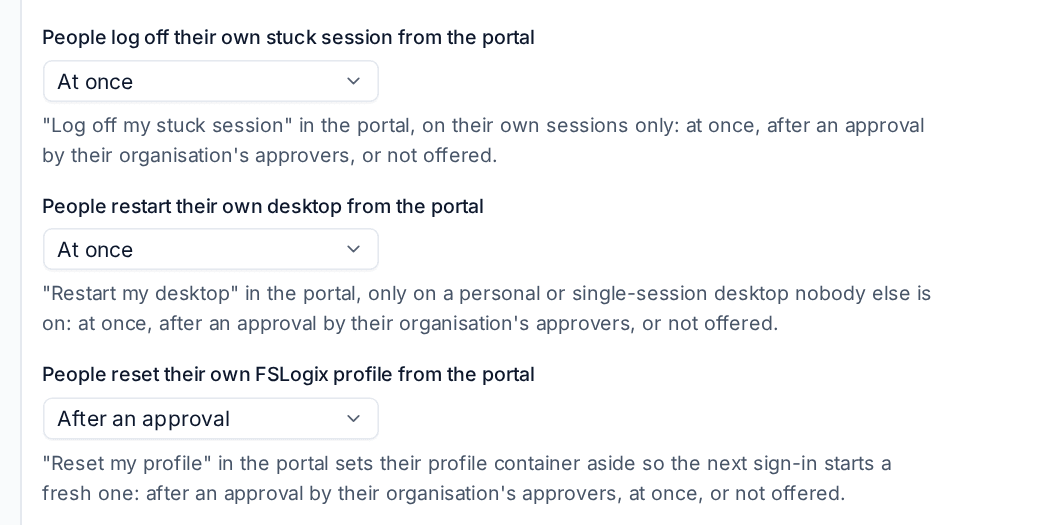
Each one is set per customer in the Virtual desktops section of Settings > Infrastructure to At once, After an approval (by the customer's own approvers, in the portal or from the email) or Not offered. By default log off and restart happen at once and a profile reset waits for an approval. Self-service requests one person may make in an hour (3 by default) stops repeated requests. People only ever see and act on their own sessions and profiles.
Every request is logged on a ticket for the person and resolved when it is done.
Was this page helpful?
Thanks for the feedback.