Closing a project and the close report
Close a project without loose ends, make the close report that shows the customer what was set out and what was delivered, ask for the project to be accepted, and collect the close survey.
The end of a project is when the customer decides whether it went well. Tenvara helps you finish it properly: a checklist of anything still outstanding before you complete it, a close report you can present or send as a PDF, a formal acceptance sign-off, and a short survey on how it went.
Before you complete it
Set the project to Completed from the status button at the top of the project (or press .). Before anything changes, Tenvara lists what is still outstanding, each line linking to the work:
- open tasks, and milestones not reached or not signed off;
- time not on an approved timesheet, and time or milestones not invoiced yet;
- costs and expenses not billed;
- no status report sent to the customer;
- future bookings and open tickets on the project.
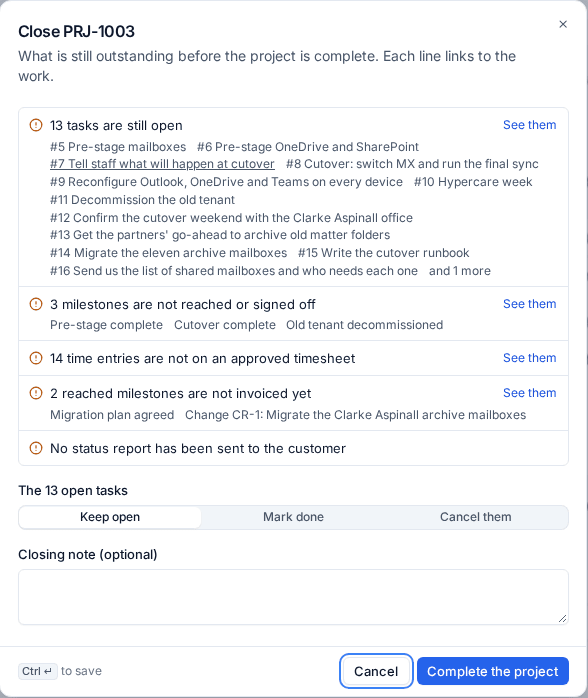
Choose what happens to the open tasks (Keep open, Mark done or Cancel them), add a closing note and press Complete the project. The checklist and the answers are covered in Change requests, risks and issues.
A completed project keeps the health it closed with, so Reports > Projects shows which projects finished late or over budget. See Project reports and status summaries.
The close report
Once the project is completed, its Activity tab has a Close report card. The close report is a presentation built from the project, telling the story of the work in five parts:
- what was set out at the start;
- what was delivered;
- the plan against what happened;
- the acceptance sign-off;
- what comes next.
To make it:
- Open the completed project's Activity tab.
- In the Close report card, press Make the close report.
- The report opens in the presentation editor. Check the slides, change the audience if you need to, and send it for approval if your presentations need one.
The card then lists every close report made from the project, each with its status and a PDF button. Make it again builds a fresh one, for example after the last invoice has gone out.
Making a close report needs permission to manage presentations, and presentations need the Reports module. Like every presentation, its figures are frozen when it is made, and slides marked Staff only (your margin and internal notes) never leave your team. Presenting it, the PDF and publishing it to the customer's portal work as described in Presentations and Presenting, publishing and the ask.
Tip: Present the close report in the final meeting with the customer, then publish it to their portal so the people who were not there can read it too.
Asking for the project to be accepted
The close report card also has Ask for the project to be accepted. It sends the customer a sign-off for a project accepted as delivered: the right person reads it in the portal, confirms the work is done as agreed and signs. You keep the signed record and its PDF certificate, as for every sign-off. See Customer sign-offs.
The close survey
Completing a project also asks the customer's contact how it went: a short survey by email and on the completed project's page in the portal. Answers appear in the Customer survey card on the project's Activity tab, and a low score raises a follow-up for the owner.
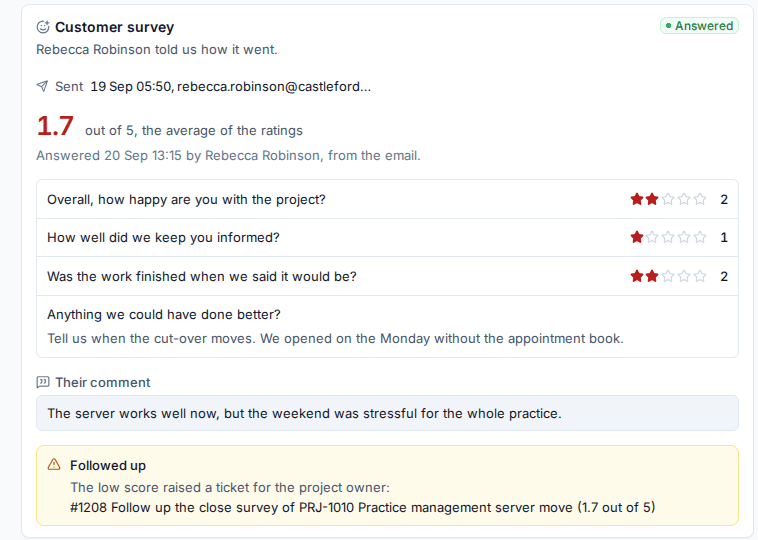
The survey, its timing and the follow-up are covered in Projects in the customer portal, and the results across projects in Reports > Project surveys.
Related: Change requests, risks and issues, Project reports and status summaries.
Was this page helpful?
Thanks for the feedback.