Browser extension settings and policy
The settings in the browser extension (saving and updating passwords, the inline menu, fill on page load, matching, generated passwords, locking and the clipboard), the policy that sets and locks them for your team and for a customer's people, and what "Set by your organisation" means.
The Tenvara browser extension fills credentials from the vault into websites and saves new ones, in Chrome, Edge and Firefox. How to install and connect it is in The browser extension. This guide covers its settings: the ones each person chooses, the policy an administrator sets on top of them, and the policy for a customer's own people.
Everyone's settings are saved to their account in Tenvara, not only in the browser. Connect the extension in another browser or on another computer and it has the same settings straight away; a copy in the extension keeps them working when Tenvara cannot be reached.
Where people find their settings
- The Settings tab in the popup. Click the toolbar button and choose Settings. Its top part, This site, covers the page you have open.
- The options page. In the popup's account menu choose All settings, or right-click the toolbar button and choose Options (Extension options in Edge). It has every setting.
The settings
Saving and updating
- Offer to save new passwords: after you sign in with a password the vault does not know, a bar asks whether to save it to a customer. Switch it off to stop the bar on every site.
- Offer to update a changed password: after you sign in with a different password for a login the vault has, the bar asks whether to update it. It is a separate setting, so you can keep one and not the other.
- The bar has Never for this site and Not now (until the browser restarts). A site is the base domain, so
login.example.comcoversportal.example.comtoo.
Saving and updating are for people whose role manages credentials.
Filling
- Inline menu: the key icon in sign-in fields with the vault's logins for the site. Switch it off everywhere, or only for the site you are on under This site.
- Fill on page load: off everywhere unless you switch it on for a site under This site. On such a site the extension fills the best login the vault has as soon as the sign-in form appears. Every fill is recorded in the vault audit log, as when you click Fill.
- Match logins by: which saved logins a page is offered. Base domain offers a login saved for
example.comon any page ofexample.com; Exact host only on the same host; Host and port only on the same host and port, for appliances with several web interfaces on one address. A login in the vault can have its own match, which wins over this setting.
Generated passwords
Suggest a generated password: on a sign-up or change-password form, the key icon in the new password field offers a password made by your rules: its length (8 to 128 characters) and which of lower case letters, capital letters, digits and symbols to use. At least one must stay on. Use this password fills it in, and the bar then offers to save it.
Locking and the clipboard
- Lock after this long unused, in minutes (0 for never): when you have not used the extension for this long, it locks and fills and offers nothing. Unlock in the popup asks you to approve a code in Tenvara again.
- Clear a copied password after, in seconds (0 for never): after you copy a password from the popup, the extension empties the clipboard after this long. Usernames and two-factor codes are not cleared.
The options page and the Settings tab also list every site where something is switched off, with Remove to put it back to normal.
The policy for your team
An administrator can set the default for any of these settings and lock it, so the extension follows your rules on every technician's browser.
- Go to Settings > Documentation and open the Browser extension policy tab.
- The top of the page says how many people use the extension and whether anything is set yet.
- For each setting, choose the value everyone starts with. For the site lists, add the sites, such as a banking site where nobody should be offered to save.
- Turn on Lock beside any setting people may not change.
- Press Save policy.
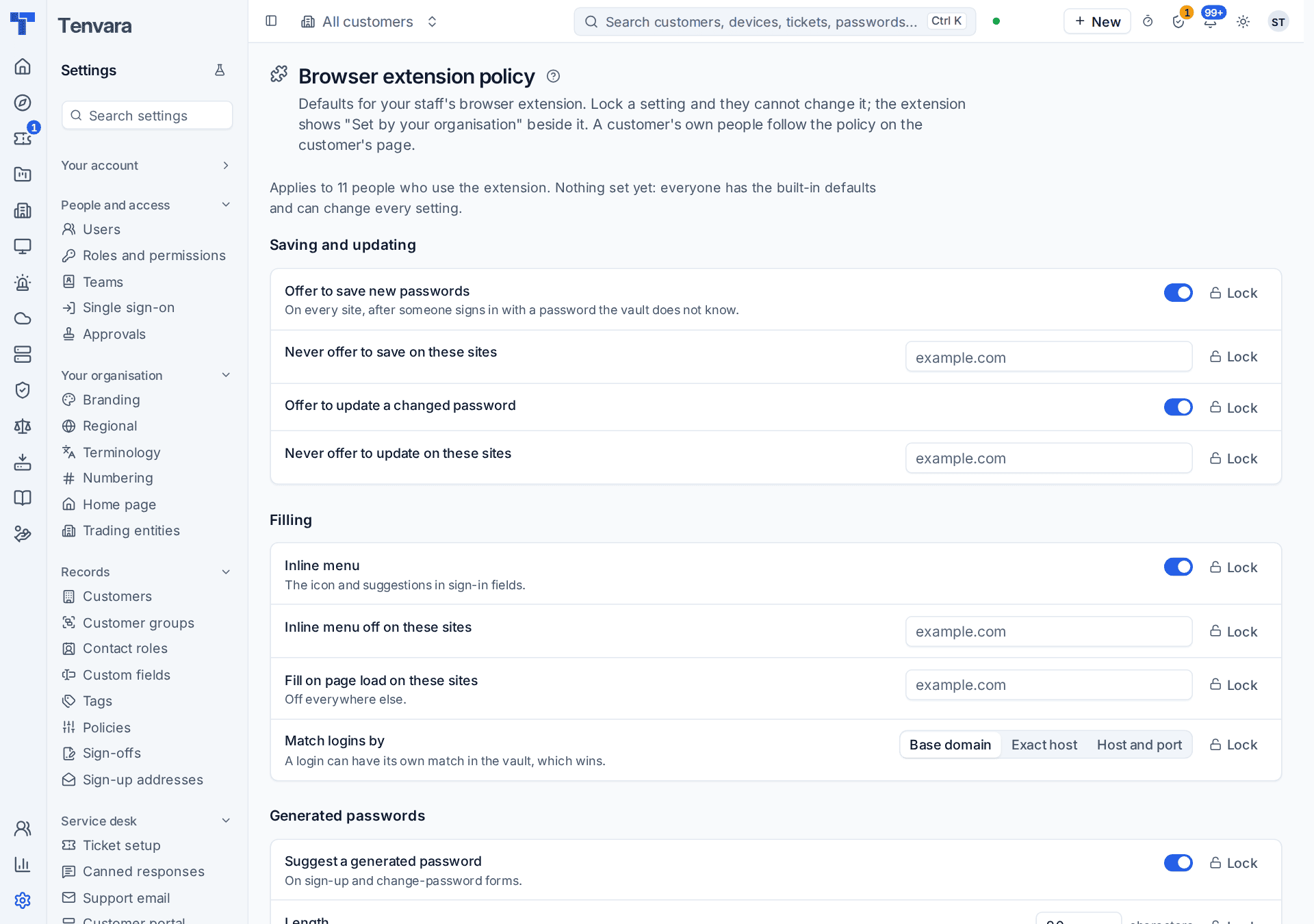
The extension picks up the policy the next time it checks, within a few minutes.
A setting that is not locked starts at the policy's value and follows the person's own choice once they make one. A site list that is not locked is the policy's sites plus the person's own.
The Browser extension card on the first tab of Settings > Documentation holds the install's own switches: Allow the browser extension, Offer a credential on the same domain or exactly the saved address, Fill two-factor codes, Offer to save new sign-ins (off turns saving off for everyone, as a lock), and the links where technicians install it.
Note: In the Company edition there is one policy, your organisation's, set on the same tab. It applies to everyone who uses the extension.
The policy for a customer's own people
In the MSP edition, a customer's own people who use the extension, such as their co-managed IT accounts, follow that customer's policy instead of yours. It starts empty, with the built-in defaults.
- From Tenvara: open the customer, choose the Settings tab and open Browser extension policy. It shows how many of the customer's people use the extension and has the same settings and Lock switches. You need manage rights for credentials.
- From the customer portal: a contact you give the Browser extension policy permission sees Browser extension policy under IT and devices and sets defaults and locks for their own people. See Portal permissions and people.
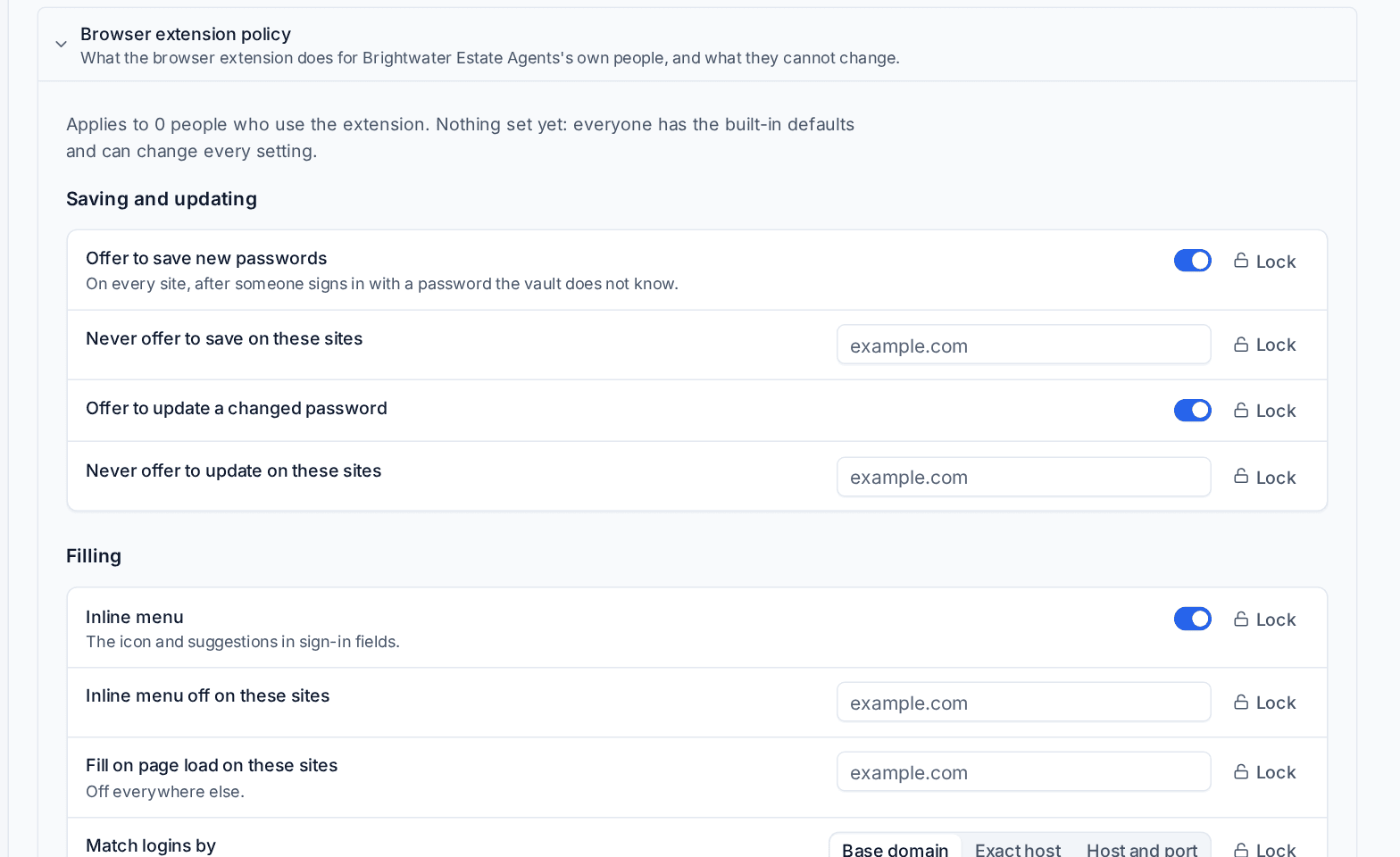
"Set by your organisation"
A locked setting shows Set by your organisation under it in the extension, and the person cannot change it. A site the policy listed shows the same and has no Remove. The person's own choice for a locked setting is kept, so if the lock is lifted later, their choice comes back.
Tip: The extension reads its settings when the popup opens and every few minutes. A yellow note at the top of its Settings tab means Tenvara could not be reached and the settings shown are this browser's copy.
Related
Was this page helpful?
Thanks for the feedback.