What a queue does to a ticket's status
Give each queue its own status rules for replies, notes, assignments and moves, choose the statuses it uses and its reopen window, chase and close its own way, and set the status from Send or from your own email.
A ticket's status should say what is happening without anyone remembering to change it. Each queue can decide what happens to its tickets' statuses as work goes on: a reply on the service desk waits on the customer, a reply on the projects queue leaves the ticket open, a supplier's answer on a parts order leaves it waiting on the supplier. These are the queue's status rules.
Where the rules live
- Go to Settings > Ticket setup, the Queues tab.
- Click the queue, for example Service desk. Its own page opens.
- Find the Status rules card.
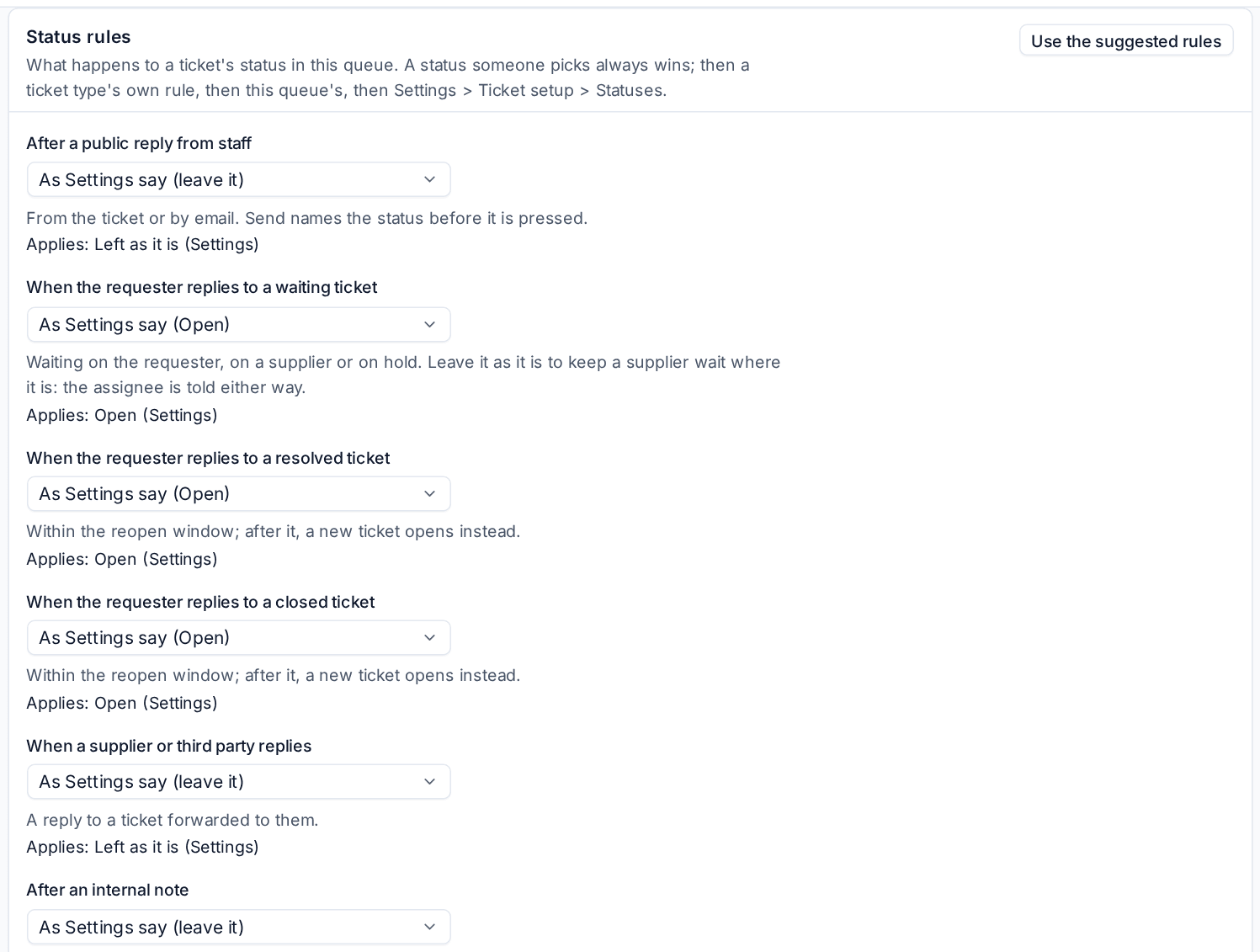
Each event has a picker. As Settings say follows Settings > Ticket setup, the Statuses tab (its Automatic statuses), and the line under it says what applies now, for example "Applies: Open (Settings)". Pick a status to give the queue its own rule, or Leave it as it is.
The events a queue reacts to
| Event | When it happens |
|---|---|
| After a public reply from staff | Someone replies to the requester, from the ticket or by email |
| When the requester replies to a waiting ticket | The ticket is waiting on the requester, a supplier or on hold |
| When the requester replies to a resolved ticket | Within the reopen window; after it, a new ticket opens instead |
| When the requester replies to a closed ticket | Within the reopen window, as above |
| When a supplier or third party replies | An answer to a ticket you forwarded to them |
| After an internal note | A note from staff that does not set a status itself |
| When a new ticket is assigned | Only tickets still in a new status |
| When a ticket moves into this queue | A ticket moved from another queue, unless the move sets a status |
Leave it as it is on a requester's reply keeps, for example, Waiting on third party where it is when the customer adds a comment: the assignee is still told, and the activity says the requester replied and the ticket stayed where it was. A new ticket still becomes open after a staff reply when the rule leaves it.
Use the suggested rules fills in a sensible set: a staff reply waits on the customer, a requester's reply opens the ticket again. A new install's Service desk queue starts with these rules and chases twice.
Which rule wins
- The status someone picks always wins, for example Send and resolve.
- Then the ticket type's own rule (see Ticket setup and SLAs).
- Then the queue's rule.
- Then Settings > Ticket setup, the Statuses tab.
The rules never move a resolved or closed ticket, except on a reply from the requester.
Statuses this queue uses
Under Statuses and reopening, Statuses this queue uses is All statuses or Only these. With a list, the status pickers, bulk changes, the portal and automation rules can only set those statuses on the queue's tickets, and anything else is refused with a reason, such as "The Projects queue does not use the On hold status."
Reopen window is how many days after a ticket was resolved or closed a reply still reopens it. After that a new ticket opens that follows on from the old one. Empty follows Settings (14 days). A customer's own window comes first.
Press Save status rules when you are done.
Chasing and closing per queue
The queue's Chasing card chooses whether tickets waiting on the requester are chased, with Reminders before resolving, Business hours between reminders, the Reminder wording and a Closing note. Closing resolved tickets sets the Days before closing. Each starts on As Settings say. A customer's (or contract's) own choice comes first, then the queue's, then Settings > Ticket setup, the Automatic closing tab. See Snooze, reminders, merge and split.
Send names the status
In the reply box, Send says what the reply will do before you press it, for example Send, Waiting on customer or Send, Open. When the reply leaves the status alone it simply says Send.
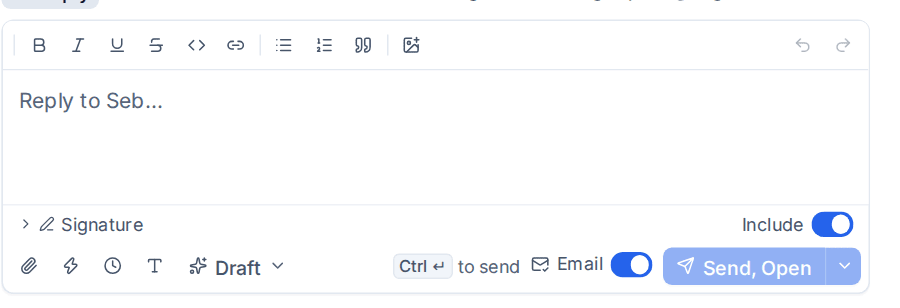
The arrow next to it offers Send and keep the current status, the waiting status, Send and resolve and the other statuses the queue uses. See Replies, forwarding and scheduled send.
Setting the status from your own email
When you answer a ticket notification from your own mailbox, put commands on the first line:
| Command | Does |
|---|---|
#note or #reply |
An internal note, or a public reply |
#waiting |
Sets the first status that waits on the customer |
#hold |
Sets On hold (or the first other waiting status) |
#resolve |
Resolves the ticket |
#status and a name |
Sets that status, by its name or its name for customers, in any case |
Combine them in any order, for example #note #status in progress. The command line is taken off the message. When a name is not a status, or the ticket cannot take that status yet (a checklist or a required field is missing), the status stays, the message still goes on the ticket and the mail log says why. An email with no command follows the queue's rule, just as Send does.
Related
Was this page helpful?
Thanks for the feedback.