Staff, roles, teams and sign-in
The Staff, roles, teams and sign-in section of the setup helper: how staff sign in, who needs a second factor, session and password rules, the teams work is shared between, and the checks that prove it.
Staff, roles, teams and sign-in is in the Foundations phase and takes about 45 minutes. It decides who works here and what they may do, the teams work is shared between, and how staff sign in safely.
Open Set up (Health once you have gone live) and choose Staff, roles, teams and sign-in. It runs through the same six beats as every section: see Working through a section.
Note: Finish Company, brand and regional first. This section is marked Owner approves: when someone uses Do it for me, its changes wait for the owner's approval before they are applied.
What it reads from your data
What we found counts your active staff and administrators, the administrators without a second factor, your teams and the kinds of team you have, the staff in no team, the single sign-on providers switched on and your current two-factor rule.
What it asks
| Question | Choices and notes |
|---|---|
| How should staff sign in? | Microsoft Entra ID, Another single sign-on provider or A password and an authenticator app. Single sign-on lets staff use the account they already have, and leavers lose access when their account is closed |
| Who must use a second factor with a password? | Everyone, Administrators only or Nobody. Single sign-on is exempt: your identity provider asks for its own |
| After how many days must staff sign in again? | 1 to 90. The default is 14 |
| How long must passwords be? | 8 to 64. Long passwords beat complicated ones; 12 characters is a sound minimum |
| Which teams do you have? | Service desk, Projects, Sales, Accounts, Monitoring and security, Field engineers. Teams feed queues, rotas, approvals and notifications |
| Tell staff when their account signs in from somewhere new? | Yes or no |
What it recommends
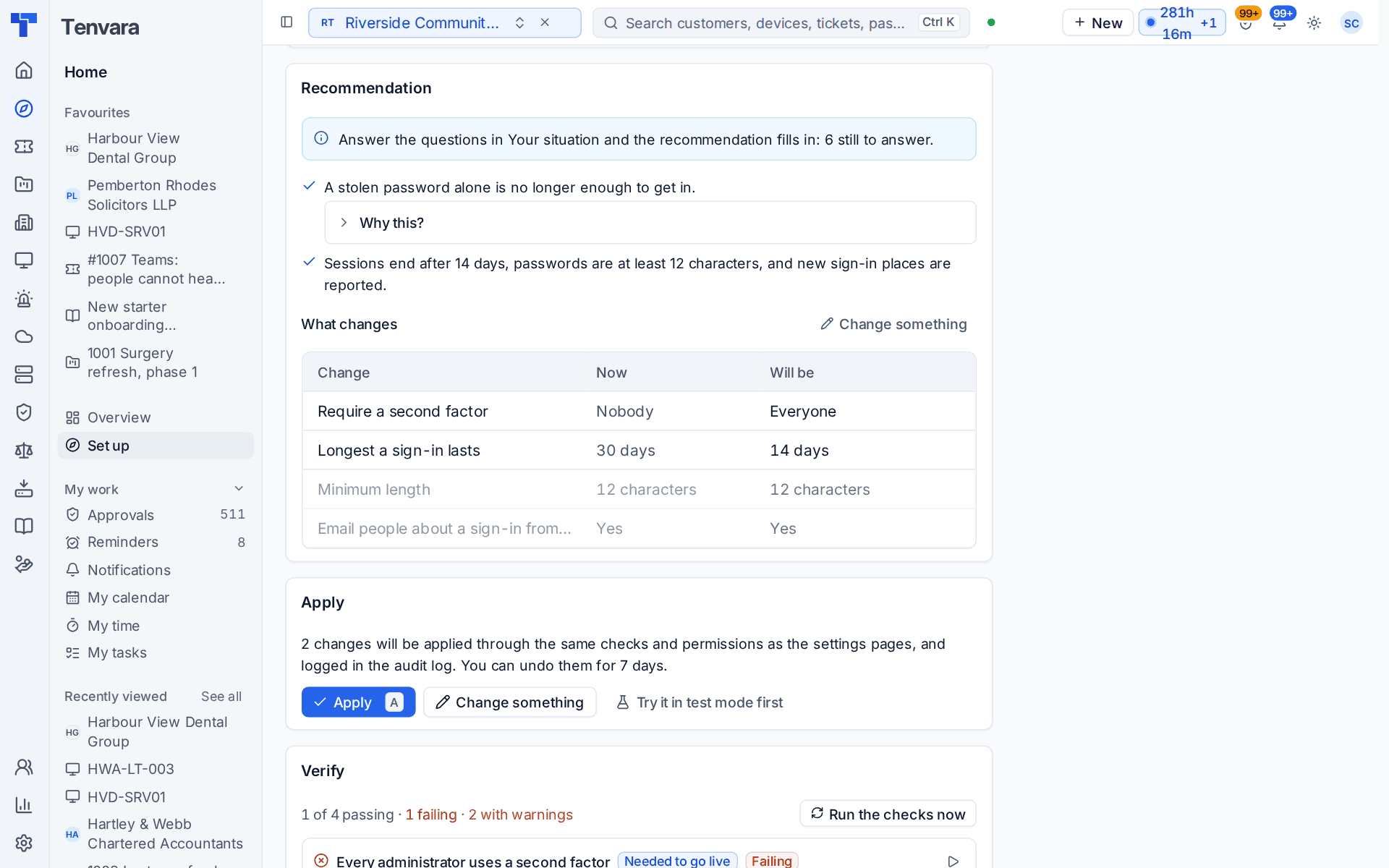
- A stolen password alone is no longer enough to get in. The second factor is required for the people you chose. Why this? gives the reason: most break-ins start with one reused password on an administrator account. If you answer Nobody, the recommendation says so plainly and advises against it.
- Sessions end after the days you chose, passwords are at least the length you chose, and new sign-in places are reported.
- Work is shared out by team. The teams you ticked are created and people are added by their role, so queues, rotas and approvals name a team, not a person. You can change the members afterwards in Settings > Teams.
What changes lists each setting with its value Now and what it Will be, for example Require a second factor going from Nobody to Everyone. Lines already in place are shown greyed.
Tip: Try it in test mode first is offered here because the sign-in rules affect everyone. It lets you see the effect before your team does.
Single sign-on itself is connected with your own identity provider in Settings > Single sign-on, because it needs an app registration and details from your side. See Single sign-on.
How it is verified
| Check | What it looks at | Where to fix it |
|---|---|---|
| Every administrator uses a second factor | No administrator can sign in with a password alone. Needed to go live | Require it for administrators, a one-press fix. Administrators who have not set theirs up are asked at their next sign-in |
| No administrator account is shared | Accounts that look shared. Give each person their own account so the audit log says who did what | Settings > Users |
| Every member of staff is in a team | Staff in no team are reached by no queue or rota | Settings > Teams |
| Single sign-on works | The provider you switched on answers. Passes when staff sign in with a password | Settings > Single sign-on |
Day to day
- New staff get an invitation by email. Their role decides what they see, and their teams decide which queues and rotas they are in.
- When someone leaves, switch off their user. With single sign-on, closing their account in your identity provider stops them signing in too.
- Out of the box only the Owner and Admin roles can open Set up. To share the setup work, give a role Setup view and Work on setup in Settings > Roles and permissions.
Related guides
Was this page helpful?
Thanks for the feedback.