Onboarding mode and going live
A new customer starts in onboarding mode, where everything found goes to one findings report and nothing changes their machines by itself, until you mark the customer live.
The first week with a new customer is noisy: agents enrol, the first scans run, and every missing patch and weak setting would raise its own alert. Onboarding mode keeps that week quiet: everything raised for the customer goes to one findings report, and nothing changes their machines by itself until you mark the customer live.
What onboarding mode does
While a customer is in onboarding mode:
- One findings report. Everything raised for the customer goes to its findings report, with one notification when the report is ready. There are no alerts, tickets, pages or alert storms for it.
- Automatic changes are held. No scheduled patch installs or restarts, automatic software deployments or app updates, scheduled scripts, automation steps that change a device, hardening enforcement, feature upgrades or automatic alert fixes.
- Scans and monitoring carry on, so the report shows what is missing. Update checks still run.
- Backups, Microsoft 365 and tray messages carry on. A new customer wants its backups from the first day.
- A technician can still act by hand. Installing updates, restarting, running a script, deploying a package or running a fix shows the onboarding warning first and goes in the audit log.
Note: The customer status Onboarding and onboarding mode are separate. The status says where the relationship is; the mode says how alerts and automatic changes behave.
The default for new customers
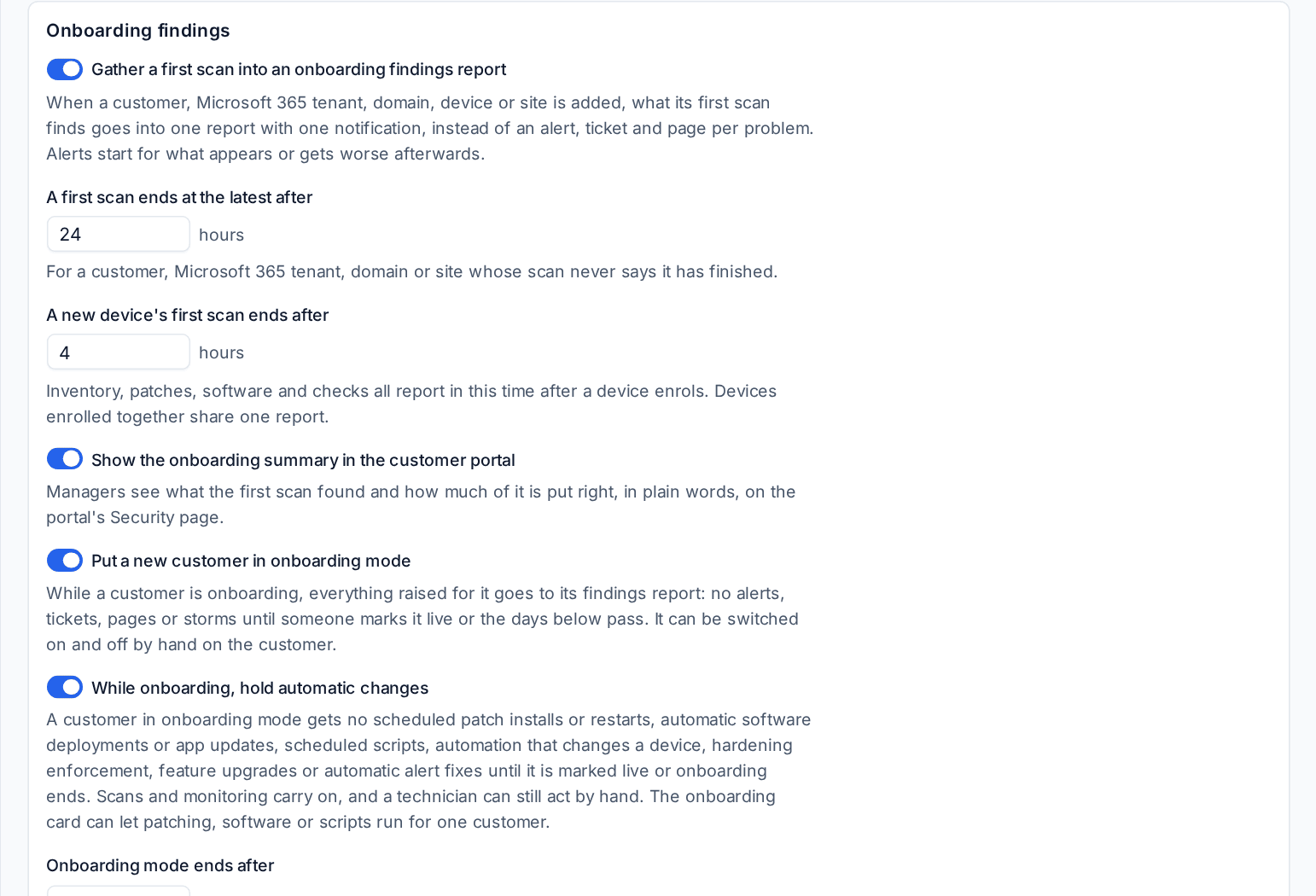
A new customer starts in onboarding mode for 7 days, and so does a customer created by an import. The defaults are in Settings > Monitoring, under Alert noise, in the Onboarding findings group:
- Put a new customer in onboarding mode: on by default.
- While onboarding, hold automatic changes: on by default.
- Onboarding mode ends after: 7 days by default.
- Gather a first scan into an onboarding findings report, with how long a first scan may take.
- Show the onboarding summary in the customer portal: managers see what the first scan found, and how much of it is put right, on the portal's Security page.
Switch it on or off by hand
On a customer in onboarding mode the header shows an Onboarding until badge with the date. A customer that is live shows Live on the onboarding card.
To start it for an existing customer:
- Open the customer and choose Start onboarding mode in the More actions menu, or press it on the card at the top of the customer's Settings tab or Settings > Onboarding tab.
- Set Ends on, or leave it empty for the default number of days.
- Press Start onboarding mode.
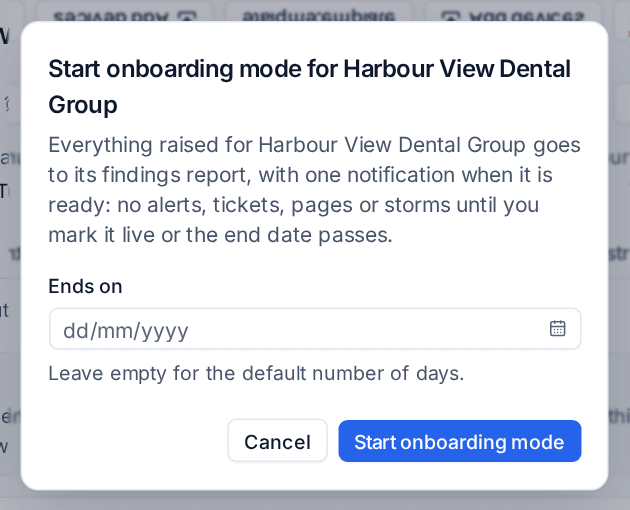
Switching it on cancels the customer's scheduled patch jobs that have not started yet, with the reason on each job.
What is held, and letting some of it run
The onboarding card on the customer's Settings and Onboarding tabs lists what is held. Three switches let part of it run for this one customer:
- Let patching run while onboarding
- Let software run while onboarding
- Let scripts run while onboarding (this covers automation too)
Hardening enforcement and automatic alert fixes have no switch: they wait until the customer is live. Each switch is recorded on the customer's activity.
You can see the hold in the places it matters:
- The customer's header shows Patching held while onboarding with the date, beside the onboarding badge, and the customer's Patches tab says the same with what still runs.
- A device that would count as non-compliant while it is held shows Held: onboarding instead. It is left out of the compliance percentage.
The findings report
The report is on the customer's Settings > Onboarding tab. Open the report on its own page gives it the full width.
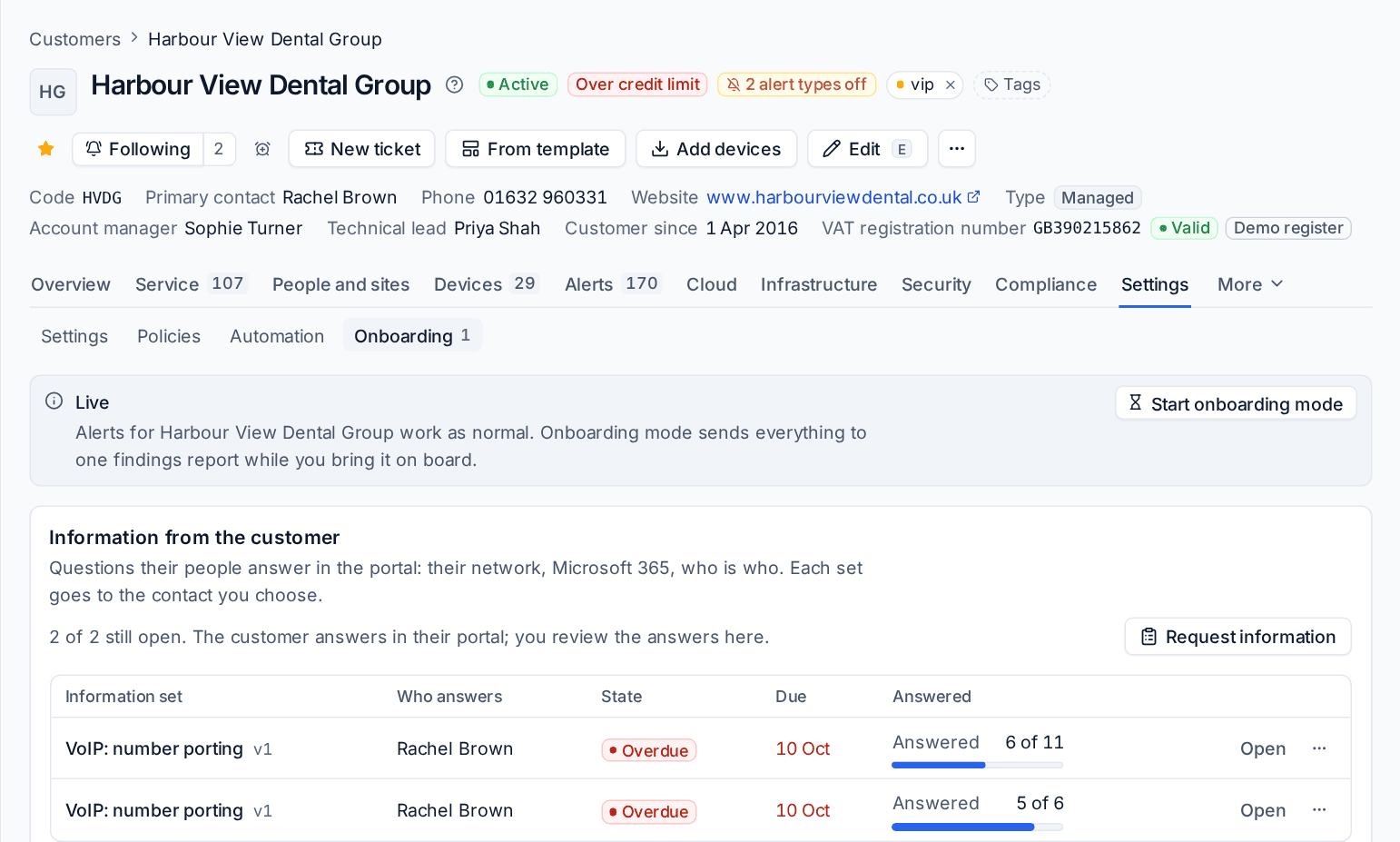
The tab also holds Information from the customer: the questions their people answer in the portal about their network, Microsoft 365 and who is who. Request information sends a set to the contact you choose. See Information requests.
Open a report to work through it:
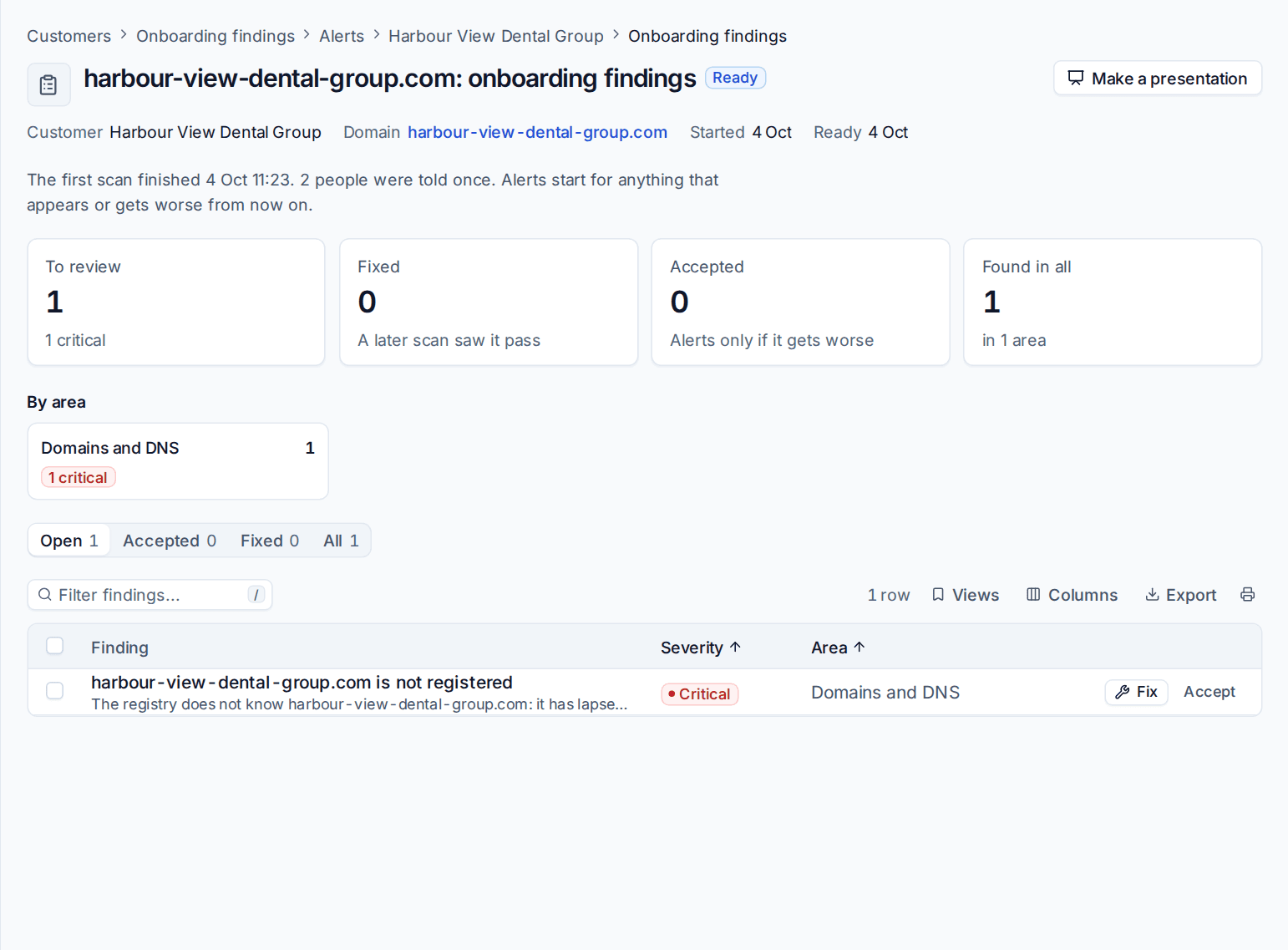
- The cards count what is To review, Fixed (a later scan saw it pass), Accepted (it only alerts if it gets worse) and Found in all.
- By area groups the findings, for example Domains and DNS, and the Open, Accepted, Fixed and All buttons filter the list.
- On each finding, press Fix to deal with it, or Accept to leave it as it is.
- Make a presentation turns the report into a deck for the customer.
Once a report is ready, only new problems, or ones that get worse, raise alerts. A finding that is still open and no worse stays quiet.
Going live
A customer goes live in one of three ways:
- You choose Mark live in the customer's More actions menu or on the onboarding card.
- The end date passes.
- You finish its findings report.
When that happens the holds are released, the first patch window after it runs as normal, any hardening drift held meanwhile is put back, and the report is marked ready with how it became ready, for example "Marked live by" and the person's name. The right people get one notification, and alerts start for anything new or worse from then on.
How it differs from takeover mode
| Onboarding mode | Takeover mode | |
|---|---|---|
| Use it for | Any new customer | A customer you take over from another provider |
| Findings report instead of alerts | Yes | Yes |
| Patching, software, scripts, hardening, alert fixes | Held, with switches to let patching, software or scripts run | Held |
| Backups | Run | Held until you start them |
| Microsoft 365 changes and tray messages | Run | Held unless someone does them by hand |
| Ends | After the days you set, or when you mark the customer live | When you turn it off, now or at a time you set |
Takeover mode wins when both apply, and a customer in takeover mode cannot be marked live: turn takeover off instead. See Takeover mode.
Related: Quiet monitoring and onboarding findings, Customers, sites and contacts.
Was this page helpful?
Thanks for the feedback.