Sign-up addresses for customers
Give each customer email addresses for vendor sign-ups whose mail lands on the customer, never as a ticket, received on your own accounts domain or through Microsoft 365.
When you sign a customer up for something (a licence portal, a domain registrar, a SaaS trial, a supplier account), the vendor wants an email address. Use your own and the mail ends up in one person's inbox; use the support address and every receipt becomes a ticket. A sign-up address is an address made for this: its mail is kept against the customer in Tenvara, readable by your team, and never becomes a ticket or a notification.
Tenvara reads that mail as it arrives: codes, sign-in links, invoices, renewals and failed payments are recognised, and the vendor accounts are offered as credentials. See Sign-up mail: codes, links and renewals.
Sign-up addresses come with the Documentation module and work the same in both editions (in the Company edition they are your organisation's own addresses).
How the mail is received
Choose one or more ways in Settings > Sign-up addresses (in the Records group). Administrators, and roles allowed to change these settings, can change them.
| Way | What you need | Addresses |
|---|---|---|
| Accounts domain (inbound relay) | A subdomain such as accounts.yourcompany.com whose MX record points at your Tenvara |
Any address on the domain, as many as you like, no mailbox licence |
| Shared mailbox in Microsoft 365 | A shared mailbox in your own connected Microsoft 365 tenant, such as signups@yourcompany.com (free, no licence) |
Each address is added to the shared mailbox as another address; its mail is read every minute |
| Addresses in a connected tenant | The customer's own Microsoft 365 tenant connected to Tenvara | An address on the customer's own domain |
Tenvara only receives: nothing is ever sent from a sign-up address.
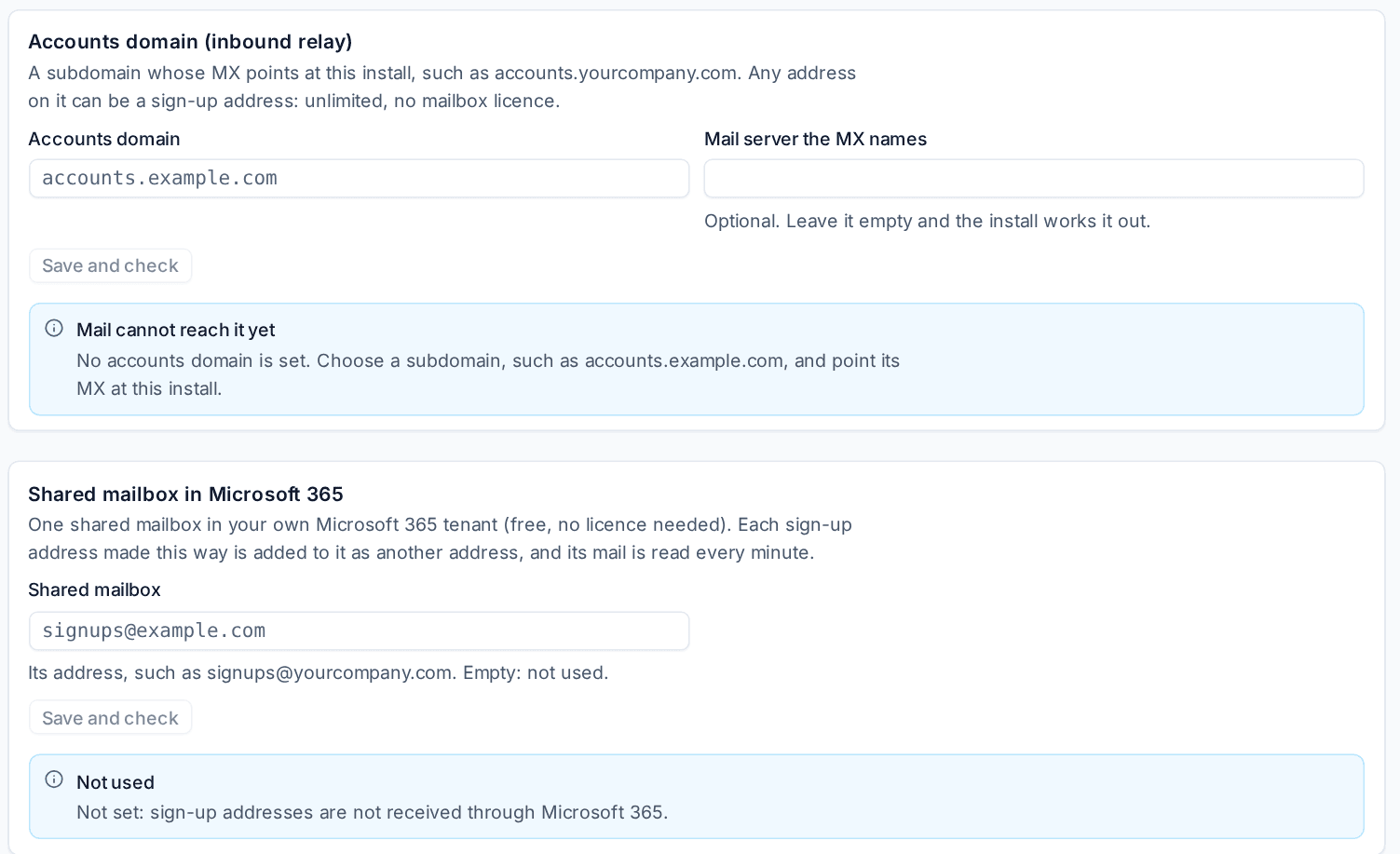
Your accounts domain
- Choose a subdomain you own that is not used for anything else, for example
accounts.yourcompany.com. It cannot be the domain your support mail is forwarded to. - Enter it under Accounts domain. Mail server the MX names is optional: leave it empty and Tenvara works out where the MX should point.
- Press Save and check. The card checks the domain's MX record live and says, in words, whether mail can reach it: no MX record yet, an MX that points elsewhere, an MX that is only partly right, or that mail reaches this install. Where something is missing or wrong it gives the record to add.
- Add the MX record at your DNS host, then press Save and check again until it says the MX points at this install.
Mail to an address on the domain that is not a live sign-up address is refused when it arrives, so nothing bounces later. The domain cannot change while live addresses use it.
A shared mailbox in your Microsoft 365 tenant
- Create a shared mailbox in your own tenant (it needs no licence), for example
signups@yourcompany.com, with your tenant connected to Tenvara and its support mailbox feature allowed. - Enter its address under Shared mailbox and press Save and check.
- The card says where the mailbox stands: the tenant it found, the domains addresses can be made on, how many addresses use it and when it was last read. If it cannot be read it says why.
Each sign-up address made this way is added to the mailbox as another address, and retiring it takes the address off again.
Addresses on the customer's own domain
When a customer's Microsoft 365 tenant is connected, an address can be on their own domain. Addresses in a connected tenant, on the Microsoft 365 card, chooses how it receives:
- Forward with a mail contact: a hidden mail contact in the customer's tenant receives at the address and passes the mail on to your shared mailbox, or your accounts domain.
- A shared mailbox in that tenant: a shared mailbox named Sign-up mail is made in the customer's tenant and read directly.
- Forward when the shared mailbox or the relay is set up, else a mailbox there (the default).
Every change in the customer's tenant goes through Tenvara's Microsoft 365 actions as the person making the address, so their Microsoft 365 permissions apply and the tenant's change log names them, with undo.
Making an address
- Open the customer and choose Docs, then Accounts.
- Under Sign-up addresses, press New address (or
n). - In New sign-up address, choose Receive through (the ways you have set up) and the Domain. If no way is set up yet, the dialog says so and points to Settings > Sign-up addresses.
- The Name is suggested from the customer's name, without words such as Ltd (
northwind-traders); change it if you like. What it is for is optional, for example Licences or Domains. The address will be shows the result. - Press Make the address. It is listed with a copy button, what it is for, how it receives, how many messages it has had and when the last arrived.
Give the address to the vendor. Its mail appears below, under Mail, as it arrives.
Retire stops an address: Tenvara asks first, the mail it already had stays, new mail is refused, and the same address can be made again later. Show retired lists retired addresses.
Other settings
On the same settings page:
- Portal: Show sign-up mail in the portal lets a customer's in-house IT and managers see the mail to their own sign-up addresses on the portal's Sign-up mail page, codes and links included, each view logged. Bills, renewals and payment notices go to the contacts who see costs instead. A customer can have its own value on its Settings tab.
- Recognising mail: vendor names for senders whose mail does not say who they are, and how many days before a renewal the reminder comes. See Sign-up mail: codes, links and renewals.
- How long mail is kept: kept until you choose a period, which you set in Settings > Data retention.
Who can do it
- Sign-up addresses: view sees the addresses and their mail; manage makes and retires addresses, assigns and forwards messages and makes a ticket from one. Technicians have manage to start with.
- Sign-up codes and links: reveals codes, sign-in links and the body of sensitive messages, one logged view at a time. Only administrators have it to start with.
Related
Was this page helpful?
Thanks for the feedback.