Customer portal, chat and phone
The setup section for how customers reach you: who can sign in to the portal and how, what each portal role sees and does, the quote limit, what the chat widget does when you are closed, and the Teams and Slack apps.
This section of the setup helper sets up the ways customers reach you besides email: the portal and what contacts see in it, the chat widget and what it does out of hours, and the Teams and Slack apps. It sits in the Service desk phase and takes about 45 minutes.
Open it from Home > Set up, then Customer portal, chat and phone. It runs through the same six beats as every section: see Working through a section.
Before you start
Finish Company, brand and regional, Email in and out and Tickets, priorities and SLAs first. Until then the section shows Blocked: the portal carries your brand, invitations go out by email, and what contacts raise becomes tickets.
Phone lines, phone systems and call quality have a section of their own. See Setting up telephony and connectivity.
What it reads from your data
What we found shows:
- contacts who can sign in to the portal, and how many signed in during the last 30 days;
- chat widgets;
- chats in the last 30 days.
The questions it asks
| Question | Choices | Pick for me |
|---|---|---|
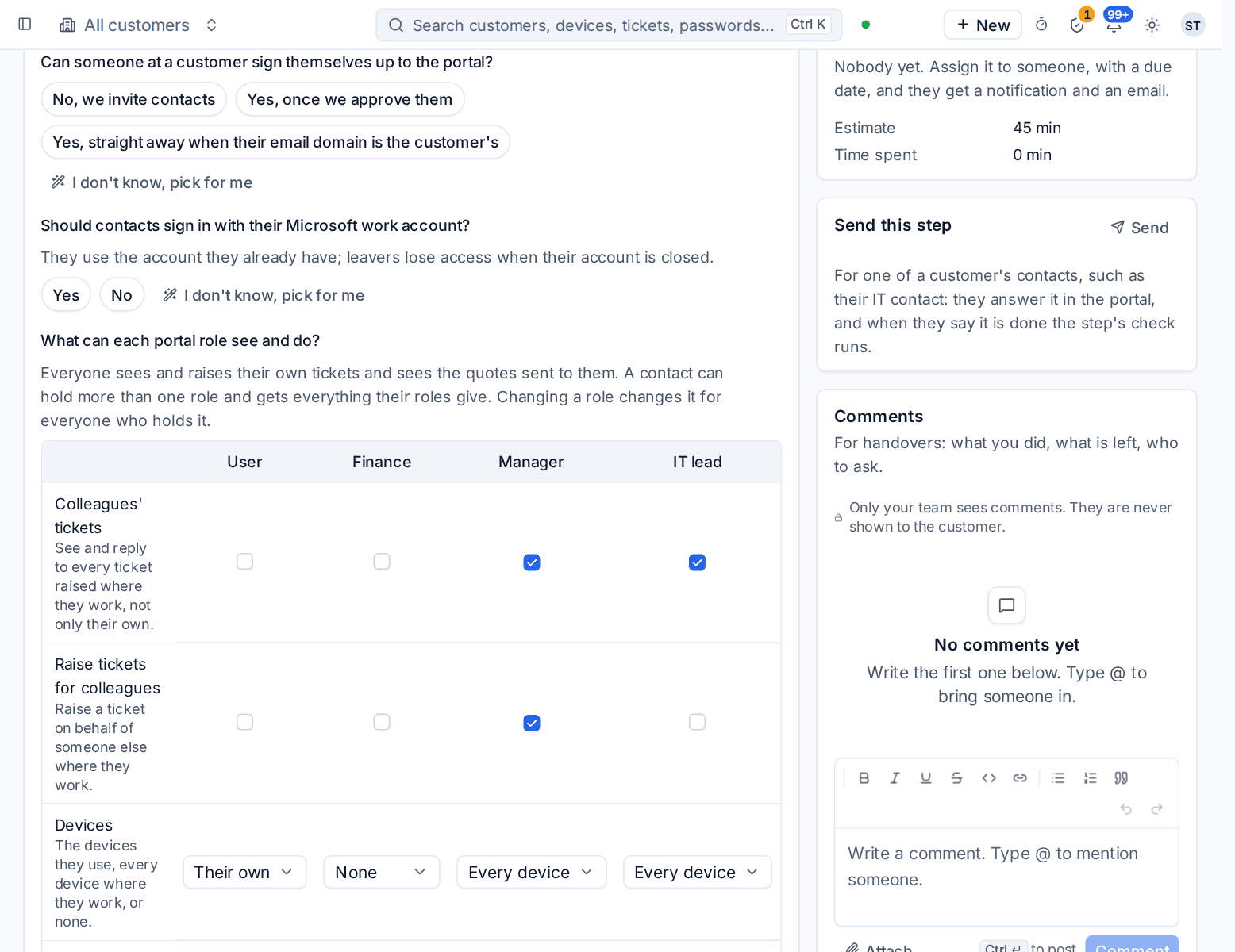
| Can someone at a customer sign themselves up to the portal? | No, we invite contacts; yes, once we approve them; or yes, straight away when their email domain is the customer's | Yes, once we approve them |
| Should contacts sign in with their Microsoft work account? | Yes or no | Yes |
| What can each portal role see and do? | One table, described below | What each role comes with |
| Up to what amount may a User accept a quote sent to them? | An amount in your main currency, with 0, 500, 1,000 and 5,000 offered. 0 means a User cannot accept quotes | 1,000 |
| When you are closed, the chat widget | Takes the details and raises a ticket, or hides itself | Takes the details and raises a ticket |
With Microsoft sign-in, contacts use the account they already have, and leavers lose access when their account is closed. The question is answered for you when discovery says you work with Microsoft 365. The quote limit is not asked on the Company edition, which has no quotes.
The portal role table
What can each portal role see and do? is one table: a row for each area of the portal and a column for each portal role, User, Finance, Manager and IT lead (in the Company edition Employee, Department head and Admin). Tick what each role gets; devices take a level (none, their own or every device). The rows cover colleagues' tickets and raising tickets for colleagues, devices, invoices, statements and paying, every quote, prices and costs, the dashboard, security findings and device security, alerts and technical detail, reports, reviews and presentations, backup status and restoring colleagues' backups, compliance, AI readiness, managing people, records shared with managers, and the password manager.
I don't know, pick for me fills in what the roles come with: a User sees their own tickets and devices and keeps passwords in the password manager; Finance sees invoices, statements, paying, quotes, agreements and what things cost but no devices; a Manager sees everything for their company; an IT lead sees every ticket and device, alerts, device security and backups. Everyone sees and raises their own tickets and sees the quotes sent to them.
What you choose changes what each role gives for everyone who holds it, at once. A contact can hold more than one role and gets everything their roles give: choose a contact's roles on their contact page under Customer portal. See Portal roles.
What it recommends and why
- The portal is on and contacts get in the way you chose. Self sign-up and Microsoft sign-in are set from your answers. Sign-ups that wait for approval are approved by your team.
- Each portal role sees and does what you chose, and everyone holding a role gets it. Any area a role has, such as devices, invoices and payments, or the password manager, is switched on for the portal, and the roles decide who sees it.
- Nobody reaching out after hours is left without an answer. The chat widgets are set to take the details and raise a ticket, or to hide, when you are closed.
Press Apply when the preview is right. An apply can be undone for 7 days.
Tip: These are the defaults for every customer. The portal roles decide what each person may see, and you can look at the portal exactly as a contact does before you invite anyone. See See the portal as a contact.
Checking it worked
Verify runs live checks on each way in:
- Contacts sign in to the portal. It stays waiting until somebody has signed in, so invite a test contact from Customers > Contacts and sign in as them. Who may sign in, and how, is under Settings > Customer portal, the Access and sign-in tab.
- A chat becomes a ticket. Start a test chat from the widget and turn it into a ticket. With no chat widget there is nothing to test.
- A check on what happens when you are closed. It warns when the chat widget hides itself out of hours, because customers then have only email. The fix opens Settings > Chat.
- The Teams and Slack apps are connected. Each is connected with your own Microsoft or Slack workspace, in Settings > Chat, the Teams and Slack tabs.
Day to day
- Contacts raise and follow tickets and approve requests in the portal, and see and do what their portal roles give (Finance and Managers pay invoices). Chats land on the desk as conversations in Service desk > Chat and become tickets when they need to.
- Out of hours the chat takes the details and raises a ticket, or hides, as you chose.
- The settings behind this section are in Settings > Customer portal and Settings > Chat.
Related guides
Was this page helpful?
Thanks for the feedback.