Found, adopted and ignored
What Tenvara finds by itself, how adopting works, and how to ignore something for good with a reason, see everything ignored with who, when and why, and bring it back.
Tenvara finds a lot on its own before anyone asks it to: a hypervisor an agent reports, a web server and its websites, a printer on a subnet, a new host on a site's network. Each of those is found until someone decides what it is. You either adopt it, so Tenvara looks after it, or ignore it, so it never bothers anyone again.
What Tenvara finds
| Found | Where you see it |
|---|---|
| Hypervisors (Proxmox VE clusters and nodes, Hyper-V hosts) | Infrastructure > Hypervisors, the Infrastructure overview, and the device page of the host |
| Web servers and the websites on them | Infrastructure > Web servers and Infrastructure > Websites |
| Virtual desktop deployments (Remote Desktop Services) | Infrastructure > Virtual desktops |
| NAS units seen on a site's network | Infrastructure > NAS and storage |
| Firewalls and network controllers, and their tunnels, uplinks and devices | Infrastructure > Firewalls and controllers |
| Hosts on a site's network | the site's network page |
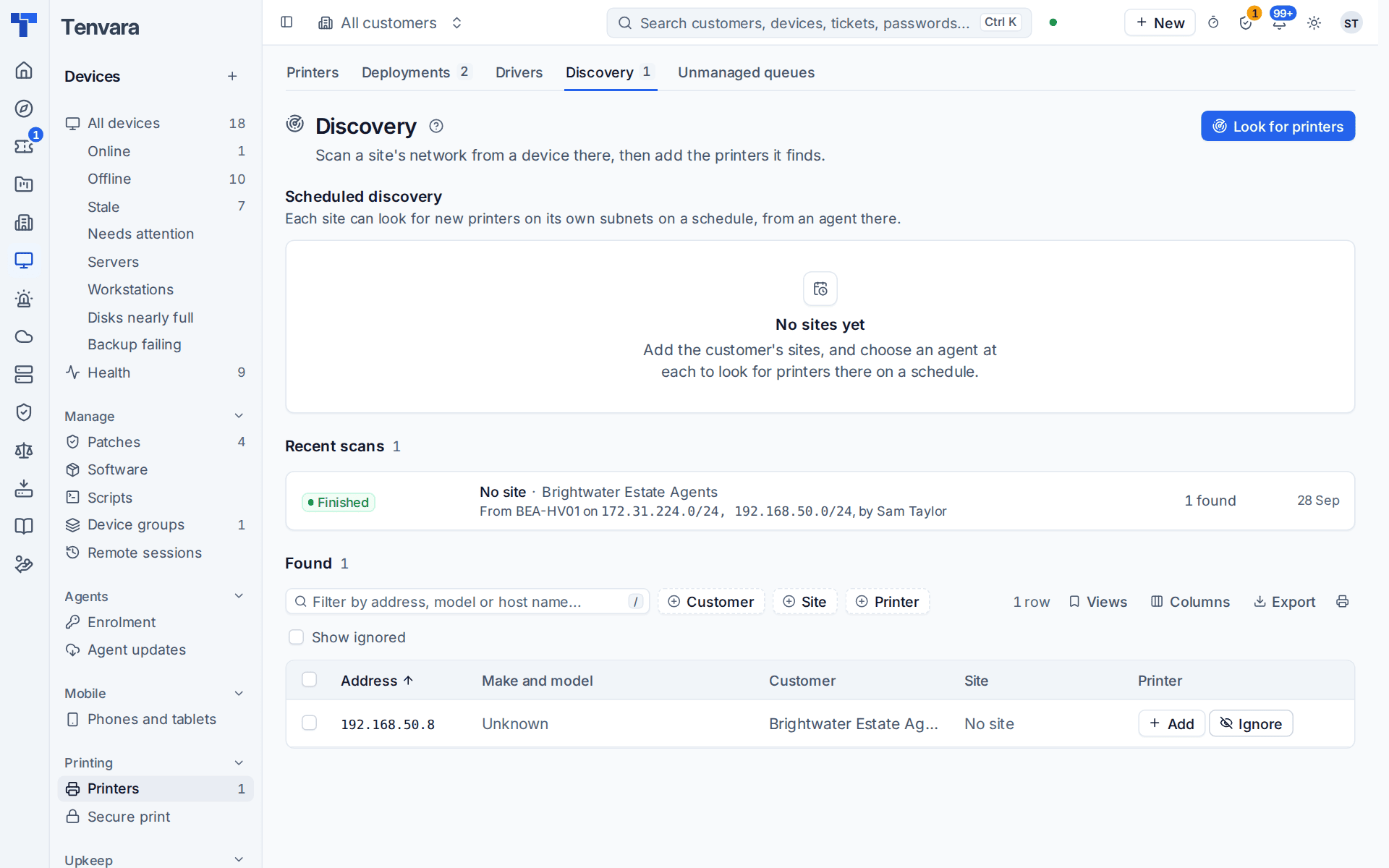
| Printers found by a discovery scan, and printers on devices that Tenvara did not add | Devices > Printers, the Discovery and Unmanaged queues tabs |
| Lines suggested from bills and call records | Infrastructure > Lines, the Suggested lines tab |
Found things show in their lists, callouts and counts with an Adopt (or Add) button, so nothing new goes unnoticed.
Adopting
Adopting tells Tenvara to look after it: a hypervisor starts being monitored and patched, a printer is added and can be deployed, a website gets its checks. Each kind has its own adopt step, described in its own guide, for example Adding printers.
An adopted item can be released again where the kind allows it, which puts it back to found.
Ignoring
Some things are never yours to manage: a lab box on a customer's network, a home router a laptop sees, a printer that belongs to the landlord. Ignore them.
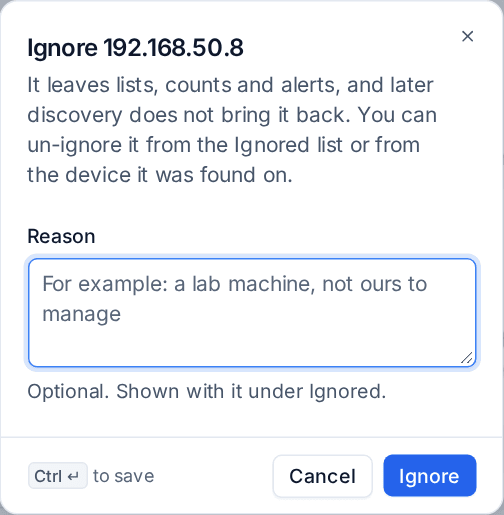
- Find the item in its list or callout and press Ignore beside Adopt.
- Give a Reason if it helps the next person, for example A lab machine, not ours to manage. It is optional and shown with the item under Ignored.
- Press Ignore.
To ignore several at once, tick them in the list and choose Ignore in the bar that appears.
An ignored item leaves every list, callout, count, alert and Home card. Later discovery, reports and syncs know it is ignored, so it never comes back by itself, even when the scan that found it runs again or the item is found a different way. Open alerts about it (a website's certificate running out, say) go at once.
An adopted item cannot be ignored straight away: release it first.
Seeing what is ignored
Every list that shows found items has an Ignored view or a Show ignored filter. It lists each ignored item with:
- what it was called when it was ignored;
- Found on: the device it was found on or through;
- Ignored by whom and when;
- the reason.
The device page has an Ignored here section: everything found on or through that device and ignored, whatever its kind. It only shows when something has been ignored there.
Bringing something back
Press Un-ignore on the item, in its list's Ignored view or in Ignored here on the device. It goes back to found, ready to adopt, and the next discovery judges it again. If you ignore it again, Tenvara asks for a reason again.
Who can do it
Seeing found and ignored items needs view rights in the area they belong to (Infrastructure, Devices, Printers and so on). Adopting, ignoring and un-ignoring need manage rights there. Ignoring many at once also needs the permission for bulk changes.
Every ignore, un-ignore, adopt and release is in the audit log and on the item's timeline (and its device's), with who did it and the reason, for example Ignored by Sam Taylor: a lab machine, not ours to manage.
Related
Was this page helpful?
Thanks for the feedback.