Docker hosts and containers
How the agent finds Docker Engine and Podman, what the Containers tab and the Docker hosts list show, and the alerts Tenvara raises for containers that stop, loop, fail their health check or fill the disk.
Any device that runs Docker Engine or Podman is a Docker host. You do not add it anywhere: the Tenvara agent notices the engine by itself, the device gets the Docker host role and a Containers tab, and it is listed under Infrastructure > Docker hosts. Nothing extra is installed on the host and no Docker API is opened to the network: the agent reads the engine over its local socket or named pipe.
Docker hosts work the same in the MSP and the Company edition. They are part of the Infrastructure module and its permission: View to look, Manage to act. If the area is missing, switch the module on in Modules.
How a host is found
- Install the agent on the server, the same way as any other device. See Installing the agent.
- Within one inventory the agent finds the engine and reports what it runs. It reports again every 15 minutes, after every Docker action, and within seconds of a change the engine announces (a container starting, stopping or being created).
What the agent can read depends on the platform:
| Platform | What Tenvara shows |
|---|---|
| Linux with Docker Engine | Everything: the engine, Compose projects, Swarm, every list, CPU and memory per container |
| Linux with Podman | The same lists, read only. Compose projects show when podman-compose or Docker Compose labelled them |
| Windows Server with Docker Engine | The same lists for Windows containers |
| Docker Desktop on Windows or macOS | The lists of the engine Desktop runs, while someone is signed in and Desktop is running |
When the engine is installed but not answering, the host still shows with its last lists, so you can see what should be running. A device with both Docker and Podman is read as a Docker host, with Podman noted.
Note: Podman hosts are listed and watched, but never started, stopped, updated or backed up from Tenvara. Their rows carry a Read-only badge.
The Docker hosts list
Infrastructure > Docker hosts (in the Servers and storage group) lists every host with:
- Host and Customer
- Docker: whether the engine is answering, with Need attention and Not answering ready as views
- Engine and its version, Compose and Swarm
- Containers running out of the total, with a badge when containers that should run are down or unhealthy
- Images, Compose projects and Last report
Filter by Docker state and Customer, save views and choose columns like any other list. Registries at the top opens the private registries and Docker Hub accounts Tenvara uses to check for newer images: see Updating, backing up and managing containers.
The Containers tab
Open a host (or its device) and the Containers tab. The top shows the engine and its version, Compose, Swarm, Containers running, Images, Volumes and Last report, with Refresh to ask the agent for a fresh inventory now.
Below that:
- Compose projects: each project as a card with how many of its containers run, its status, and its containers grouped under it with the Service each one is.
- Standalone containers: containers started without Compose.
- Images: every image with its tags, size and whether it is Dangling (untagged and unused).
- Volumes and Networks, with their driver.
Each container row shows its Image, state, Health (when the image has a health check), Restart policy, Published ports, CPU and Memory, and whether a newer image is available. A card for updates sits under the host; see the next guide for what it does.
Alerts
After every inventory Tenvara judges the host and raises alerts with the source Infrastructure. They follow your alert rules like any other alert, so they can open tickets and notify people.
| Alert | Raised when | Severity |
|---|---|---|
| Container stopped | A container that should run has exited with an error or is dead, for five minutes | Critical |
| Container stopped cleanly | A container that should run exited with code 0 | Information |
| Container restarting | Docker has restarted it at least three times and it last started within ten minutes | Warning |
| Container unhealthy | It is running and its health check has been failing for five minutes | Warning |
| Port not answering | The agent could not connect to a published TCP port from the host, twice in a row | Warning |
| Docker not answering | The engine is installed but not answering, for five minutes | Critical |
| Docker disk use | Images, containers, volumes and build cache use more than 70% of the disk they are on | Warning |
Every alert clears by itself at the first inventory where it is no longer true. A device that is offline holds its Docker alerts, so you get one alert for the device rather than one per container.
Which containers are watched
A container should run when it has a restart policy other than "no", or a health check. A one-off container with neither never raises an alert, whatever it does. Tenvara also leaves out throwaway containers, judged from Docker's own labels and never by name:
- containers Compose made for
docker compose run - containers whose Compose project folder is gone from the host, or sits in a temporary folder
- containers a build or CI runner made for a job
- a Compose project that keeps being started and stopped again within minutes (a test run)
A container someone stopped from Tenvara stays stopped on purpose and raises nothing until it runs again. A container down while Tenvara updates it, or while an Engine package update restarts Docker, is recorded as your own work and nobody is told.
Changing the thresholds
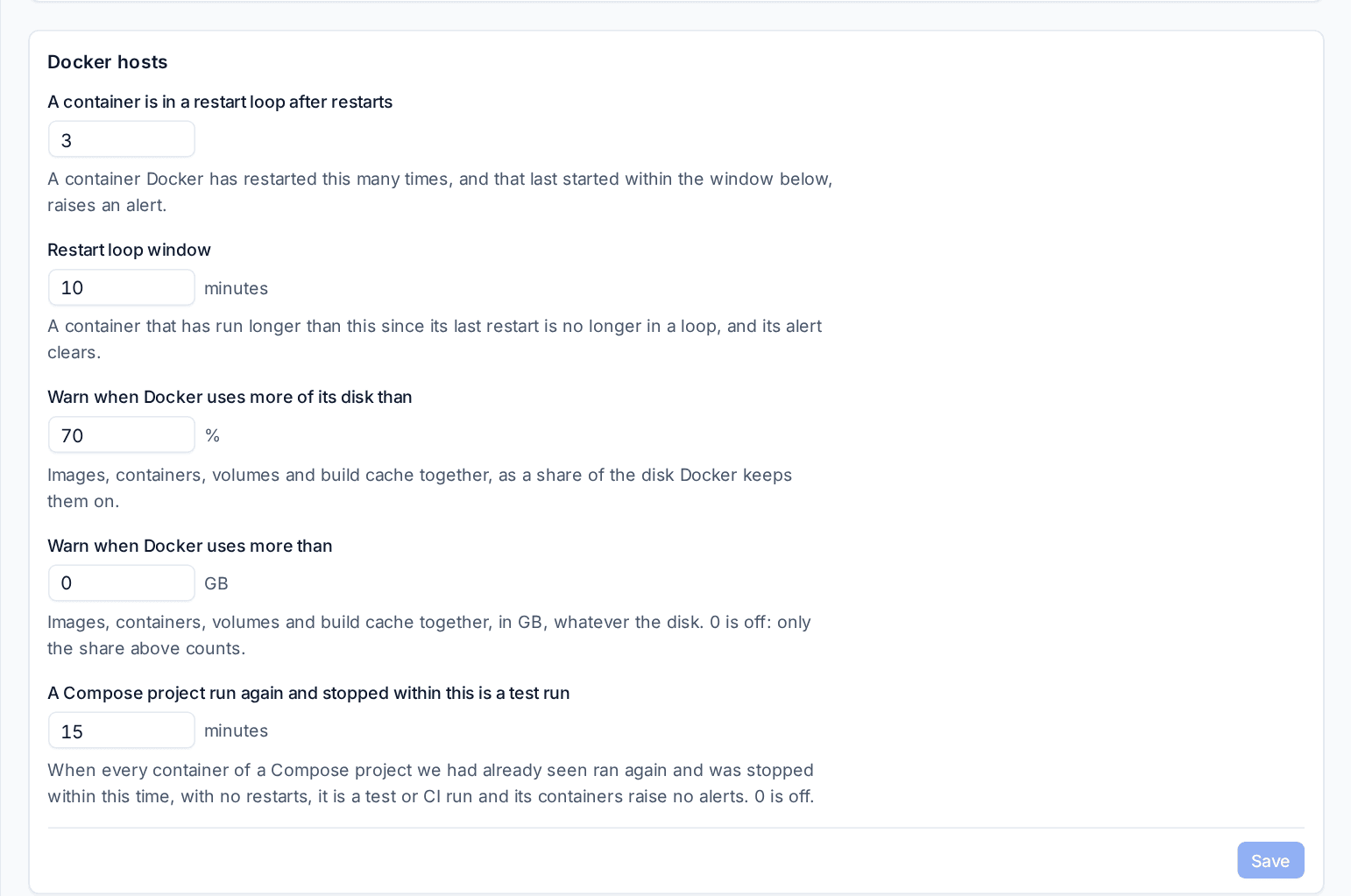
Open Settings > Infrastructure and the Docker hosts section:
- A container is in a restart loop after restarts (3) and Restart loop window (10 minutes).
- Warn when Docker uses more of its disk than (70%) and Warn when Docker uses more than a size in GB (0 is off). The size is useful for Docker Desktop, whose disk the agent cannot see.
- A Compose project run again and stopped within this is a test run (15 minutes, 0 is off).
Each can be set differently for one customer. To switch an alert type off, use Alert types.
Related guides
Was this page helpful?
Thanks for the feedback.