TV screens, doorbells and phone calls
Put a message, an alarm, a caller card, a camera, a dashboard or a picture over your TV screens from a rule, start it from a doorbell or a phone call, and control sound, quiet hours, priority and dismissing.
A rule can take over your wall screens for a moment: an alarm while a server is down, a card showing who is calling, the camera at the front door when the doorbell rings. The action is Show on TV screens.
The screens are the ones you run from Settings > TV dashboards, each a dashboard playlist open in a browser. See Screens, playlists and pairing. To send the same things by hand, see Overlays and Send to screens.
Before you start
- Set up your screens in Settings > TV dashboards, on the Screens tab.
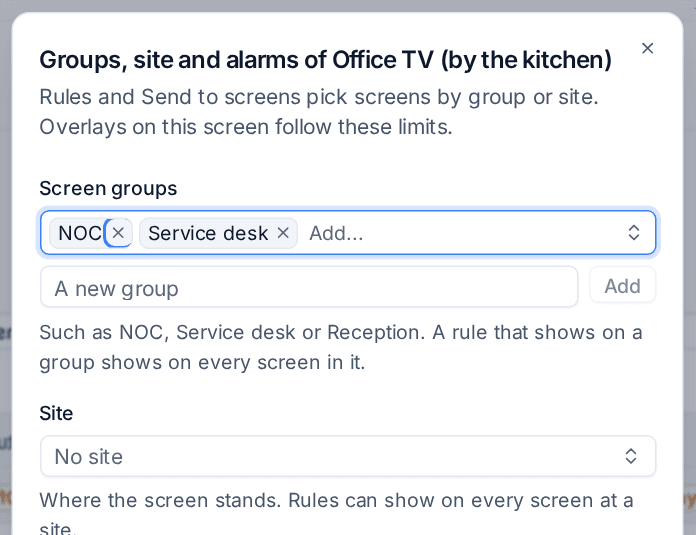
- Put them in groups. Open a screen's ... menu and choose Groups, site and alarms, then add Screen groups such as NOC, Service desk, Office or Reception, and choose the Site where the screen stands. Rules usually show on a group, so a new screen added to the group joins in without changing any rule.
- For a camera, add it under Infrastructure > Cameras and press Test the stream. See Cameras.
The Show on TV screens action
In a rule, under Then, click Add an action and choose Show on TV screens in the Notify group. See Building a rule for the rest of the rule.
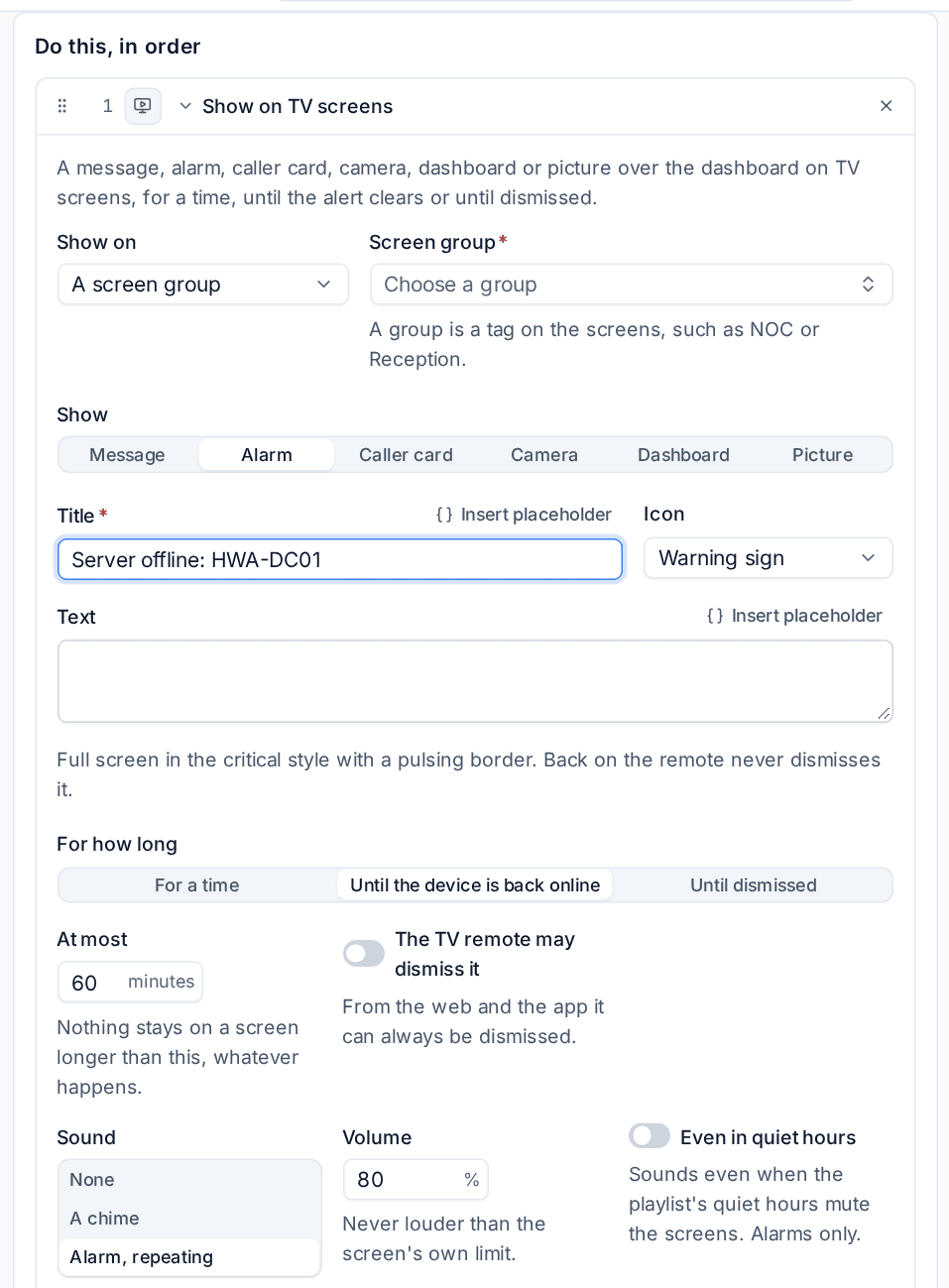
Show on
Choose A screen group, chosen screens, a playlist's screens, a site's screens, or the customer's screens (offered when the rule's trigger has a customer).
A customer's screen only ever shows that customer's own content; your own office screens can show anything.
Show
| Kind | What the screens show |
|---|---|
| Message | A Title and Text, Full screen or as A banner, in a Style (Information, Good news, Warning or Critical) with an Icon |
| Alarm | A full-screen alarm in the critical style with a pulsing border |
| Caller card | Who is calling, matched from their number, with their open tickets and any SLA at risk |
| Camera | A camera from Infrastructure > Cameras, full screen |
| Dashboard | One of your TV dashboards, in place of what the screen was playing |
| Picture | A picture from an address, usually one the webhook sent, such as {{webhook.snapshot_url}}. Tenvara fetches it and passes it on, so the screen never loads it from elsewhere |
For how long
- For a time: seconds or minutes.
- Until it clears, worded for the trigger: until the alert clears, until the device is back online, or until the call is answered.
- Until dismissed: until someone dismisses it.
At most is a hard limit in minutes: nothing stays on a screen longer than this, whatever happens. The TV remote may dismiss it lets someone at the screen dismiss it. From Tenvara it can always be dismissed.
Sound
Choose None, A chime or Alarm, repeating, with a Volume that is never louder than the screen's own limit. A playlist's quiet hours mute sounds, unless an alarm is set to sound Even in quiet hours. That switch is for alarms only.
The Preview beside the settings draws the overlay as the screen will, at each density and in dark and light.
Ready-made rules
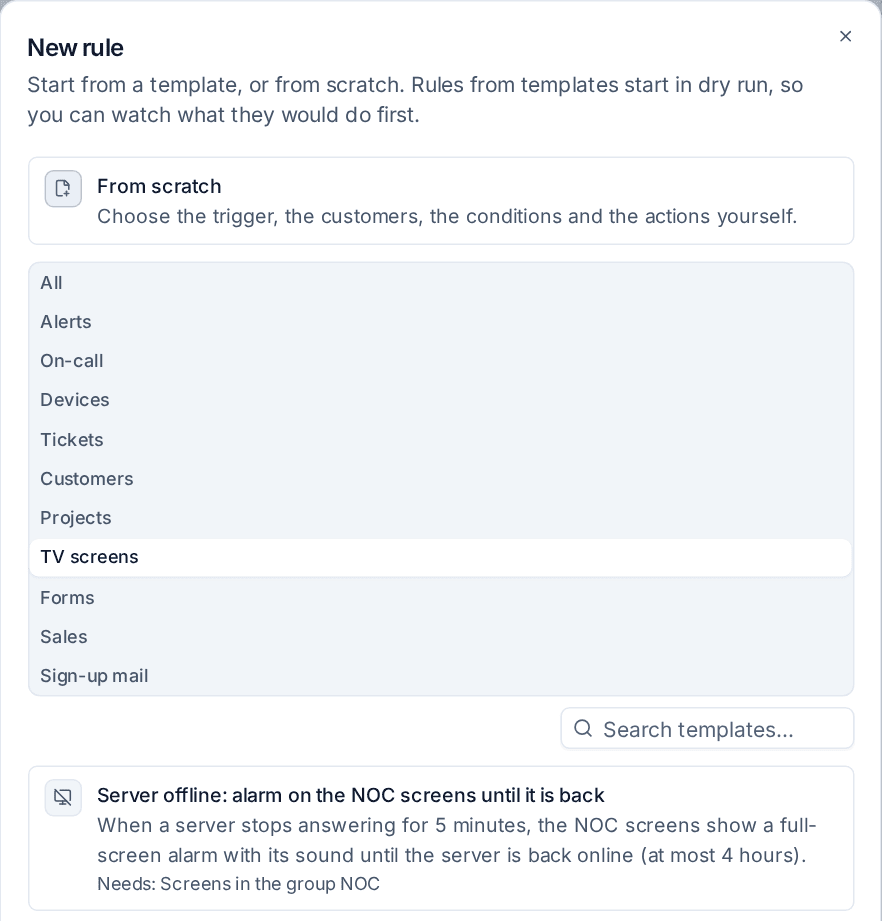
Go to Settings > Automation rules, click New rule and choose the TV screens group. Each template opens as a draft in dry run: check it, save it and turn dry run off when you are happy.
| Template | What it does |
|---|---|
| Server offline: alarm on the NOC screens until it is back | A full-screen alarm with its sound on the NOC group while a server has been offline for 5 minutes, gone when it is back (at most 4 hours) |
| Doorbell rings: the front door camera on the Office screens | The camera called Front door full screen on the Office group for 60 seconds, with a chime |
| Alert storm and Most urgent ticket: switch the NOC screens to the Major incident dashboard | The NOC group switches to your Major incident dashboard until the storm is over, or until someone dismisses it |
| SLA breached: a warning banner on the Service desk screens | A warning banner along the top of the Service desk group for 5 minutes |
With the Telephony and connectivity module, the gallery also has caller card templates for an incoming and a missed call.
Doorbells
A doorbell reaches Tenvara through a rule whose trigger is A webhook is received. Anything that can call a web address when the bell rings will do.
- Create the rule with the trigger A webhook is received and save it once. Its Webhook address is then on the right of the rule.
- Point the doorbell's system at that address, so it calls it when the bell rings. A POST with JSON such as
{"event": "ring"}is enough. - Under the rule's conditions, use A doorbell? Add the condition that it rang to add a ready-made condition, or add your own with A value in the payload, for example
eventis exactlyring. That way motion and other events sent to the same address do not show the camera. - Add Show on TV screens, choose Camera and pick the camera at the door.
curl -X POST "https://<your Tenvara address>/api/core/automation/hooks/<the rule's token>" \
  -H "Content-Type: application/json" \
  -d '{"event": "ring", "door": "front"}'
With more than one door, send which door it was (as door above) and make a rule per door, each with a condition on it. Turn on Only signed calls on the rule's webhook card when the sender can sign its calls. See Webhook triggers and inbound alerts.
Phone calls
With the Telephony and connectivity module, a call can start a rule while the phone is still ringing.
- Open the phone system's connection under Infrastructure > Phone systems and switch on Live call events. The connection shows its own webhook address.
- Have your phone system call that address when a call rings, is answered and ends (connect your own phone system first). See Connecting a phone system.
- In a rule, choose the trigger A phone call comes in, A call is answered or A call is missed, in the Calls group. Which phone systems and Which queues or numbers called narrow it down; empty means any.
- Add Show on TV screens with Caller card, and under For how long choose until the call is answered.
The card closes when someone picks up.
Priority, replacing and dismissing
- One full-screen overlay at a time per screen. A more urgent one (critical before warning before information) takes over, and the other comes back when it ends. Banners show up to three at a time.
- The same rule and subject replaces its own overlay instead of stacking, so an alert that keeps opening and clearing shows one alarm.
- The run log lists what happened on each screen under the action's step. See The run log.
To see or clear what is showing, go to Settings > TV dashboards, the Screens tab, and click On the screens now. Clear one overlay, or Clear all overlays. A screen's own menu has Clear its overlays.
Related
Was this page helpful?
Thanks for the feedback.