Devices linked to Intune
How Tenvara links each Intune device to the matching device you manage, how to link and unlink by hand, and what the Intune card, the Managed by Intune column and the fields filled from Intune show.
A laptop usually exists twice: once in Intune, in the customer's tenant, and once in Tenvara, with your agent on it. Tenvara links the two records, so the device's own page shows what Intune knows about it, the device list says which devices Intune manages, and Intune fills in facts the agent has not reported. Linking never creates a device and never changes anything in Intune.
How devices are matched
Tenvara looks for a match within the tenant's own customer, in this order:
- Entra device ID. The agent reports the device's Entra device ID, and Intune holds the same ID. This is the strongest match, and it survives a rename.
- Serial number. Only a real serial counts. Placeholder serials that manufacturers leave on some boards never match.
- Name. The short host name, ignoring capitals and punctuation, so "Sam's MacBook Air" in Intune matches
Sams-MacBook-Airfrom the agent. A name is never used when both records have real serials that disagree, as happens when a rebuilt machine reuses a name.
A few rules keep the links honest:
- When several Intune records find the same device, the strongest rule wins. A re-enrolled machine's new record, matched by Entra device ID, beats its old record matched by serial.
- When one Intune device matches two of your devices equally well, nothing is linked. It waits for a person (below).
- Retired devices are never matched.
The matching runs after every Intune read and within minutes of an agent reporting its inventory, so a machine enrolled in Intune before its agent was installed is linked once the agent arrives.
Devices that need a person
When Tenvara cannot choose between two of your devices, Cloud > Intune, the Devices tab, shows a Needs a person notice above the list.
- Press Review.
- For each Intune device, the panel lists the devices that match, with their site and when each was last seen.
- Press Link to this device beside the right one, or None of these if it is neither.
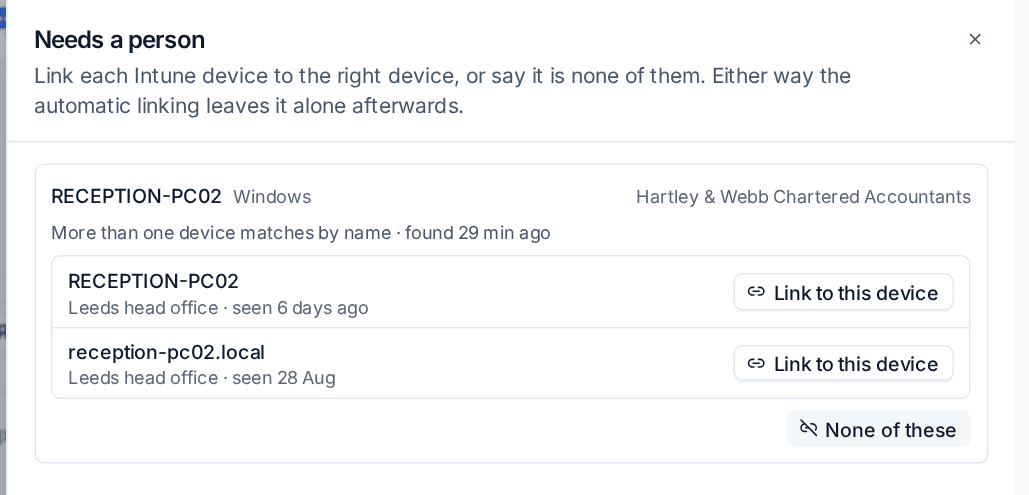
Either way, the automatic matching leaves that Intune device alone afterwards.
Linking and unlinking by hand
Open the device from Devices and scroll to the Microsoft 365 block on its Overview tab.
To link a device:
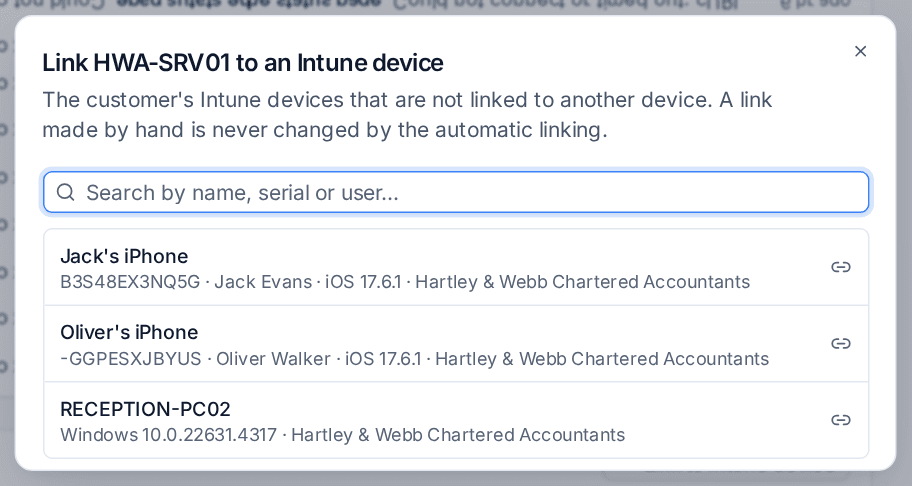
- Where it says Not linked to an Intune device, press Link to Intune device.
- The dialog lists the customer's Intune devices that are not linked to another device, the ones the matching rules suggest first. Search by name, serial or user.
- Choose the Intune device.
To unlink: press Unlink on the line that says Linked to Intune device, and confirm. The device stops showing what Intune knows about it, and the Intune device is Kept apart: it is not linked automatically again until someone links it, or hands it back with Link automatically.
A link made by hand is locked. The automatic matching never changes it, and never offers that device to another Intune record. The line under the card always says where a link came from, for example Matched by serial number, or who linked it by hand and when.
Linking and unlinking need the Microsoft 365 Manage permission, and every change made by hand is in the audit log and on the device's Activity tab.
The Intune card
Once a device is linked, the Microsoft 365 block on its Overview tab shows an Intune card. The same card is the side panel of a device in Cloud > Intune, the Devices tab.
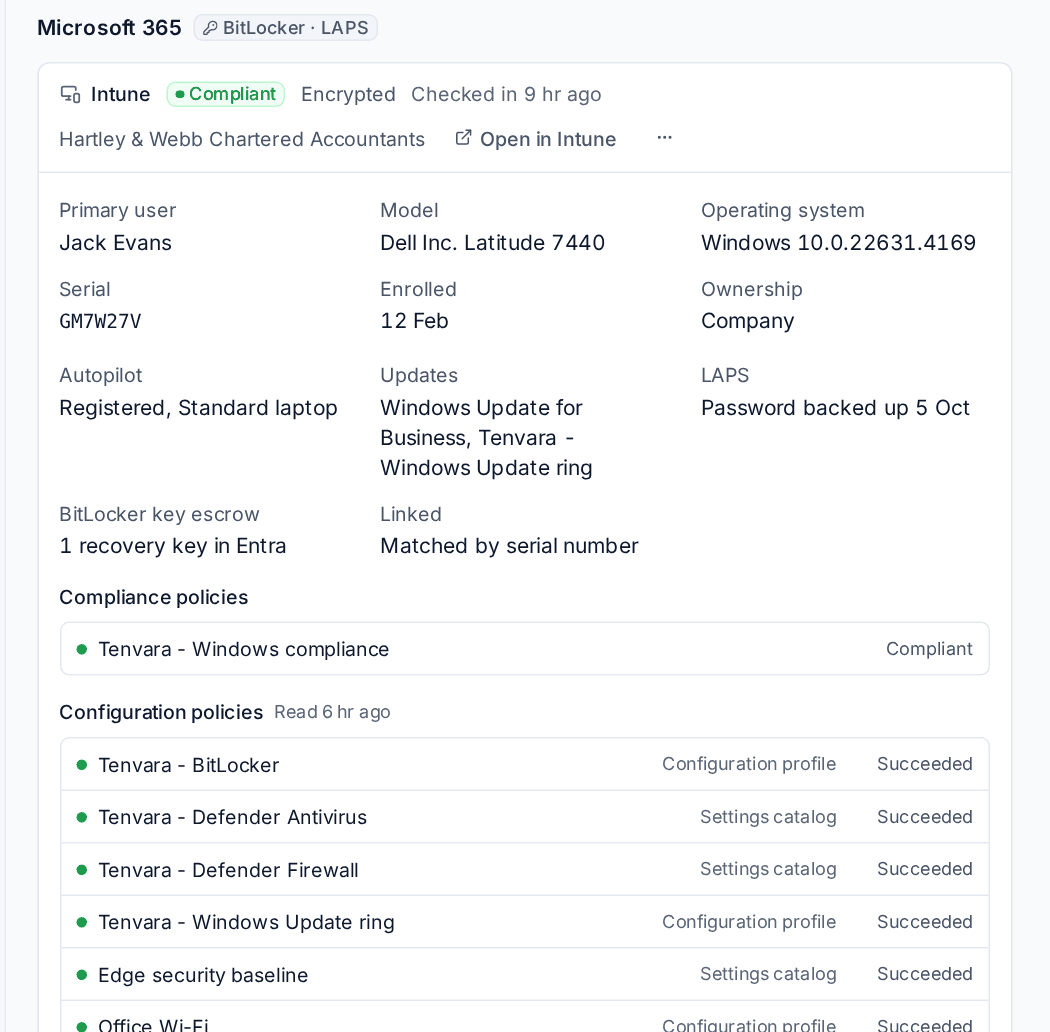
| On the card | What it is |
|---|---|
| The top line | The compliance state Intune reports (with the grace period where one applies), whether the device is encrypted and when it last checked in with Intune |
| Open in Intune | Opens the device in the Intune admin centre |
| Primary user | Intune's primary user, as a link to the contact when that Microsoft 365 user is one |
| Model, Operating system, Serial, Enrolled, Ownership | As Intune holds them |
| Autopilot | Whether the device is registered, and its profile |
| Updates | Whether Windows Update for Business manages its updates, and the update ring that applies |
| LAPS | When the local administrator password was last backed up to Entra |
| BitLocker key escrow | How many recovery keys Entra holds for the device. The keys themselves are never kept in Tenvara |
| Linked | How the link was made |
| Compliance policies | Each compliance policy with its state and the setting that fails |
| Configuration policies | Each configuration profile, settings catalog policy or template that applies to the device, with its kind and result, and when the results were last read |
The ... menu on the card holds the Intune remote actions, and BitLocker and LAPS below it reveals a recovery key or the LAPS password. See Intune and Autopilot and GDAP, LAPS and BitLocker.
Note: The card shows what Intune reported at the last read, not a live query. Where Microsoft has not said something, the card leaves it out rather than showing it as "no". Configuration results are read for the devices that checked in with Intune since their last read, so a large tenant fills in over several syncs.
The Managed by Intune column and filter
Devices has a Managed by Intune column for everyone who can see Microsoft 365. It shows the device's compliance badge, with its last Intune check-in when you hover over it, or No for a device Intune does not manage.
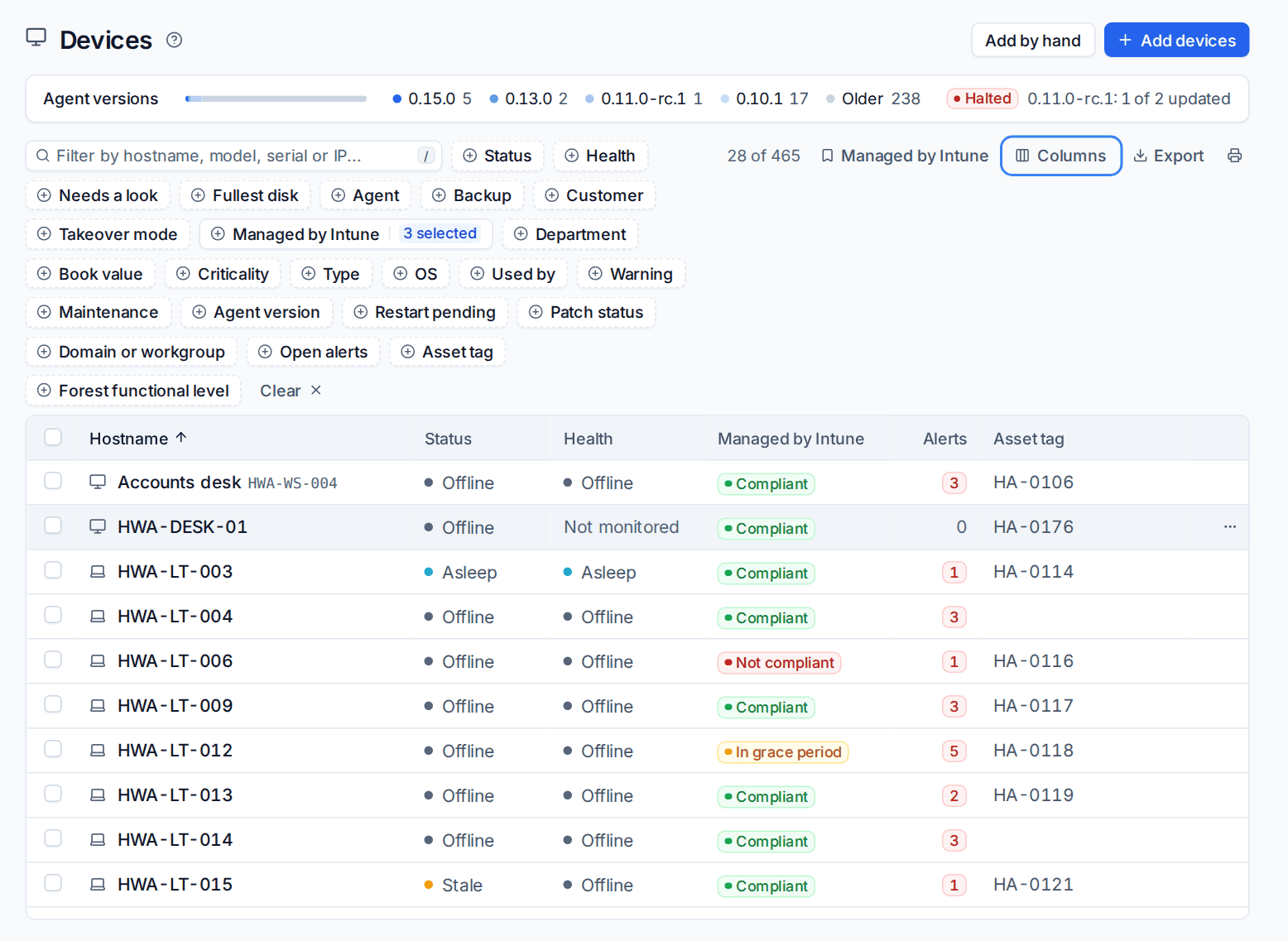
- The Managed by Intune filter has Managed, compliant, Managed, not compliant, Managed, other state and Not managed by Intune.
- The Views menu has two ready-made views: Managed by Intune and Not compliant in Intune.
- On a narrow window the column can be hidden to make room. Press Choose columns to bring it forward.
Fields filled from Intune
Where the agent has reported nothing, Tenvara fills the gap from the linked Intune record and says so:
- In Hardware and OS on the device page, the model, manufacturer and serial are taken from Intune when the device has none of its own. Each is marked from Intune.
- The Used by card shows Intune's primary user, as a link to the contact where there is one, when nobody is set for the device and nobody is signed in.
Settings
Settings > Microsoft 365, the Intune and devices tab, sets how often Intune is read and how many devices have their configuration results read per sync.
Related: The device page, Intune and Autopilot.
Was this page helpful?
Thanks for the feedback.