Switching modules on
Start with the service desk and turn the rest of Tenvara on one module at a time in Settings > Modules: what each module gives you and needs, the suggested order, Enable and Disable, and how the setup helper follows.
Tenvara does a lot, and nobody sets all of it up in a week. So a new Tenvara starts small: the service desk is on, and every other part your licence includes waits, switched off, until you are ready for it. You turn modules on one at a time in Settings > Modules, and the setup helper walks you through each one's own steps as you go.
What a new install starts with
| Edition | On from the start |
|---|---|
| MSP edition | Tickets (the service desk: tickets by email and the portal, queues, time, and the people you support), Automation (notifications by email, Teams and text, SLA escalations and the on-call rota) and the core records |
| Company edition | The same, plus Monitoring, because an IT team's own devices are usually its first job |
The core records, Customers and devices (customers, sites, contacts, devices and alerts), are always on, because everything else hangs off them.
Everything else is off, but licensed and one click away. An install that already had everything on keeps it: an update never switches a module off.
Settings > Modules
Go to Settings > Modules (in the Data and platform group). Only administrators see it. Every module of your edition is listed in groups:
- On: the modules that are on, the core first.
- Suggested next: the three modules most teams turn on next, in order.
- Everything else: the other modules your licence includes.
- Not in your licence: modules your licence does not cover, with a link to Settings > Licence.
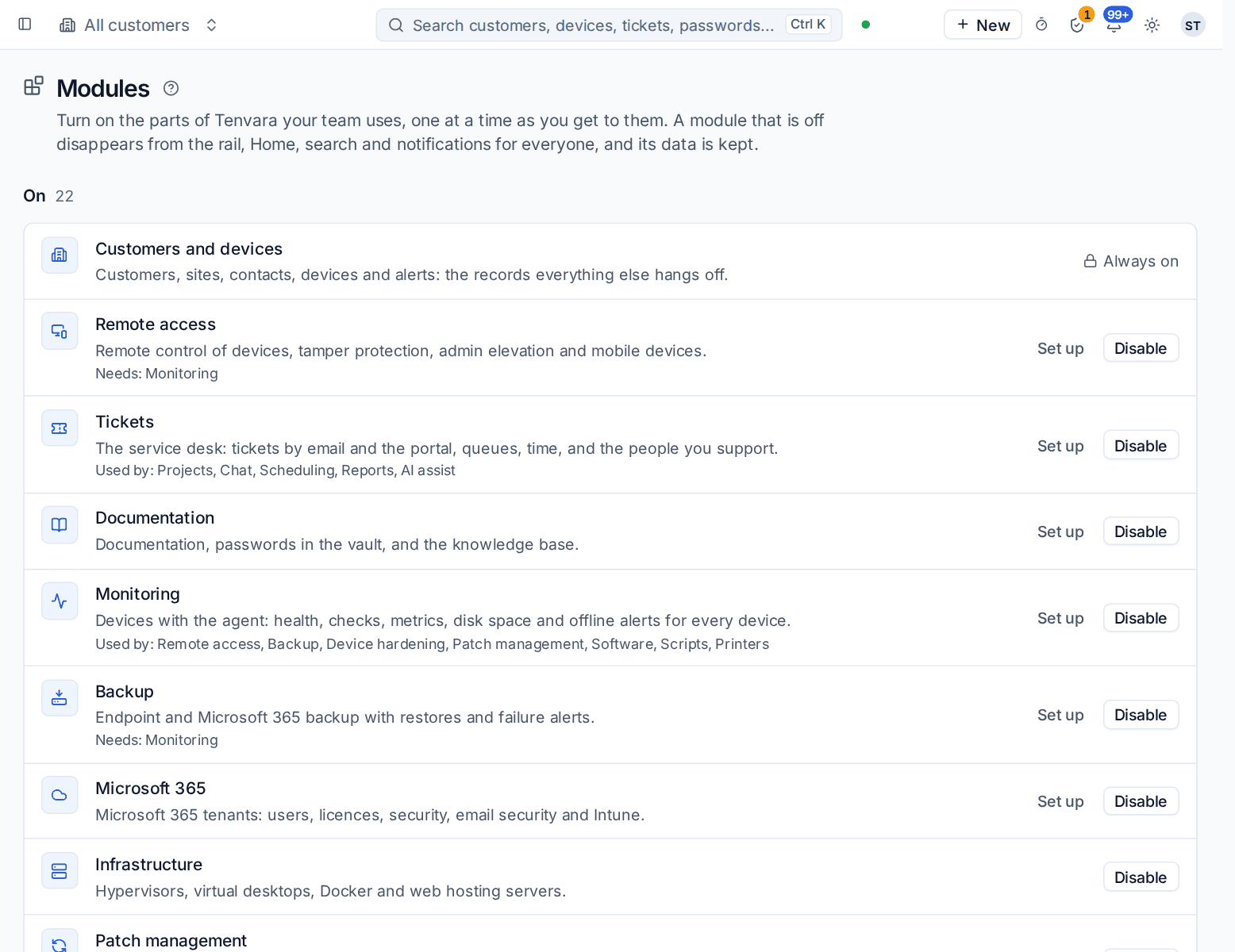
Each row says what the module gives you in one line, Needs: with the modules it cannot work without, and Used by: with the modules that build on it. The buttons are Enable for a module that is off, and Set up and Disable for one that is on.
Turning a module on
- On Settings > Modules, press Enable on the module.
- If it needs a module that is off, Tenvara says so first ("Patch management needs Monitoring, so it turns on too") and turns both on together.
- The setup helper opens on that module's own steps, so you can set it up straight away. A module with nothing to set up works as soon as it is on.
The module appears at once for everyone: its area on the rail, its pages in the sidebars, its results in search and its blocks on Home and in Customise. Its background work starts.
Tip: Administrators of a new install also see a Turn on more of Tenvara card on Home. It names the next suggested module with what it gives you and what turns on with it, Enable and See all. Hide it for everyone with the cross; Settings > Modules then offers Show it on Home again.
The suggested order
This is the order most teams turn modules on, and the order Suggested next follows:
| Module | What it gives you | Needs |
|---|---|---|
| Monitoring | The Devices area and the agent: health, checks, metrics, disk space and offline alerts for every device | |
| Remote access | Remote control of devices, tamper protection, admin elevation and mobile devices | Monitoring |
| Patch management | Windows and macOS updates through the agent, with approvals, windows and compliance | Monitoring |
| Backup | Endpoint and Microsoft 365 backup with restores and failure alerts | Monitoring |
| Documentation | Documentation, passwords in the vault, and the knowledge base | |
| Security | Security events, detections, posture, vulnerabilities and compliance scoring, and the Governance and compliance area | |
| Microsoft 365 | Microsoft 365 tenants: users, licences, security, email security and Intune | |
| Scripts | A script library run on devices now or on a schedule | Monitoring |
| Software | The software catalogue, deployments and third-party app updates | Monitoring |
| Scheduling | The calendar, visits booked against tickets, dispatch, leave and timesheets | Tickets |
| Projects | Projects with phases, tasks, budgets and milestone sign-off | Tickets |
| Reports | Monthly customer reports, dashboards, the report builder and TV boards | Tickets |
| Chat | Live chat from your website, the portal and the agent tray, becoming tickets | Tickets |
| Device hardening | Hardening baselines for devices: audit, enforcement in rings, rollback and drift | Monitoring |
| Printers | Printer deployment to devices | Monitoring |
| Infrastructure | Hypervisors, virtual desktops, Docker and web hosting servers | |
| Telephony and connectivity | Lines and phone services, line monitoring, outages and call billing | |
| AI assist | Ticket triage, summaries, draft replies and investigations with your own AI key | Tickets |
You do not have to follow it. Turn on what your business needs first: an MSP that sells backup before anything else can start there.
The setup helper follows the modules
The helper never asks about a module that is off. Its sections, checks, readiness score and Health only count the modules that are on, and discovery leaves out the questions about tools a switched-off module would replace, such as your current RMM or backup product.
On the hub:
- Your modules lists each module that is on with how many of its steps are done, and a Turn on more line naming the ones still off.
- When a module's steps are done, Ready for the next one? offers the next suggested module with what it gives, how many steps it has and what it also turns on, with Enable and Not now.
Each module brings the sections that belong to it. Monitoring, for example, brings Agent and rollout and Network, assets and lifecycle; Backup brings the Backup section. See The setup helper.
Turning a module off
- On Settings > Modules, press Disable on the module.
- Read the confirmation: it lists what stops while the module is off and any modules that need it, which turn off with it ("Remote access, Backup ... need Monitoring, so they turn off too").
- Press Turn off (or Turn them off).
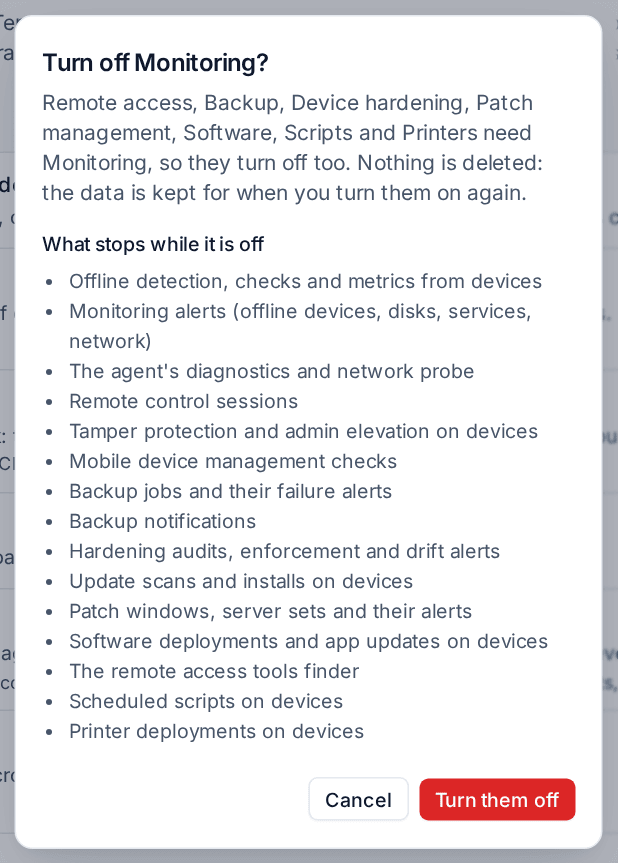
A module that is off is really off:
- It is gone from the rail, the sidebars, search, Home and Customise, for everyone.
- Its scheduled work, its alerts and its notifications stop, and the agents stop its features on every device.
- Nothing is deleted. Its data is kept for when you turn it on again, and settings such as data retention still apply to it.
- A record that links to it still opens. A device linked to a ticket, for example, opens read only while Devices is off, and a saved view of its data says the module is switched off.
Turn it on again and it carries on where it stopped.
Note: Switching a module on or off is recorded in the audit log, with who did it and which modules changed.
Related guides
Was this page helpful?
Thanks for the feedback.