Print labels and unique asset tags
Print QR labels for one device or many on A4 sheets or a label printer roll, what the code opens and why it holds nothing secret, and how asset tags stay unique within each customer.
A label on the hardware saves a phone call. Whoever is standing at a server, a printer or a reception PC can scan its code and land on the device's page in Tenvara, with its tickets, warranty and history. Print labels makes the labels as a PDF ready for standard label stock.
Print labels for one device
- Open the device.
- Choose Print labels from the More actions menu.
- Under Labels, choose the stock:
- A4 sheet, 24 labels: 3 across and 8 down, 63.5 x 33.9 mm each (the default);
- A4 sheet, 14 labels: 2 across and 7 down, 99.1 x 38.1 mm each;
- Label printer: one 62 x 29 mm label a page, the common size for desktop label printers.
- Click Download PDF.
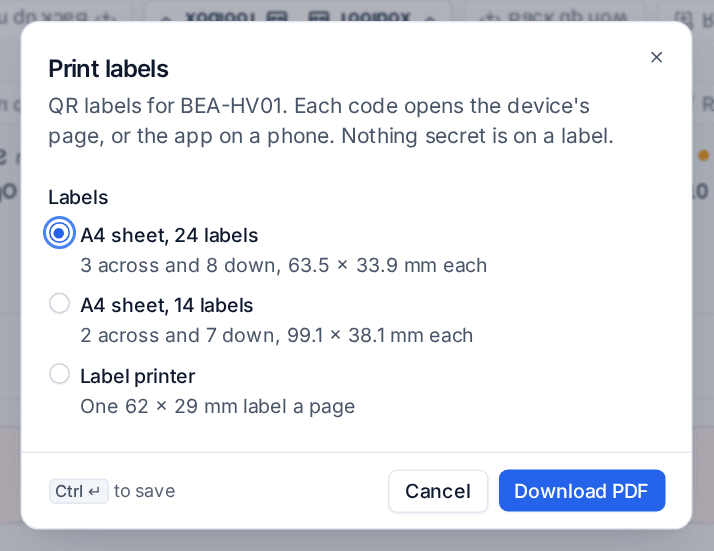
Print the PDF at 100% (actual size), not "fit to page", so the labels line up with the sheet. Your browser remembers the stock you chose last.
Print labels for many devices
- In the device list, tick the devices. Filter first, for example by customer and site, to label a whole office.
- In the bulk bar, choose Print labels.
- Choose the stock and click Download PDF.
Up to 200 devices go in one PDF, about nine sheets of 24. Retired devices and devices waiting for approval still have a page, so they can still have a label.
What is on a label
Each label has:
- a QR code holding the device's address in Tenvara,
https://<your server>/devices/<id>; - the device's name (a long name is cut short with "..." after two lines);
- its asset tag, when it has one;
- your server's name, small, underneath.
The code holds nothing but the address: no password, no serial number, nothing secret. Opening it needs someone signed in to Tenvara who may see that device, so a label tells a stranger nothing. The codes are drawn with error correction, so a scuffed label still reads, and they read reliably at the printed sizes.
Anyone who can view a device can print its label, because the label shows nothing the device page does not.
Unique asset tags
An asset tag identifies the hardware on the customer's own register, and it is unique within the customer:
- Saving a tag another of the customer's devices already has is refused, naming that device: Asset tag A-1042 is already on RECEPTION-PRN. Pick a free one.
- Tags are compared without regard to upper and lower case or spaces at either end, and kept trimmed.
- Two different customers may use the same tag. Customers number their own kit, and two of them calling a PC PC001 is normal, so you never have to rewrite a customer's real tags.
- Retired devices keep their tag, as an asset register does.
In the Company edition, tags are unique across your organisation.
If two devices already share a tag, nothing is changed on its own. The next time either device's tag is saved, Tenvara asks for a free one; saving the device's other details does not.
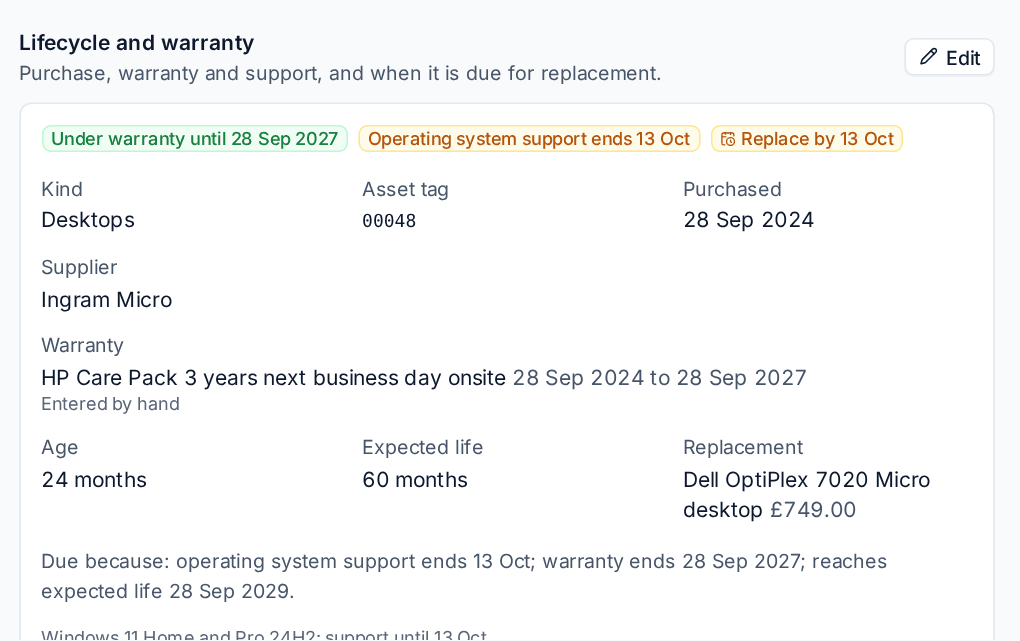
Set the tag under Asset tag in the device's Lifecycle and warranty section (Edit), or have a script set it with RMM_SET_FIELD. See Asset lifecycle and warranty and The script library.
Tip: Label as you go: when you touch a device for a ticket, set its asset tag, print one label on the label printer and stick it on before you leave. The register and the labels then stay in step.
Related
Was this page helpful?
Thanks for the feedback.