The employee portal and manager approvals
What employees find in the portal, the equipment, software and access they can ask for, how a request goes to the department's manager and then to IT, what happens with no manager or a manager who is away, and where to set it.
On the Company edition the customer portal is the employee portal: the same portal, with the same sign-in, roles and branding, worded for the people in your own organisation. Requests made in it are approved by the employee's manager before they reach IT.
What employees find
Employees open the portal at your install's address with /portal on the end and sign in with their work email address or their Microsoft work account.
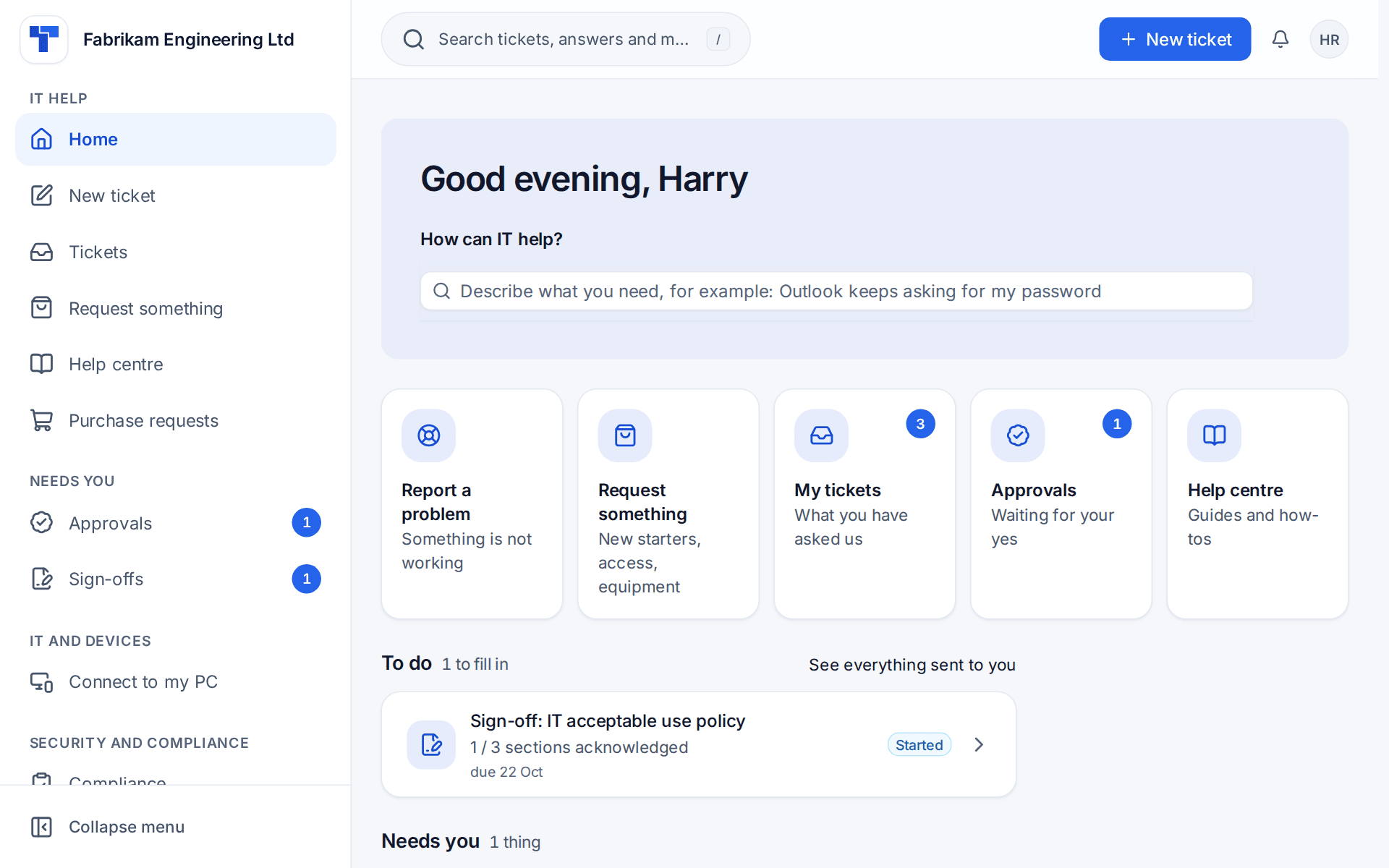
The menu is grouped like this:
| Group | What is in it |
|---|---|
| IT help | Home, New ticket, Tickets, Request something, Help centre and Purchase requests, plus Ask IT when chat is offered in the portal |
| Needs you | Approvals and Sign-offs, each with a count of what is waiting |
| My organisation | The pages the person's role allows, such as Projects |
| IT and devices | Connect to my PC for someone allowed to reach their work computer, Devices when their role allows, and My virtual desktop for someone who works on one of your virtual desktops |
| Security and compliance | Compliance, and the other security pages their role allows |
| Me | Profile, Notifications and Give feedback |
A group only shows when the person has something in it, so an employee with a basic role sees a short menu.
Home asks "How can IT help?" and lists To do and Needs you beneath the common jobs. There is no Money group, no invoices and no quotes. The Help centre shows your published articles, the status page is your organisation's own, and announcements come from your IT team.
Portal roles
Which pages a person sees depends on their portal roles. The Company edition has three:
| Role | What it gives |
|---|---|
| Employee | Their own tickets and requests, and the ones raised for them |
| Department head | Their own tickets, and those of the people in the departments they manage |
| Admin | Everything in the portal, including every ticket for the organisation |
An employee can hold more than one role and gets everything their roles give together, for example a department head who is also an admin. Set them on the employee's Customer portal card with Change permissions, or for everyone at once in the setup helper's portal step. See Portal roles, Portal permissions and people, and See the portal as a contact to check what an employee sees before you invite everyone.
My virtual desktop
For people who work on Remote Desktop Services virtual desktops, My virtual desktop shows which desktop they are on and lets them sort out the usual problems themselves: log off their own stuck session, restart their own personal desktop, or reset their profile after a warning. You choose for each action whether it is offered at once, after approval or not at all, and each one is logged on a ticket. See My virtual desktop in the portal.
What employees can ask for
Request something is your service catalogue. A Company install starts with items made for employees:
- Laptop, standard or performance;
- Monitor or other equipment;
- Software to buy;
- Access to a system;
- and the everyday ones: a new starter, a leaver, access to a team or group, a shared mailbox, a password reset, software to install, a licence change and a general request.
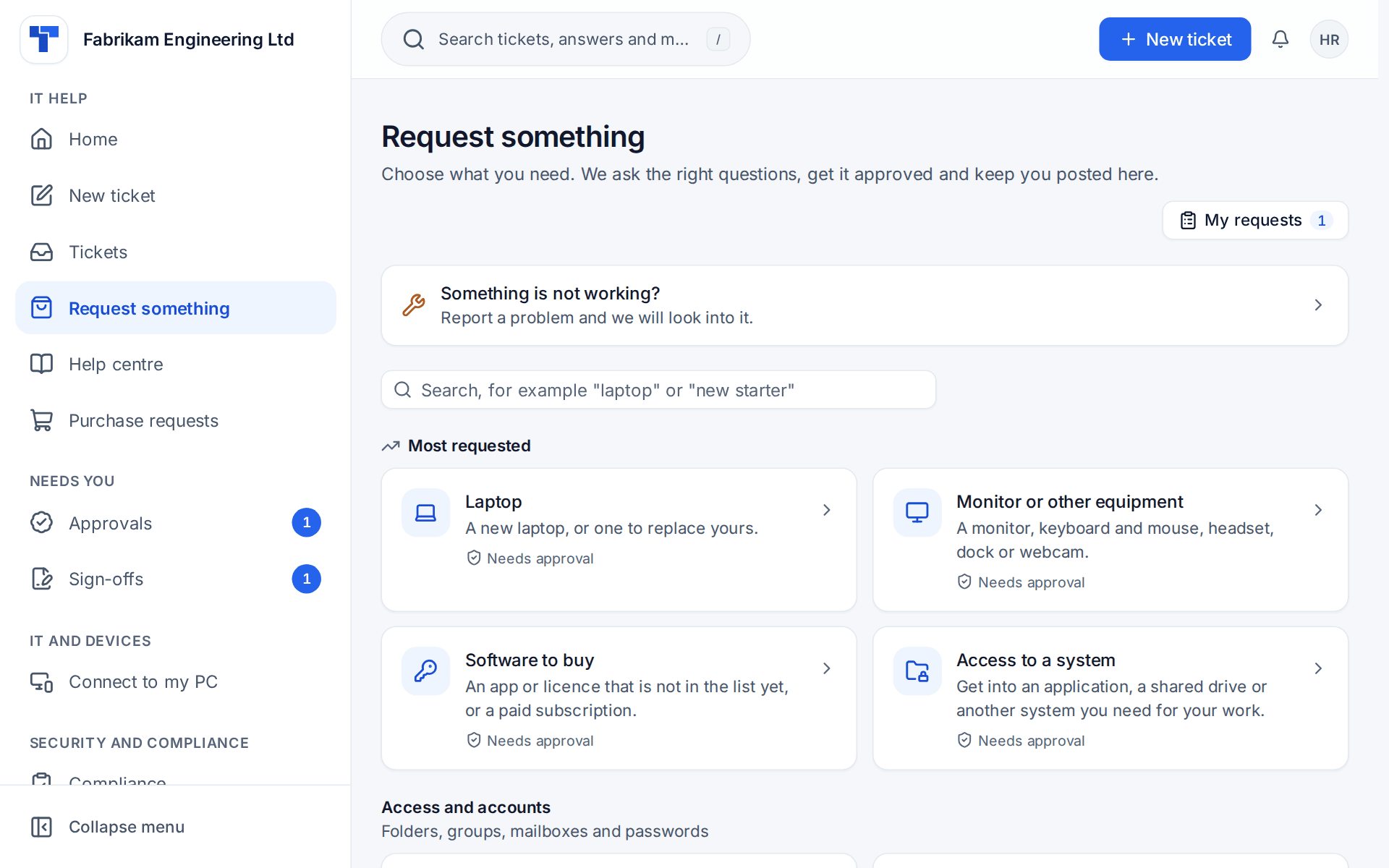
Edit, add and remove items in Settings > Service catalogue, the Items tab. The laptop and equipment items show the employee a cost for each option, which is a starting figure for you to edit. See The service catalogue.
Something that costs money is bought properly. When a request for a laptop, equipment or software to buy is approved, Tenvara raises a purchase request for it by itself, with what was chosen, how many, the cost, why and by when, for the employee's department. Because the manager has already said yes to the need, that purchase request goes to purchasing alone. The catalogue request waits for it: done when purchasing approves or orders, failed when they turn it down. See Purchasing and IT spend.
How a request is approved
By default a request goes to the employee's department manager, then IT.
- The manager is the manager of the department the employee is in. If that department has none, it is the manager of the department above, nearest first.
- A manager is never asked about their own request. The department above decides.
- Nobody to ask. If the department has no manager, the manager is the one asking with nobody above them, or the employee is in no department, the request does not sit waiting. The step goes to IT, and its reason says why, for example "No manager is set for Finance, so we decide".
- Away. A manager who is out of office is stood in for by their delegate, and the approval keeps a note of whose place they took.
How managers decide
Managers are employees, so they decide where employees work: from the links in the email, or in the portal under Needs you, then Approvals.
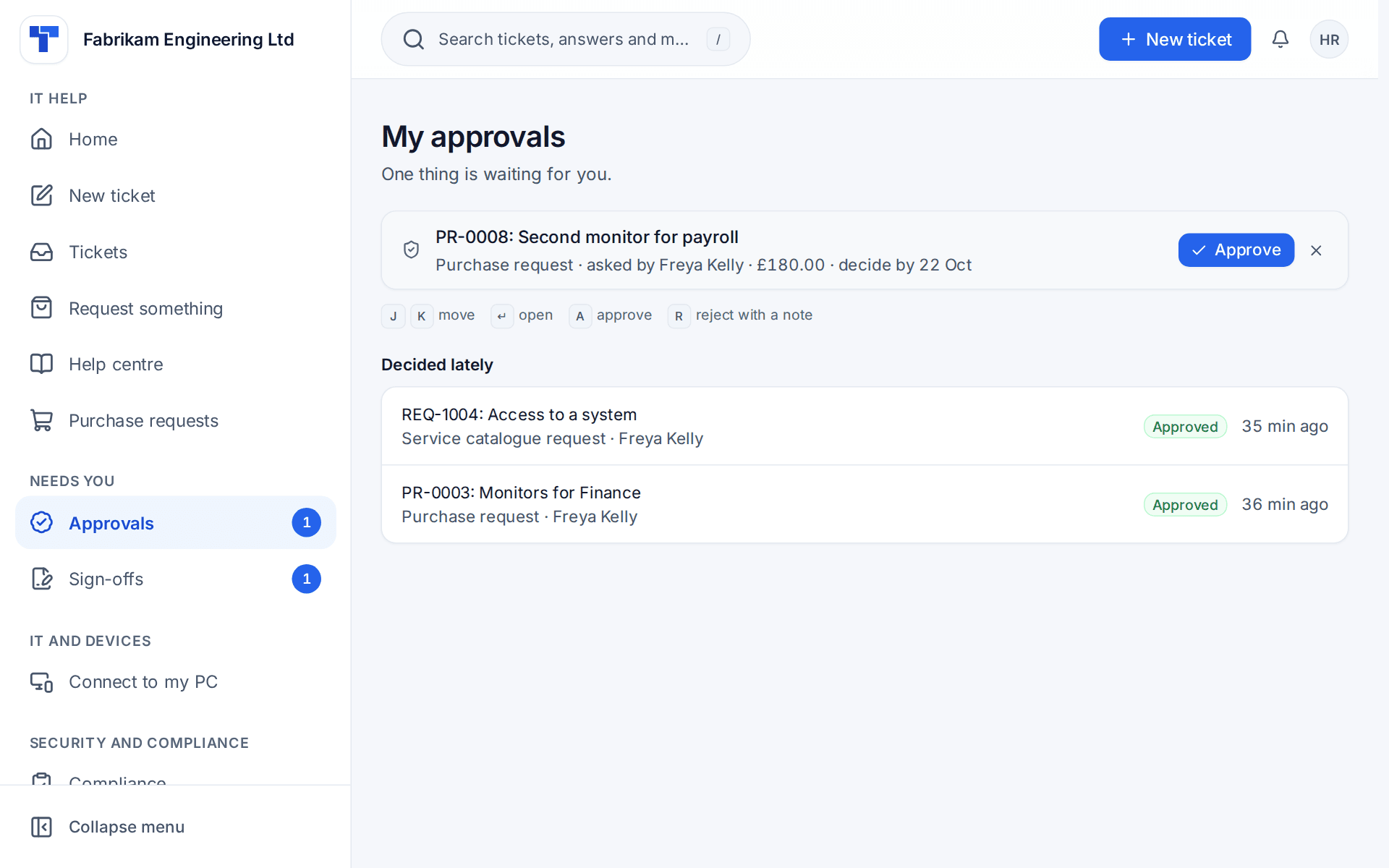
My approvals lists what is waiting with who asked, the cost and the date to decide by, and what was decided lately underneath. A approves, R rejects with a note, and J and K move up and down the list.
IT's own step is decided by your staff in Home > Approvals, as every staff approval is. See Approvals.
Setting the rules
Go to Settings > Approvals and open the Manager approvals tab. It has one block for each kind of request: Software requests, Hardware requests and Access requests. For each:
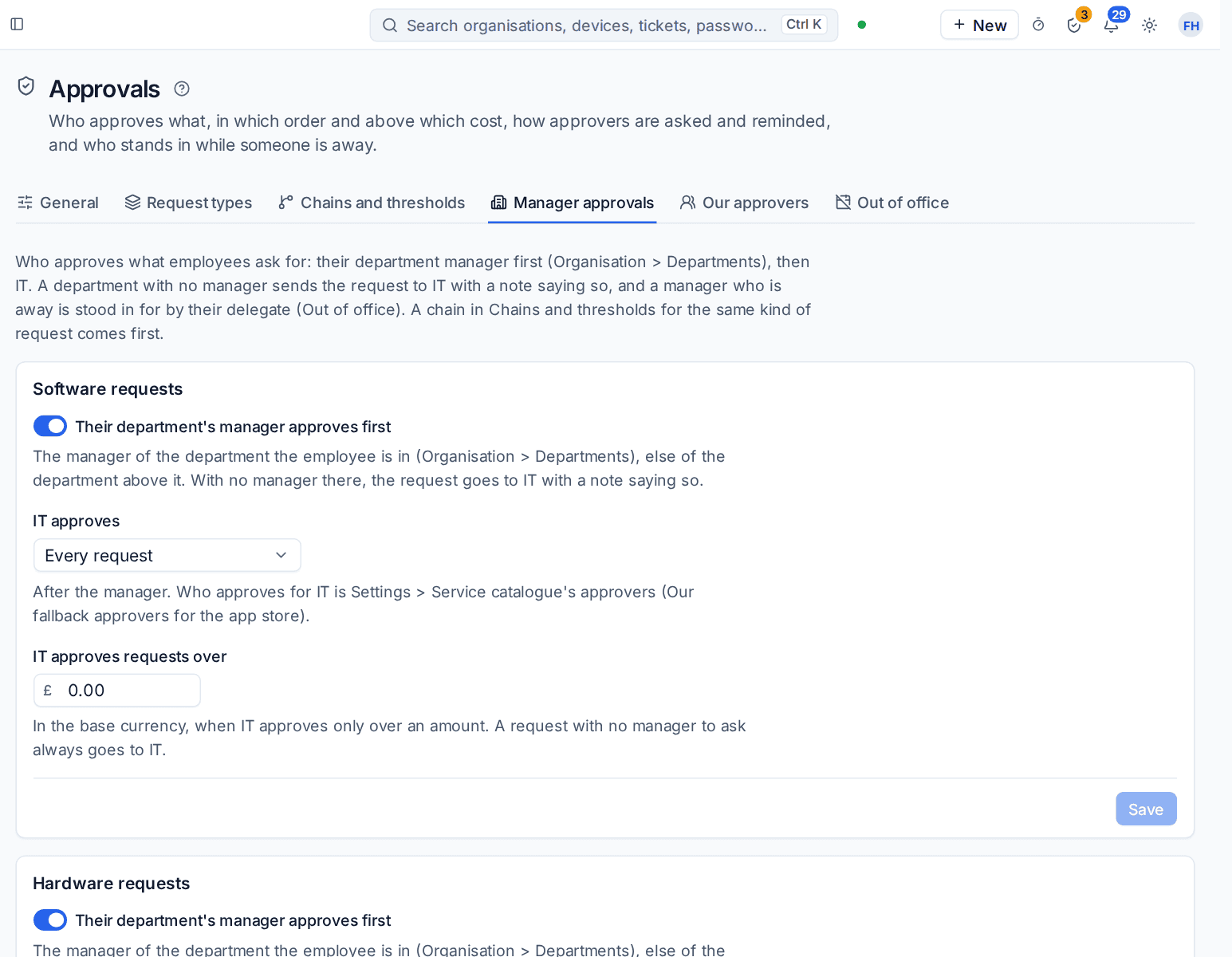
- Their department's manager approves first: on by default.
- IT approves: Every request, When it costs more than the amount below, or Never, with the amount in IT approves requests over.
With the manager step off, IT decides every request of that kind. Purchase requests have their settings in a Purchase requests block on the same tab, so each rule has one place: the department's manager first, and purchasing over an amount.
A few details:
- Catalogue items for hardware, software, access and shared mailboxes follow the chain for their kind. An item can keep approval steps of its own instead, with the Manager approvals switch in the item's editor.
- Software an employee asks for from the tray app's app store follows the software chain.
- A chain you build for a request type in Settings > Approvals, the Chains and thresholds tab, comes first. Use one when you need more than manager then IT, for example a director over a certain amount.
- Who approves for IT stays where it always was: the approvers in Settings > Service catalogue for catalogue requests, your purchasers for purchase requests, and your fallback approvers for app store requests.
Delegates and out of office are covered in Approval rules, delegation and out of office.
Related guides
Was this page helpful?
Thanks for the feedback.