Intune template bundles and updates
Save a named set of Intune templates as a bundle, preview and apply it to a tenant as one approved change, see where the tenant has drifted, and push a newer template version in place or side by side with a way back.
A template is one Intune policy, and a managed tenant needs a set of them. A bundle is that set, saved under a name with who gets each policy, so a tenant gets the whole standard as one change. When a template moves on to a new version, Template updates shows which tenants are behind and pushes the new version to them.
Both are tabs of Cloud > Intune. For templates see Intune and Autopilot and Importing the OpenIntuneBaseline.
Making a bundle
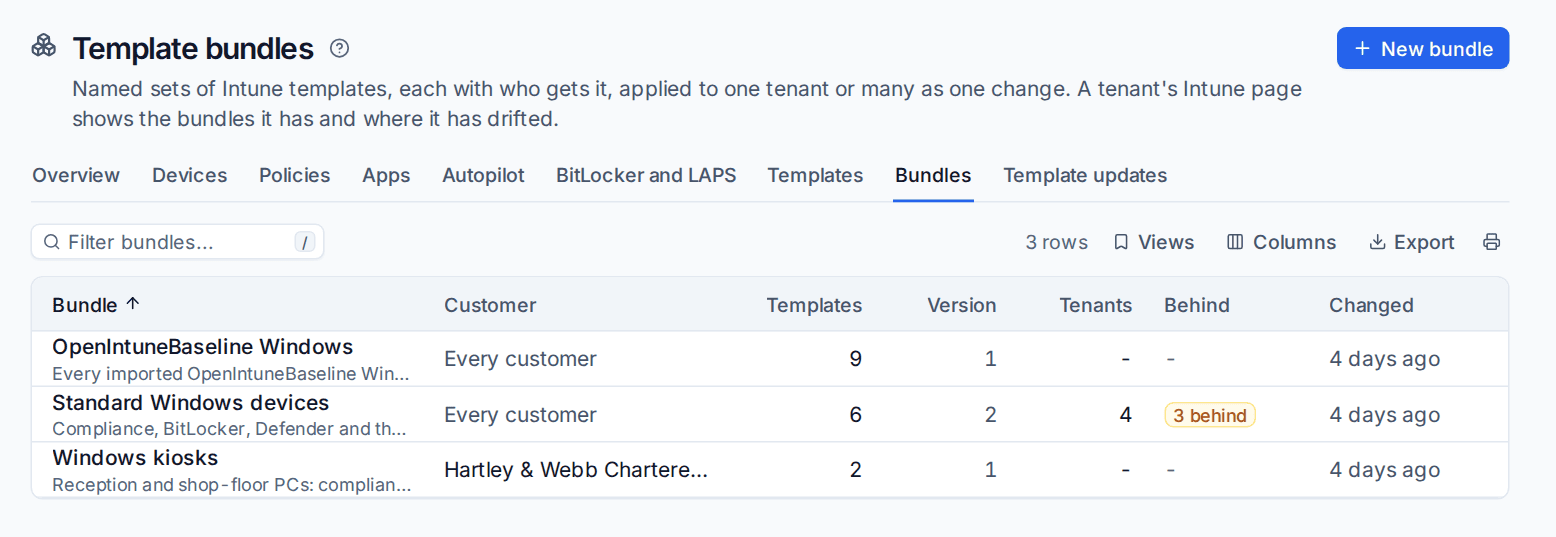
- Go to Cloud > Intune and open the Bundles tab, which lists each bundle with its customer, templates, version, tenants and how many are behind.
- Press New bundle.
- Give it a Name (for example "Standard Windows devices") and a Description.
- Under Whose bundle, choose Every customer or One customer. One customer's bundle can only be applied to that customer's tenants.
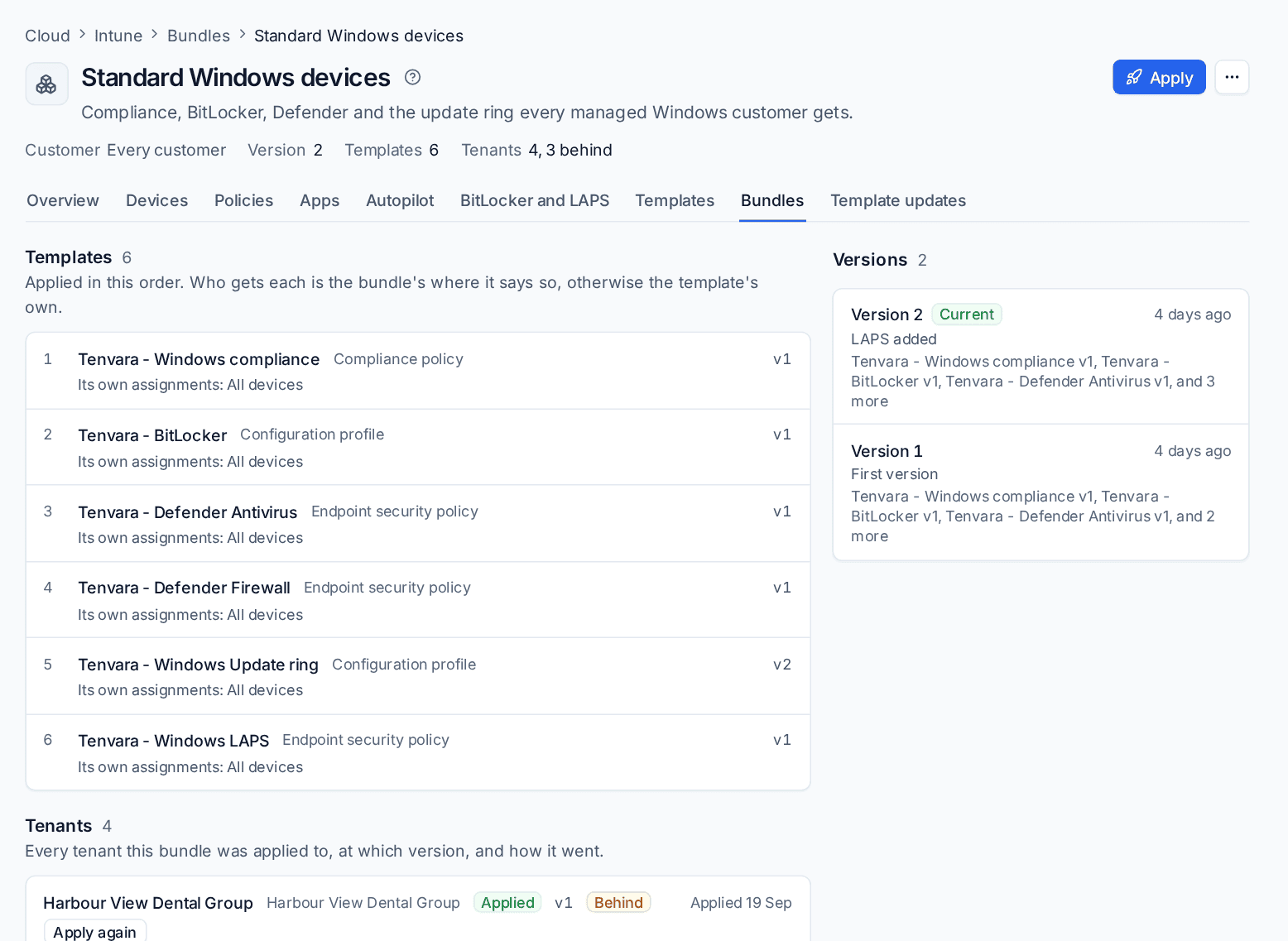
- Press Add a template... for each template, and order them with Move up and Move down. A bundle can mix starter templates, your own and OpenIntuneBaseline ones.
- For each template, set:
- Who gets it: the template's own assignments, or the bundle's (all devices, all users or groups by name, with exclusions). Groups are looked up by name in each tenant.
- Template version: the current one, or a version you pin.
- A policy already there: Bring into line (a policy of the same name is adopted and matched to the template) or Leave as it is.
- Updates: Replace in place or Side by side, which decides how a later version reaches the tenants that have this bundle.
- Press Make the bundle.
Changing a bundle's templates, their order, who gets them or their options makes a new version of the bundle. Every version is kept and listed on the bundle's page.
The preview before applying
Open the tenant from Cloud > Tenants, go to its Intune tab, choose Bundles and press Apply a bundle.... You can also press Apply on the bundle's own page.
Before anything is sent, Tenvara works out what applying would do in the tenant, template by template:
| It says | Meaning |
|---|---|
| Made | The policy is not in the tenant and will be created |
| Brought into line | A policy of that name is there and differs. Details lists the fields that change |
| Already matches | Nothing to do |
| Left | A policy is already there and the bundle says to leave it as it is |
| Cannot be applied | The tenant lacks a group the bundle names, or the policy is one Microsoft owns. The reason is shown, and nothing is sent to that tenant until it is sorted |
Approval
Applying a bundle is one change with every template in it, under the same rules as every other Microsoft 365 change (see Making changes safely). When it is high risk and you are not an administrator, the dialog shows Needs an administrator: enter Why is this needed? and press Ask for approval. An administrator sees one request listing every template in Cloud > Changes, the Approvals tab, and the tenant shows the bundle as waiting until it is decided.
A tenant's bundles and drift
The tenant's Intune tab, Bundles, lists each bundle the tenant has:
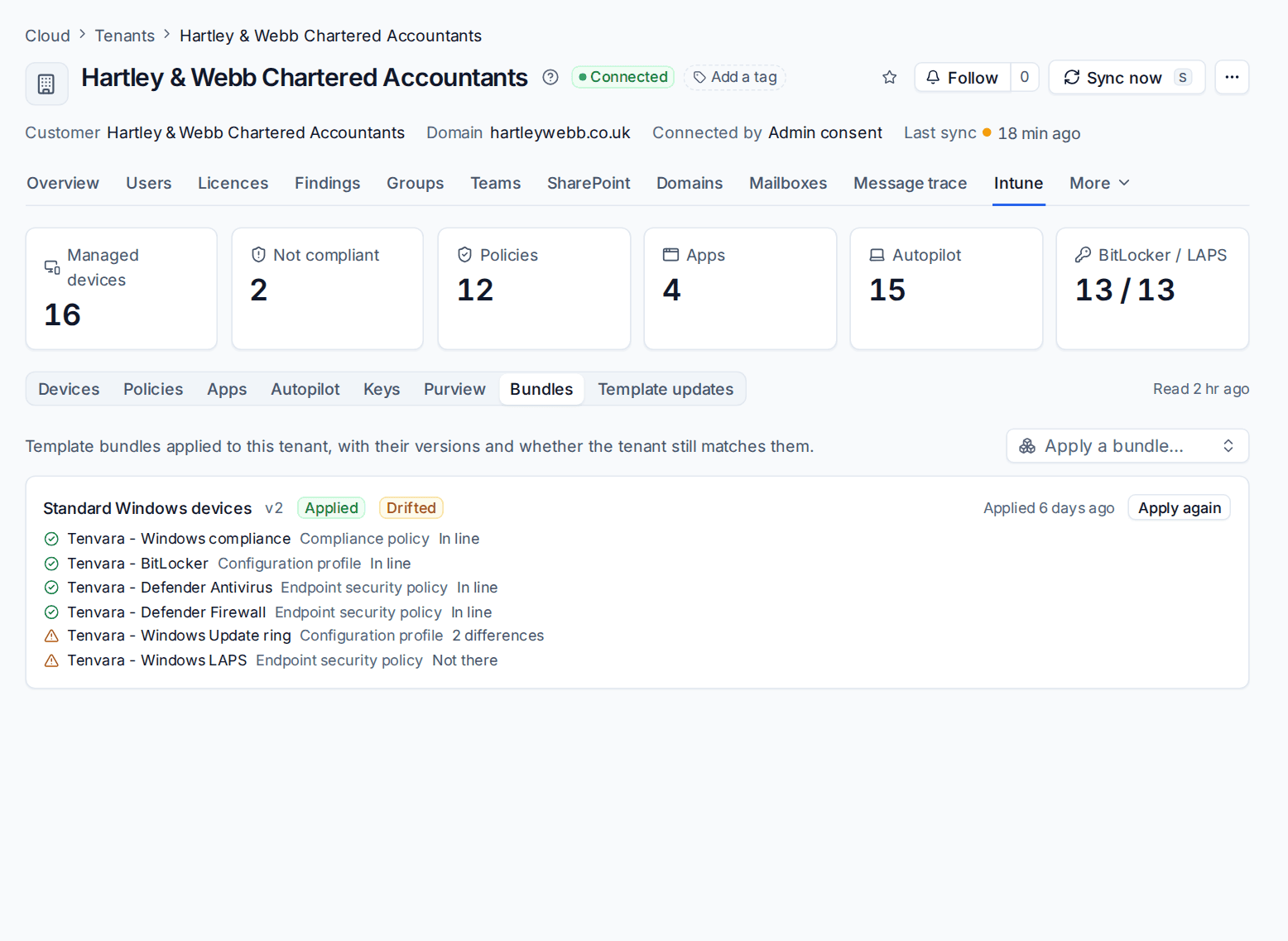
- The version applied, and the current one when the tenant is Behind.
- How the last apply went: Applied, Partly applied (with Microsoft's reason for each template that failed), failed, waiting for approval or declined.
- Every template compared with the tenant as it is now: In line, drifted with the number of differences, Not there or Not known. A tenant with any difference is marked Drifted.
- Apply again, which puts the tenant back on the bundle after the same preview.
Template updates
The Template updates tab lists every tenant holding an older version than the library, with a label such as Update available (version 1 to 2) and the suggested way to push it. Bundles behind lists tenants applied at an older version of a bundle, each with Push the bundle.... A tenant's Intune tab has the same as a Template updates view.
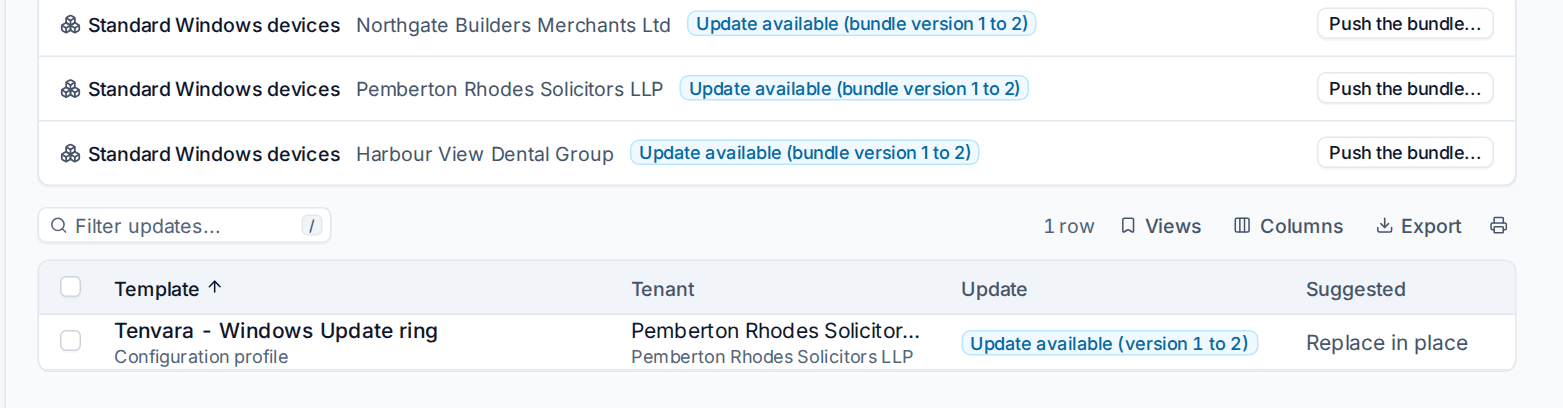
To push an update, select it and press Push... (or Preview and push... on the template's page). The preview shows, for the tenant:
- What the new version changes: the template's own changes between the two versions.
- What changes in this tenant: the settings that will change in the tenant's policy.
- Changed in the tenant since (drift): anything changed in the tenant since the version it has went there. A push in place puts those settings back too.
In place or side by side
| Way | What happens |
|---|---|
| Replace in place | The tenant's policy keeps its id and its assignments. Its settings and name follow the new version |
| Side by side | The new version is made as a new policy with the same assignments, beside the old one. The old policy is then Unassigned (kept, applying to nobody) or Removed after the number of hours you choose, so you can check the new one first |
An OpenIntuneBaseline policy that a newer release supersedes can only go side by side. The defaults for the old policy are under Template updates in Settings > Microsoft 365, the Intune and devices tab.
What a push does
- The tenant is backed up first. Tenvara takes a configuration snapshot before the first change, and refuses the push if it cannot. The tenant's row shows Backed up with the time.
- The change follows the usual approval rules, as applying a bundle does.
- Each template shows its outcome: Pushed, Made, Cannot go or failed with Microsoft's reason. A failed one can be tried again without repeating what went through. Every push is listed under Pushes.
Rolling back
Press Roll back on a push's row, or on the tenant's Template updates view. The tenant goes back to the version it had before:
- After a push in place, the old version's settings and name go back into the same policy.
- After a push side by side, the old policy is assigned again as the new one is now (and made again from its kept version if it was already removed), and the new policy is removed.
A policy that was put back is never retired later. A rollback is in the change log like any other change.
Related: Configuration snapshots, Baselines and drift.
Was this page helpful?
Thanks for the feedback.