The call pop-up
The page a phone system or softphone opens with the caller's number, what it shows a technician, logging a ticket from the call, the small window and its keys, and setting it up in Settings > Telephony.
When a technician answers the phone, the first questions are who is calling and what they already have open. The call pop-up answers both on one page. Your phone system or softphone opens its address with the caller's number, and the technician sees the caller, their open tickets, alerts and devices, and can log a ticket while they talk.
The call pop-up works in both editions and with any phone system or softphone that can open a web address on a call. It needs the service desk, not the Telephony and connectivity module: to look you need to see tickets, and to log a ticket or add a call to one you need to manage them.
How it works
The pop-up is a page of Tenvara at an address like this:
https://<your Tenvara address>/calls/pop?number=<the caller's number>
- It opens in the technician's own browser, signed in as them. Someone not signed in signs in first and lands back on the call.
- The address carries no password or token, only the details of the call: the caller's number and, where the phone system sends them, the number dialled, extension, queue, caller's name and call id.
- Everything is read as the technician, so a caller at a customer they cannot see shows as an unknown caller.
- Every pop-up, every choice of who is calling and every ticket logged is recorded in the audit log.
You set the address up once in your own phone system or softphone, from the address Tenvara gives you in Settings > Telephony (see Setting it up below).
What the technician sees
- Who is calling. The contact's card: name, job title, customer, email and mobile, a VIP badge, their roles, the customer's support tier and how its tickets stand against SLA (breached, at risk, or all within SLA). Custom fields marked to show on call pop-ups appear here too.
- Several people with the number. A desk phone several people share gives a numbered list: press This one, or a key from 1 to 9. Tenvara remembers the choice for that number, so the next call opens on the same person with Chosen for this number by and a name, and Not them? to pick again.
- A number only a customer has, such as a switchboard, shows the customer with Add as a contact.
- An unknown number shows Unknown caller with the number and any name the phone system sent. Add as a contact to a customer opens the contact form with the number and name filled in.
- Open tickets, the caller's first and newest first, each with its SLA state and Add call, plus Recently closed tickets.
- Open alerts and Devices at the customer, the caller's own marked Theirs.
- Last calls from the number.
From the caller's card a technician can also check who they are talking to before a password or MFA reset. See Verifying who a caller is.
Opening the pop-up address with no number shows the technician's recent call pop-ups.
Logging a ticket from the call
The Log a ticket form is filled in for you and waits for the notes:
- Type in Notes while you talk: what they need, what you tried, what you promised. The notes are kept in the browser as you type, so a refresh or the phone system opening the page again loses nothing.
- Check the Subject. It comes from the template in Settings > Telephony ("Call from" and the caller's name unless you change it).
- Set the Priority and Type, and for an unknown caller the Customer.
- Press Log a ticket, or press L.
The ticket is logged on the service desk with the caller as its requester, the notes first and then the details of the call: the number, the time and, where the phone system sent them, the number dialled, the queue and the extension. The page then shows Logged as with a link to the ticket.
If the call is about something already open, press Add call on that ticket in place of logging a new one. The call goes on the ticket as an internal note.
The small window
Small window opens the pop-up in a narrow window of its own, with no menus around it: a good fit beside a softphone or in a side panel. A narrow browser window or a phone gets the same one-column layout.
| Key | What it does |
|---|---|
| L | Log the ticket |
| N | Go to the notes |
| 1 to 9 | Pick one of several people with the number |
The keys do nothing while you are typing in a box.
Setting it up
Go to Settings > Telephony and scroll to Call pop-up. It has a tab per phone system or softphone, 3CX (CRM template), 3CX apps, Yeastar Linkus, Zoiper, MicroSIP, Teams Phone and Any other, each with the exact address to paste, a copy button and where it goes.
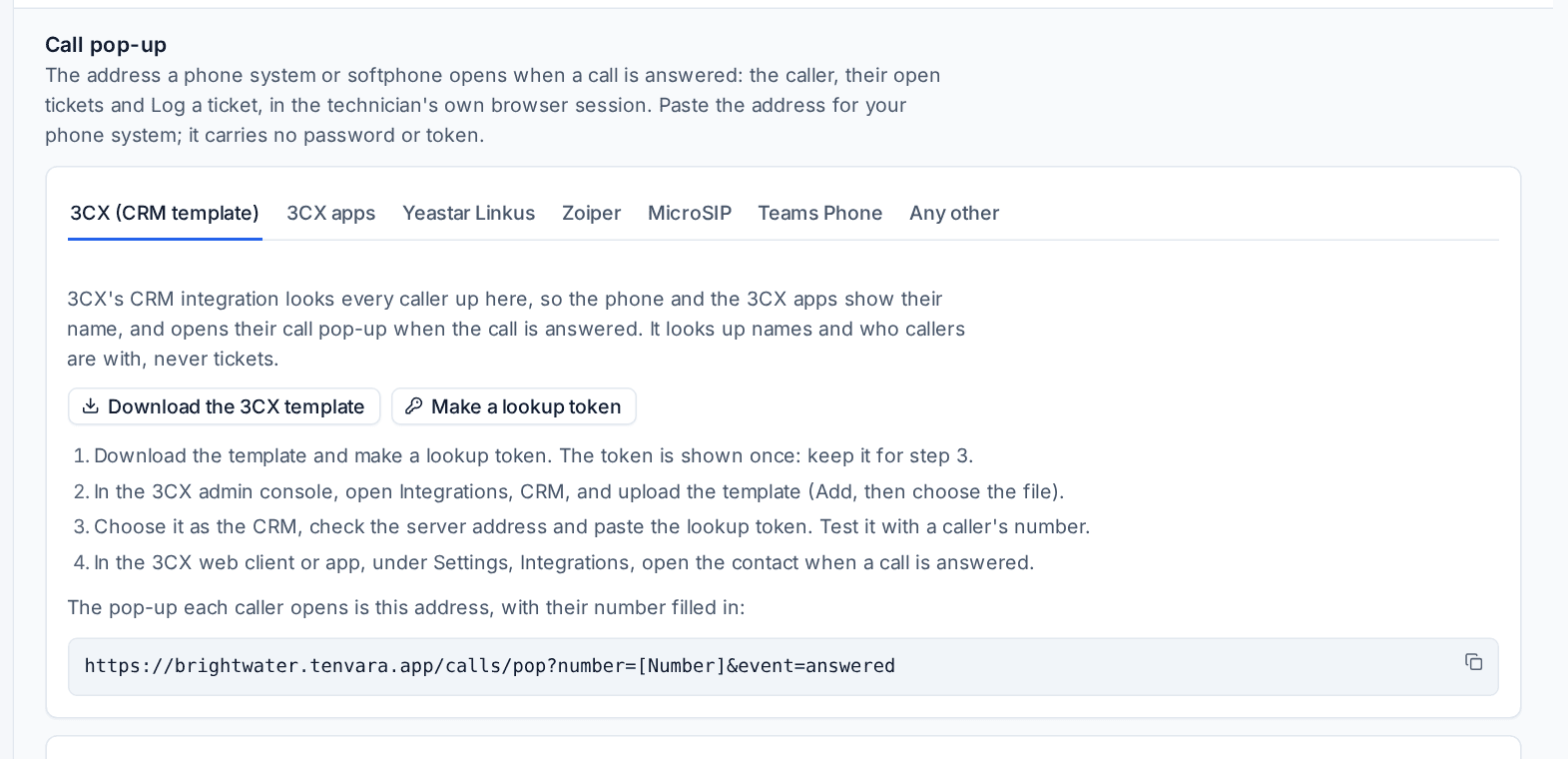
Paste the address for your phone system or softphone into its "open a web address on a call" setting, usually for when a call is answered. Opening it is set up in your own phone system: Tenvara gives you the address and the steps.
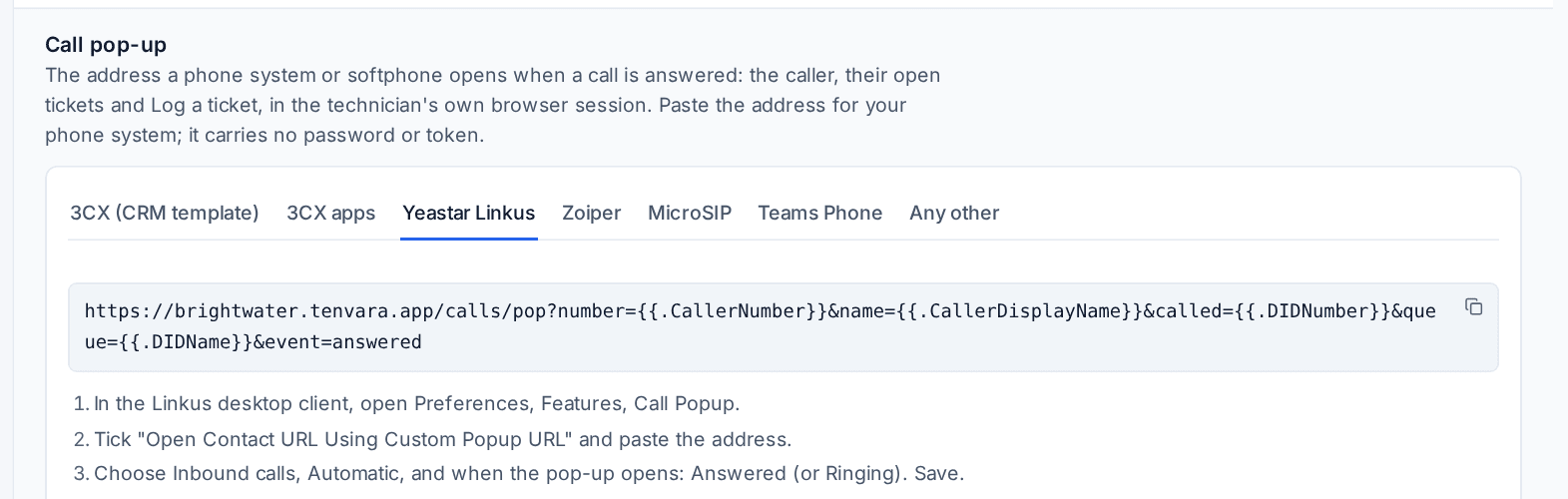
Below the tabs:
- The Parameter for fields (the caller's number, the number dialled, the extension, the queue, the call event, the call id and the caller's name): the name each part of the address goes by. The usual names phone systems use are understood as well, so change them only if yours insists on its own.
- Subject of a ticket logged from a call:
{name}is the caller,{number}the number,{company}who they are with and{queue}the queue.
Press Save.
The 3CX CRM template
The 3CX (CRM template) tab gives you a template for 3CX's own CRM integration, which you set up in the customer's 3CX with your own administrator access. With it, 3CX can look a caller's number up in Tenvara for their name and open the pop-up address when a call is answered. The lookup returns names and who callers are with, never tickets.
- Press Download the 3CX template and Make a lookup token. The token is shown once: keep it for step 3.
- In the 3CX admin console, open Integrations, CRM, and upload the template.
- Choose it as the CRM, check the server address and paste the lookup token. Test it with a caller's number.
- In the 3CX web client or app, under Settings, Integrations, open the contact when a call is answered.
The lookup token has one permission only, Phone system lookup: it can look a number up and nothing else, and it sees only the customers the person who made it can see. To keep the lookup working when that person leaves, an administrator can make the token for a service account instead. See Sessions, IP allowlists and API tokens.
People and extensions
People, under the call pop-up in Settings > Telephony, says which staff member is on which extension, for every phone system you have connected with your own account (see Connecting a phone system). The extensions are listed after the phone system's first read.
- Tenvara suggests a staff member for an extension from the phone system's own directory: the staff member with the extension's email address, else the only one with its name. Press Accept on one, or accept them all at once.
- Choose anyone yourself, Nobody, or Match by itself to let Tenvara match the extension again after each read.
A choice you make is kept: the matching after each read leaves it alone. Every change is recorded in the audit log.
Related
Was this page helpful?
Thanks for the feedback.