The organisation, departments and employees
The organisation's page and its tabs, sites, departments with cost centres and managers, bringing employees in from Microsoft 365, which department a device belongs to, and SLA policies by department or for VIPs.
On the Company edition there is one organisation, and its page is where an MSP would see a customer. This guide covers that page, the departments and employees under it, and how departments feed approvals, service levels and spend.
The organisation's page
Choose Organisation in the rail. It opens the organisation's page directly, because there is no list to pick from. The sidebar shows the organisation by name, then Sites, Employees, Departments and Sign-offs, with Onboarding findings, Possible duplicates and Employees to review below.
The page has the tabs an MSP sees on a customer, without the commercial ones: Overview, Service, People and sites, Devices, Alerts, Cloud, Infrastructure, Security, Compliance, Backup, Docs, Activity and Settings.

Your organisation's settings, alert types and email templates are the install's own, so you change them in Settings, once, for everything.
Sites
A site is one of your offices or locations, with its address. Devices and employees sit at a site, a site can have its own network probe, and one site is the main one. Add and edit sites under People and sites, then Sites. They work as described in Customers, sites and contacts.
Departments
A department is a record with a name and, if you want them, a cost centre code, a manager and the department it is part of. That gives you a simple tree, for example Payroll under Finance.
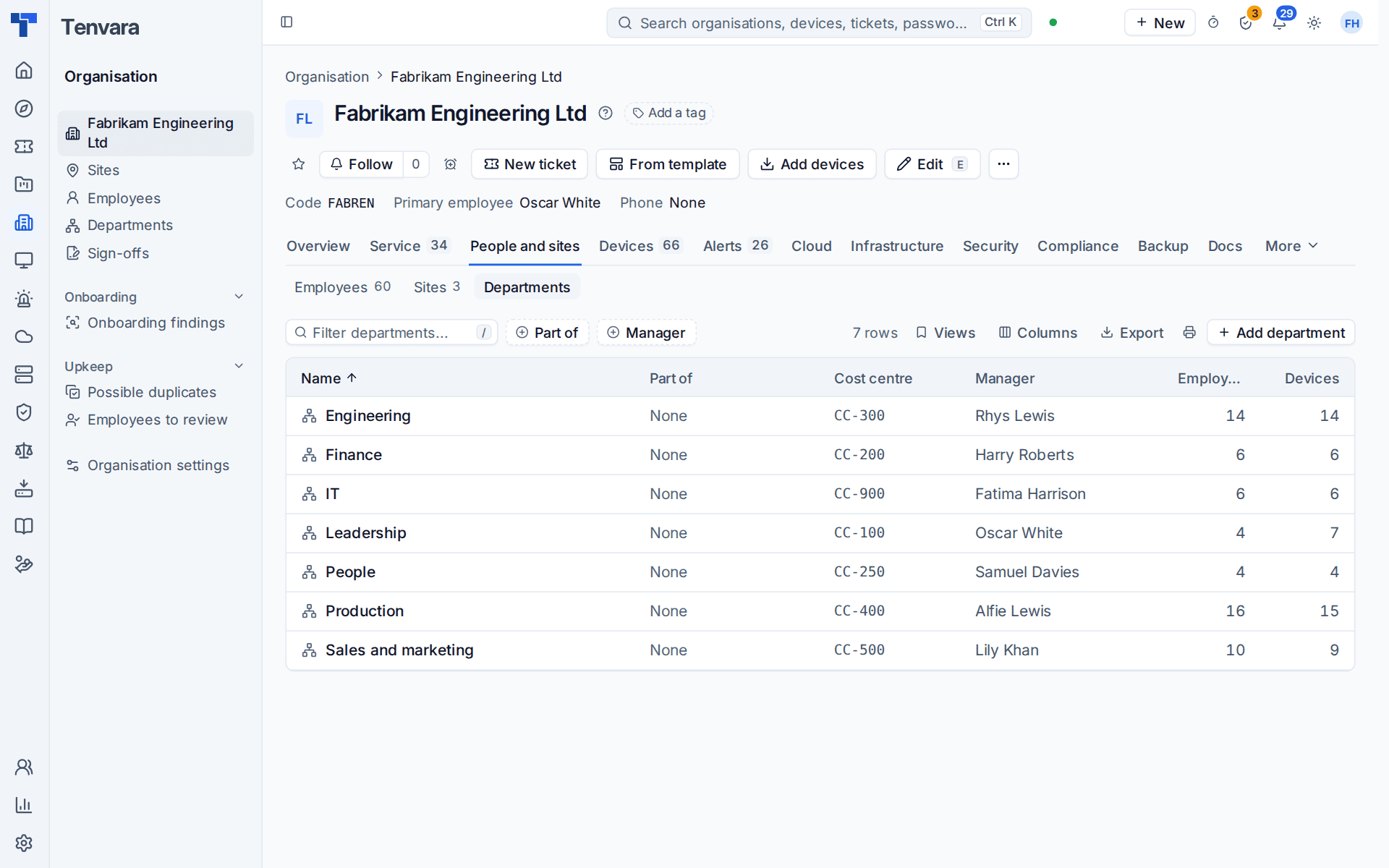
- Open Organisation, then Departments (or the People and sites tab, then Departments).
- Press Add department.
- Give it a name. Add the cost centre code, choose the manager from your employees, and choose the department it is part of if it sits under another.
- Save.
Departments do real work in this edition:
- Approvals. A request from an employee goes to their department's manager first. See The employee portal and manager approvals.
- Service levels. A department can have its own SLA policy. See below.
- Spend. Purchase requests and subscriptions are counted against the department and its cost centre. See Purchasing and IT spend.
Deleting a department keeps its people and devices, with no department, and moves its sub-departments up to its parent. Departments covers the record in full.
Employees
Employees are the people IT supports. They are the same records the MSP edition calls contacts, so everything in the guides about contacts holds for them.
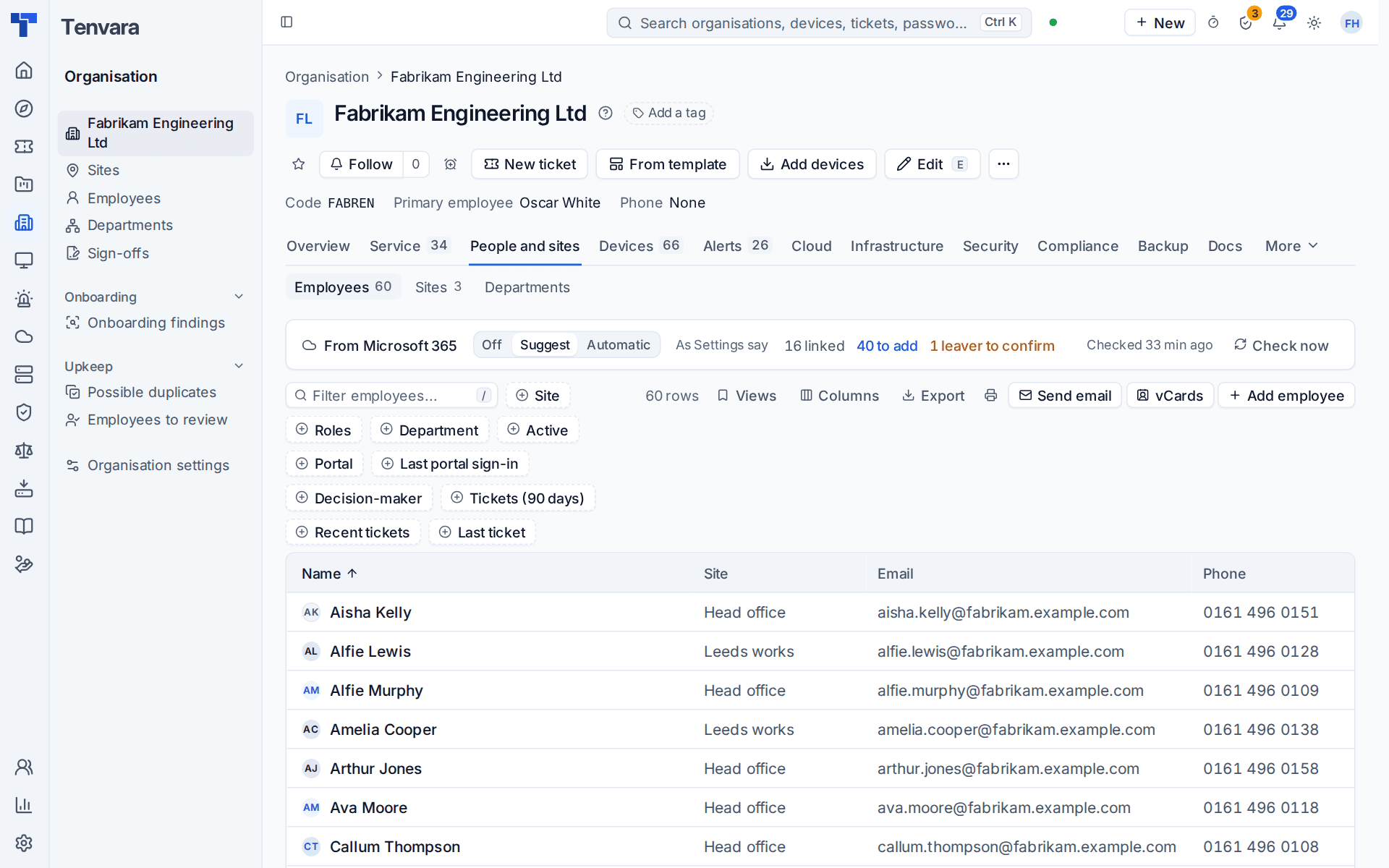
Bring them in whichever way suits:
- From Microsoft 365. Connect your tenant and switch the contact sync on. Employees arrive with their details, and leavers are flagged for you to confirm. The strip above the list shows how many are linked and when it last checked. See Connecting a tenant.
- From a CSV file. See Importing from CSV.
- By hand. Press Add employee.
Each employee's Department is picked from your list. A department name that arrives from Microsoft 365 or an import is matched to the department of that name, or makes one, so the list builds itself as people come in. Tidy it afterwards: add the cost centres and managers, and nest departments where it fits.
Give the people who need it a contact role, for example the VIP role for directors, which tags their tickets and raises their priority. See Contact roles, merging and duplicates.
Which department a device belongs to
A device belongs to the department of the person who uses it. Move the person and their devices move with them. Give a device a department of its own only when it is not one person's, such as a shared computer on a front desk. The devices list has a Department column and filter.
Each device carries its purchase cost and depreciation, and its cost centre comes from its department. See Hardware refresh and asset cost.
SLA policies by department or for VIPs
A ticket follows the first of these that applies:
- the policy someone chose on the ticket by hand;
- the first policy whose conditions the ticket matches;
- the policy of the requester's department, or of the nearest department above it that has one;
- the VIPs' policy, when the requester holds the VIP contact role;
- the default policy, by priority.
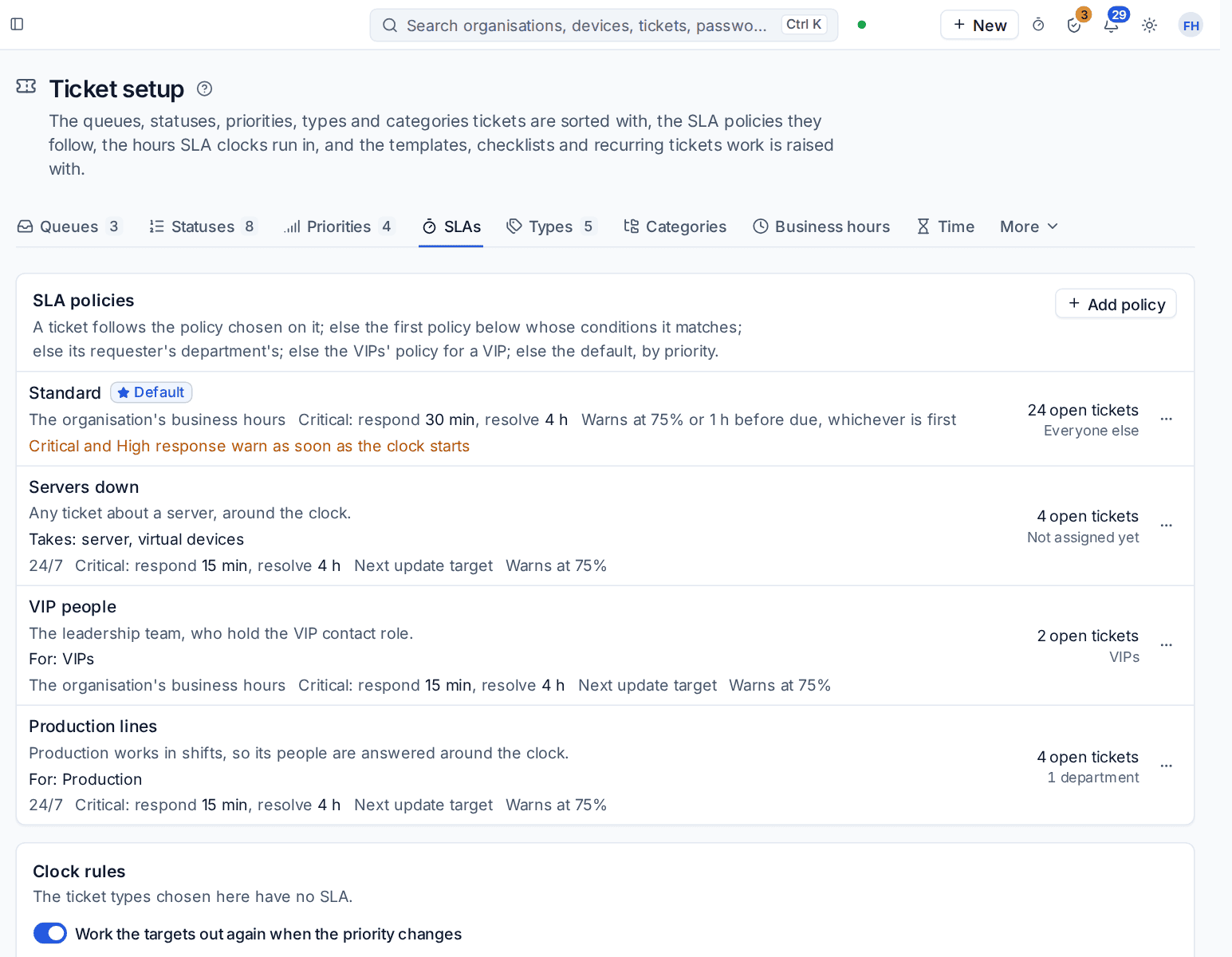
The ticket's SLA block says where its policy came from, for example "Production's policy" or "The VIPs' policy". Set policies up in Settings > Ticket setup, the SLAs tab. See SLA policies and escalations.
Related guides
Was this page helpful?
Thanks for the feedback.