Older Windows and the Lite agent
Windows 7 SP1, 8.1, Server 2008 R2 SP1, 2012 and 2012 R2 run the Lite agent. How to install it, what it reports, what you can do on those devices, what is not available and why, and the end-of-support warning.
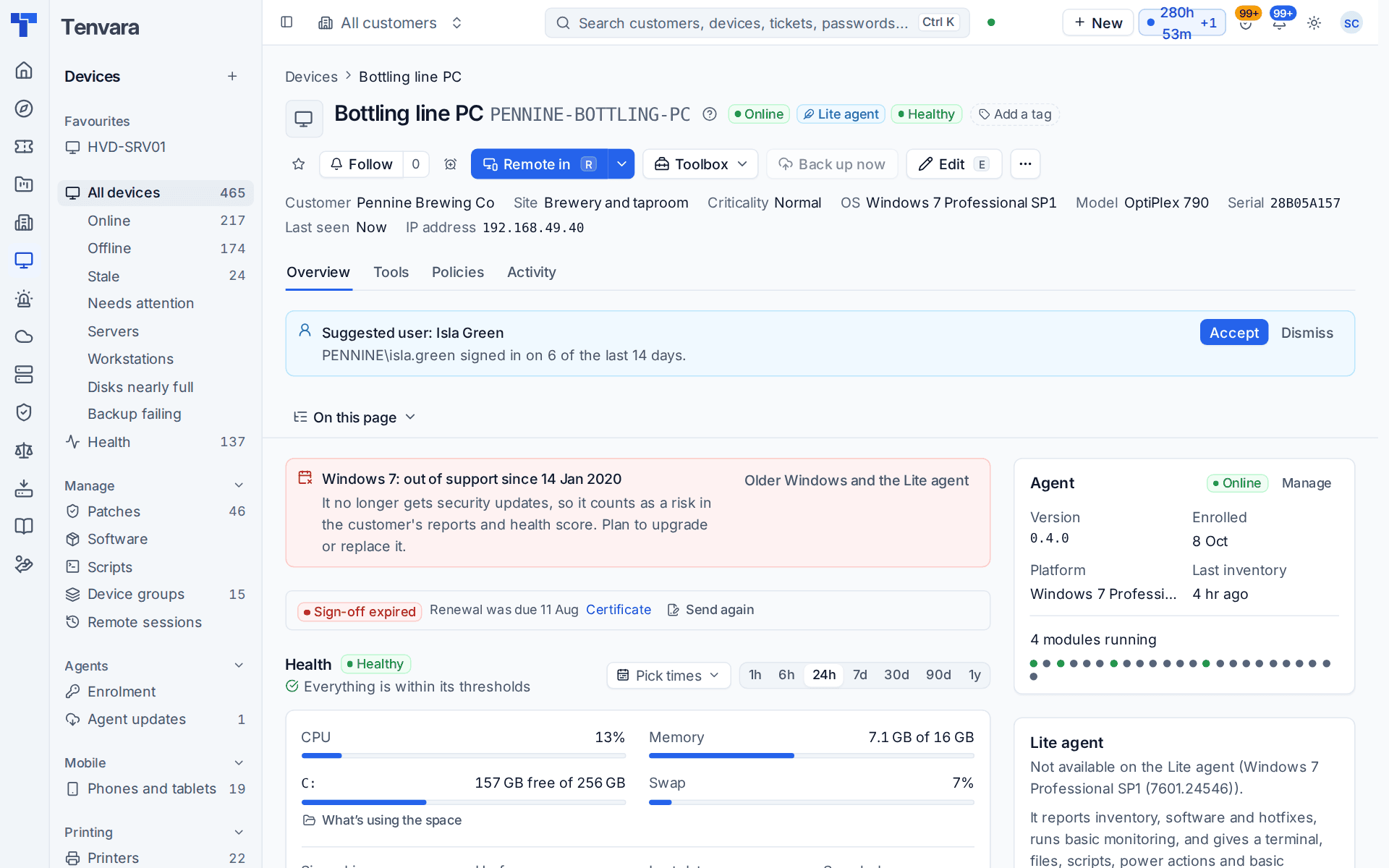
The main agent needs Windows 10 or Windows Server 2016 or later. Older machines that you still look after, such as a Windows 7 PC driving a machine on the factory floor, a Server 2008 R2 box running a line-of-business app or a 2012 R2 file server waiting to be migrated, run the Lite agent instead. They appear in the same device list, reports and searches as every other device.
Which Windows
Windows 7 SP1, Windows 8.1, Windows Server 2008 R2 SP1, Server 2012 and Server 2012 R2, 64-bit and 32-bit.
Windows XP, Vista, Server 2003 and Server 2008 (not R2) are not supported. Windows 10, Server 2016 and newer always get the main agent, and the Lite agent's installer refuses to install there. See Supported systems.
Install it
- Create an enrolment token for the customer on Devices > Enrolment, as for any device. See Installing the agent.
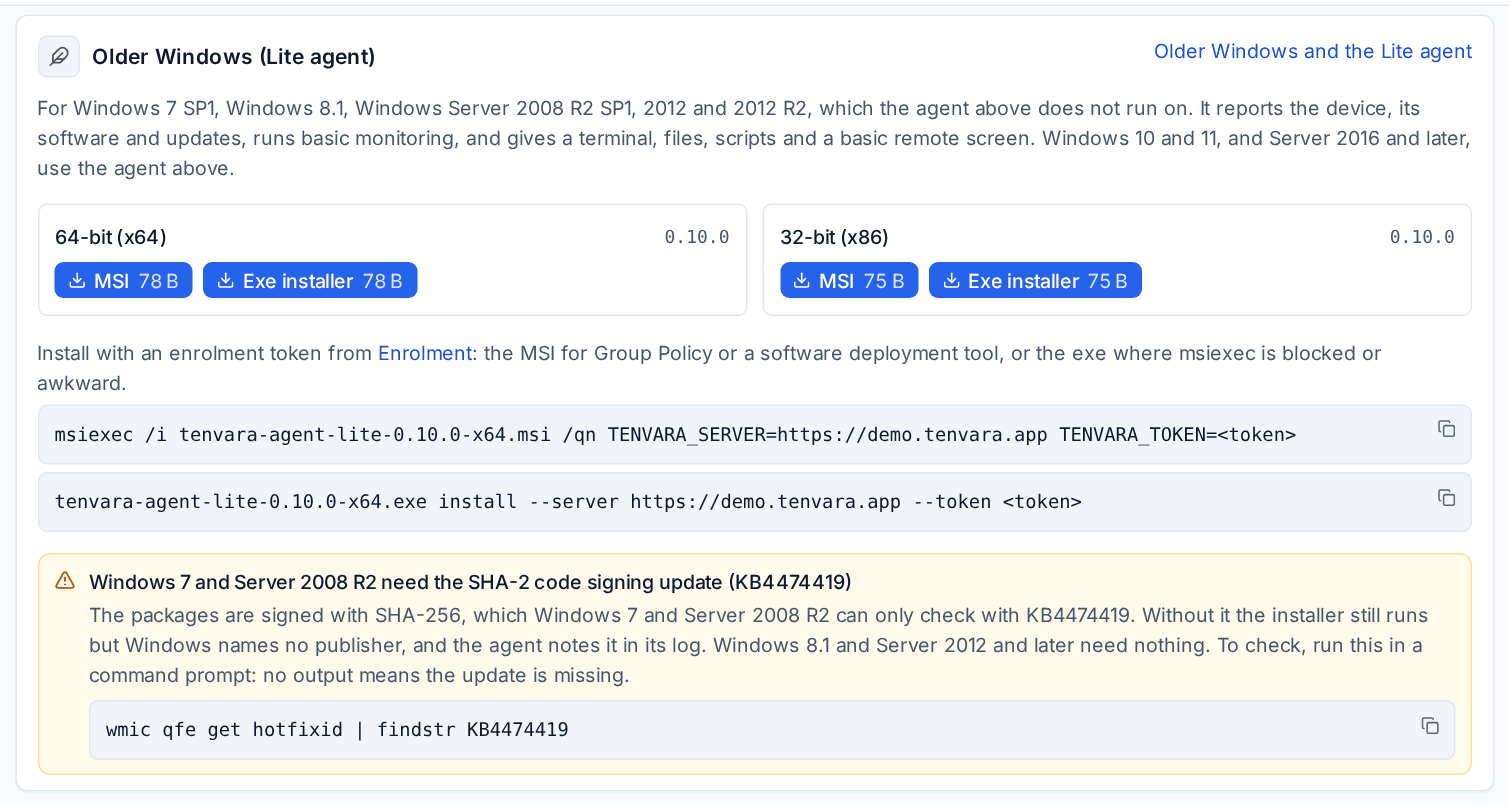
- Open the Installers tab and find Older Windows (Lite agent). It has an MSI and an Exe installer for 64-bit (x64) and for 32-bit (x86).
- Install it with the token:
-
the MSI, for Group Policy, a software deployment tool or a double-click:
msiexec /i tenvara-agent-lite-<version>-x64.msi /qn TENVARA_SERVER=https://<your server> TENVARA_TOKEN=<token> -
the exe, where
msiexecis blocked or awkward:tenvara-agent-lite-<version>-x64.exe install --server https://<your server> --token <token>
-
The tab shows both commands with your server's address filled in. Within a few seconds the device appears under Devices, marked Lite beside its operating system.
If you run the main agent's installer on one of these versions of Windows, it stops before anything is copied and points you here.
Windows 7 and Server 2008 R2: the SHA-2 update
The packages are signed with SHA-256, which Windows 7 and Server 2008 R2 can only check with Microsoft's SHA-2 code signing update, KB4474419. To see whether it is there, run this in a command prompt. No output means the update is missing:
wmic qfe get hotfixid | findstr KB4474419
Without the update the installer still runs, but Windows names no publisher, and the agent notes it in its log. Windows 7 also needs Microsoft's current root certificates, which it fetches from Windows Update the first time it checks a signature. A Windows 7 machine that cannot reach Windows Update needs Microsoft's root certificate update installed first. Windows 8.1 and Server 2012 and later need nothing.
Where it lives
The Lite agent installs to C:\Program Files\Tenvara\AgentLite (the program is tenvara-agent-lite.exe), keeps its settings and keys in C:\ProgramData\Tenvara\AgentLite and runs as the service TenvaraAgentLite. For antivirus allow rules, see Security software and the agent.
Updates
The Lite agent updates itself. New versions arrive with the other releases and go out from Devices > Agent updates as the component Lite agent, with the same pilot devices, soak, maintenance windows and pins as the main agent. See Agent updates and release channels.
What it does
- Reports: hardware and operating system, installed software (so the device's known vulnerabilities are listed), installed hotfixes and the last Windows Update result, services, network adapters, local users, shares and printers.
- Monitors: online and offline, processor, memory and disk space, services (including an automatic service that has stopped), and service, ping, port and event log checks. Checks it cannot run stay in the device's Checks list, greyed out, and read Not on the Lite agent with the reason. They never fail, alert or count against the device's health.
- Terminal: Command Prompt and Windows PowerShell (2.0 on Windows 7 and Server 2008 R2), running as the system. Run commands that print and end: full-screen and interactive console programs do not work, and there is no Tab completion.
- Files: browse, upload, download, rename and delete, as on any device.
- Scripts: Command Prompt and Windows PowerShell scripts from the library that are marked Works on the Lite agent, run as the system, with the same approvals and output as elsewhere. See The script library.
- Power: restart, shut down, sign out and lock, now or at a time, and Restart the agent. Ask the user needs the tray, so it is not offered.
- BitLocker recovery keys: where BitLocker is on, each volume's recovery key is kept in the credentials vault, as on newer Windows. See BitLocker recovery keys.
- Removing a remote access tool: Remove now on a remote access or remote management tool found in the device's installed software. See Remote access and RMM tool finder.
Basic remote
Remote in on a Lite agent device opens Basic remote (Lite agent) in the browser. It follows the same access rules, allowed hours, approval, consent and recording as any remote session, and shows in Devices > Remote sessions.
Its limits are stated on the page:
- about 8 frames a second;
- the main screen only;
- no sound and no clipboard.
It has Ctrl+Alt+Del, typing text, full screen, and ending and reconnecting. The desktop app has no basic remote, so these devices always open in the browser. When a Windows policy blocks Ctrl+Alt+Del, the device page's Remote Ctrl+Alt+Del card says which, as on any Windows device. See Ctrl+Alt+Del in a remote session.
What is not available
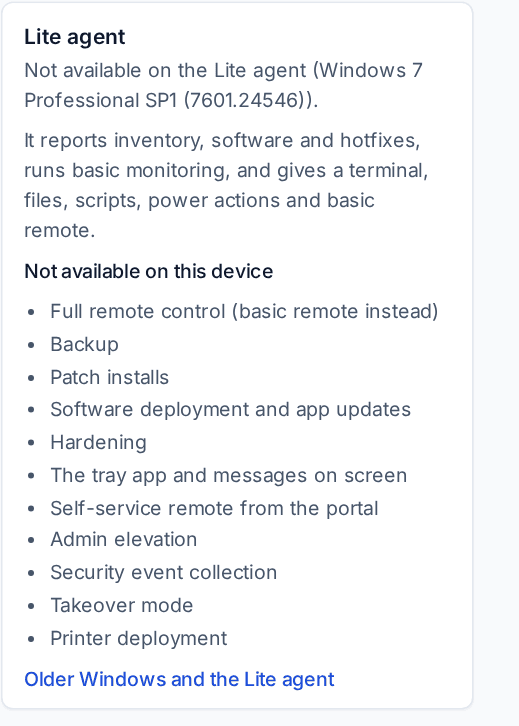
Backup, patch installs, software deployment and app updates, hardening, the tray app and messages on screen, self-service remote from the portal, admin elevation, security event collection, takeover mode and printer deployment.
On the device's page these are greyed out or left out. Hovering a greyed-out button says why, for example Not available on the Lite agent (Windows 7 Professional SP1). The Lite agent card in the side column lists them. Work sent to many devices at once, such as a patch window or a bulk restart, skips Lite agent devices for what they cannot do and gives the same reason for each.
End of support
These versions of Windows no longer get security updates. The device page says so at the top, for example Windows 7: out of support since 14 Jan 2020, with the date from the lifecycle table in Settings > Assets.
Devices on an unsupported operating system count as a risk in the customer's reports and in the health score's Operating system support factor, so they come up at account reviews until they are upgraded or replaced. See Hardware refresh and asset cost.
Related
Was this page helpful?
Thanks for the feedback.