Customer sign-offs
Ask a customer's director, owner or data protection officer to read and sign a decision in the portal, such as a declined recommendation, a new AI tool or an accepted risk, then track it, renew it and keep the signed certificate.
Some decisions are the customer's to take, not yours. They turn down Microsoft 365 Business Premium, they want an AI tool you would not have chosen, or they accept a vulnerability instead of fixing it. A sign-off records that decision properly. The right person at the customer reads a short briefing section by section, ticks an acknowledgement for each one and signs it in the customer portal. You keep a signed record and a PDF certificate, and the sign-off comes up again when it is due for renewal.
Templates
Settings > Sign-offs is the library of templates you can send to any customer.
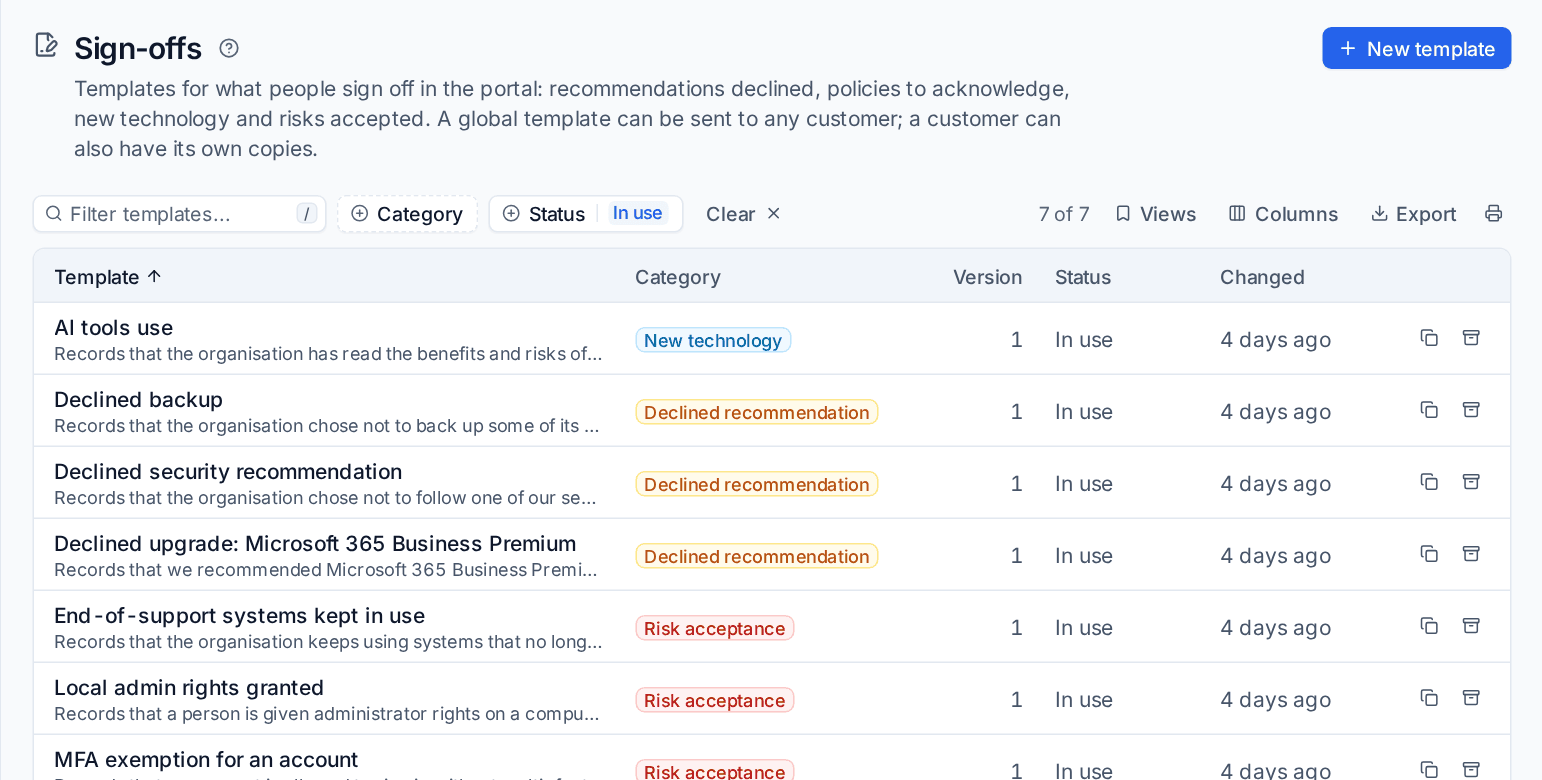
Seven starter templates are there to begin with, written in your voice with no brand name in them:
- Declined upgrade: Microsoft 365 Business Premium
- AI tools use
- Declined backup
- MFA exemption for an account
- End-of-support systems kept in use
- Declined security recommendation
- Local admin rights granted
Edit them as you like: your edits are never overwritten, and Starter templates under the list brings back any you have deleted. Press New template for one of your own.
What a template holds
Open a template to edit it. It has five tabs.
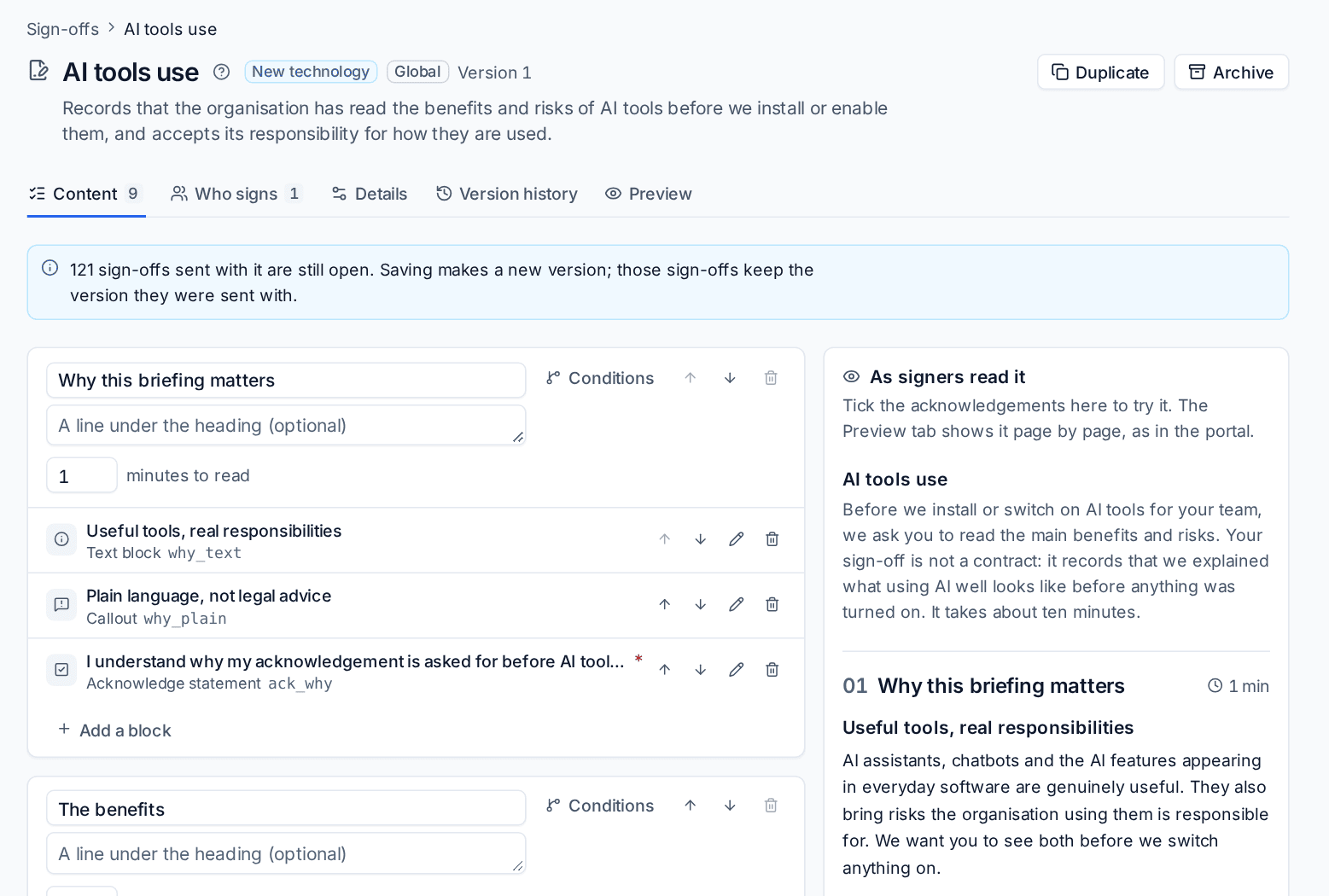
- Content: the sections, each with its minutes to read. Press Add a block for a text block, a callout, a "we will / we won't" list, and one Acknowledge statement the signer must tick. The last section can be the final step, with any questions you want answered.
- Who signs: up to six signers in order, each with the contact roles that fit, and an optional Witness who signs last; the Authority to approve statements a signer chooses from; how many months after signing it is Due again (blank means never); and What it records, such as an AI tool or an accepted vulnerability risk.
- Details: the name, purpose, introduction and category.
- Version history: every version and how many sign-offs were sent with it.
- Preview: the sign-off page by page as the signer will read it. Nothing is saved.
Saving a change that a signer would see makes a new version. Sign-offs already sent keep the version and the exact text they were sent with.
A customer can have its own copy of a template, made from the customer's Sign-offs tab. Make it global on the copy promotes it to the library.
Send a sign-off
Open the customer, choose Compliance, then Sign-offs, and press Send a sign-off. You can also start from Customers > Sign-offs with a customer chosen.
- Choose the Template.
- Choose who signs. Each place lists the contacts holding the role it asks for, and Show every contact lists the rest. Add a second signer or a witness if you need one.
- Set the due date (14 days ahead to begin with) and a short note. The note goes in the email and at the top of the sign-off.
- Check what Tenvara filled in for you from what it knows, then press Send, or keep it as a draft to send later.
Signers without portal access are given it and invited. The next signer is emailed when the one before signs.
From where the decision is made
You can also send a sign-off from the thing it is about, already filled in:
- an approved AI tool in AI readiness;
- a Microsoft 365 licence recommendation the customer declined;
- an accepted vulnerability risk, or a hardening exception;
- a declined quote or proposal, with Ask them to sign off the decision on the quote;
- a device whose operating system is out of support;
- the onboarding findings report of a customer you took over.
Each then shows Signed off once it is signed, or Sign-off expired when its renewal date has passed.
Requiring a sign-off
In Settings > Customer portal, on the What customers see tab, under Sign-offs, three settings decide whether a signed sign-off is Not used, Offered or Required before it takes effect:
- Sign-off for approving an AI tool
- Sign-off for accepting a vulnerability risk
- Sign-off for a hardening exception
When one is required, the approval, accepted risk or exception waits until everyone has signed, and then takes effect by itself.
What the signer sees
The signer finds the sign-off in the portal's To do list and under Sign-offs, for example "Sign-off: AI tools use (due 16 Oct)".
- They read one section per page, with their progress ("3 / 9") and a side menu of the sections.
- They tick each section's acknowledgement. Each tick is saved as they go.
- On the final step they check their name, job title and email, choose their authority to sign, answer your questions, type their signature (and draw one if they like) and press I agree.
A signer can decline with a reason, which tells you, and someone who has signed can withdraw it later with a reason.
Note: Signing needs a portal sign-in. There is no public signing link.
The record and the certificate
Each signature is kept as a record that cannot be changed: who signed, their authority statement, when, their IP address, every acknowledgement with its time, the exact text signed and their answers. A signed record can only be revoked, with a reason that stays in the history.
Each signer signs in the portal, signed in to their own account, and every signature is an advanced electronic signature: when the last signer signs, each signer's own digital signature is put on the certificate in signing order, timestamped, and sealed with your organisation's document-signing certificate. The certificate has a Signature level box saying how each signer met the requirements. See Is it legally binding?
When the last signer signs, a PDF certificate is saved to the customer's documents with the full text as signed, the signatures and the audit trail. The signers and the customer's portal managers find it in the portal's Documents.
Tracking, reminders and renewal
Customers > Sign-offs lists every customer's sign-offs, and the customer's Sign-offs tab lists theirs. The list opens on everything outstanding at any age (drafts, waiting, overdue, declined, expired, and signed ones due for renewal) plus those signed or revoked in the last 14 days; Closed has every signed and revoked one.
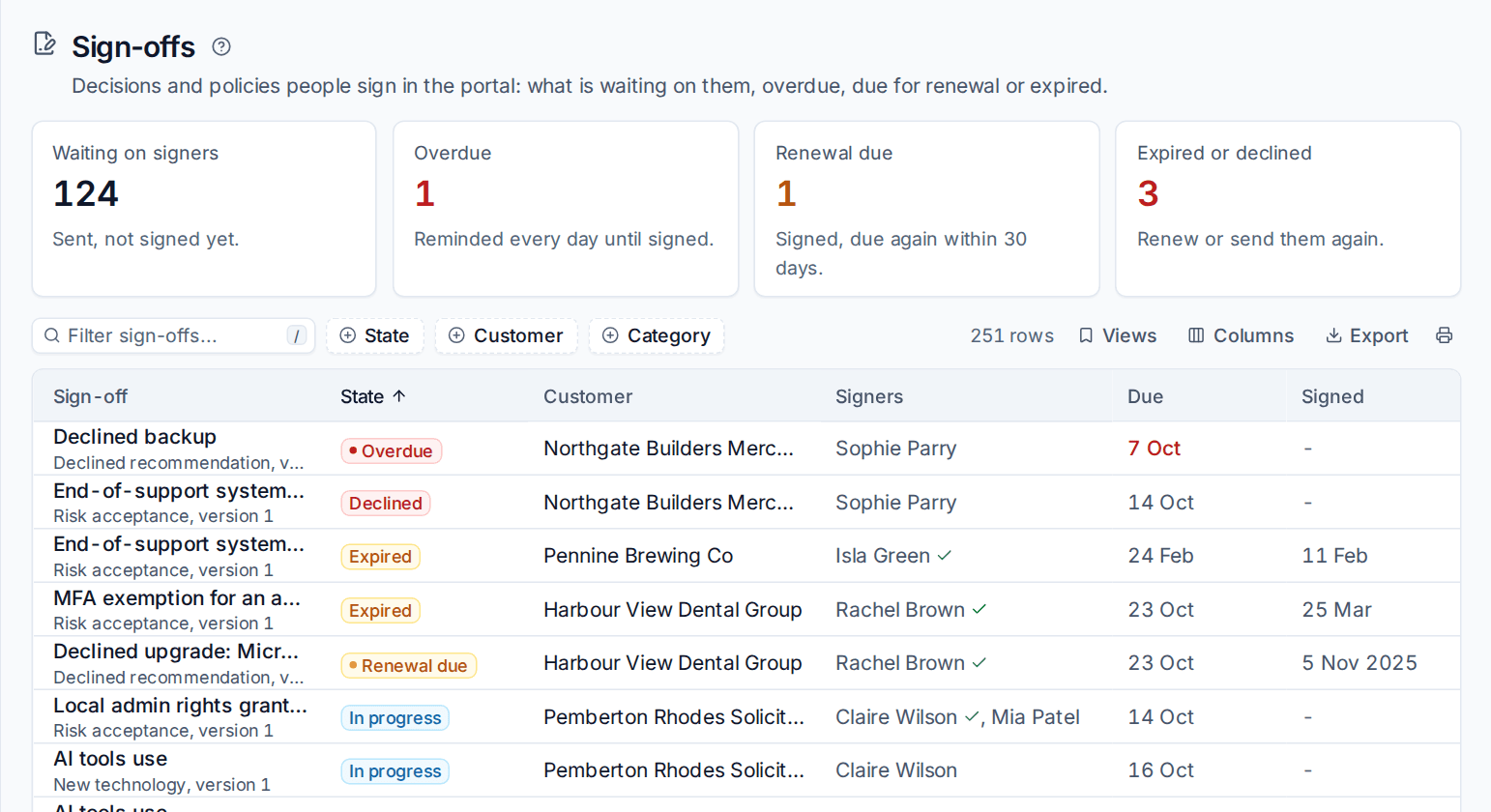
The figures at the top count what is Waiting on signers, Overdue, Renewal due and Expired or declined. Filter by State, Customer and Category. Home can show a Sign-offs waiting on customers block.
Open a sign-off for its detail.
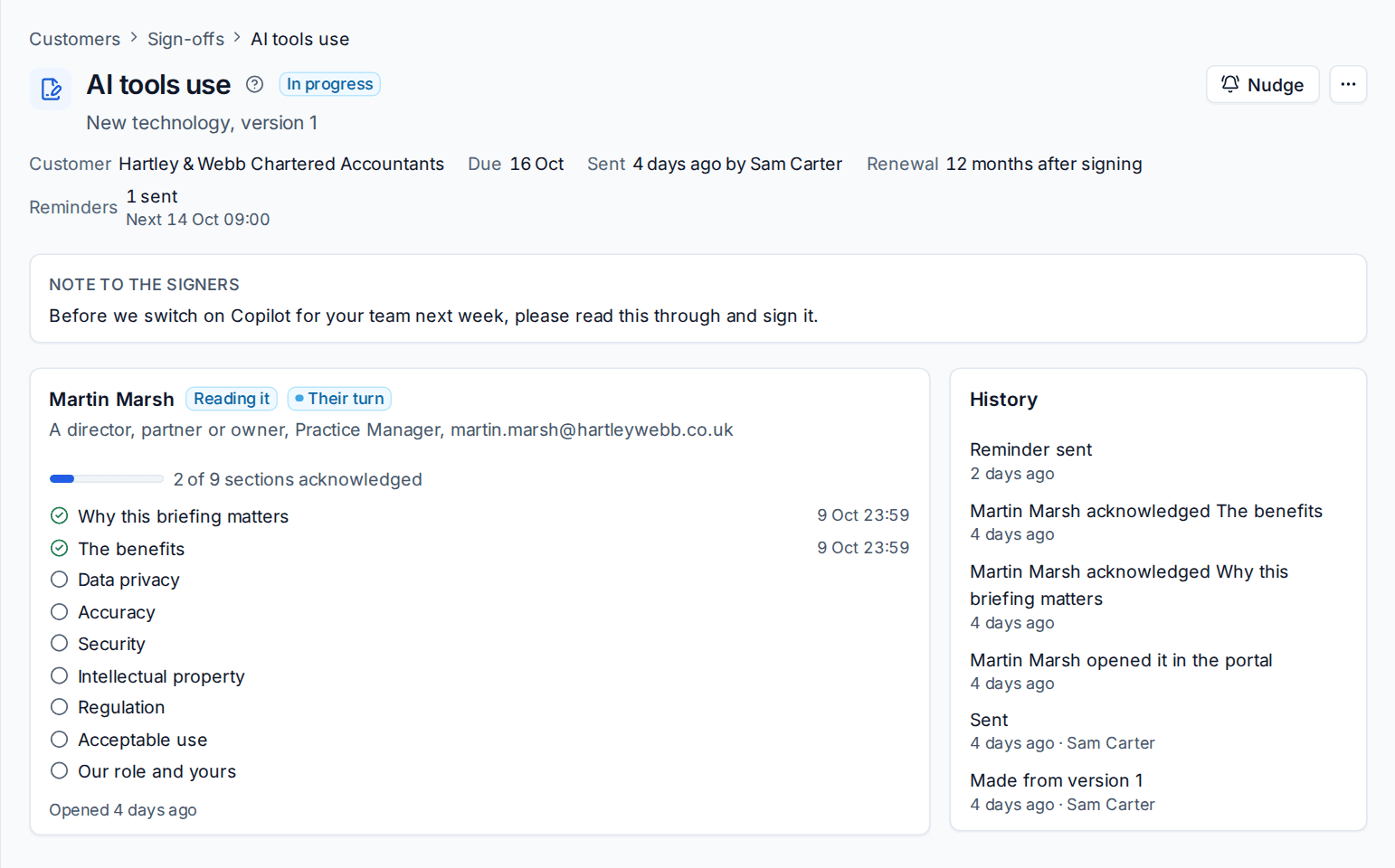
It shows each signer's progress section by section, whose turn it is, the reminders sent and the next one, and the History. Nudge emails the signer now.
Reminders go out by themselves until it is signed, more often once it is overdue. Set the days and the time of day beside the settings above.
Renewal: a signed sign-off with a renewal period is due again that many months after it was signed. You and the signers are told beforehand (Announce renewals sets how long). When the date passes it becomes Expired. Renew sends a new one to the same people from the template's current version, and Send again does the same for one that was declined or withdrawn.
Revoke withdraws a sent or signed sign-off, with a reason.
At the business review
A business review pack can include Sign-offs and accepted risks: the customer's sign-offs with who signed them and when they renew, and the vulnerability risks and hardening exceptions accepted for them. See Business reviews.
Permissions
The Sign-offs permission (view and manage) covers the lists, sending, nudging, renewing and revoking. Global templates are for administrators. See Roles and permissions. In the portal, only the named signers see and sign a sign-off; portal managers can see signed ones.
Was this page helpful?
Thanks for the feedback.