What raised an alert, and fixing it from the alert
Read Raised by on any alert to see the exact record behind it, run the fix its module offers with a preview first, and choose which alert types offer, suggest or run their fix by themselves.
An alert is only useful if it tells you what is wrong and lets you do something about it. Every alert in Tenvara, from every module, opens with Raised by: the exact record that raised it. Under that, Can we fix it? offers the fix the alert's module can run for you, or says plainly that there is nothing to automate.
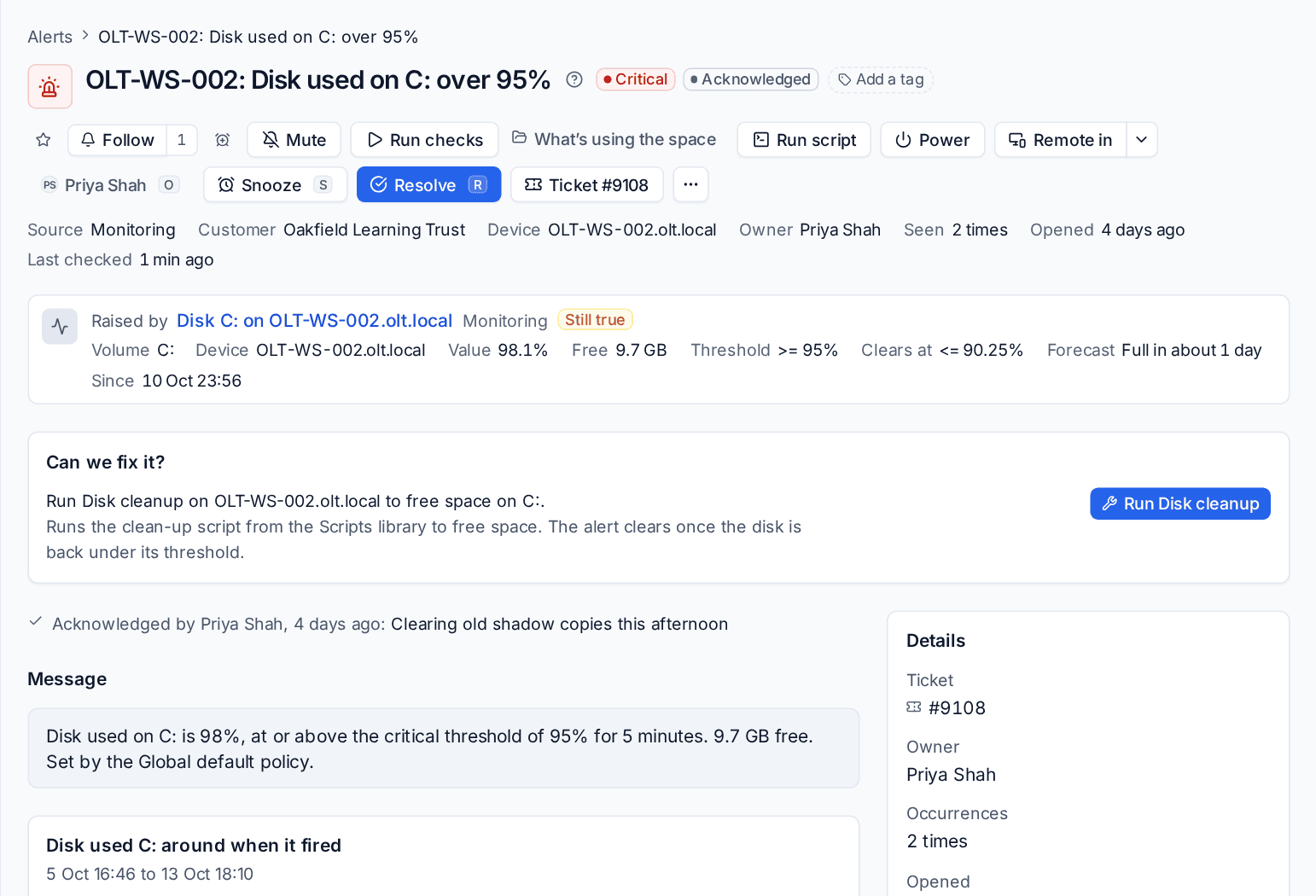
Raised by
Open an alert from Alerts, in the side panel or full page. Raised by is at the top:
- The record, as a link. It goes to the exact place: the disk or check on the device, the service, a device's vulnerability with its CVE, the backup, the security detection, the Microsoft 365 finding, the domain or certificate, the printer, the licence source. It opens that one record: its own page, or its list filtered to it with the row marked or its side panel open, never a whole list to search through. A suspicious inbox rule, for example, opens the mailbox's inbox rules with that rule open beside them.
- The module it came from.
- Whether it is still true: Still true, No longer true, or No longer there when the record has gone (then there is no link).
- Its key facts: for a disk, the volume, the value, the space free, the threshold and where it clears; for a vulnerability, the software, its version and the version that fixes it.
The same line travels with the alert. Notifications in the inbox, desktop and push notifications, texts, your own alert emails, Teams and Slack cards and on-call pages all lead with Raised by, its facts and a link. Alert emails that a rule sends to other addresses show what raised the alert without the link, because those readers are often the customer's own people. Webhooks carry it too, as raised_by on the alert.
Can we fix it?
When the alert's module can put the problem right, the alert shows a button for each fix, with one line on how it works.
- Open the alert and find Can we fix it?.
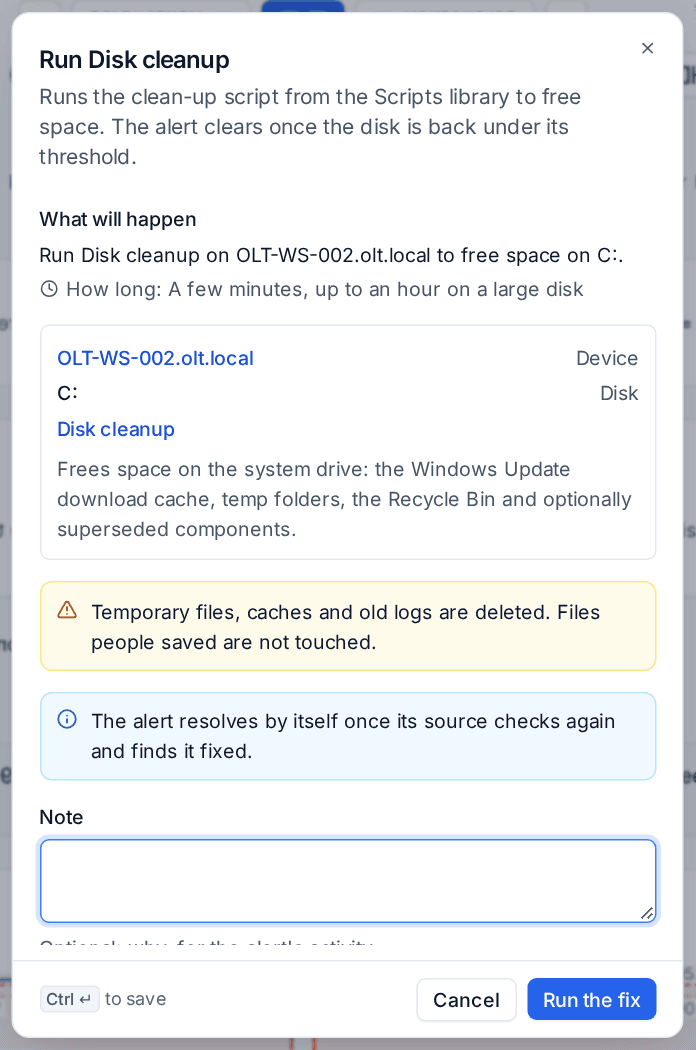
- Click the fix, for example Run Disk cleanup.
- Read What will happen: what runs, on which device or object (as links), how long it usually takes, and any warning.
- Add a Note if you like. It goes in the alert's activity.
- Click Run the fix. A fix that needs approval says Ask for approval instead, and goes to your approvers first. See Approvals.
Every fix that has run is listed on the alert with its status (waiting for approval, queued, under way, done, failed, rejected or undone), who asked for it or Automatic, a link to what it made (the script run, the job, the deployment) and, for a fix that can be reversed, Undo. Each step is also a line in the alert's Activity.
Note: A fix never resolves its alert. It does the work, and the alert clears by itself once its source checks again and finds the problem gone. That way a fix that did not work cannot hide the problem.
What can be fixed
| Alert | Fix on offer |
|---|---|
| A watched service is stopped, or a service check is failing | Restart the service, with the script library's restart script for the device's system |
| A disk is nearly full | Run the disk clean-up script |
| A vulnerability | Update the app, or install the update that fixes it |
| A backup failed, was interrupted or is out of date | Retry the backup for just that part |
| A website backup failed or is overdue | Back up the site now |
| A virtual machine that should be running is not | Start it. Offered to people only, never automatic |
| An agent update failed | Retry the update. Offered to people only, never automatic |
| Unwanted software | Uninstall it |
| A hardening setting drifted | Enforce the setting again, with Undo |
| A Microsoft 365 security check is failing | The check's own fix, through the usual Microsoft 365 change approvals. Never automatic |
| A domain or certificate has a problem | Check it again |
| A security integration, licence source or backup vendor cannot sync | Sync it now |
| A mobile device is not compliant | Ask the device to report in |
Where nothing can be automated, the alert says Nothing to automate for this alert: it needs a person to look at it, with Open the runbook.
To see the offers you need to be able to view alerts. To run one you need to manage alerts and hold the permission of the fix's own module, for example Run scripts for a restart or a clean-up.
Choosing what is offered, suggested or automatic
Settings > Alert remediation decides, per alert type, how far a fix goes.
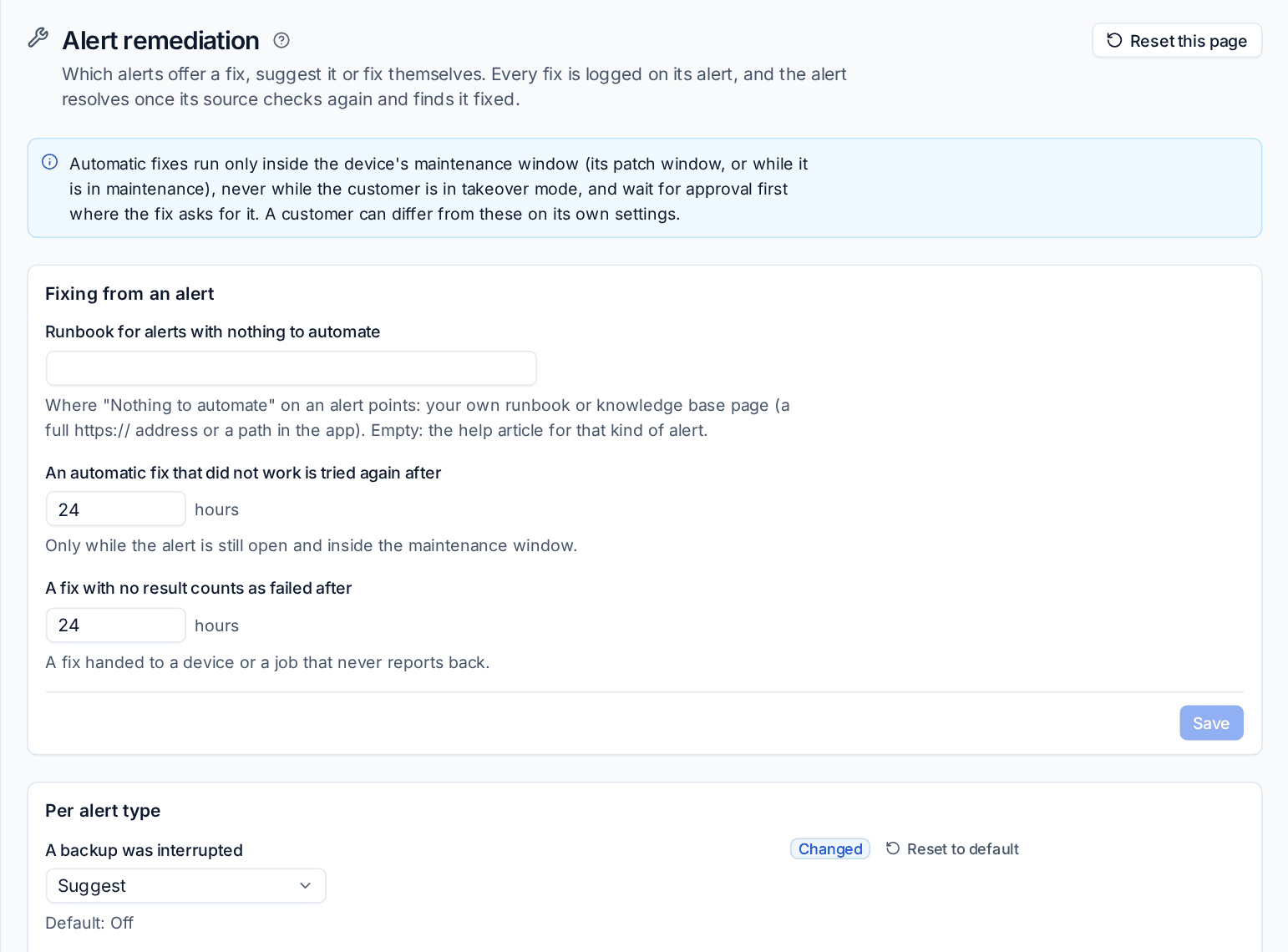
Under Per alert type, each type that some module can fix has three choices:
| Choice | What happens |
|---|---|
| Off (the default) | The fix is on the alert for someone to choose |
| Suggest | The alert shows the fix at the top as the next step |
| Automatic in the maintenance window | The fix runs by itself, logged on the alert, and waits for approval first where the fix asks for it |
Automatic fixes run only inside the device's maintenance window: its patch window, or while the device is in maintenance mode. They never run while the customer is in takeover mode or onboarding mode. See Maintenance windows and mutes and Takeover mode.
A type you have changed shows Changed with Reset to default, and Reset this page puts everything back. A customer can differ from these on its own Settings tab.
The same page has a Run log: the newest fixes run from alerts, by people and automatically, each with its alert and what it led to. When a vulnerability fix asked from an alert fails, the run links to the Vulnerability fix failed alert it raised, and that alert links back to the run. See Vulnerability management.
Under Fixing from an alert:
- Runbook for alerts with nothing to automate: where Open the runbook points, as a full
https://address or a path in the app. Left empty, it opens the help article for that kind of alert. - An automatic fix that did not work is tried again after (24 hours by default): only while the alert is still open and inside the maintenance window.
- A fix with no result counts as failed after (24 hours by default): for a fix handed to a device or a job that never reports back.
Under Disk clean-up, choose the clean-up script for each operating system: the library's own disk clean-up, one of your published scripts, or None (the alert then says there is nothing to run).
Related
Was this page helpful?
Thanks for the feedback.