A recovery copy of the encryption key
Download a copy of the backup encryption key sealed with a passphrase you choose, after an authenticator code and another administrator's approval, print a recovery sheet, check that your copy opens, and keep it somewhere safe.
Every backup Tenvara makes is encrypted with one master key. Without that key no backup can be restored, and the key cannot be made again. A recovery copy is that key, sealed with a passphrase only you know, in a file you keep away from the backup server. If the server and its disks are ever lost, the storage and your recovery copy are enough to bring every backup back.
Why you need one
Your storage alone is useless to anyone who takes it, because everything in it is encrypted. The other side of that is that you need the key. A recovery copy means a lost or rebuilt backup server is not the end of your backups, and you can prove whenever you like that the copy you hold really opens.
The copy is never the raw key. It is the key sealed under your passphrase, so the file on its own opens nothing.
The Encryption key card
Open Settings > Backup and choose the Status tab. Encryption key is the first card.
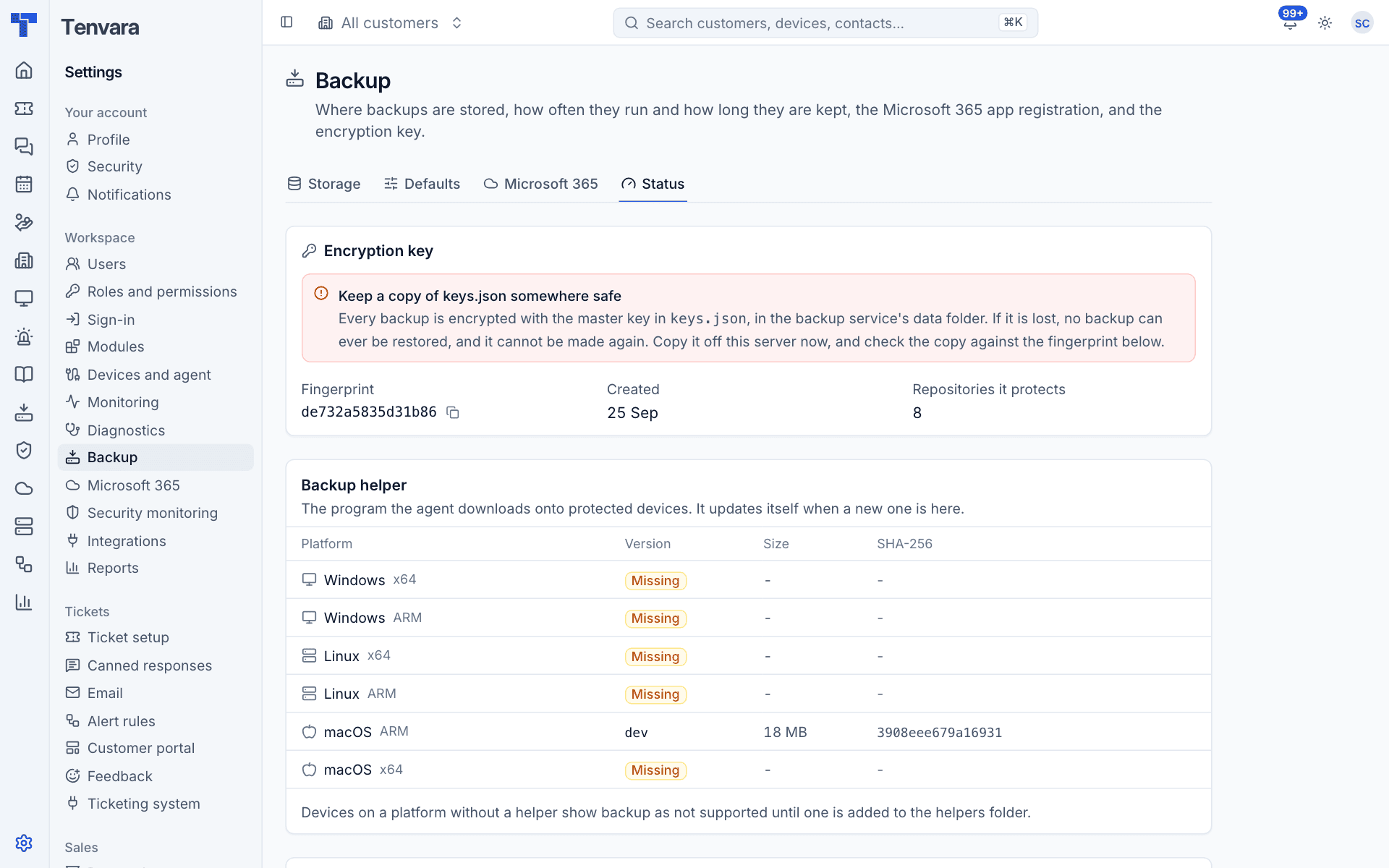
| Field | What it says |
|---|---|
| Fingerprint | A short code that identifies the key in use. The button beside it copies it |
| Created | When the key was made |
| Repositories it protects | How many repositories are encrypted with it |
| Last recovery copy | When a copy was last downloaded, and by whom, or None yet |
| Recovery copy last checked | When a copy was last proved to open, and by whom, or Never |
| Approval | Another administrator approves each copy, or Not needed |
Below the figures, the card lists recent recovery copies with who asked for each and when it was downloaded and checked.
On your own server the card shows a red warning, "Keep a copy of keys.json somewhere safe", until a recovery copy of the key in use has been downloaded and checked once. After that it says a recovery copy is kept. A new key brings the warning back.
Downloading a recovery copy
You need to manage backup, and you need an authenticator app set up on your own account: the download always asks for a fresh code, and single sign-on alone is not accepted. If you have none, the dialog says so and links to your security settings.
- On the Encryption key card, press Download a recovery copy.
- Enter Why, for example "a copy for the office safe". It is shown to the approver and kept in the audit log.
- Press Ask for approval. With approval switched off, or with no other active administrator, the button says Continue and you go straight to step 5.
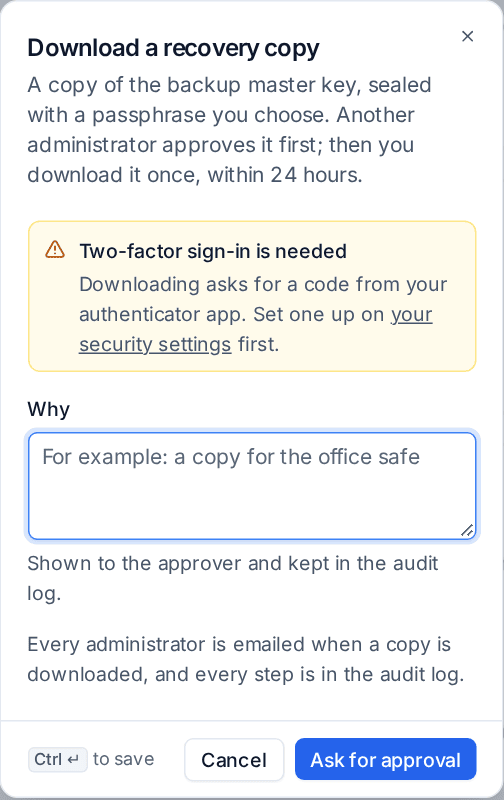
- Another administrator approves the request in Home > Approvals. They can never be the person who asked. The card shows "Your recovery copy is waiting for approval" meanwhile, with Cancel request, and you are told when they decide.
- Once it is approved, the card shows "Your recovery copy is ready to download" with the time it must be downloaded by. Press Download.
- Choose a passphrase. It must be at least 12 characters, not one character repeated and not only digits.
- Enter the code from your authenticator app when asked.
- The file is saved to your downloads. It can be downloaded once.
When the download finishes, a dialog offers Check it now and Print a recovery sheet.
Warning: Nobody can open the copy without the passphrase, and the passphrase cannot be reset or recovered. Keep the file and the passphrase in different places.
Every active administrator gets an email when a copy is downloaded, and every step is in the audit log.
The recovery sheet
Print a recovery sheet prints one page from your browser: the copy itself as a QR code (the same sealed copy as the file, so the sheet alone opens nothing), the key's fingerprint in large type, and what to do with it. It is meant for a paper copy in the safe. Print it straight after a download, or later from Check my copy once a copy has checked out.
Check my copy
A copy you cannot open is no copy. Check it when you make it, and again whenever you want to be sure.
- On the Encryption key card, press Check my copy.
- Under Recovery copy, choose the
.jsonfile from your download. If you only have the paper sheet, scan the QR code and paste its text under Or paste it. - Enter the Passphrase and press Check.
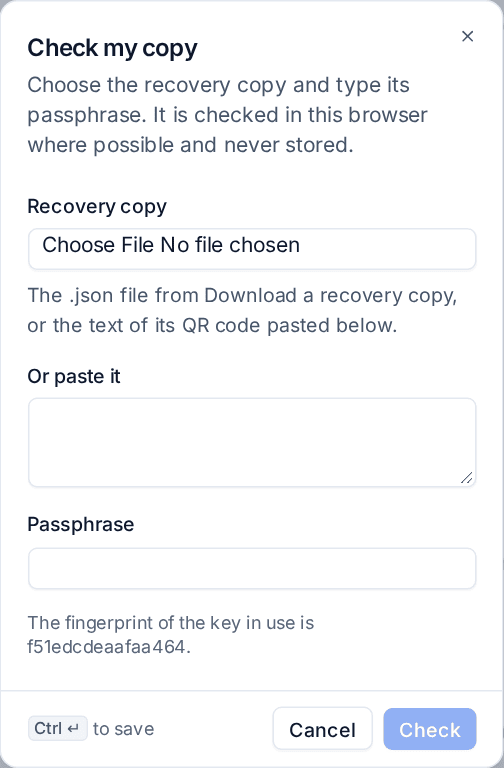
The answer is one of:
- This copy holds the key in use, with the fingerprint. Your copy is good.
- This copy holds another key: it opens, but it is a copy of an older key. Download a new recovery copy.
- "That passphrase does not open this copy" or "That is not a recovery copy of the backup key".
Where the browser can, the copy is opened in the browser itself and only a proof is sent, never the key or the passphrase. A good check is recorded on the card under Recovery copy last checked.
Settings for recovery copies
On the same Status tab, Recovery copy of the key has:
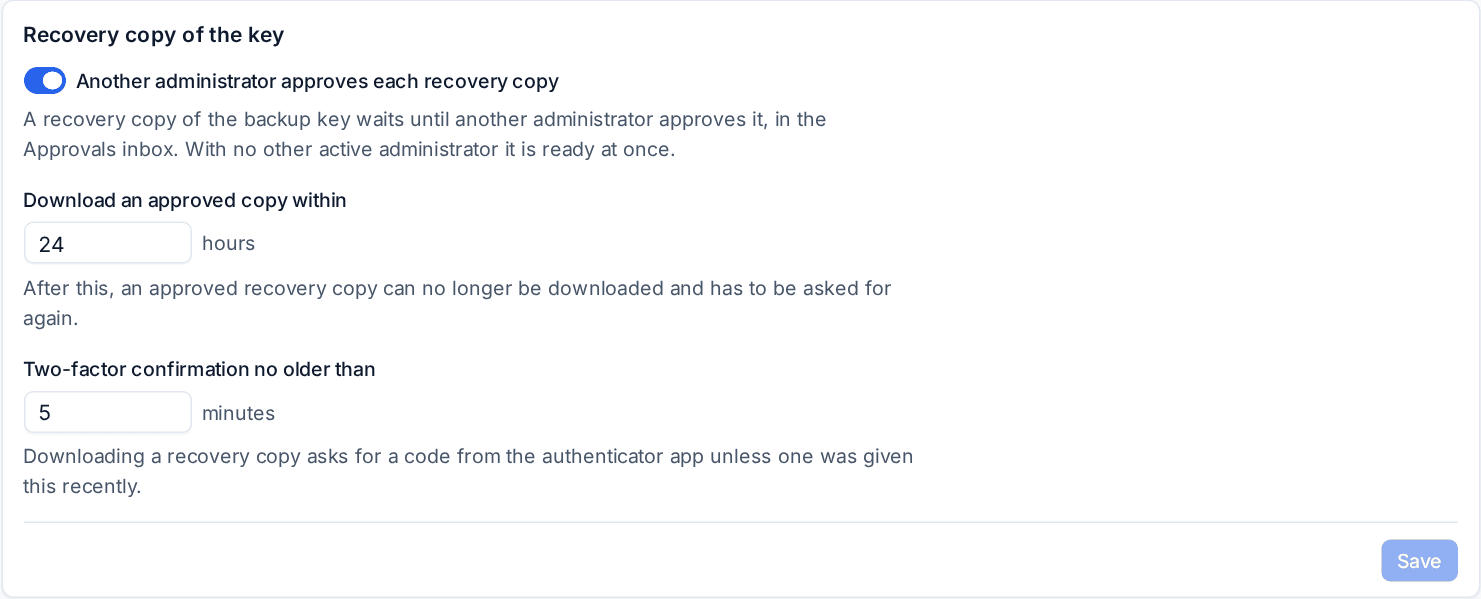
| Setting | Default | What it does |
|---|---|---|
| Another administrator approves each recovery copy | On | A request waits in the Approvals inbox for another administrator. With no other active administrator it is ready at once, and the audit log says so |
| Download an approved copy within | 24 hours | After this an approved copy can no longer be downloaded and has to be asked for again |
| Two-factor confirmation no older than | 5 minutes | Downloading asks for a code from the authenticator app unless one was given this recently |
Where to keep it
- Keep the file and the passphrase apart: the file on a USB stick or the printed sheet in the office safe, the passphrase in a sealed envelope somewhere else.
- Do not keep the only copy on the backup server, or in a mailbox or drive that this same server backs up.
- Tell a second trusted person where both are.
- Make a new copy if the fingerprint on the card ever changes, and check it.
If the backup server is ever lost, install a new one on the same storage, put the key back from your recovery copy and its passphrase, connect the tenants again, and use Bring back from storage on the Status tab. See Setting up backup.
Related
Was this page helpful?
Thanks for the feedback.