Forms and question types
Build every form in one library, with phone, address, table and vault questions, conditions that show questions and sections only when they apply, answers filled in from what Tenvara knows, and a version for every change.
Tenvara has one way to ask a customer for something, used three ways: the form on a service catalogue item, an information request you send to a contact, and a Setup step sent to someone to answer. All three are built with the same builder, use the same question types and are answered in the portal. Settings > Forms is the library that holds them all.
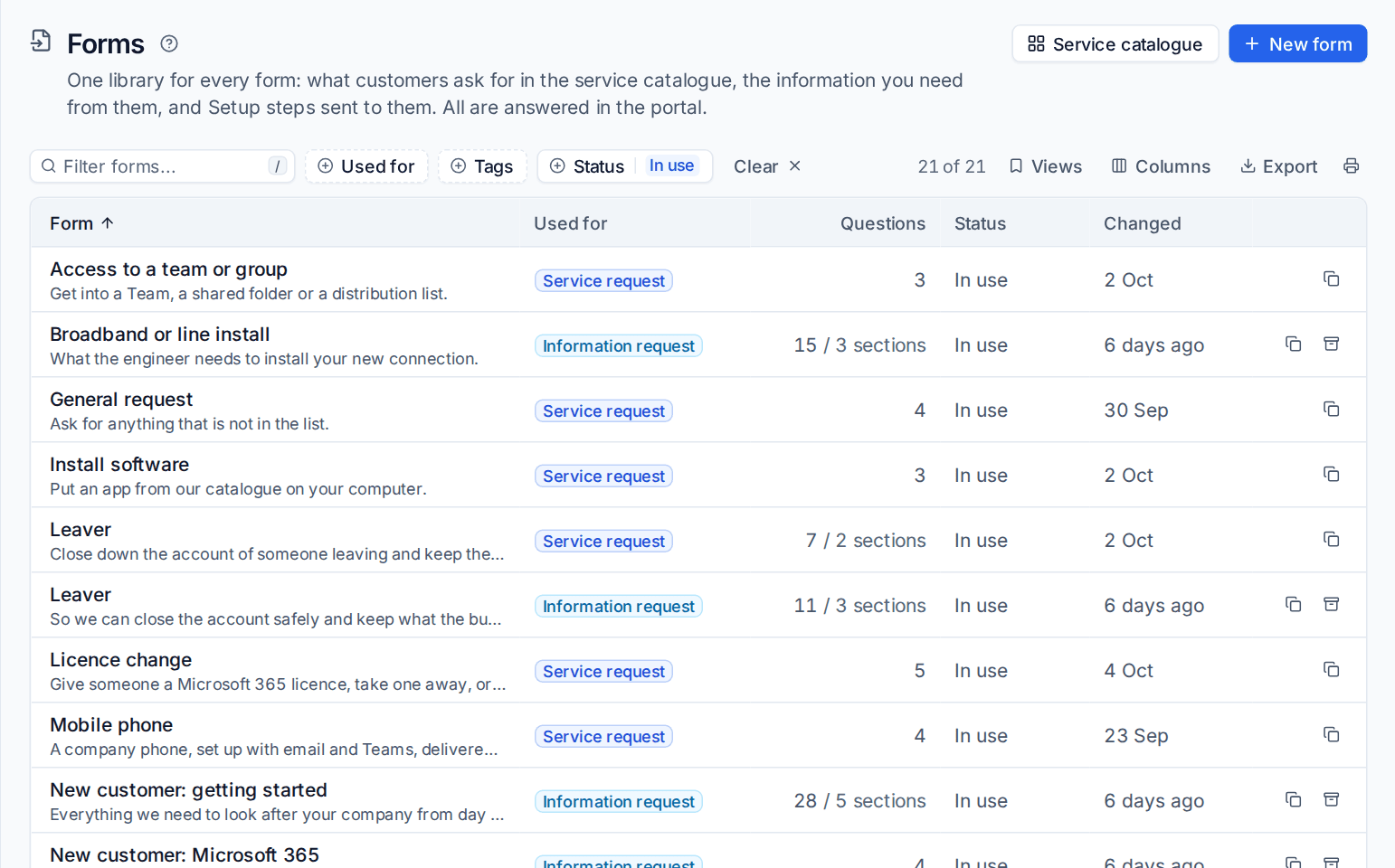
The library
Each row shows the form, what it is Used for (Service request, Information request or Setup step), how many Questions and sections it has, its Status and when it Changed. Filter by Used for, Tags or Status, and save the combinations you use as views. The buttons on a row Duplicate a form or Archive it; an archived form can be brought back.
Under the list, Starter information sets shows the seven ready-made sets (new customer, VoIP number porting, VoIP users and extensions, broadband or line install, new starter, leaver and office move). Edit them as you like: an edit is never overwritten. If you delete one, Put back restores the original.
Make a form
- Press New form.
- Enter a Name, such as "VoIP: number porting".
- Under Used for, choose Information request.
- Press Make it. The builder opens.
A service catalogue form is made on its item, in Settings > Service catalogue, so its approval and fulfilment stay in step with its questions. It still appears in the library, with a link to the item. See The service catalogue.
The builder
A form's page has three tabs: Questions, Details (the name, the intro shown above the questions, what it is used for and its tags) and Version history.
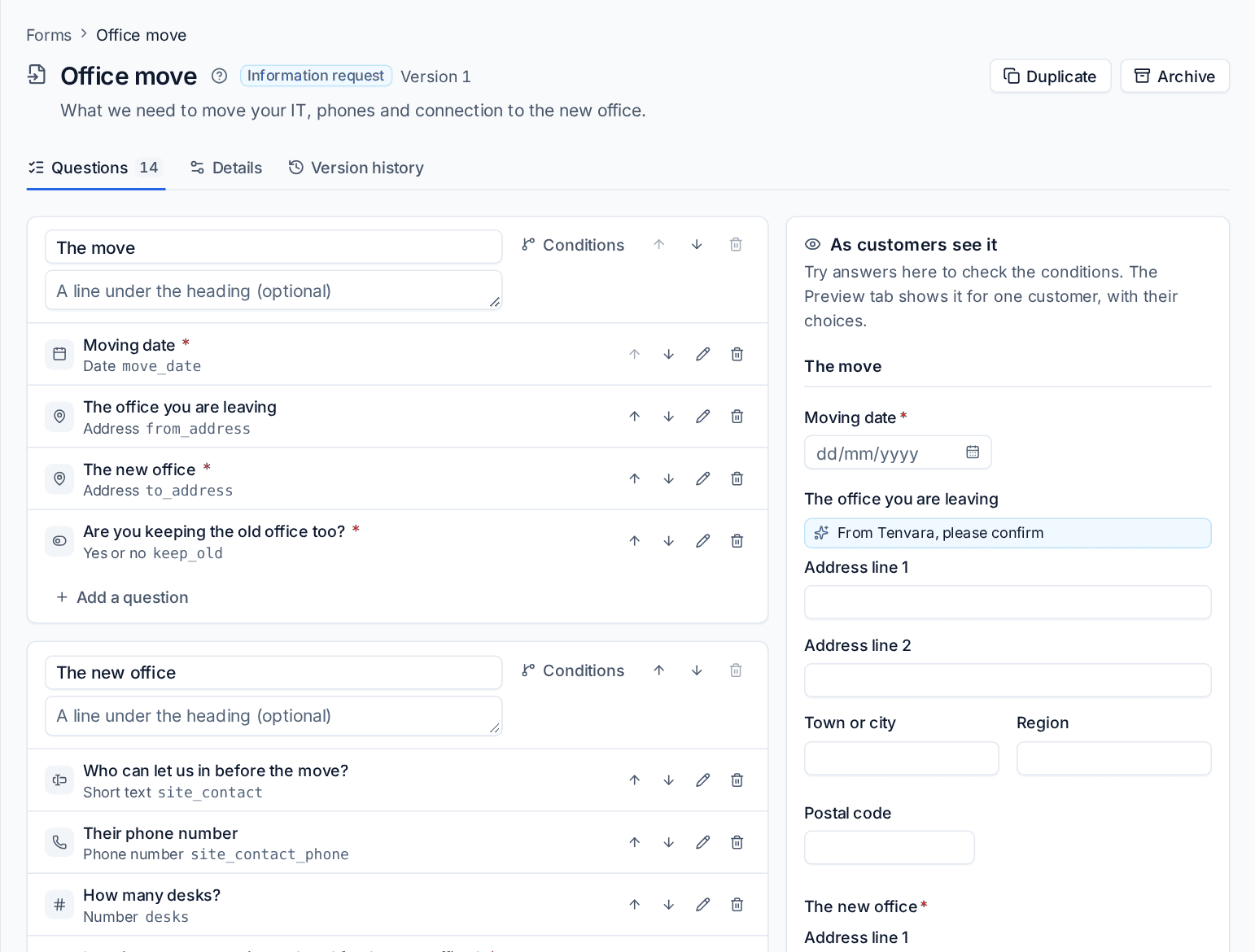
On Questions, the left side is the form in sections. Each section becomes a page for the person answering.
- Press Add a section and give it a heading, with an optional line under it.
- Press Add a question in the section and choose the kind of question.
- Fill in the Question, any Help shown under it, and turn on Must be answered if it is required. The Key is how merge fields, automations and reports refer to the answer.
- Use the arrows to reorder questions and sections, the pencil to edit and the bin to remove.
- Press Save. Each save of the questions is a new version.
The right side, As customers see it, is a working preview: try answers there to check that your conditions show and hide the right questions.
Question types
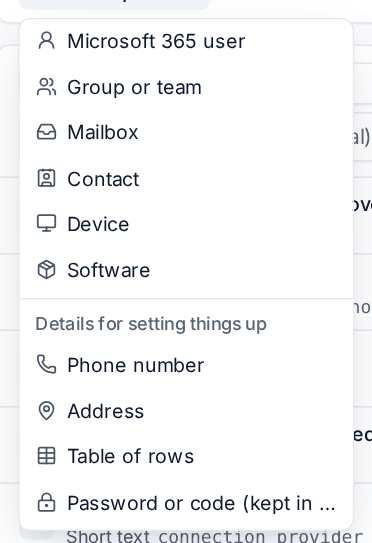
| Group | Types |
|---|---|
| Basic | Short text, Long text, Email address, Number, Date, Yes or no, Choice, Several choices, File upload and Text block (wording with no answer) |
| From the customer | Microsoft 365 user, Group or team, Mailbox, Contact, Device and Software: the person picks from their own company's records |
| Details for setting things up | Phone number, Address, Table of rows and Password or code (kept in the vault) |
The last group is what provisioning work needs:
- Phone number takes the number with its country code, so it arrives in one format.
- Address asks for the lines, town or city, region, postal code and country as separate parts.
- Table of rows collects a list, such as users and extensions or the equipment to move. You set the columns (each a kind of its own, required or not), and the person answering adds rows or uses Paste from a spreadsheet to paste them straight from Excel.
- Password or code (kept in the vault) is for passwords, PINs and porting codes. The answer goes straight into your credentials vault and shows in the request only as Kept in the vault. See The credentials vault.
Conditions
A question, or a whole section, can show only when earlier answers call for it. Open the question and look under Show only when (or press Conditions on a section):
- Press Add a condition.
- Choose the earlier question, the comparison and the answer, for example "Is an internet connection ordered for the new office?" is Yes.
- Add more conditions and choose whether all of these or any of these must hold.
- For "this and either of those", press Add an "any of" group (or Add an "all of" group) to nest a group inside.
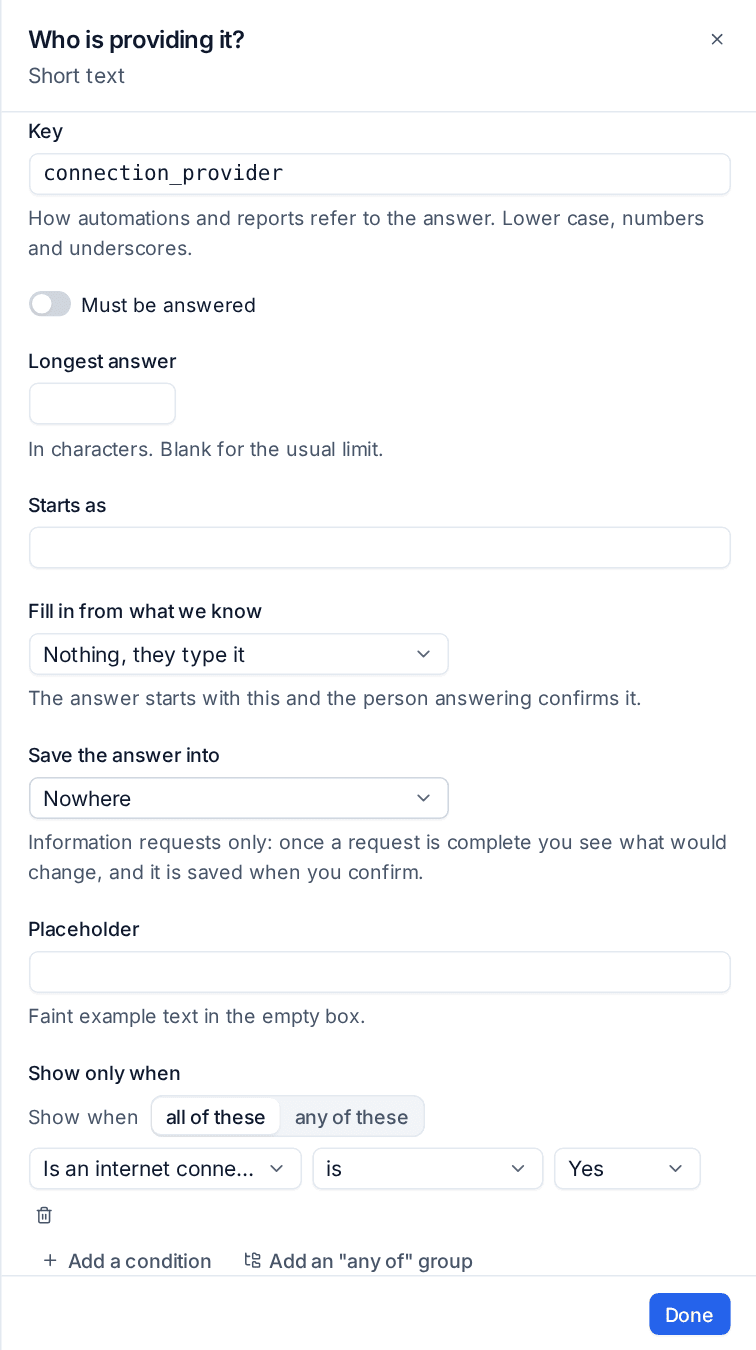
Conditions look only at questions above the one they are on (or, for a section, in the sections above it). A question with a condition shows a Conditional badge in the builder. A hidden question is never required, and its answer is dropped.
Answers filled in for the customer
Nobody likes retyping what you already know. On a question, Fill in from what we know starts the answer from Tenvara's records, such as the customer's address, and the person answering sees it marked "please confirm". They confirm it or change it. Starts as sets a fixed starting answer instead.
Save the answer into, on the same panel, works the other way round: it marks an answer to be written into a record once the request is complete. See Putting answers to work.
Versions and copies
Every change to a form's questions is a new version, listed on Version history with when it was made, by whom, and how many times that version was sent. A request or a service request keeps the version it was started with, so you can improve a form without disturbing answers already in progress.
Duplicate makes a copy to adapt, for example a porting set for one carrier. A form that has never been sent can be deleted; one that has been used is archived instead, so its past requests still read correctly.
Where forms are used
- Service catalogue items: the questions a contact answers when they ask for something. Conditions, tables and the other question types work there too.
- Information requests: sets you send to a contact. See Information requests.
- Setup steps: Send this step in Setup sends a step's questions to someone to answer in the portal, and the step's check runs when they say it is done.
In the portal, all three wait in the contact's To do list until they are done.
Was this page helpful?
Thanks for the feedback.