Ticket categories
Sort tickets into categories three levels deep, start from the ready-made tree, require a category per queue or ticket type, and use categories in SLAs, AI triage, macros and resolution codes.
Categories say what a ticket is about: Hardware > Laptop > Battery, Software > Office > Outlook, Accounts and access > New starter. Good categories make reports honest ("how many printer tickets did Brightwater raise this quarter?"), route work to the right people and let SLAs treat some kinds of work differently.
Three levels
Categories go three levels deep: category, sub-category and item. A level can stop early: "Printing > Toner" is fine without an item under it. Whatever a level is limited to (some ticket types, some queues, the portal) holds for everything under it, and a filter, a report, an SLA condition or an automation condition on a category takes in everything under it.
Categories live on the Categories tab of Settings > Ticket setup.
Start from the ready-made tree
A new install has no categories. On the Categories tab, press Add the starter categories (or Use the starter categories on the empty list) to add a tree you can change: Hardware, Software, Microsoft 365, Network, Security, Accounts and access, Printing, Phones and New starter / leaver, each with sub-categories and items. Pressing it again later only adds what is missing, matched by name at each level, so it never doubles anything you already have. The setup helper offers the same tree in its tickets section.
To add your own, press Add category, give it a name and, for a sub-category or item, choose what it sits under. Moving a category moves everything under it, so it can only go where three levels still fit. A category can be kept to some types or queues, shown on the portal's new request form or not, and taken out of use while old tickets keep it.
Picking a category
Everywhere a category is chosen (the ticket's category pill, Shift+y, the bulk bar, New ticket and the portal's new request form) the picker drills down:
- The top level shows as a list. A row with something under it opens its level, with a back link naming where you are, such as "Hardware / Laptop".
- Click through to the one you want: the field then reads "Hardware / Laptop / Battery".
- Or just type: "batt" finds "Hardware / Laptop / Battery" at any level.
From the keyboard, the right arrow opens a level and the left arrow or Backspace goes back. The portal's form shows only the categories you allow in the portal.
When a category is needed
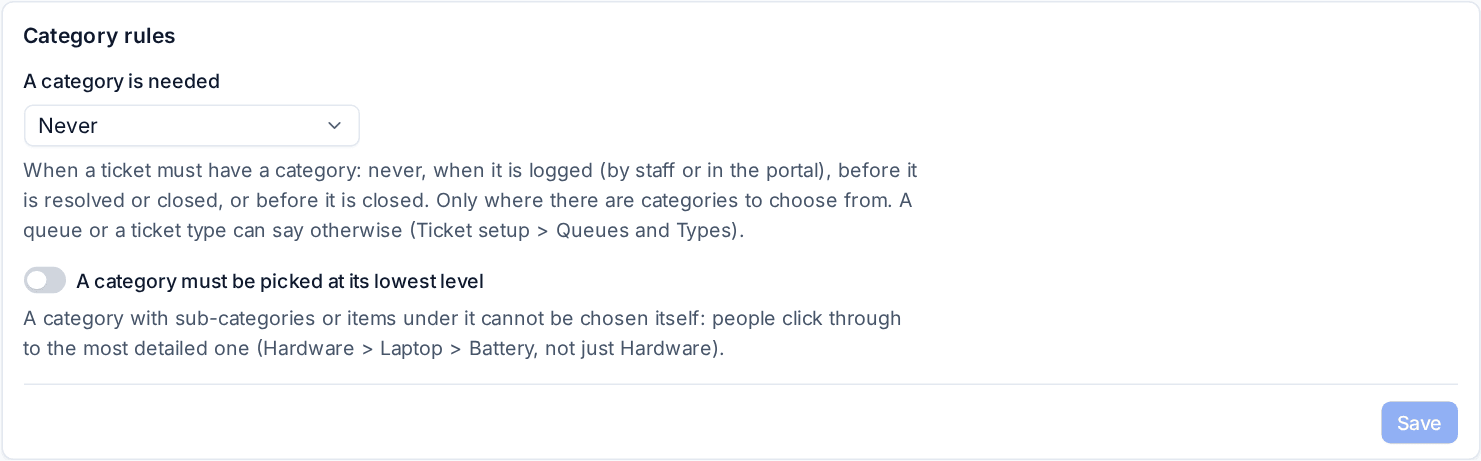
Under Category rules:
- A category is needed: Never, When it is logged (by staff or in the portal), Before it is resolved or closed, or Before it is closed. It applies only where there are categories to choose from.
- A category must be picked at its lowest level: people click through to the most detailed one (Hardware > Laptop > Battery, not just Hardware). A category with something under it cannot be chosen itself.
A queue and a ticket type can each say otherwise on their own edit page. The ticket type's rule comes first, then the queue's, then these settings. For example, the Alerts queue can do without, while service requests need one before they close. Resolving or closing a ticket without a needed category is refused, naming the field.
Where categories work for you
| Where | What a category does |
|---|---|
| SLA policies | Categories is one of a policy's conditions (any of them, or anything under them), so security incidents can follow a tighter policy. A ticket moves policy when its category changes. See SLA policies and escalations |
| AI triage | When AI is set up, triage suggests a category with the queue and priority |
| Macros | A canned response can set the category. It goes on before the macro's status, so "category and resolve" passes a queue that needs a category before resolving |
| Resolution codes | A resolution code can be kept for some categories (Limit to categories, under resolution codes on the Workflow tab). The resolve dialog then offers it only for tickets in them or under them |
| Automation rules | Conditions on a category, as triggers or filters (see Building a rule) |
| Identity checks | A category can count as a password or MFA reset, so the ticket asks for a stronger check (see Verifying who a caller is) |
| Reports | Reports show each item's full path, and Category (top level) groups by the top category |
Tip: Keep the tree short at first. Start from the ready-made tree, look at Reports > Tickets after a month, and only add the items your team really uses.
Related
Was this page helpful?
Thanks for the feedback.