The remote access and RMM tool finder
Find other remote access tools and RMM agents on every device, allow the ones that belong at three levels, ignore a version, remove the rest silently, and use it while taking a customer over.
A remote access tool nobody remembers installing is a classic sign of an intrusion, and a previous provider's RMM agent is a common loose end. The finder looks for both on every device with the Tenvara agent, and lets you allow what belongs and remove the rest.
What it looks for, and where
Tenvara ships a maintained catalogue of 33 remote access tools and RMM agents. On Windows, macOS and Linux the agent checks each device against it with every software report:
- Installed copies, from the installed software list.
- Running processes and services.
- Portable copies: a program run from a user's folder such as Downloads, without being installed.
- Connections to a tool's relay addresses.
A file is matched by who signed it first. Generic file names such as agent.exe never identify a tool on their own. A setup file sitting in Downloads is reported as Installer downloaded, at information level, never as the tool itself, and a component that only connects out to someone else (a viewer) is not a finding. Your own Tenvara agent is never flagged.
The finder was tested with real installs of TeamViewer, AnyDesk, RealVNC and NinjaOne.
Note: The finder uses Software's data, so it follows the Software module and permission: view to see findings, manage to allow or remove.
The findings page
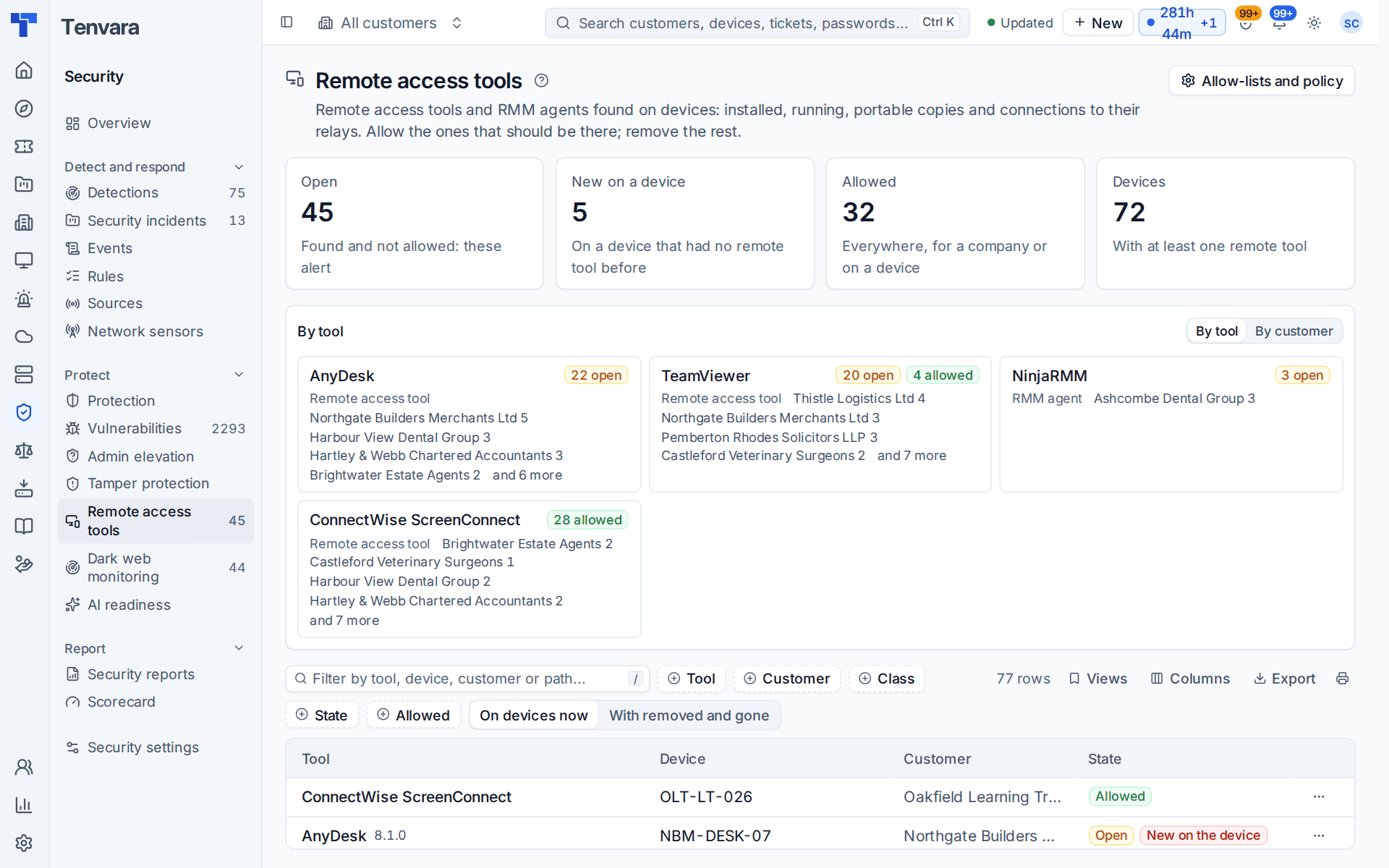
Go to Security > Remote access tools. The number beside it in the sidebar is how many tools are found and not allowed.
The tiles count Open findings (found and not allowed: these alert), New on a device, Allowed and Devices with at least one remote tool. Under them the tools found are grouped By tool or by customer: click a name to filter the list.
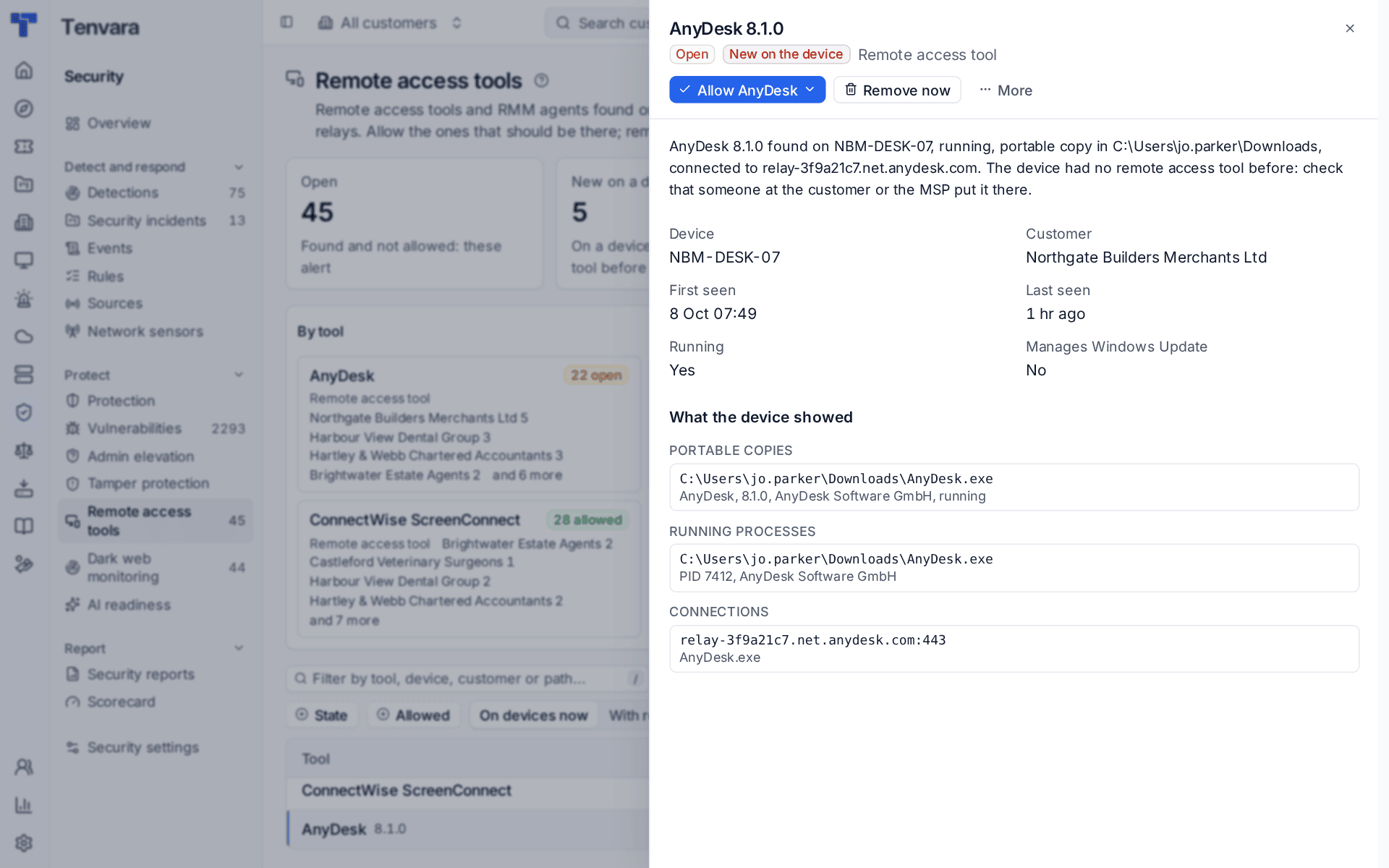
Each row is one tool on one device, with its State and a line saying what was seen, for example "AnyDesk 8.1.0 found on NBM-DESK-07, running, portable copy in C:\Users\jo.parker\Downloads". Filter by tool, class, state and how it is allowed. With removed and gone adds the history.
Two notes matter on an open finding:
- "It was already there when the device was first scanned." It describes the estate you inherited, not something new.
- "The device had no remote access tool before." A tool appeared on a device that had none. This is always raised as critical: check that someone at the customer or on your team put it there.
Click a row for the side panel: first and last seen, its allowance, everything the device showed and the actions. A device with findings also lists them on its Overview tab, with the same actions.
Allowing a tool
The Allow menu carries the tool's name (Allow AnyDesk, for example) and is on the finding, the device page and the alert. It has three levels:
- Allow everywhere: your own tool, at every customer. Only people who work with every customer are offered this.
- Allow for this company: something one customer needs, such as a vendor who supports them with it.
- Allow on this device only.
Each opens the same dialog:
- Optionally set Until. The allowance runs to the end of that day. Left empty, it lasts until someone takes it away.
- Add a Note saying why.
- Confirm.
The devices it reaches are checked again at once and their alerts clear. When an allowance ends, the tool alerts again. Every allowance is in the audit log.
Ignore this version allows only the version found: a newer or older version alerts again.
Removing a tool
Press Remove now on a finding and confirm.
- Installed copies are uninstalled silently through software management: a recipe for that tool where the catalogue has one, then the quiet uninstall the application registers, then what you have saved.
- Tools removed by their own program, such as MeshCentral's agent (
meshagent -fulluninstall), are removed with that program on Windows, macOS and Linux. The agent finds it in the tool's own install folder (from its service or installed app, never a path sent from the server), runs it, then checks the tool's service and folder are gone. - Portable copies and running processes: the agent stops the process and quarantines the copy, so it can be put back. An administrator can choose delete instead under Software in Settings > Device management.
The finding closes as removed when the device next reports the tool gone.
Where no silent uninstall is known, the result asks How to remove it silently once and saves the answer for everyone, for that version or For every version of the tool:
- Switches added to its registered uninstaller, as the vendor documents them, or
- A program in the tool's install folder, chosen from the programs the agent sees there, with its Arguments (for example
-fulluninstall). The agent runs it only from the tool's own folder.
Press Save and remove now. Once a way is saved, Suggest this for the catalogue sends it, with an optional note, to the catalogue's maintainers so it can become a recipe for everyone; nothing about the device, customer or person goes with it. A few tools can only be removed with a key from their own console: the finding says so, and nothing is tried.
A version that is really a build date, as MeshCentral reports, shows as "build" and the date, for example "build 6 Mar 2025".
Note: Silent removal was proven on real installs of TeamViewer, AnyDesk, RealVNC and NinjaOne. An RMM agent with uninstall protection switched on in its own console needs that turned off there first.
On older Windows with the Lite agent, the finder works from the installed software list and Remove now uninstalls an installed tool the same way. See Older Windows and the Lite agent.
Alerts
Each open finding raises one alert per device and tool. Raised by links to the finding, and Can we fix it? offers the uninstall and the same Allow menu. See What raised an alert, and fixing it from the alert.
Policy at each level
The policy can be set for everyone, a customer, a site, a device group or one device. The most specific level wins.
| Setting | Choices |
|---|---|
| Finder | On (the default) or off. Off means no scanning there, and existing findings close |
| When one is found | Alert (the default), alert and raise a ticket, or alert and remove what can be removed silently |
| Alert severity | Each tool's own, or one severity for all. A tool new on a device that had none is always critical |
Set the default on the Remote access tools tab of Settings > Security monitoring (it may be under More; Allow-lists and policy on the findings page opens it). For one customer, site, group or device, use the Remote access tool finder line on its Policies tab, where Follow the level above leaves a setting alone. See Policies and where settings come from.
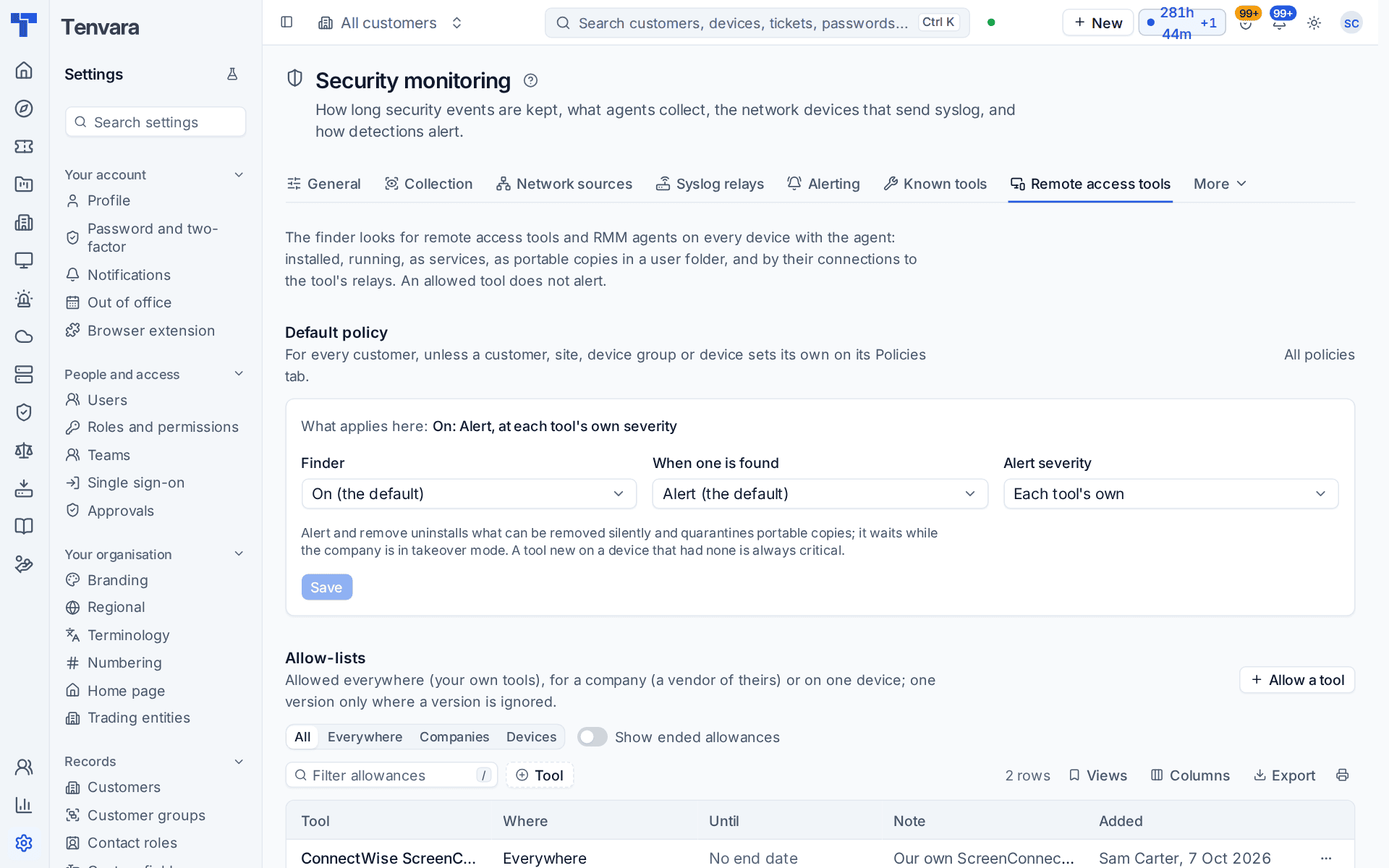
The same tab holds the Allow-lists (with Allow a tool to add one in advance), How you remove tools silently (the switches and programs saved, with Forget, and what was suggested for the catalogue), and the read-only Catalogue.
Using it during a takeover
In takeover mode the outgoing provider's RMM agent is expected for a while:
- The takeover banner names the RMM agents found that still alert, with Allow while taking over: an allowance for that company until takeover ends.
- Automatic removal waits. A policy set to alert and remove does nothing there, though a technician's own Remove now still goes ahead.
- Turning takeover off offers Remove the old RMM, one choice per tool, never ticked for you. Ticked tools are removed from every device of the company, and a copy still there a day later alerts again.
PowerShell the outgoing tool runs routinely can be marked as routine for it: see Working detections.
Was this page helpful?
Thanks for the feedback.