Importing from Zoho CRM, HubSpot or Pipedrive
Bring your CRM's accounts, contacts, leads, deals, notes, calls, meetings, tasks and attachments into Tenvara from a Zoho CRM, HubSpot or Pipedrive export, and import spreadsheets of leads or deals with saved mappings and a dry run.
Your sales history usually lives in a CRM: who you have spoken to, the deals in the pipeline and the notes behind them. When you move your sales work into Tenvara's CRM, you can bring all of that with you instead of starting with an empty pipeline. Tenvara reads the export your CRM already makes, matches what it finds to the customers and people you have, and shows you the result in a dry run before anything is written.
There are two ways in:
- A whole CRM, from Settings > Migration: the export of Zoho CRM, HubSpot or Pipedrive, with every account, contact, lead, deal and its history. For administrators.
- A spreadsheet of leads or deals, from Sales and billing > Leads, Import: a prospect list from a data provider, or the leads or deals from any other CRM saved as CSV. For people who change sales records.
The CRM is part of the MSP edition, so both imports are too.
Note: Like every import in Tenvara, these only read from your old tool. Nothing is ever written back to it.
What comes across from a CRM export
| In the export | In Tenvara |
|---|---|
| Owners (the users of your CRM) | Matched to people in Tenvara by email address or name, or the person you choose. Tenvara never makes a new user for an owner: one nobody matches leaves their records unassigned |
| Accounts your CRM marks as customers (Zoho's account type Customer, HubSpot's lifecycle stage customer, Pipedrive's label Customer), or companies that are already customers in Tenvara | Customers, matched by name, email domain or website. A new one gets its billing address as its main site |
| The other accounts | Leads: the account's first contact becomes the lead's contact, and the others are kept as a note on the lead. Competitors, partners and the like are skipped |
| Contacts of customer accounts | Contacts, matched by email address or name within the customer |
| Zoho leads that were not converted, and HubSpot contacts with no company | Leads, matched against the leads you already have |
| Deals | Opportunities on their customer or lead, at the stage with the same name, or the stage you choose. Won and lost deals are closed on their own dates |
| Notes, tasks, calls and meetings (HubSpot's engagements, Pipedrive's activities and notes) | Activities on the timeline of the deal, contact, lead or customer they belonged to, with their own dates, lengths and outcomes. Finished tasks arrive done |
| Attachments (Zoho) | Kept on the record they belong to, scanned like every file |
| Columns that are not standard fields | The custom field of the same name, the field you choose, or a new text field made for it. You can leave a column out |
Only empty fields are filled in. Nothing your team has already typed in Tenvara is overwritten.
Getting the export
- Zoho CRM: in Zoho, Setup > Data Administration > Export, and download the data backup ZIP.
- HubSpot: export companies, contacts, deals and activities as CSV files, and put them in one ZIP.
- Pipedrive: export organisations, people, deals, activities and notes as CSV files, and put them in one ZIP.
Each file is recognised by its name and its column headings, so the order of the columns does not matter.
Adding the source
- Go to Settings > Migration and press Add source.
- Under CRM and sales, choose Zoho CRM export, HubSpot export or Pipedrive export.
- Give it a name you will recognise, choose the ZIP, and press Add source.
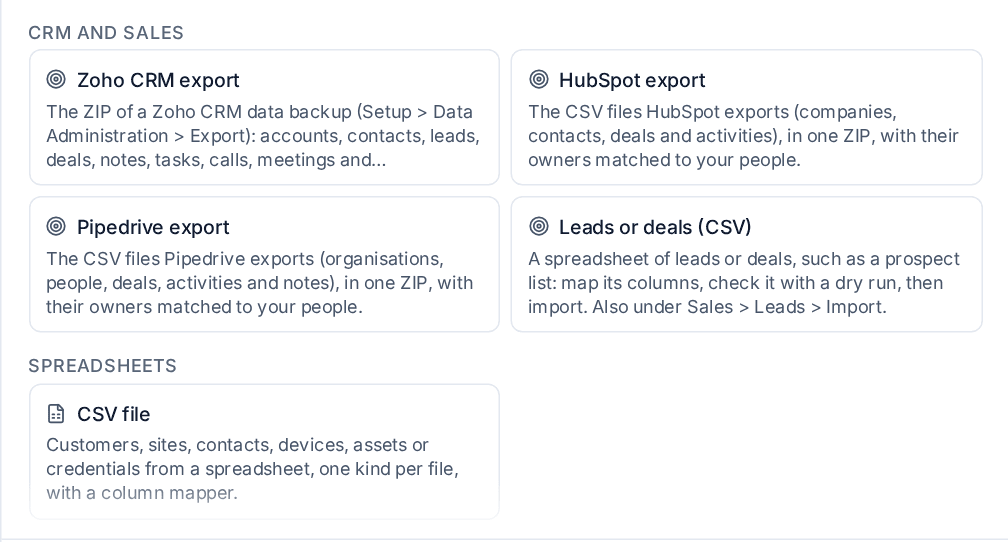
Open the source before you run anything. It shows what Tenvara found and where each part will go, with a picker for every choice:
- the files in the export;
- each owner, and the person in Tenvara they become (and how they were matched);
- each custom column, and the custom field it fills;
- each deal stage, and the stage in your pipeline its deals land in. A stage with no match goes to the open stage nearest the deal's probability, unless you choose one.
You can also choose whether a deal's amount is a one-off value or a monthly one.
Checking and importing
- Press Test. Tenvara reads the export and counts what it found.
- Press Dry run. Nothing is written. Every record gets a decision: created, matched to something you already have, or skipped with the reason. Duplicates inside the export are counted too.
- Look through the run. Verify checks that every row is accounted for, and the report at the end gives the counts per kind of record, who each owner became, where each custom column went, the attachments kept and why records were skipped.
- Fix anything in your choices on the source page and run the dry run again.
- When it looks right, press Import.
Tip: Make sure your salespeople have Tenvara accounts before you run the import, so their deals and activities arrive with an owner.
Running it again and undo
Importing is safe to repeat. Tenvara remembers every record it brought across, so running the same export again, or a newer export, makes nothing new: it matches what the last run made and fills in what changed. What an account became stays what it is, so a prospect that became a lead is not turned into a customer by a later run.
If an import is not right, open the run and press Undo import. Everything it created is removed, and records it matched are unlinked but kept. See Running side by side and switching.
Importing a spreadsheet of leads or deals
For a prospect list, or leads and deals from a CRM not listed above, use the import on the leads list.
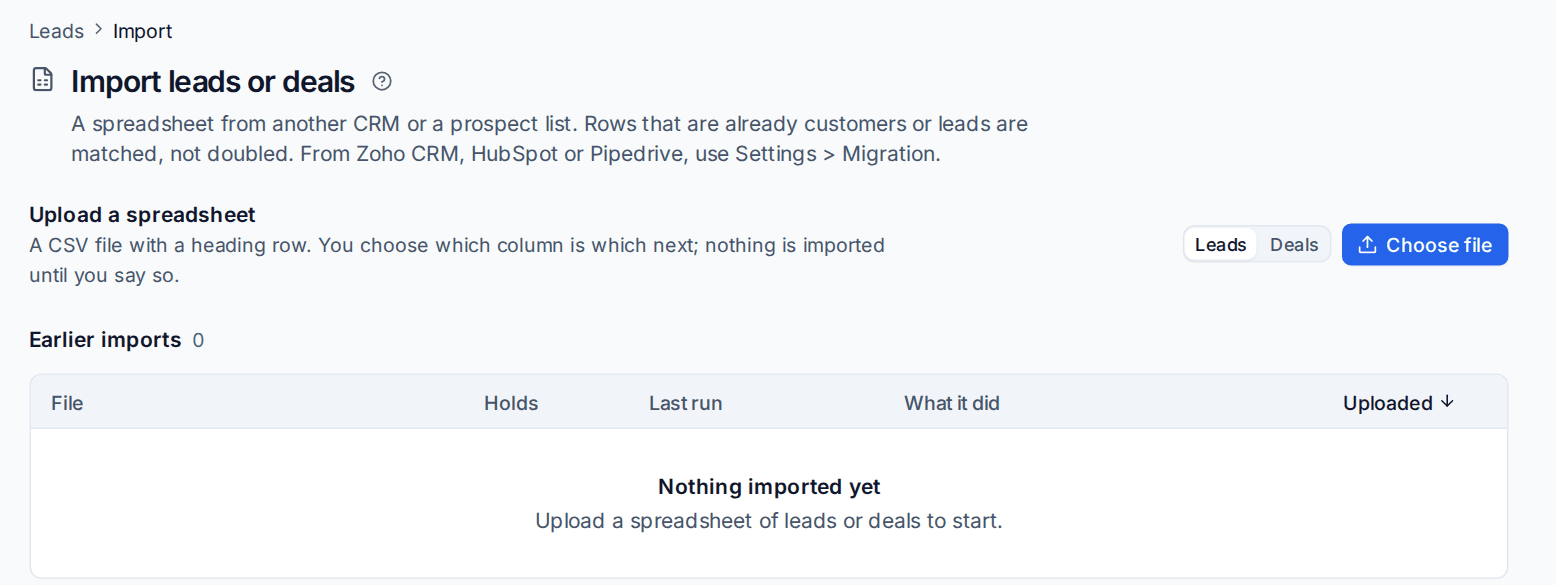
- Go to Sales and billing > Leads and press Import.
- Choose Leads or Deals, then Choose file and pick a CSV file with a heading row.
- Match each field to a column. Tenvara guesses from the headings that data providers and CRMs usually use, such as "Company", "# Employees", "Lead Owner" or "Deal Stage", and your lead and opportunity custom fields can be filled too. The first rows show how each column will be read.
- Save the mapping under a name, so the next file from the same place is mapped in one click.
- Choose the tags every row gets, who rows without an owner go to, the source for rows without one, and the status new leads start at.
- Run the dry run. Every row is checked on its own, and the counts say how many would be made, matched, skipped or refused, each with its reason.
- Download the rows with problems as a CSV (the row number, the problem, then the row as your file had it), fix them and import them again.
- Import when it looks right.
How rows are matched
- A lead row is checked against your customers first, by company name (ignoring case, punctuation and "Ltd" or "Limited"), email domain or website. A row for a company that is already a customer is skipped, and the report names the customer.
- Then against your leads: the same email address, the same company domain (a business email or the website, never a free mail address), then the same company name. A match has its empty fields filled and the tags added; nothing on it is overwritten.
- A second row for the same lead in the file is skipped, and another person at a company already in the file joins that lead.
- A deal goes on the customer its company is, else the lead it is, else a new lead made for the company, at the stage of that name in the pipeline named (or your default pipeline), open, won or lost, with its one-off and monthly values in the row's currency.
A country, number, date, amount, stage or owner the import cannot read is a problem for that row, never a guess. Earlier imports lists every file with what it did. Importing the same file again makes nothing new, and Undo removes what an import made, leaving matched leads as they were. Imports need the bulk actions permission on your role, like other bulk changes.
After the import
- Open a few customers and leads and check their timelines: notes, calls and meetings should sit where your salespeople expect them.
- Check the pipeline on Sales and billing > Opportunities for deals in the wrong stage.
- Work the tasks that came across from Sales and billing > My sales day. See My sales day and activities.
Related: Moving to Tenvara overview, Leads, Importing from other PSAs.
Was this page helpful?
Thanks for the feedback.