Microsoft 365
The setup section for Microsoft 365: the app registration, how you reach each tenant, the features a newly connected tenant starts with, and baselines that are checked for drift.
This section of the setup helper connects Tenvara to Microsoft 365: the app registration, consent for each tenant, the features each one uses, and baselines kept in place. It sits in the Devices and monitoring phase and takes about an hour.
Open it from Home > Set up, then Microsoft 365. It runs through the same six beats as every section: see Working through a section.
Before you start
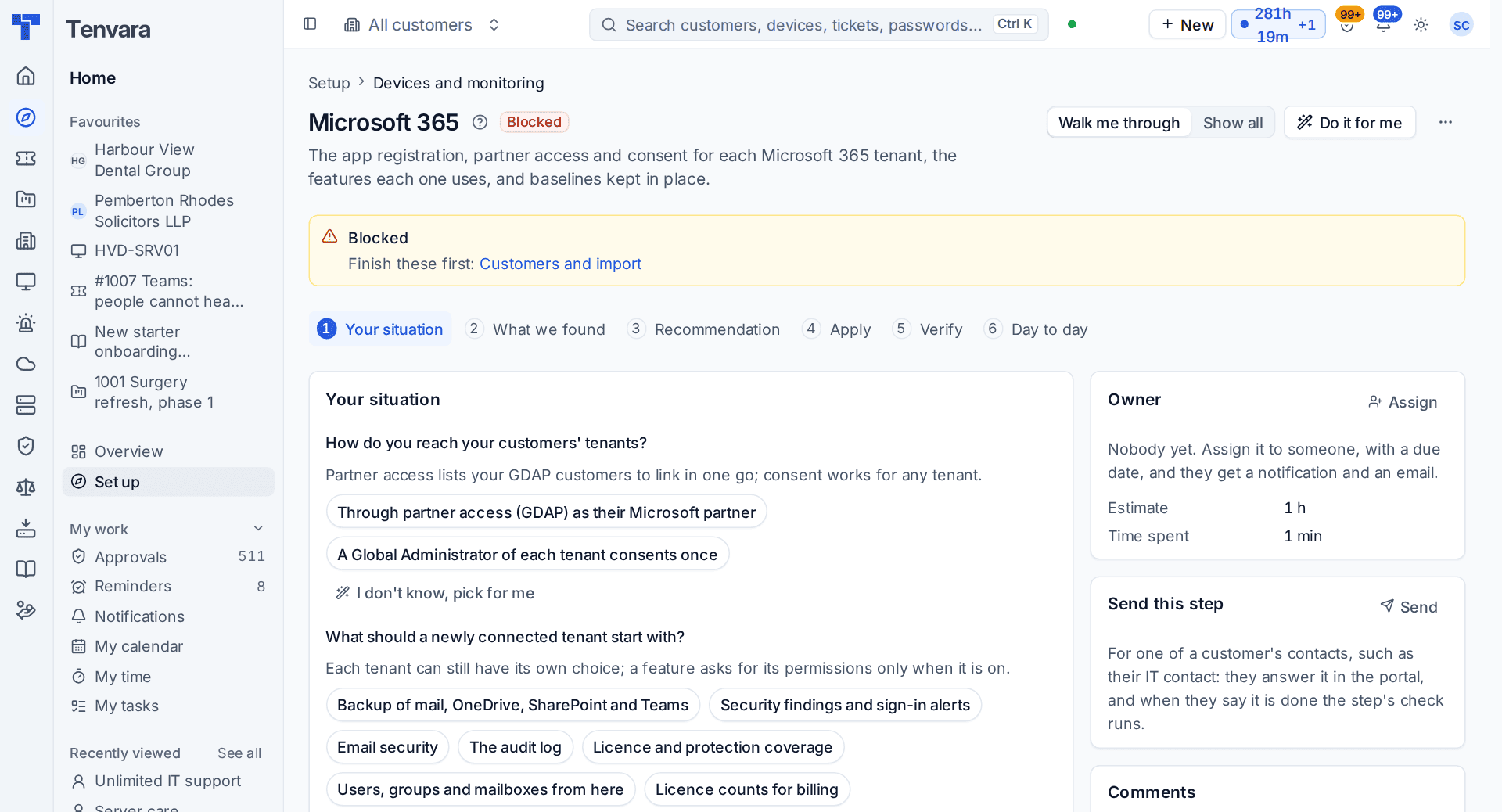
- Finish Company, brand and regional and Customers and import first. Until then the section shows Blocked, because a tenant is linked to a customer.
- You connect with your own Microsoft account. You need an app registration in your own Entra tenant, set up once, and the consent of a Global Administrator of each tenant you connect.
- If discovery says you do not use Microsoft 365, the section is listed as not needed, with that reason.
What it reads from your data
What we found shows:
- whether the app registration is set up;
- whether partner access (GDAP) is connected;
- tenants connected, and tenants that need attention;
- customers with mail on Microsoft 365 and no linked tenant.
The questions it asks
| Question | Choices | Pick for me |
|---|---|---|
| How do you reach your customers' tenants? | Through partner access (GDAP) as their Microsoft partner, or a Global Administrator of each tenant consents once | Partner access |
| What should a newly connected tenant start with? | Tick the features: backup of mail, OneDrive, SharePoint and Teams; security findings and sign-in alerts; email security; the audit log; licence and protection coverage; users, groups and mailboxes from here; licence counts for billing; and more | The seven listed here |
| Should a setting that drifts from a tenant's baseline be put back by itself? | Yes or no | Yes |
Consent by a Global Administrator works for any tenant. Partner access needs your own GDAP relationships with your customers. On the Company edition the first question is not asked: you consent once, in your own tenant.
Each tenant can still have its own choice of features, and a feature asks for its permissions only when it is on. With the drift question off, drift raises an alert and a person decides.
What it recommends and why
- New tenants start with the features you picked, and ask only for the permissions those need. Consent stays as small as the work you do for that customer.
- Baselines keep each tenant's security settings where you set them, and drift is never silent. Drift is put back or raised as an alert, as you chose.
The Apply beat has two steps of its own beside the settings:
- Create or check the app registration. This is the registration in your own Microsoft tenant that Tenvara signs in with.
- Connect customers' tenants and choose their features.
Settings applied here can be undone for 7 days.
Checking it worked
Verify runs four live checks:
- The app registration is set up. This one must pass before go-live. The fix opens Settings > Microsoft 365.
- Every customer on Microsoft 365 is linked. It names the customers whose mail is on Microsoft 365 and who have no tenant, with a link to Cloud.
- Consent and partner access are current. It names any tenant that cannot be reached and why.
- Each Microsoft 365 tenant has a baseline checked for drift.
Day to day
- A new customer's tenant is linked from the customer's Cloud tab or from this section's connect step, with the features you picked. Change a tenant's features on its Features tab.
- Straight after consent a tenant shows Finishing the connection while Microsoft sets up access, which can take up to 15 minutes. A tenant left pending has Check consent, and Connected by says how it was connected.
- Drift from a tenant's baseline is put back or raised as an alert. Review baselines in Cloud > Tenant baselines.
- Expiring consent shows on this section and on Health, and the app registration's own health and permissions are on Settings > Microsoft 365, the App registration tab.
Related guides
Was this page helpful?
Thanks for the feedback.